> ## Documentation Index
> Fetch the complete documentation index at: https://domoinc-openapi-sync-dataflows.mintlify.site/llms.txt
> Use this file to discover all available pages before exploring further.
# Tableau WDC 3.0 connector
## How To Use A Connector Built With The Web Data Connector 3.0 SDK
After you build a connector with the Web Data Connector 3.0 SDK, follow the below steps to be used with Tableau:
1. Download the connector file, domo-tableau-connector-1.0.0.taco using the link ([https://app.domo.com/DomoConnectors/DomoTableauWDC/domo-tableau-connector-1.1.taco](https://app.domo.com/DomoConnectors/DomoTableauWDC/domo-tableau-connector-1.1.taco "https://app.domo.com/DomoConnectors/DomoTableauWDC/domo-tableau-connector-1.1.taco")).
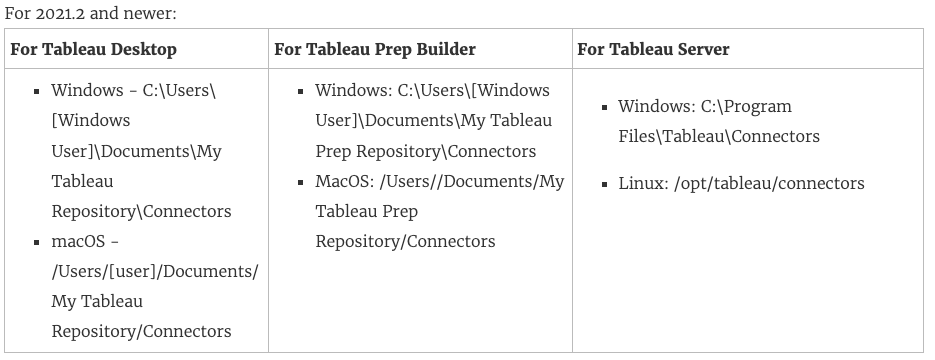
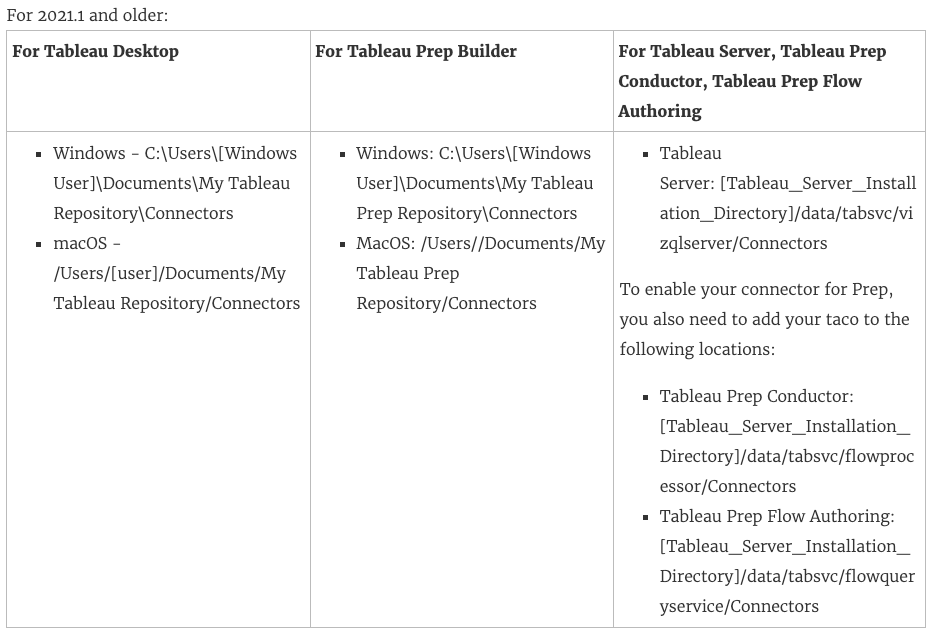
2. Place the.taco file in the following directory (default location):
 After you have installed the connector, it will appear in the list of connectors in Tableau.