Order ID | Customer ID | Ship Mode | Sales |
|---|---|---|---|
1 | CG-12520 | Second Class | 261.98 |
2 | CG-12520 | Second Class | 731.94 |
3 | DV-13045 | Second Class | 14.62 |
4 | SO-20335 | Standard Class | 957.5775 |
5 | SO-20335 | Standard Class | 22.368 |
6 | BH-11710 | Standard Class | 48.86 |
7 | BH-11710 | Standard Class | 7.28 |
8 | BH-11710 | Standard Class | 907.152 |
9 | BH-11710 | Second Class | 18.504 |
10 | BH-11710 | Second Class | 114.9 |
11 | BH-11710 | Standard Class | 1706.184 |
12 | BH-11710 | Standard Class | 911.424 |
13 | AA-10480 | Standard Class | 15.552 |
14 | IM-15070 | Standard Class | 407.976 |
15 | HP-14815 | Standard Class | 68.81 |
16 | HP-14815 | Standard Class | 2.544 |
17 | PK-19075 | Standard Class | 665.88 |
18 | AG-10270 | Second Class | 55.5 |
 ### Aggregations Using Non-Aggregated Columns
Aggregated Beast Modes that use non-aggregated columns can be harder to work with but can still executed using the following tips.
In this example, we have a Pivot Table that displays the total sales by customer with the following Beast Mode function:
```
Total Sales
-----------
SUM (`Sales`)
```
And results in the following query:
```sql theme={"dark"}
SELECT `Customer ID,` SUM(`Sales`) AS `Total Sales` FROM DataSet GROUP BY `Customer ID`
```
The query includes a Beast Mode that is an aggregation in the `SELECT` statement and a non-aggregated column `Customer ID.` For the query to function correctly, `Customer ID` must be included in the `GROUP BY` statement.
In our example scenario, orders shipped using `Standard Class` shipping cost 10% more than orders shipped using `Second Class.` When building your chart, you want the total sales using the `Standard Class` to be reduced by 10%; to do this, you can change the `Total Sales` Beast Mode to reduce sales using this shipping mode by 10%.
Your updated Beast Mode would look like this:
```
Total Sales
-----------
CASE
WHEN `Ship Mode` = `Standard Class` THEN SUM(`Sales` *.9)
WHEN 'Ship Mode` = `Second Class` THEN SUM(`Sales`)
END
```
This Beast Mode is considered an aggregation because, in the `THEN` statement for each `WHEN` clause, you use the aggregating function `SUM`. The `Ship Mode` function is non-aggregated, so when rebuilding the query, your pivot table should look like this:
```sql theme={"dark"}
SELECT `Customer ID`
CASE
WHEN `Ship Mode` = `Standard Class` THEN SUM(`Sales` *.9)
WHEN `Ship Mode` = `Standard Class` THEN SUM(`Sales`)
END AS `Total Sales`
FROM DataSet GROUP BY `Customer ID,` `Ship Mode`
```
Even though the `Ship Mode` column is not used directly in the `SELECT` statement, it is still used in the `SELECT` statement in the non-aggregated form through the Beast Mode `Total Sales.` For the query to function, the column `Ship Mode` must be included in the `GROUP BY` statement.
Your Pivot Table should now look like this:
### Aggregations Using Non-Aggregated Columns
Aggregated Beast Modes that use non-aggregated columns can be harder to work with but can still executed using the following tips.
In this example, we have a Pivot Table that displays the total sales by customer with the following Beast Mode function:
```
Total Sales
-----------
SUM (`Sales`)
```
And results in the following query:
```sql theme={"dark"}
SELECT `Customer ID,` SUM(`Sales`) AS `Total Sales` FROM DataSet GROUP BY `Customer ID`
```
The query includes a Beast Mode that is an aggregation in the `SELECT` statement and a non-aggregated column `Customer ID.` For the query to function correctly, `Customer ID` must be included in the `GROUP BY` statement.
In our example scenario, orders shipped using `Standard Class` shipping cost 10% more than orders shipped using `Second Class.` When building your chart, you want the total sales using the `Standard Class` to be reduced by 10%; to do this, you can change the `Total Sales` Beast Mode to reduce sales using this shipping mode by 10%.
Your updated Beast Mode would look like this:
```
Total Sales
-----------
CASE
WHEN `Ship Mode` = `Standard Class` THEN SUM(`Sales` *.9)
WHEN 'Ship Mode` = `Second Class` THEN SUM(`Sales`)
END
```
This Beast Mode is considered an aggregation because, in the `THEN` statement for each `WHEN` clause, you use the aggregating function `SUM`. The `Ship Mode` function is non-aggregated, so when rebuilding the query, your pivot table should look like this:
```sql theme={"dark"}
SELECT `Customer ID`
CASE
WHEN `Ship Mode` = `Standard Class` THEN SUM(`Sales` *.9)
WHEN `Ship Mode` = `Standard Class` THEN SUM(`Sales`)
END AS `Total Sales`
FROM DataSet GROUP BY `Customer ID,` `Ship Mode`
```
Even though the `Ship Mode` column is not used directly in the `SELECT` statement, it is still used in the `SELECT` statement in the non-aggregated form through the Beast Mode `Total Sales.` For the query to function, the column `Ship Mode` must be included in the `GROUP BY` statement.
Your Pivot Table should now look like this:
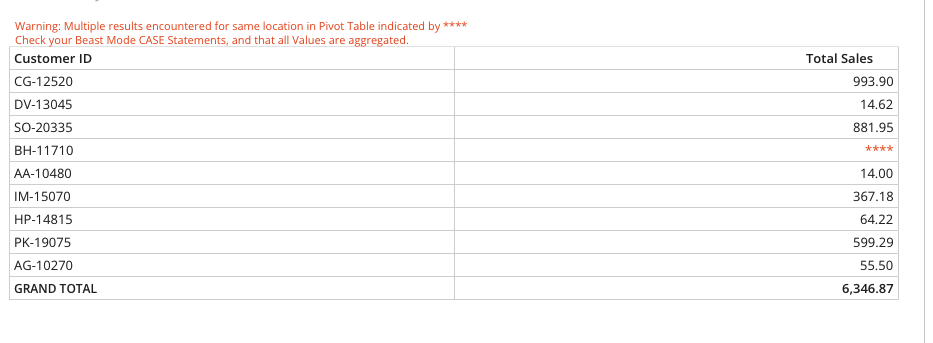 The Pivot Table data displays the `Customer ID` BH-11710, with a \*\*\*\*\* error in the `Total Sales` column. This error occurs because the customer uses two different `Ship Mode` values in their orders. The resulting output includes two rows because the customer has values for both `Standard Class` and `Second Class.` This causes errors in the Pivot Table because it expects a single row instead of two.
The `Ship Mode` column is not displayed because it is not included in the `SELECT` statement. Others viewing the table do not know the value that goes into the `Ship Mode,` nor can they see the actual `Total Sales` per customer.
### Grand Total and Sub-total Rows on Tables
The compute `Grand Total` row on the Pivot Table must also include a second query that allows you to get the true `Total Sales` value for all customers. Typically, when computing "total" rows, we remove the specific column from the query, but in this case, we take the main query and remove the `Customer ID.` Because the Beast Mode uses a non-aggregated column, it must be added to the `GROUP BY` statement.
If we remove the `Customer ID` column, we get this query:
```sql theme={"dark"}
SELECT
CASE
WHEN `Ship Mode` = `Standard Class` THEN SUM(`Sales` *.9)
WHEN `Ship Mode` = `Second Class` THEN SUM(`Sales`)
END AS `Total Sales`
FROM DataSet GROUP BY `Ship Mode`
```
This query retrieves the `Total Sales` for all customers. However, because this Beast Mode uses a non-aggregated column, we must still include that column in the `GROUP BY` statement.
This query produces the following two rows of data:
The Pivot Table data displays the `Customer ID` BH-11710, with a \*\*\*\*\* error in the `Total Sales` column. This error occurs because the customer uses two different `Ship Mode` values in their orders. The resulting output includes two rows because the customer has values for both `Standard Class` and `Second Class.` This causes errors in the Pivot Table because it expects a single row instead of two.
The `Ship Mode` column is not displayed because it is not included in the `SELECT` statement. Others viewing the table do not know the value that goes into the `Ship Mode,` nor can they see the actual `Total Sales` per customer.
### Grand Total and Sub-total Rows on Tables
The compute `Grand Total` row on the Pivot Table must also include a second query that allows you to get the true `Total Sales` value for all customers. Typically, when computing "total" rows, we remove the specific column from the query, but in this case, we take the main query and remove the `Customer ID.` Because the Beast Mode uses a non-aggregated column, it must be added to the `GROUP BY` statement.
If we remove the `Customer ID` column, we get this query:
```sql theme={"dark"}
SELECT
CASE
WHEN `Ship Mode` = `Standard Class` THEN SUM(`Sales` *.9)
WHEN `Ship Mode` = `Second Class` THEN SUM(`Sales`)
END AS `Total Sales`
FROM DataSet GROUP BY `Ship Mode`
```
This query retrieves the `Total Sales` for all customers. However, because this Beast Mode uses a non-aggregated column, we must still include that column in the `GROUP BY` statement.
This query produces the following two rows of data:
Total Sales |
|---|
1197.424 |
5721.6075 |