> ## Documentation Index
> Fetch the complete documentation index at: https://domoinc-openapi-sync-dataflows.mintlify.site/llms.txt
> Use this file to discover all available pages before exploring further.

# Build Domo Apps with the Pro-code Editor

export const InlineImage = ({src, alt = '', height = '1.6em'}) => {
  return <img noZoom src={src} alt={alt} style={{
    display: 'inline',
    verticalAlign: 'start',
    height: height,
    margin: '0'
  }} />;
};

### Intro

The Pro-code Editor helps you build high-value applications from within the Domo platform.

This article describes how to create apps and control versions in the Pro-code Editor.

***

### Access the Pro-code Editor

You can access and create new apps in the Pro-code Editor through the Asset Library in your Domo instance. Follow the steps below to access the Pro-code Editor:

1. Open the **Asset Library**.
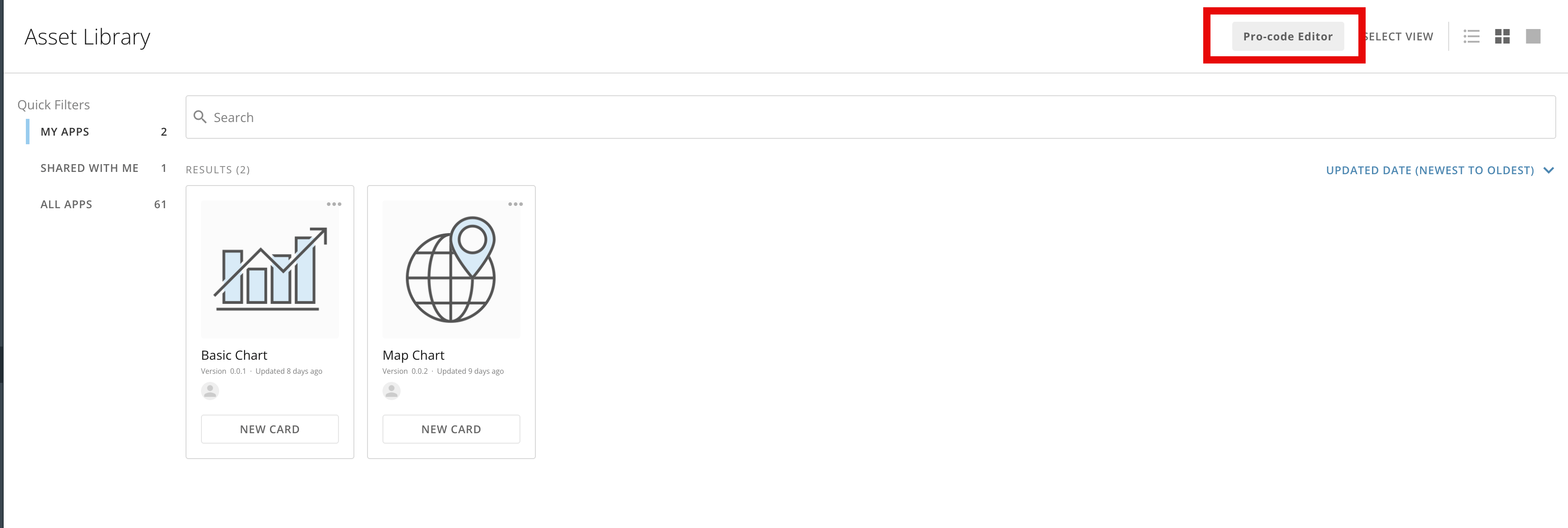
2. Select **Pro-code Editor** to open the **Templates** modal.

   <Frame>
     <img alt="Screenshot 2024-07-17 at 9.40.54 AM.png" src="https://mintcdn.com/domoinc-openapi-sync-dataflows/EtHMjR0Dwu423b1z/images/kb/ka0Vq0000004oHZ-00N5w00000Ri7BU-0EMVq000001niDq.jpg?fit=max&auto=format&n=EtHMjR0Dwu423b1z&q=85&s=eb9069a4147dd6fbb474982877ca3709" style={{width: 900, height: 303}} width="3456" height="1164" data-path="images/kb/ka0Vq0000004oHZ-00N5w00000Ri7BU-0EMVq000001niDq.jpg" />
   </Frame>
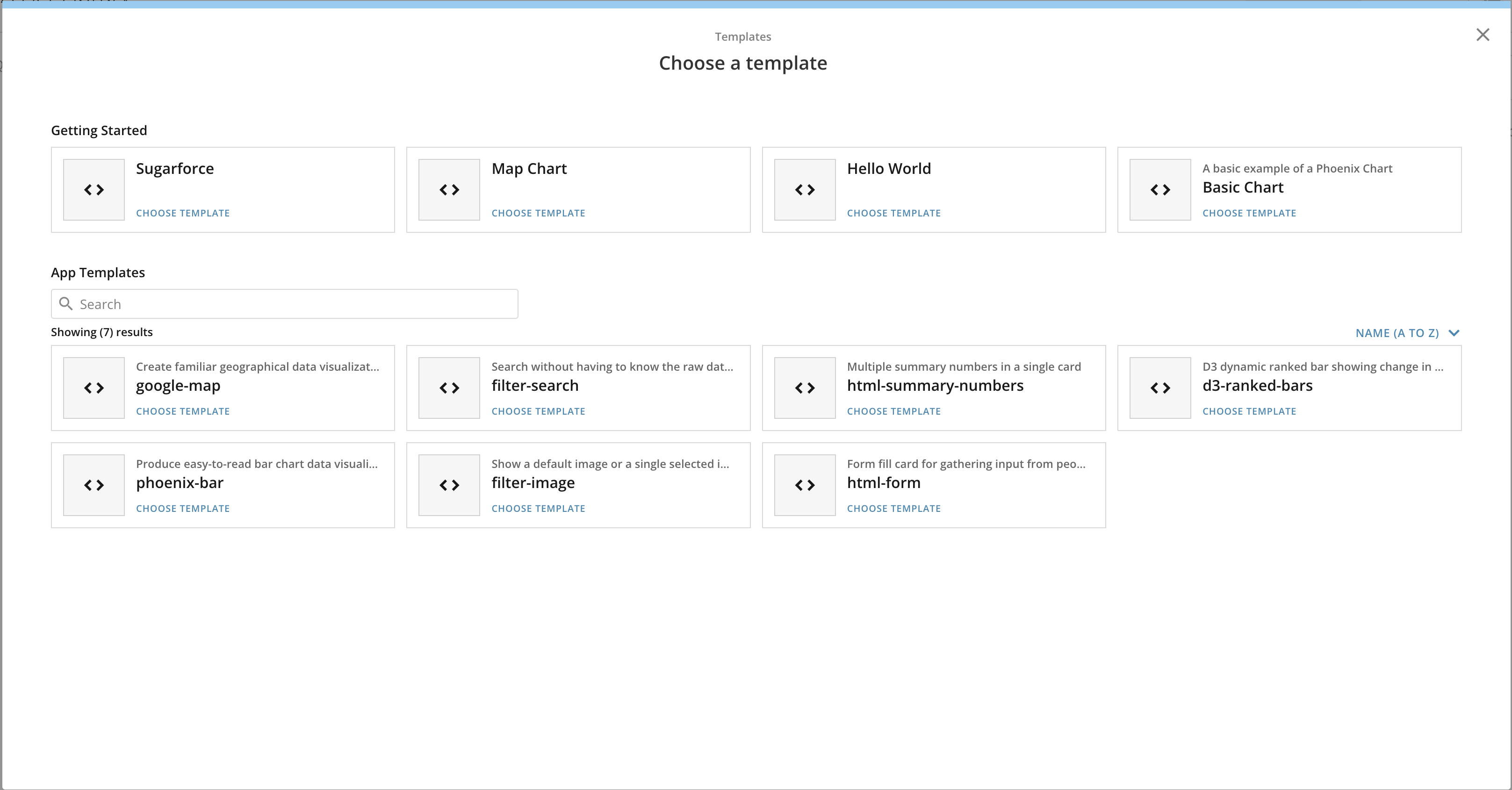
3. Choose a template to open the editor and set up your workspace.
   <Frame>
     <img alt="Screenshot 2024-07-17 at 9.49.35 AM.png" src="https://mintcdn.com/domoinc-openapi-sync-dataflows/EtHMjR0Dwu423b1z/images/kb/ka0Vq0000004oHZ-00N5w00000Ri7BU-0EMVq000001nmVx.jpg?fit=max&auto=format&n=EtHMjR0Dwu423b1z&q=85&s=b14dd87d93dea11a9d652dcd26cb7806" style={{width: 672, height: 351}} width="3234" height="1690" data-path="images/kb/ka0Vq0000004oHZ-00N5w00000Ri7BU-0EMVq000001nmVx.jpg" />
   </Frame>

### Set Up Your Workspace

<Note>
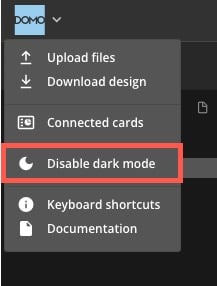
  **Dark Mode:** The Pro-code Editor's dark mode is on by default. Select the **Domo logo dropdown** > **Disable dark mode** to turn it off.

  <Frame>
    <img alt="disable dark more.jpg" src="https://mintcdn.com/domoinc-openapi-sync-dataflows/EtHMjR0Dwu423b1z/images/kb/ka0Vq0000004oHZ-00N5w00000Ri7BU-0EMVq0000028hUr.jpg?fit=max&auto=format&n=EtHMjR0Dwu423b1z&q=85&s=3f4e67b1c408eb722b4af520cc66d013" width="217" height="286" data-path="images/kb/ka0Vq0000004oHZ-00N5w00000Ri7BU-0EMVq0000028hUr.jpg" />
  </Frame>
</Note>

# Hide/Show File Explorer and Preview the App

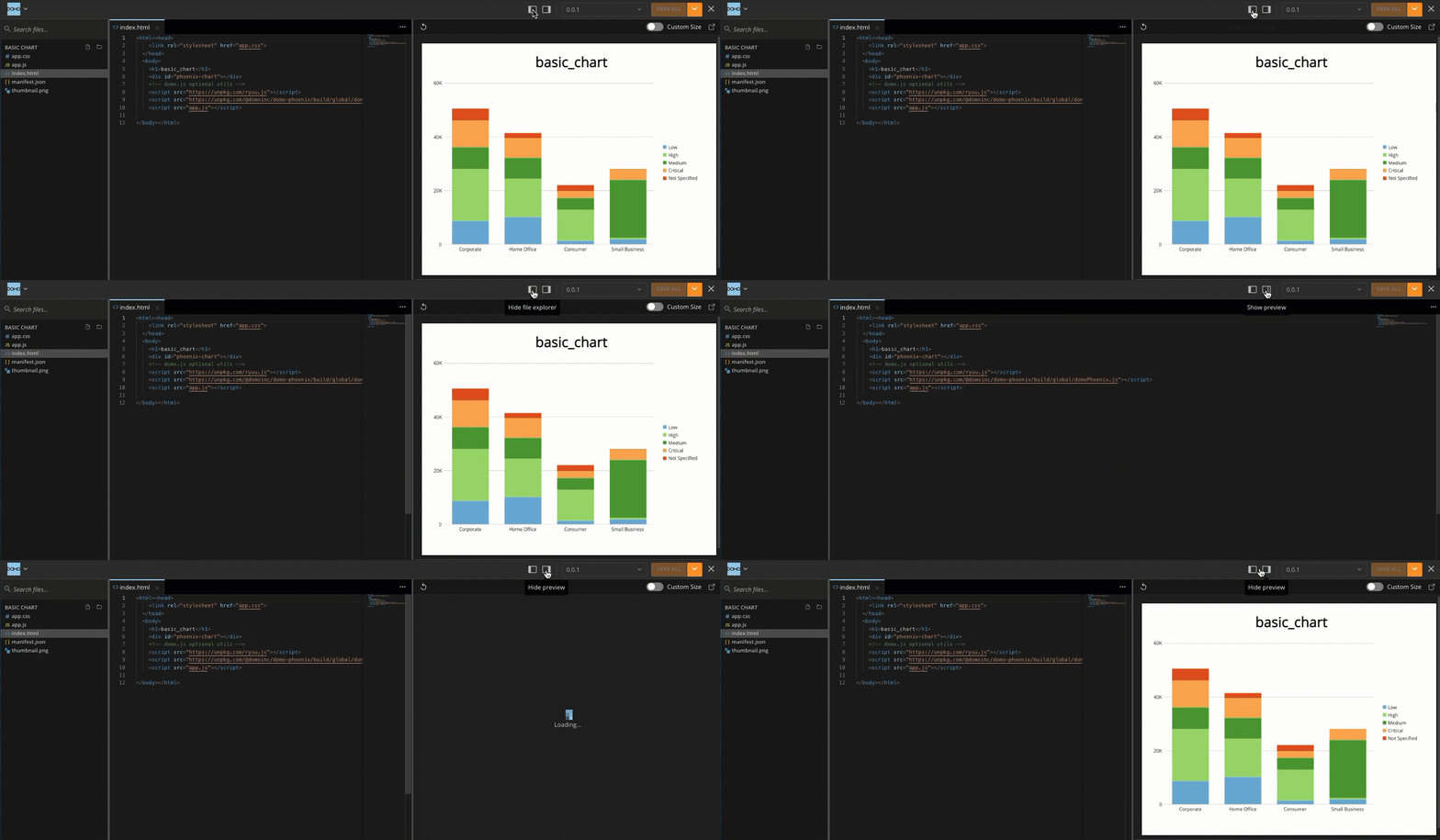
By default, the file explorer, editor, and preview all display on the screen. However, you can customize your work area using the <InlineImage src="/images/kb/ka0Vq0000004oHZ-00N5w00000Ri7BU-0EMVq000001mqzp.jpg" /> **Hide file explorer** and <InlineImage src="/images/kb/ka0Vq0000004oHZ-00N5w00000Ri7BU-0EMVq000001mnU7.jpg" /> **Hide preview** controls.

<Frame>
  <img alt="custom screen gif.gif" src="https://mintcdn.com/domoinc-openapi-sync-dataflows/EtHMjR0Dwu423b1z/images/kb/ka0Vq0000004oHZ-00N5w00000Ri7BU-0EMVq000003sgmv.jpg?s=0e56b426c6bbb439fe602844041dd3b9" style={{width: 900, height: 351}} width="1338" height="522" data-path="images/kb/ka0Vq0000004oHZ-00N5w00000Ri7BU-0EMVq000003sgmv.jpg" />
</Frame>

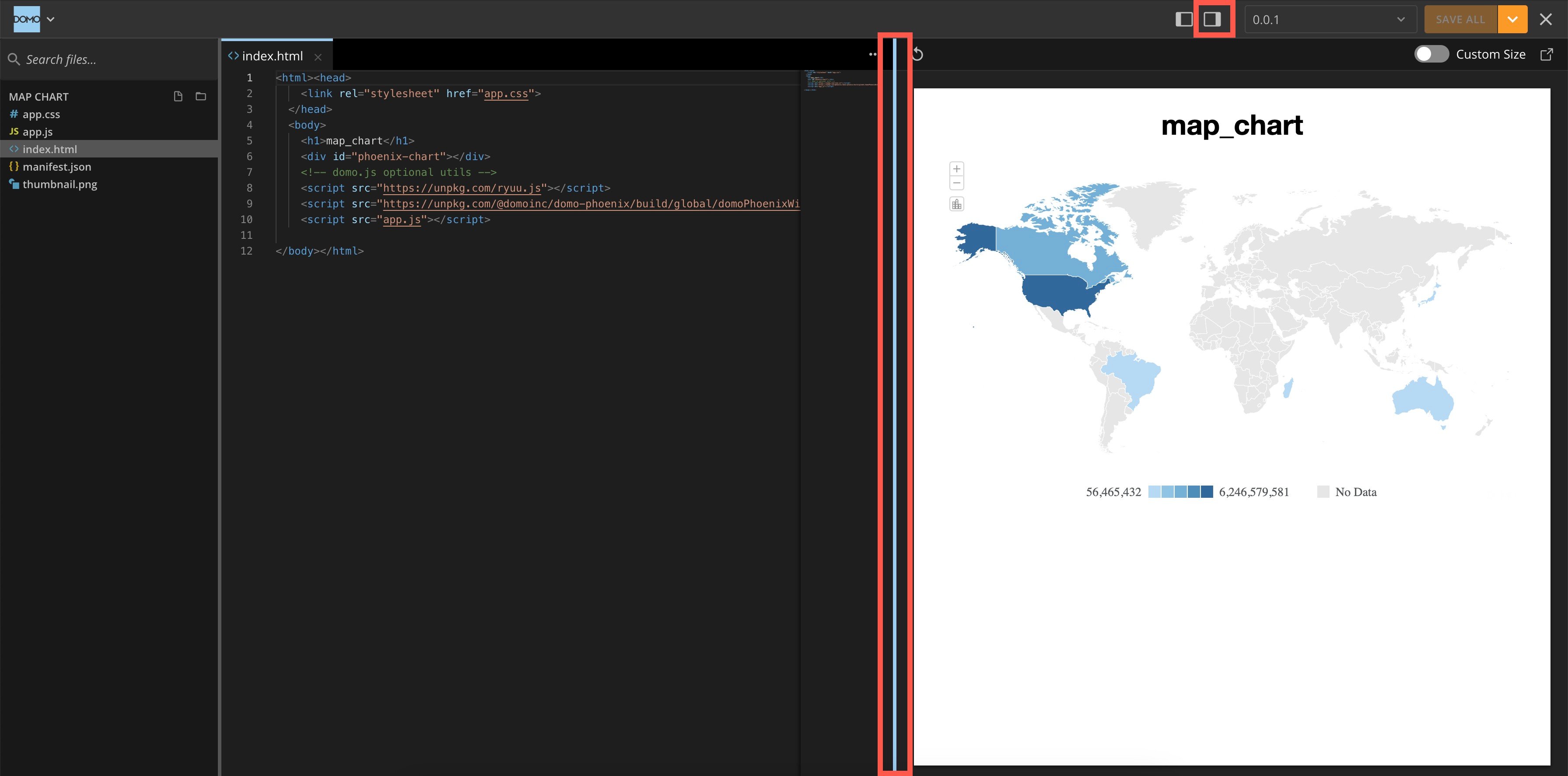
**Note:** If you can't see the app preview, use the <InlineImage src="/images/kb/ka0Vq0000004oHZ-00N5w00000Ri7BU-0EMVq000001mnU7.jpg" /> **Show/Hide preview** control in the top navigation. You can resize the preview by dragging the inside border left and right.
<Frame>
  <img alt="preview.jpg" src="https://mintcdn.com/domoinc-openapi-sync-dataflows/EtHMjR0Dwu423b1z/images/kb/ka0Vq0000004oHZ-00N5w00000Ri7BU-0EMVq0000028c29.jpg?fit=max&auto=format&n=EtHMjR0Dwu423b1z&q=85&s=60de6c69ccea349dbe45c4b7ee63307e" style={{width: 899, height: 445}} width="3584" height="1774" data-path="images/kb/ka0Vq0000004oHZ-00N5w00000Ri7BU-0EMVq0000028c29.jpg" />
</Frame>

You can take the following actions when previewing your app:
<table border="1" cellpadding="1" cellspacing="1" data-aura-rendered-by="33:207;a"><thead><tr><th colspan="1" rowspan="1"><p> Action </p></th><th colspan="1" rowspan="1"><p> Image </p></th></tr></thead><tbody><tr><td colspan="1" rowspan="1"><p> Select <img alt="refresh icon.jpg" src="https://mintcdn.com/domoinc-openapi-sync-dataflows/EtHMjR0Dwu423b1z/images/kb/ka0Vq0000004oHZ-00N5w00000Ri7BU-0EMVq0000028a0M.jpg?fit=max&auto=format&n=EtHMjR0Dwu423b1z&q=85&s=9ce23b63dbf7fbf31f66f9a038db8064" style={{width: 22, height: 21}} width="62" height="58" data-path="images/kb/ka0Vq0000004oHZ-00N5w00000Ri7BU-0EMVq0000028a0M.jpg" /><b> Refresh </b> to see your latest saved changes. </p></td><td colspan="1" rowspan="1"><p><img alt="refresh preview.jpg" src="https://mintcdn.com/domoinc-openapi-sync-dataflows/EtHMjR0Dwu423b1z/images/kb/ka0Vq0000004oHZ-00N5w00000Ri7BU-0EMVq0000028dz7.jpg?fit=max&auto=format&n=EtHMjR0Dwu423b1z&q=85&s=ad71e3b6c3104564094a2401640cc82a" style={{width: 753, height: 112}} width="2178" height="324" data-path="images/kb/ka0Vq0000004oHZ-00N5w00000Ri7BU-0EMVq0000028dz7.jpg" /></p></td></tr><tr><td colspan="1" rowspan="1"><p> Toggle the <b> Custom Size </b> switch to change the width and height of your app preview. You can choose to display it in pixels or as a Domo card. </p><p> Select <b> Update </b> to apply your changes. </p></td><td colspan="1" rowspan="1"><p><img alt="Screenshot 2024-08-08 at 10.51.53 AM.png" src="https://mintcdn.com/domoinc-openapi-sync-dataflows/EtHMjR0Dwu423b1z/images/kb/ka0Vq0000004oHZ-00N5w00000Ri7BU-0EMVq0000028e8n.jpg?fit=max&auto=format&n=EtHMjR0Dwu423b1z&q=85&s=6030e07b0a380d033d524e523bef4a8a" style={{width: 749, height: 113}} width="2162" height="326" data-path="images/kb/ka0Vq0000004oHZ-00N5w00000Ri7BU-0EMVq0000028e8n.jpg" /></p></td></tr><tr><td colspan="1" rowspan="1"><p> Select <img alt="open new.jpg" src="https://mintcdn.com/domoinc-openapi-sync-dataflows/EtHMjR0Dwu423b1z/images/kb/ka0Vq0000004oHZ-00N5w00000Ri7BU-0EMVq0000028WWF.jpg?fit=max&auto=format&n=EtHMjR0Dwu423b1z&q=85&s=152673f000a6fb8f89f261437196d3fd" style={{width: 22, height: 22}} width="54" height="54" data-path="images/kb/ka0Vq0000004oHZ-00N5w00000Ri7BU-0EMVq0000028WWF.jpg" /><b> Open in new window </b> to interact with the preview in a new browser window. <br /><br /> After interacting with the preview in a new window, you'll need to select <img alt="Screenshot 2024-07-16 at 12.28.17 PM.png" src="https://mintcdn.com/domoinc-openapi-sync-dataflows/EtHMjR0Dwu423b1z/images/kb/ka0Vq0000004oHZ-00N5w00000Ri7BU-0EMVq000001mnU7.jpg?fit=max&auto=format&n=EtHMjR0Dwu423b1z&q=85&s=c7244f3d8547f7b053a32a916cfd8b9d" style={{width: 34, height: 29}} width="72" height="62" data-path="images/kb/ka0Vq0000004oHZ-00N5w00000Ri7BU-0EMVq000001mnU7.jpg" /><b> Show preview </b> before it displays again within the editor. </p></td><td colspan="1" rowspan="1"><img alt="open new preview.jpg" src="https://mintcdn.com/domoinc-openapi-sync-dataflows/EtHMjR0Dwu423b1z/images/kb/ka0Vq0000004oHZ-00N5w00000Ri7BU-0EMVq0000028elV.jpg?fit=max&auto=format&n=EtHMjR0Dwu423b1z&q=85&s=e8d4958c62ed2805046bb66a5558fac5" style={{width: 746, height: 111}} width="2178" height="324" data-path="images/kb/ka0Vq0000004oHZ-00N5w00000Ri7BU-0EMVq0000028elV.jpg" /><a id="view_keyboard_shortcuts" target="_blank" /></td></tr></tbody></table>

# View Keyboard Shortcuts

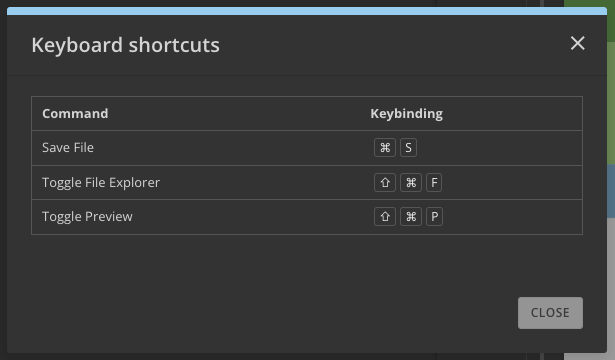
Select **Domo logo dropdown** > **Help** > **Keyboard shortcuts** to view the Pro-code Editor's available keyboard shortcuts.

<Frame>
  <img alt="Screenshot 2024-08-07 at 11.13.17 AM.png" src="https://mintcdn.com/domoinc-openapi-sync-dataflows/EtHMjR0Dwu423b1z/images/kb/ka0Vq0000004oHZ-00N5w00000Ri7BU-0EMVq0000027Ttl.jpg?fit=max&auto=format&n=EtHMjR0Dwu423b1z&q=85&s=bf20be2211dd0ef9c273c1e8311b44e1" style={{width: 499, height: 292}} width="615" height="360" data-path="images/kb/ka0Vq0000004oHZ-00N5w00000Ri7BU-0EMVq0000027Ttl.jpg" />
</Frame>

### Upload Files to Your Project

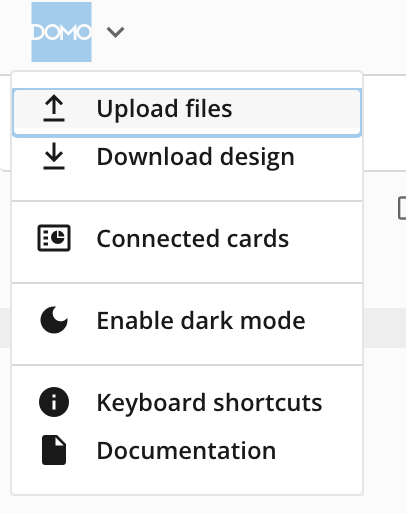
To add files from your machine to your app, select the **Domo logo dropdown** > **Upload files**.
<Frame>
  <img src="https://mintcdn.com/domoinc-openapi-sync-dataflows/EtHMjR0Dwu423b1z/images/kb/ka0Vq0000004oHZ-00N5w00000Ri7BU-0EMVq000001hTxR.jpg?fit=max&auto=format&n=EtHMjR0Dwu423b1z&q=85&s=ca44523b5fc63e90ce566086ff1e30d7" style={{width: 228, height: 289}} width="406" height="514" data-path="images/kb/ka0Vq0000004oHZ-00N5w00000Ri7BU-0EMVq000001hTxR.jpg" />
</Frame>

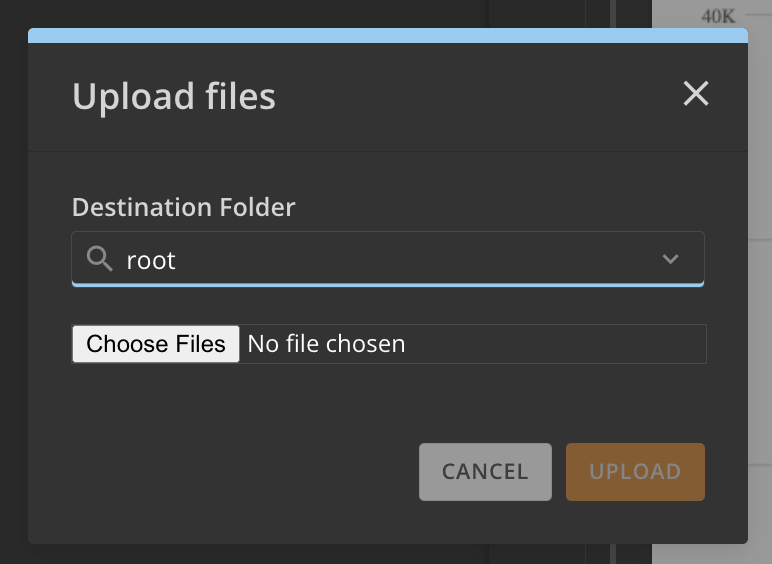
Choose the destination folder for your file and select **Upload**.
<Frame>
  <img alt="Screenshot 2024-08-08 at 11.07.31 AM.png" src="https://mintcdn.com/domoinc-openapi-sync-dataflows/EtHMjR0Dwu423b1z/images/kb/ka0Vq0000004oHZ-00N5w00000Ri7BU-0EMVq0000028fMb.jpg?fit=max&auto=format&n=EtHMjR0Dwu423b1z&q=85&s=875db5894f954bea797b2c72f8873b3d" style={{width: 350, height: 256}} width="772" height="564" data-path="images/kb/ka0Vq0000004oHZ-00N5w00000Ri7BU-0EMVq0000028fMb.jpg" />
</Frame>

### Create an App

1. [Access](#access_the_pro-code_editor) the Pro-code Editor and choose a template.

   After you choose a template, the new app displays in the Asset Library.
2. [Set up your workspace](#set_up_your_workspace) and [upload](#upload_files) any files from your machine.
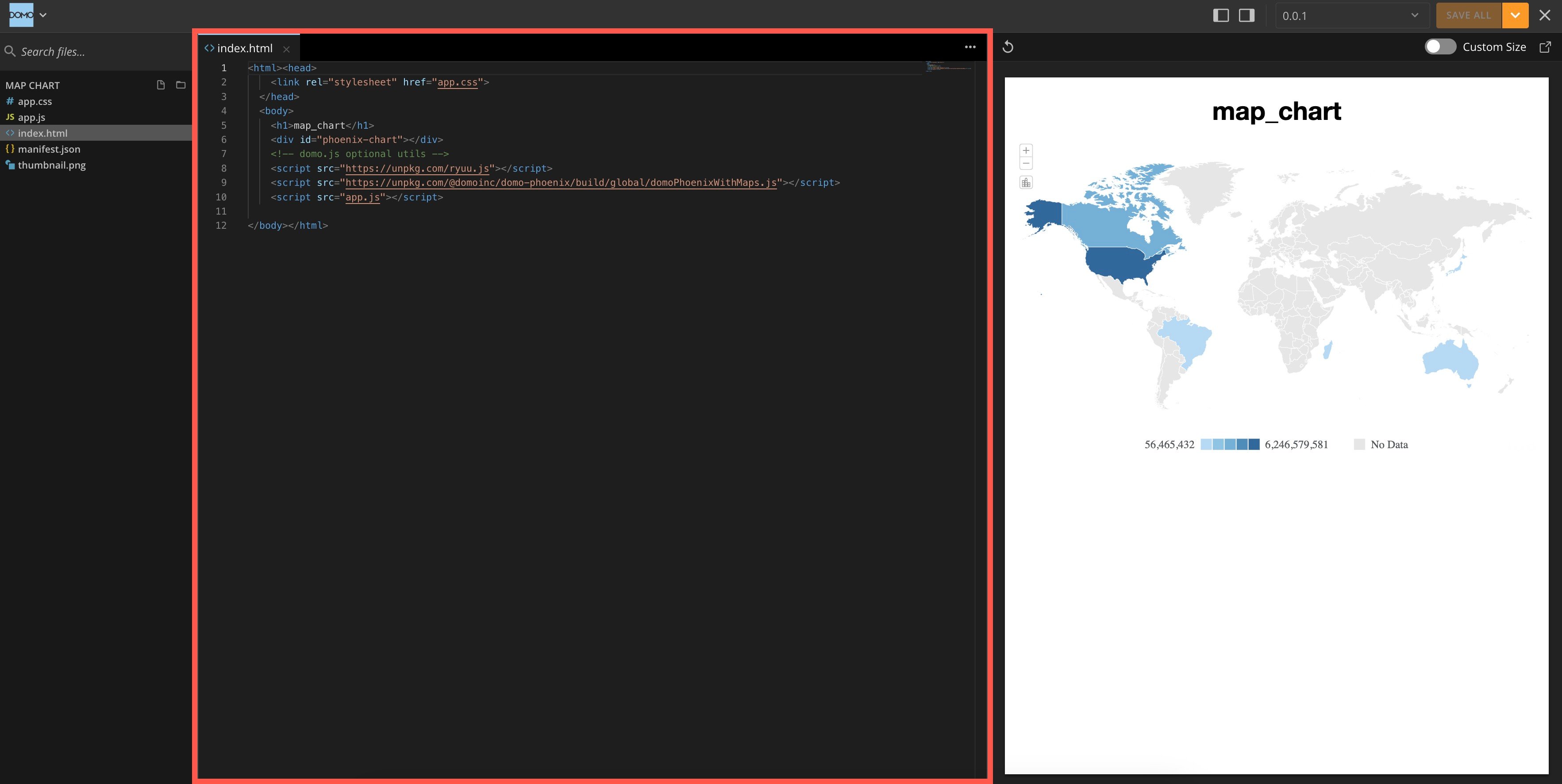
3. Add and edit code in the editor.
   <Frame>
     <img alt="code editor.jpg" src="https://mintcdn.com/domoinc-openapi-sync-dataflows/EtHMjR0Dwu423b1z/images/kb/ka0Vq0000004oHZ-00N5w00000Ri7BU-0EMVq0000029EDt.jpg?fit=max&auto=format&n=EtHMjR0Dwu423b1z&q=85&s=d0d4e49488889d146c6c7db3523cbb97" style={{width: 900, height: 452}} width="3530" height="1772" data-path="images/kb/ka0Vq0000004oHZ-00N5w00000Ri7BU-0EMVq0000029EDt.jpg" />
   </Frame>
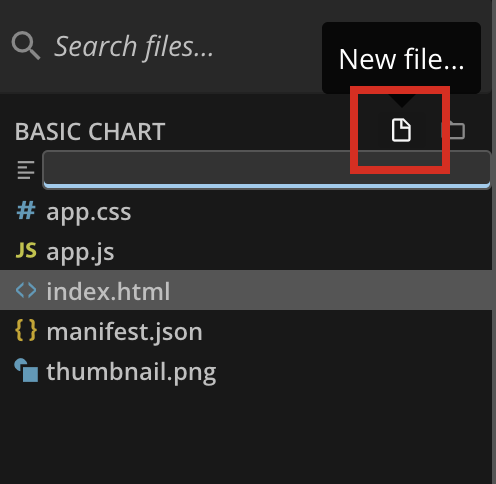
4. (Optional) In the file explorer, select **New File** to add a supported file to your project. The Pro-code Editor supports many file types. Usually, you'll use CSS, JS, and HTML files.
   <Frame>
     <img src="https://mintcdn.com/domoinc-openapi-sync-dataflows/EtHMjR0Dwu423b1z/images/kb/ka0Vq0000004oHZ-00N5w00000Ri7BU-0EMVq000001hXbF.jpg?fit=max&auto=format&n=EtHMjR0Dwu423b1z&q=85&s=fb8d68add9b0a66f9cd8e459ca309658" style={{width: 249, height: 244}} width="496" height="484" data-path="images/kb/ka0Vq0000004oHZ-00N5w00000Ri7BU-0EMVq000001hXbF.jpg" />
   </Frame>
5. After creating a new file, select it in the file explorer to open it in the editor. Double-click it to open it in a new tab and pin it. In the editor, unpinned tabs show in italics, while pinned tabs are unitalicized.

   <Frame>
     <img alt="pinned tabs.jpg" src="https://mintcdn.com/domoinc-openapi-sync-dataflows/EtHMjR0Dwu423b1z/images/kb/ka0Vq0000004oHZ-00N5w00000Ri7BU-0EMVq00000296Rd.jpg?fit=max&auto=format&n=EtHMjR0Dwu423b1z&q=85&s=e419414bc6d5419a46f36596df9b638c" style={{width: 447, height: 67}} width="720" height="108" data-path="images/kb/ka0Vq0000004oHZ-00N5w00000Ri7BU-0EMVq00000296Rd.jpg" />
   </Frame>
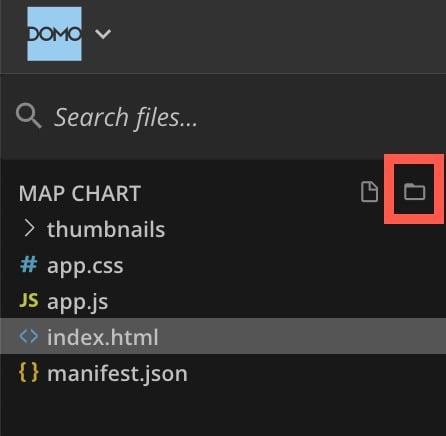
6. (Optional) Select **New folder** to add a folder to the file explorer. Drag files to place them in the folder. Hover over a file/folder to view and select options.
   <Frame>
     <img alt="new folder.jpg" src="https://mintcdn.com/domoinc-openapi-sync-dataflows/EtHMjR0Dwu423b1z/images/kb/ka0Vq0000004oHZ-00N5w00000Ri7BU-0EMVq000002BWGL.jpg?fit=max&auto=format&n=EtHMjR0Dwu423b1z&q=85&s=5896ebd7f952f4b69f5145d67118ea24" style={{width: 250, height: 244}} width="446" height="436" data-path="images/kb/ka0Vq0000004oHZ-00N5w00000Ri7BU-0EMVq000002BWGL.jpg" />
   </Frame>
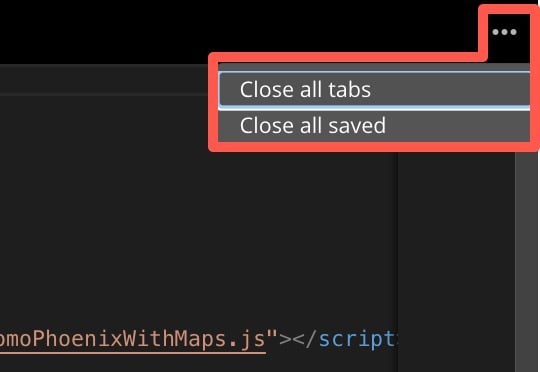
7. (Conditional) You can close tabs individually using the **Close** (x icon) option at the top of the tab. There are two options for closing multiple tabs at the same time: **Close all tabs** or **Close all saved** tabs.

   Open the **Action menu** (horizontal triple dot icon) in the editor to use either option.
   <Frame>
     <img alt="close all tabs.jpg" src="https://mintcdn.com/domoinc-openapi-sync-dataflows/EtHMjR0Dwu423b1z/images/kb/ka0Vq0000004oHZ-00N5w00000Ri7BU-0EMVq0000029BBC.jpg?fit=max&auto=format&n=EtHMjR0Dwu423b1z&q=85&s=1bab73bead5332abb468de69955166fc" style={{width: 401, height: 276}} width="540" height="372" data-path="images/kb/ka0Vq0000004oHZ-00N5w00000Ri7BU-0EMVq0000029BBC.jpg" />
   </Frame>
8. Use one of the available options to
   [save your app](#save_an_app).
   <Tip>
     **View connected cards —** To see all the cards connected to your app, select **Domo logo dropdown** > **Connected** **cards**.
   </Tip>

# Save an App

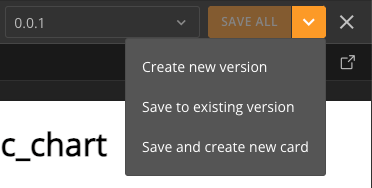
Save your app using the following save options in the editor's top navigation:

* **Save All** **—** This is the default save option and saves all your changes to the app in the Asset Library.
* **Create new version —** This saves all your changes to a new app version. You can add release notes when saving.
* **Save to existing version —** If you have at least one saved version of the app, this saves your changes to an existing version. Saving changes to live versions immediately replaces the old app version and any associated cards.
* **Save and create new card** **—** This saves all your changes and creates a new app card. You are redirected to the app card on your system **Overview** page.

<Frame>
  <img alt="Screenshot 2024-11-18 at 2.16.55 PM.png" src="https://mintcdn.com/domoinc-openapi-sync-dataflows/EtHMjR0Dwu423b1z/images/kb/ka0Vq0000004oHZ-00N5w00000Ri7BU-0EMVq000003siLi.jpg?fit=max&auto=format&n=EtHMjR0Dwu423b1z&q=85&s=8a195edbf3403be0ab8133939ef80f86" style={{width: 398, height: 201}} width="372" height="188" data-path="images/kb/ka0Vq0000004oHZ-00N5w00000Ri7BU-0EMVq000003siLi.jpg" />
</Frame>

# Move Between App Versions

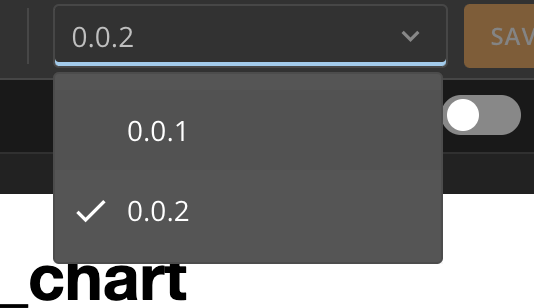
The editor's top navigation includes a version dropdown where you can move between available app versions. When opening the editor, the most recent version displays by default.
<Frame>
  <img src="https://mintcdn.com/domoinc-openapi-sync-dataflows/EtHMjR0Dwu423b1z/images/kb/ka0Vq0000004oHZ-00N5w00000Ri7BU-0EMVq000001id9z.jpg?fit=max&auto=format&n=EtHMjR0Dwu423b1z&q=85&s=4e1832a281ace44da5a9d939db4870fe" style={{width: 250, height: 144}} width="534" height="308" data-path="images/kb/ka0Vq0000004oHZ-00N5w00000Ri7BU-0EMVq000001id9z.jpg" />
</Frame>

### Download an App

Select the **Domo logo dropdown** > **Download design** to download the app code in a ZIP file.

### Edit an App

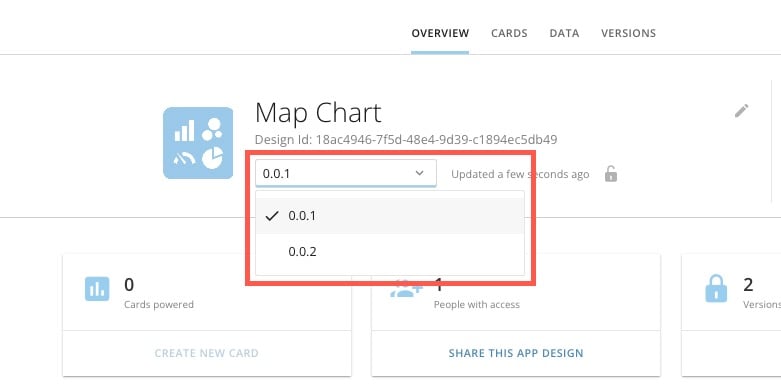
To edit your app, find it in the Asset Library and select it to view the Details page. If there is more than one version of the app, you can change versions to see that version's information:
<Frame>
  <img alt="choose version.jpg" src="https://mintcdn.com/domoinc-openapi-sync-dataflows/EtHMjR0Dwu423b1z/images/kb/ka0Vq0000004oHZ-00N5w00000Ri7BU-0EMVq000002A1jF.jpg?fit=max&auto=format&n=EtHMjR0Dwu423b1z&q=85&s=ce4c56869b88c701775f8e88f2bc9cdd" style={{width: 649, height: 324}} width="781" height="390" data-path="images/kb/ka0Vq0000004oHZ-00N5w00000Ri7BU-0EMVq000002A1jF.jpg" />
</Frame>

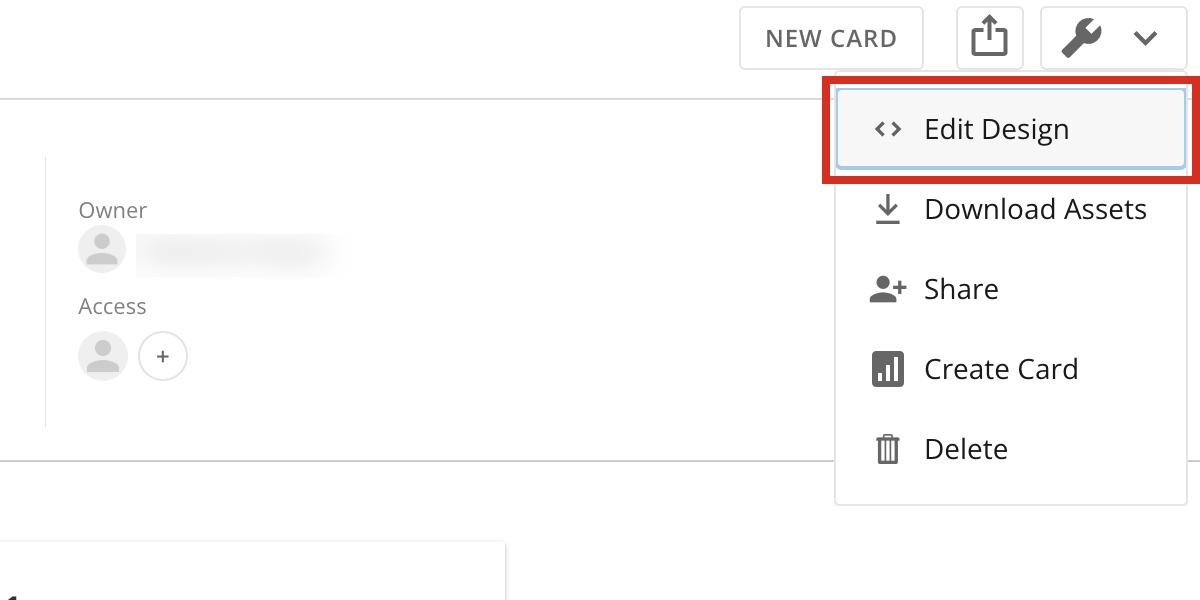
Select **App options** > **Edit Design** to open the app in the Pro-code Editor.

If there are multiple app versions, the most recent version opens automatically.
<Frame>
  <img src="https://mintcdn.com/domoinc-openapi-sync-dataflows/EtHMjR0Dwu423b1z/images/kb/ka0Vq0000004oHZ-00N5w00000Ri7BU-0EMVq000001hWIc.jpg?fit=max&auto=format&n=EtHMjR0Dwu423b1z&q=85&s=a7be2848e30b68bcba1913966a0b8fe1" style={{width: 516, height: 258}} width="1200" height="600" data-path="images/kb/ka0Vq0000004oHZ-00N5w00000Ri7BU-0EMVq000001hWIc.jpg" />
</Frame>