> ## Documentation Index
> Fetch the complete documentation index at: https://domoinc-openapi-sync-dataflows.mintlify.site/llms.txt
> Use this file to discover all available pages before exploring further.
# Session Settings
### Intro
With the proper grant, admins can configure session length settings for browser and mobile app sessions. Session length is the period of time before users are automatically logged out of Domo.
Admins can also terminate user sessions manually. See [Session Management](/s/article/000005432).
***
### Required Grant
Admins must have the **Manage All Company Settings** grant to view or configure the session settings.
**Tip:** The **Manage All Company Settings** grant gives access to control settings for the entire Domo environment. For this reason, we strongly recommend limiting this grant to Domo admins only.
See [Managing Custom Roles](/s/article/360043438973) to learn more about grants.
### Access Session Settings
Follow these steps to access Session Settings:
1. From the navigation header, select **More** > **Admin Settings**.
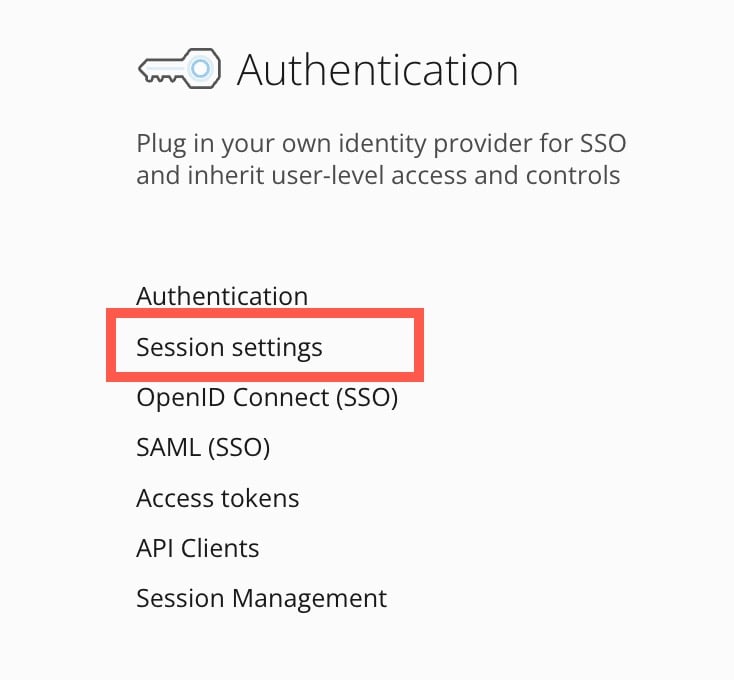
2. In the Admin Settings under **Authentication**, select **Session settings**.
 ### Configure Session Settings
On the **Session settings** page, you can adjust the session length and timeout settings described below for browser and mobile sessions.
**Important:** These settings only apply to browser and mobile app sessions. Other sessions, including but not limited to sessions used by Workbench, Jupyter, Domo Microsoft Office plugins, the Domo Apple TV app, Buzz Desktop, Domo developer clients (such as client ID/secret), and Domo access tokens, are not governed by these settings.
### Configure Session Settings
On the **Session settings** page, you can adjust the session length and timeout settings described below for browser and mobile sessions.
**Important:** These settings only apply to browser and mobile app sessions. Other sessions, including but not limited to sessions used by Workbench, Jupyter, Domo Microsoft Office plugins, the Domo Apple TV app, Buzz Desktop, Domo developer clients (such as client ID/secret), and Domo access tokens, are not governed by these settings.
 #### Browser Settings
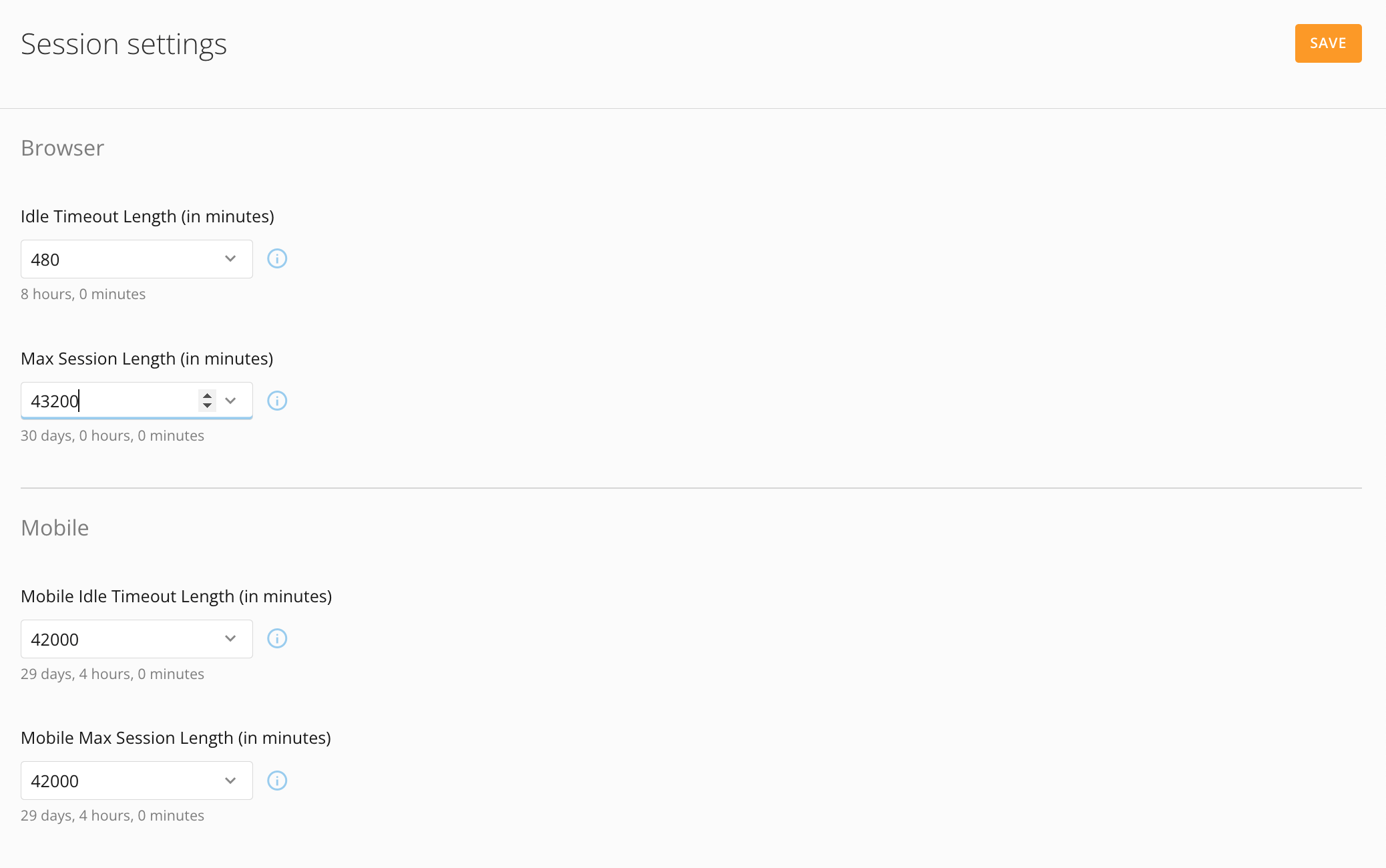
* **Idle Timeout Length (in minutes) —** The maximum period of inactivity allowed in the session. If a session is inactive (meaning it generates no server activity) for longer than this amount of time, the session is terminated. The default is 8 hours (480 minutes).
* **Max Session Length (in minutes) —** The maximum allowed session length regardless of any server activity. The default is unlimited.
#### Mobile App Settings
* **Mobile Idle Timeout Length (in minutes) —** The maximum period of inactivity allowed in the session. If a session is inactive (meaning it generates no server activity) for longer than this amount of time, the session is terminated. The default is 30 days (43200 minutes).
* **Mobile Max Session Length —** The maximum allowed session length regardless of any server activity. This setting applies to mobile app sessions only. The default is 180 days (259200 minutes).
**Example:** If the Idle Timeout Length is set to 1 hour and the Max Session Length is 8 hours, then if a person takes an action at least once per hour, their session lasts 8 hours. However, if more than 1 hour passes since the person's last action, the session expires 1 hour after that action.
### FAQ
When session settings are changed, existing sessions do NOT automatically expire. Any active sessions continue to use the Max Session Length and Idle Timeout Length settings that were in place when the session was created. To enable the new settings for all users, existing sessions must be terminated. To learn how, see [Session Management](/s/article/000005432).
#### Browser Settings
* **Idle Timeout Length (in minutes) —** The maximum period of inactivity allowed in the session. If a session is inactive (meaning it generates no server activity) for longer than this amount of time, the session is terminated. The default is 8 hours (480 minutes).
* **Max Session Length (in minutes) —** The maximum allowed session length regardless of any server activity. The default is unlimited.
#### Mobile App Settings
* **Mobile Idle Timeout Length (in minutes) —** The maximum period of inactivity allowed in the session. If a session is inactive (meaning it generates no server activity) for longer than this amount of time, the session is terminated. The default is 30 days (43200 minutes).
* **Mobile Max Session Length —** The maximum allowed session length regardless of any server activity. This setting applies to mobile app sessions only. The default is 180 days (259200 minutes).
**Example:** If the Idle Timeout Length is set to 1 hour and the Max Session Length is 8 hours, then if a person takes an action at least once per hour, their session lasts 8 hours. However, if more than 1 hour passes since the person's last action, the session expires 1 hour after that action.
### FAQ
When session settings are changed, existing sessions do NOT automatically expire. Any active sessions continue to use the Max Session Length and Idle Timeout Length settings that were in place when the session was created. To enable the new settings for all users, existing sessions must be terminated. To learn how, see [Session Management](/s/article/000005432).