> ## Documentation Index
> Fetch the complete documentation index at: https://domoinc-openapi-sync-dataflows.mintlify.site/llms.txt
> Use this file to discover all available pages before exploring further.
# Convert Content from MS Office Legacy Plugins to MS Office Domo Add-ins
export const InlineImage = ({src, alt = '', height = '1.6em'}) => {
return  ;
};
### Intro
We have discontinued development of the Domo legacy plugins for Microsoft Office apps in favor of the [Domo add-ins for Microsoft Office 365 apps](https://domo-support.domo.com/s/topic/0TO5w000000ZkAlGAK/microsoft-office-addins?language=en_US).
To assist you in transitioning to the Domo add-ins, you can follow the steps below to convert content inserted with the legacy plugins so that it works with the Domo add-ins.
;
};
### Intro
We have discontinued development of the Domo legacy plugins for Microsoft Office apps in favor of the [Domo add-ins for Microsoft Office 365 apps](https://domo-support.domo.com/s/topic/0TO5w000000ZkAlGAK/microsoft-office-addins?language=en_US).
To assist you in transitioning to the Domo add-ins, you can follow the steps below to convert content inserted with the legacy plugins so that it works with the Domo add-ins.
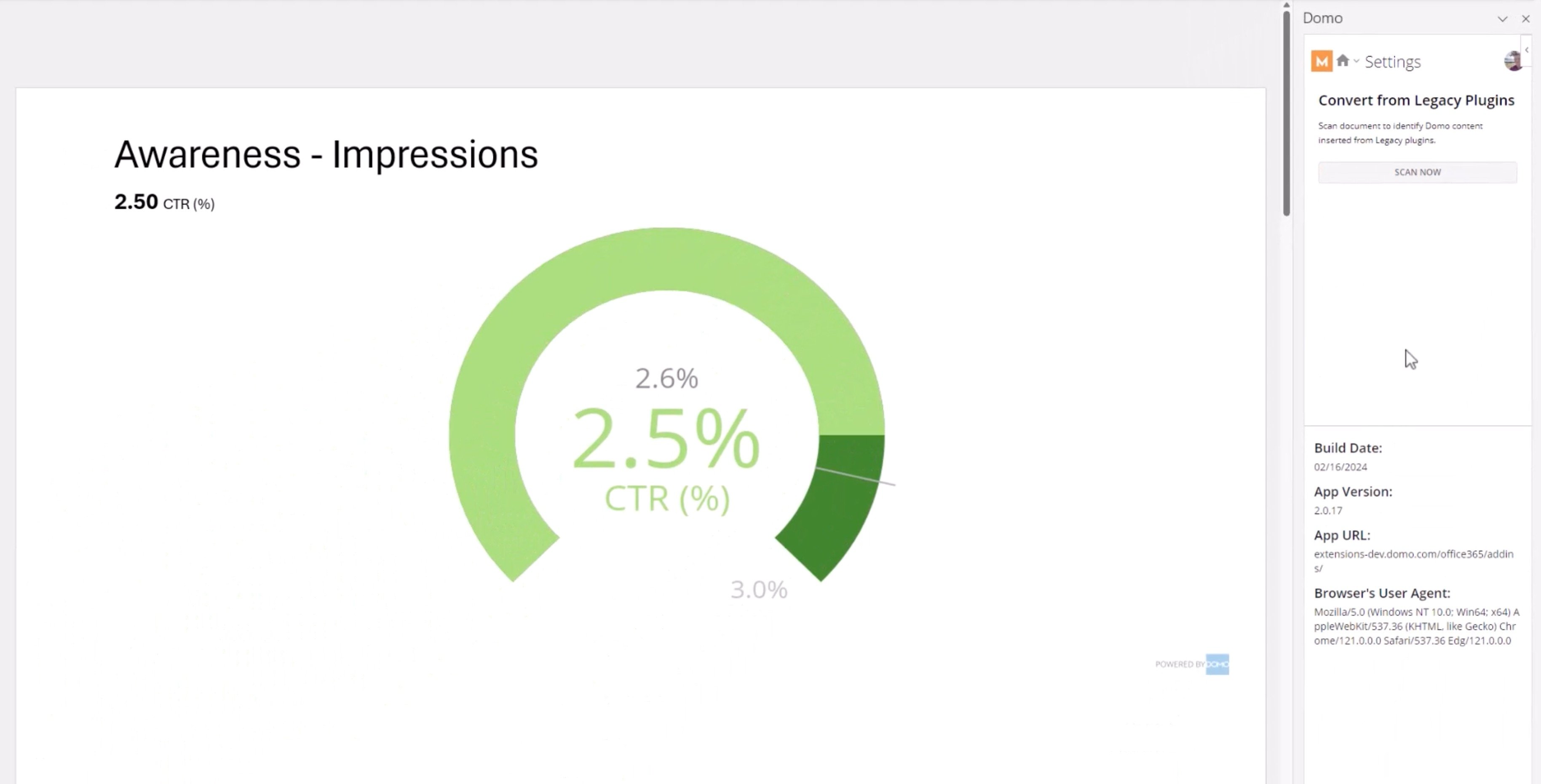 ### Convert Content from Legacy Plugins
Follow these steps to convert your content to work with the Domo add-ins:
1. Install the Domo add-in(s) for your Microsoft Office apps. Learn how to
[install the add-ins](/s/article/000005143).
2. In your Microsoft Office app, open the document that contains the content you want to convert.
3. Go to the **Domo** toolbar and select **Search** to open the Domo side rail. Learn more about the Domo toolbar and side rail in the [Domo add-ins user guide](https://domo-support.domo.com/s/article/000005143?language=en_US#AccesstheDomoSideRailinExcelPowerPointandWord).
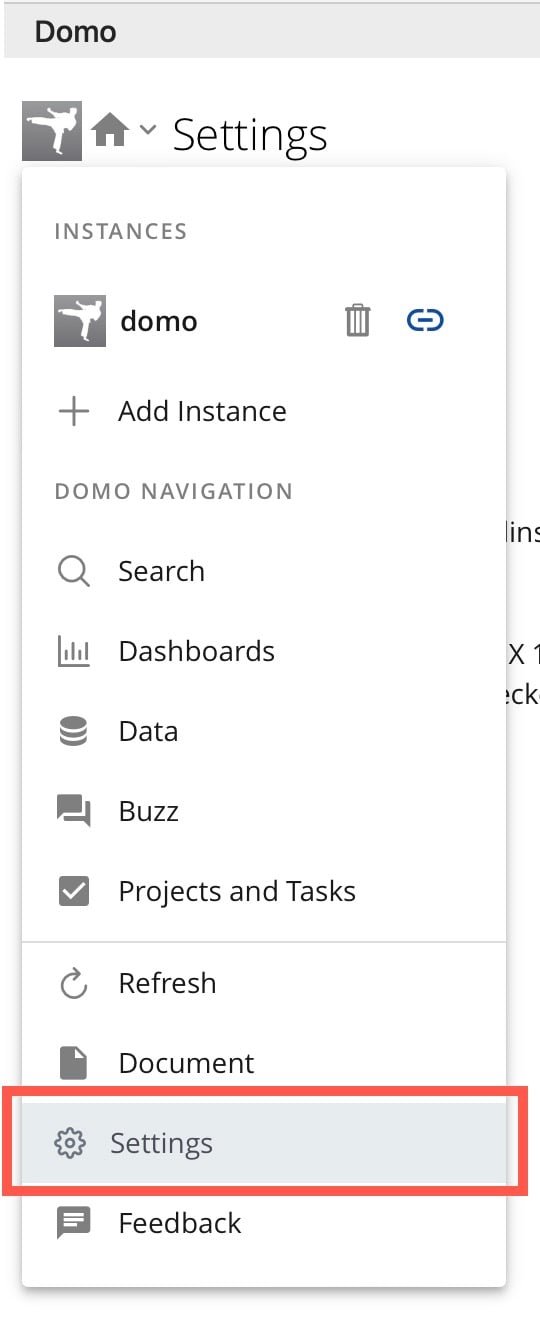
4. In the Domo side rail, select
**Home** > **Settings**.
### Convert Content from Legacy Plugins
Follow these steps to convert your content to work with the Domo add-ins:
1. Install the Domo add-in(s) for your Microsoft Office apps. Learn how to
[install the add-ins](/s/article/000005143).
2. In your Microsoft Office app, open the document that contains the content you want to convert.
3. Go to the **Domo** toolbar and select **Search** to open the Domo side rail. Learn more about the Domo toolbar and side rail in the [Domo add-ins user guide](https://domo-support.domo.com/s/article/000005143?language=en_US#AccesstheDomoSideRailinExcelPowerPointandWord).
4. In the Domo side rail, select
**Home** > **Settings**.
 5. Under **Settings**, locate the **Convert from Legacy Plugins** area and select **Scan Now** to scan your document for content inserted from the legacy plugins.
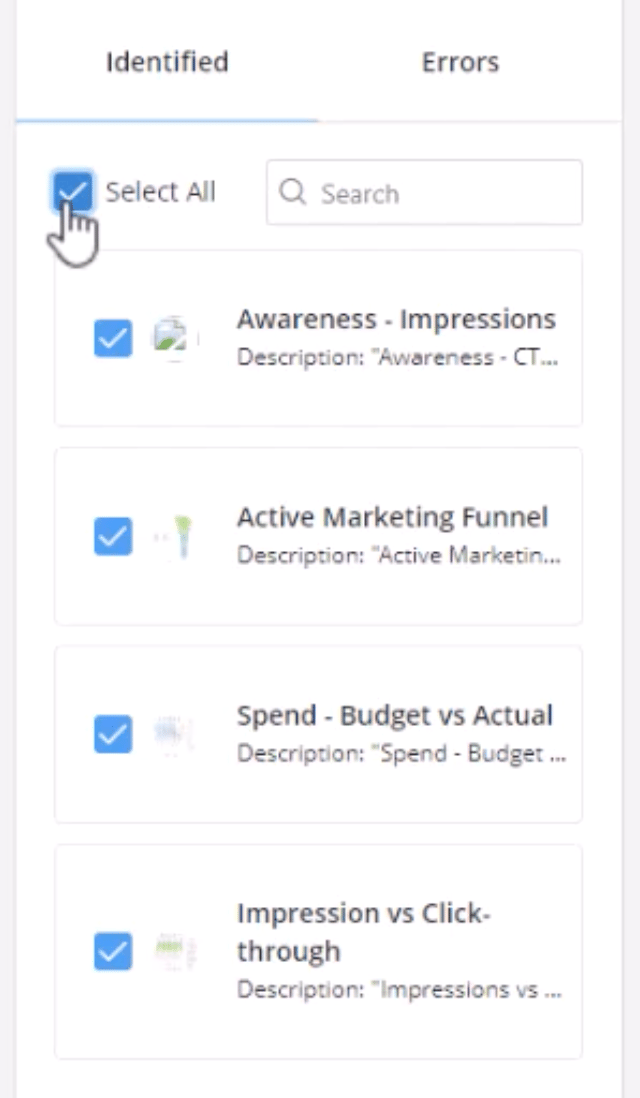
The document is scanned for legacy content and identified in the Domo side rail.
6. Check the **Select all** box or check individual boxes for each item you want to convert.
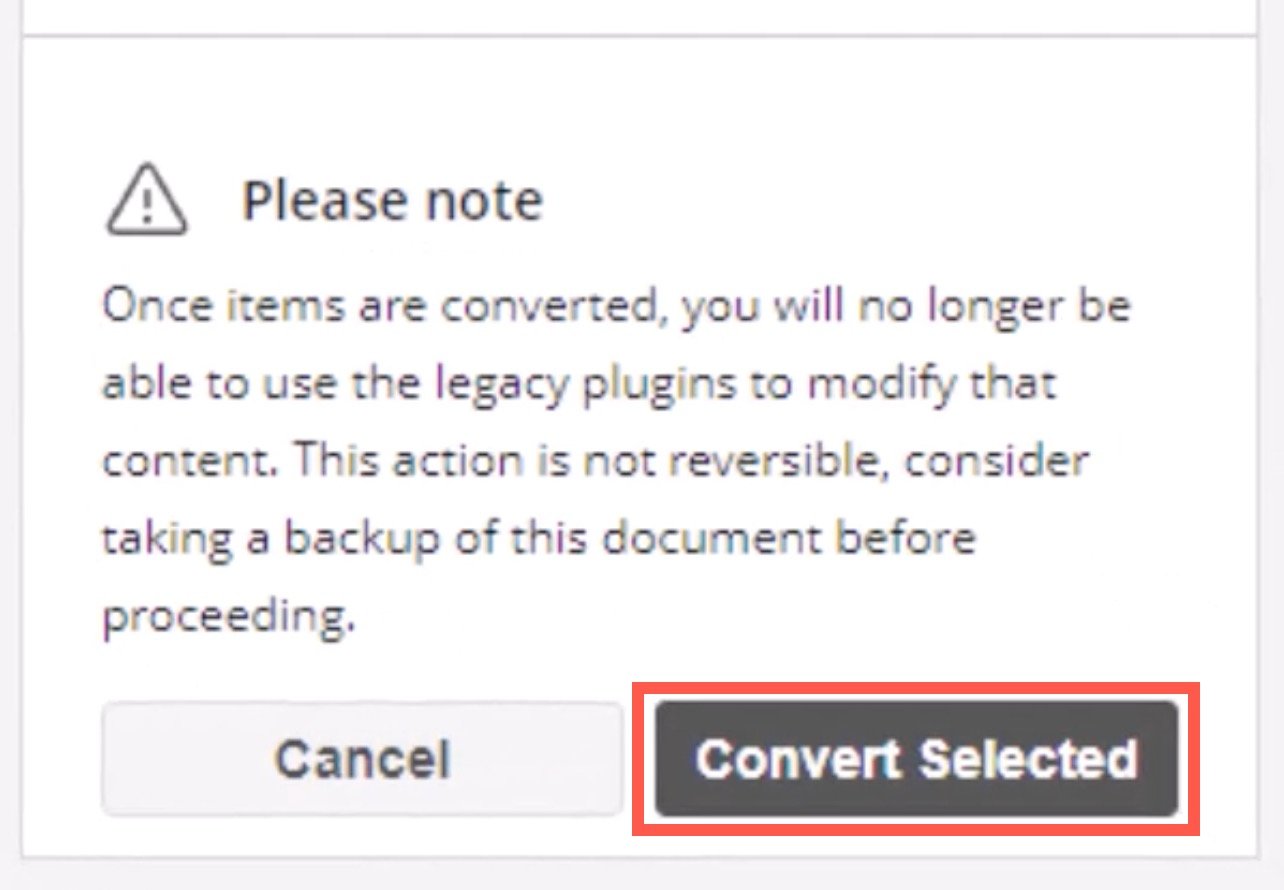
**Important:** After items are converted, you can no longer use the legacy plugins to modify the content. This action is not reversible. Consider taking a backup of this document before proceeding.
5. Under **Settings**, locate the **Convert from Legacy Plugins** area and select **Scan Now** to scan your document for content inserted from the legacy plugins.
The document is scanned for legacy content and identified in the Domo side rail.
6. Check the **Select all** box or check individual boxes for each item you want to convert.
**Important:** After items are converted, you can no longer use the legacy plugins to modify the content. This action is not reversible. Consider taking a backup of this document before proceeding.
 7. Use the **Convert Selected** option to convert your content.
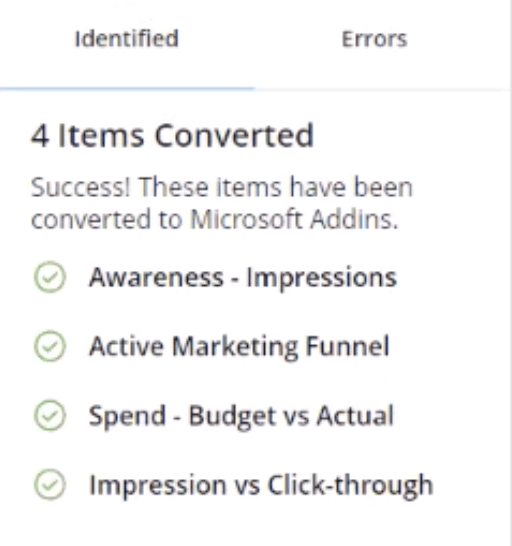
 The successfully converted content is listed in the **Identified** tab of the Settings.
 The converted content is now available in the **Document** section of the Domo side rail. Learn to use the Domo add-ins in the [add-ins user guide](/s/article/000005143).