> ## Documentation Index
> Fetch the complete documentation index at: https://domoinc-openapi-sync-dataflows.mintlify.site/llms.txt
> Use this file to discover all available pages before exploring further.
# Amazon RDS connector
## Intro
This connector is appropriate for pulling data from any relational database service (RDS) from AWS. This means you could be pulling data using the mysql, postgres, MariaDB, Oracle, SQL Server…. This documentation walks through how to connect to a AWS RDS database and what to look out for.
To learn more about the AWS API, visit their page ([https://aws.amazon.com/api-gateway/](https://aws.amazon.com/api-gateway/)).
You connect to your AWS RDS account in the Data Center. This topic discusses the fields and menus that are specific to the AWS Data Exchange connector user interface. General information for adding DataSets, setting update schedules, and editing DataSet information is discussed in [Adding a DataSet Using a Data Connector](/s/article/360042926274).
## Prerequisites
To connect to your AWS RDS account and create a DataSet, you must have the following prebuilt data connectors::
* MySql Connector
* Postgres Connector
* Sql Server
* MariaDB
Utilize the correct connector in DOMO according to what database engine the customer is using (MySql, Postgres, SQL Server, and Maria DB).
### Locating Credentials
1. Sign into the AWS Management Console and open the Amazon RDS console:
[https://console.aws.amazon.com/rds/](https://console.aws.amazon.com/rds/)
2. In the navigation pane, choose
**Databases** to display a list of your DB instances.
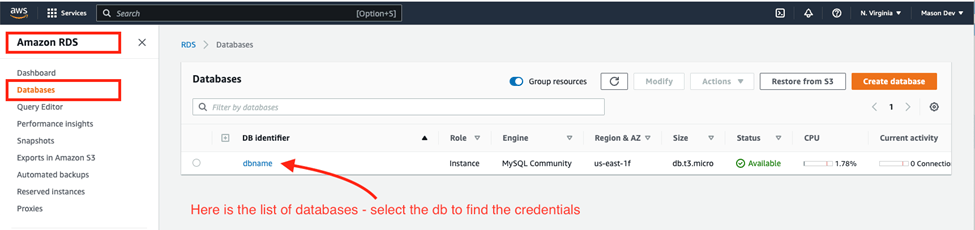 3. Choose the name of the DB instance to display its details (**THIS IS THE DATABASE NAME**).
4. On the
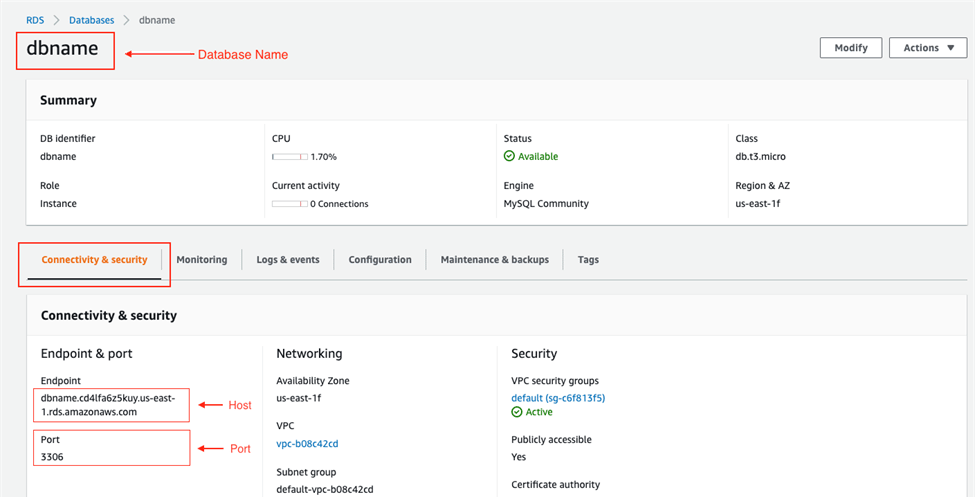
**Connectivity & security** tab, copy the value titled ‘endpoint’ (**THIS IS THE HOST**).
Also, note the ‘port’ number (THIS IS THE PORT). You need both the endpoint and the port number to connect to the DB instance.
3. Choose the name of the DB instance to display its details (**THIS IS THE DATABASE NAME**).
4. On the
**Connectivity & security** tab, copy the value titled ‘endpoint’ (**THIS IS THE HOST**).
Also, note the ‘port’ number (THIS IS THE PORT). You need both the endpoint and the port number to connect to the DB instance.
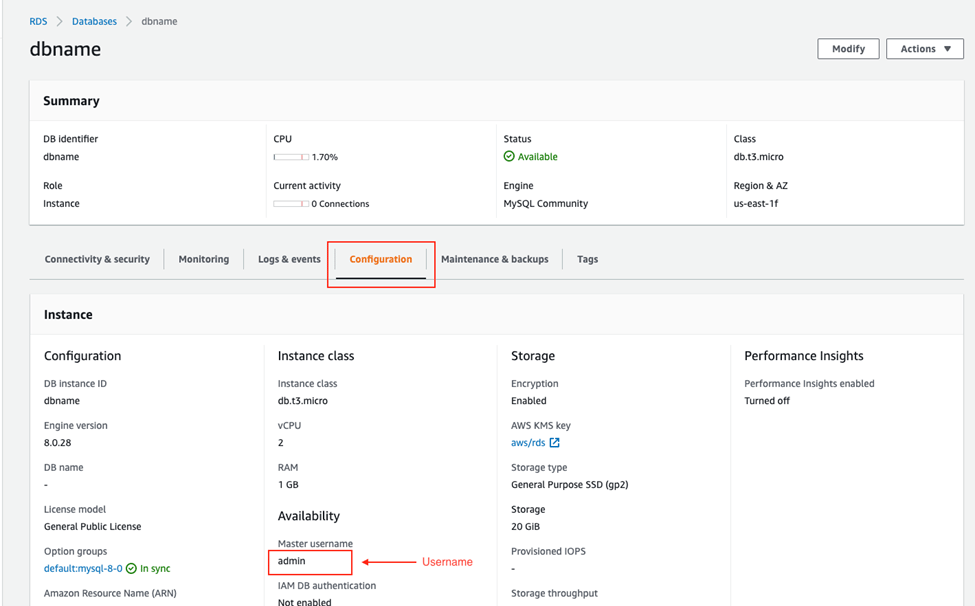
 5. If the connector is asking for a username, choose the configuration tab and view the
**Master Username** value.
5. If the connector is asking for a username, choose the configuration tab and view the
**Master Username** value.
 ### Whitelisting inbound traffic sources
By default, if you create an Amazon RDS database you won’t be able to connect to it unless you specifically whitelist inbound traffic sources.
1. Select your database.
### Whitelisting inbound traffic sources
By default, if you create an Amazon RDS database you won’t be able to connect to it unless you specifically whitelist inbound traffic sources.
1. Select your database.
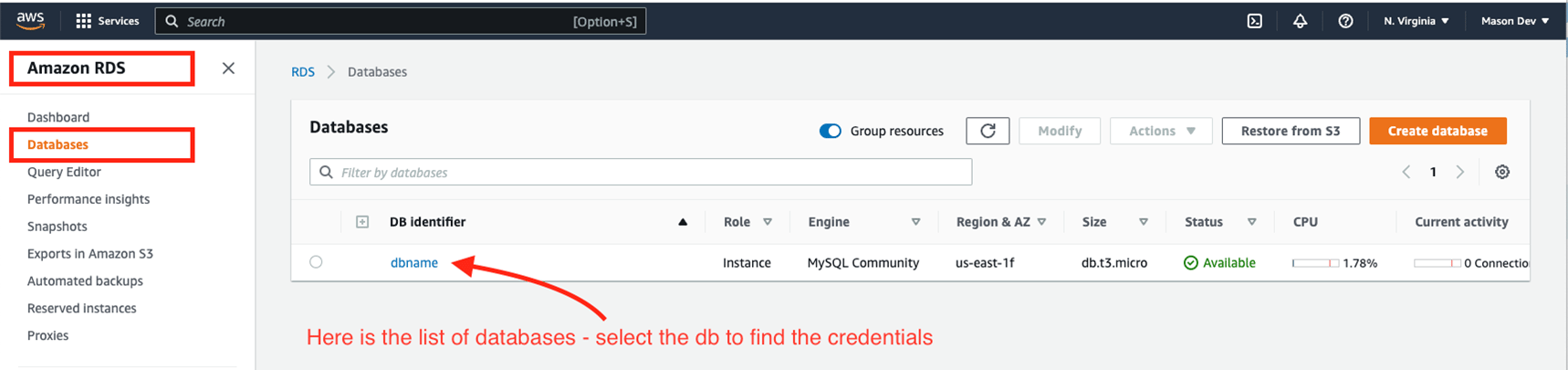 2. Navigate to the connectivity and security tab for the database selected. You will want to make sure
**publicly accessible** is **Yes**.
* If
**publicly accessible** is **No**, click **modify** on the top right and change the publicly accessible settings under **Connectivity**, extend the **Additional configuration** section, and then choose **Publicly accessible**, **Yes**.).
3. Under the connectivity and security group tab click on the security group applied to the database and whitelist the IP addresses.
2. Navigate to the connectivity and security tab for the database selected. You will want to make sure
**publicly accessible** is **Yes**.
* If
**publicly accessible** is **No**, click **modify** on the top right and change the publicly accessible settings under **Connectivity**, extend the **Additional configuration** section, and then choose **Publicly accessible**, **Yes**.).
3. Under the connectivity and security group tab click on the security group applied to the database and whitelist the IP addresses.
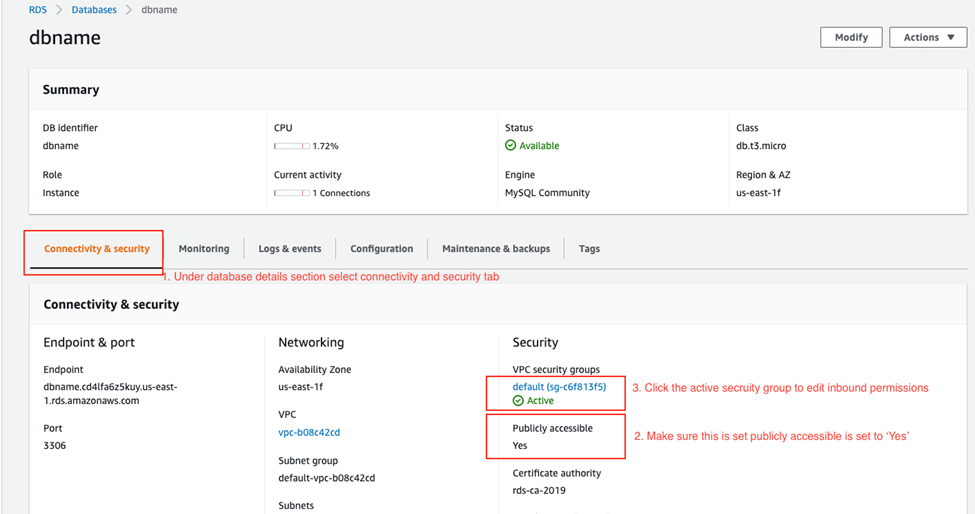 4. This is the screen after you have selected the security group in step
5. Make sure the security group that belongs to your RDS database is selected/highlighted. Click on
**Inbound** at the bottom (you can also right-click the highlighted item and click
**Edit inbound rules**) and then click **Edit**.
4. This is the screen after you have selected the security group in step
5. Make sure the security group that belongs to your RDS database is selected/highlighted. Click on
**Inbound** at the bottom (you can also right-click the highlighted item and click
**Edit inbound rules**) and then click **Edit**.
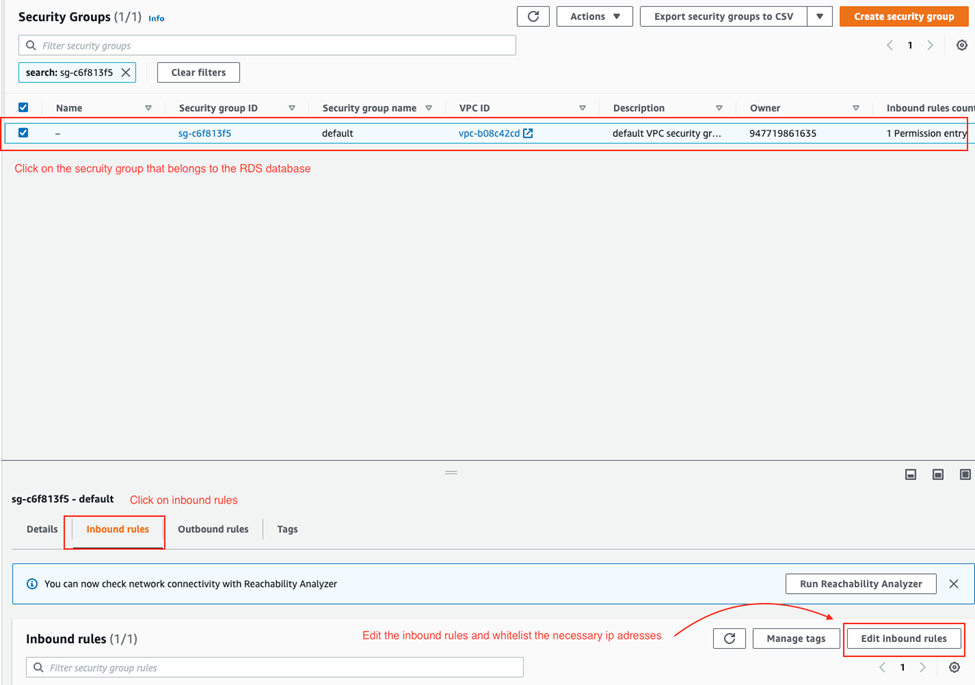 5. Whitelist the necessary ip addresses found here:
[https://domo-support.domo.com/s/article/360043630093?language=en\_US](https://domo-support.domo.com/s/article/360043630093?language=en_US)
If it is a free trial, whitelist the US EAST Ip addresses.
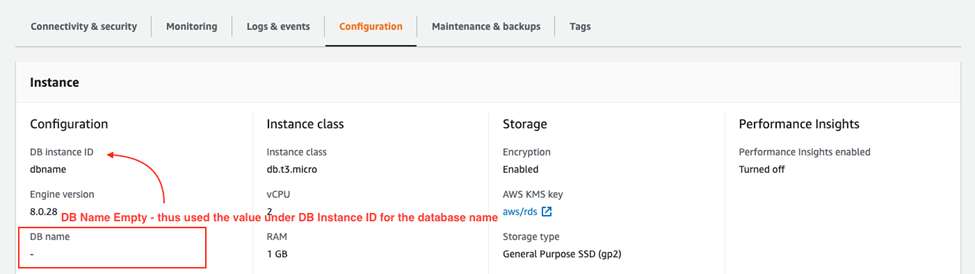
6. Sometimes the DB identifier is different from the database name. Most of the time the Database Name won’t even be specified so the DB Name is the DB Identifier – HOWEVER – if the DB Name is specified, use that value for the database name.
* Double check you have the correct database name by navigating to the
**configuration** tab on the database setting screen and take note of the value in **DB Name**. If **DB Name** is empty, use the value under **DB Instance ID**.
5. Whitelist the necessary ip addresses found here:
[https://domo-support.domo.com/s/article/360043630093?language=en\_US](https://domo-support.domo.com/s/article/360043630093?language=en_US)
If it is a free trial, whitelist the US EAST Ip addresses.
6. Sometimes the DB identifier is different from the database name. Most of the time the Database Name won’t even be specified so the DB Name is the DB Identifier – HOWEVER – if the DB Name is specified, use that value for the database name.
* Double check you have the correct database name by navigating to the
**configuration** tab on the database setting screen and take note of the value in **DB Name**. If **DB Name** is empty, use the value under **DB Instance ID**.