> ## Documentation Index
> Fetch the complete documentation index at: https://domoinc-openapi-sync-dataflows.mintlify.site/llms.txt
> Use this file to discover all available pages before exploring further.

# Xero Custom Connector

## Intro

Xero gives small businesses a firm grasp on their financial health, with tools to monitor cash flow, invoices, expenses, and more. When you connect Xero to Domo, you get a platform to collaborate around real-time data so you can move forward with a single version of the truth. Use the Domo Xero connector to bring your expenses into Domo, where you can easily track your finances and see exactly where your money is going. To learn more about the Xero API, visit their page ([http://developer.xero.com/documentat.../api-overview/](http://developer.xero.com/documentation/api/api-overview/ "http://developer.xero.com/documentation/api/api-overview/") ).

After your data is in Domo, you can assemble, organize, and visualize your Xero finance data any way you would like. Get instant notifications when your financial metrics hit thresholds that you define.

You connect to your Xero Custom account in the Data Center. This topic discusses the fields and menus that are specific to the Xero connector user interface. General information for adding DataSets, setting update schedules, and editing DataSet information is discussed in [DataSet Using a Data Connector](https://domo-support.domo.com/s/article/360042926274?language=en_US "Adding a DataSet Using a Data Connector").

## Prerequisites

To connect to your Xero Custom account and create a DataSet, you must have the email address and password you use to log into your Xero account.

* Client ID
* Client Secret
* Scope

## Connecting to Your Xero Custom Account

This section enumerates the options in the **Credentials** and **Details** panes in the Xero Custom Connector page. The components of the other panes in this page, **Scheduling** and **Name & Describe Your DataSet,** are universal across most connector types and are discussed in greater length in [Adding a DataSet Using a Data Connector](https://domo-support.domo.com/s/article/360042926274?language=en_US "Adding a DataSet Using a Data Connector").

### Credentials Pane

The Domo Xero Custom connector uses OAuth to connect, so there is no need to enter credentials within Domo. Click **Connect** (or select **Add Account** if you have existing Xero accounts in Domo) to open the Xero OAuth screen where you can enter your Xero custom credentials.

This pane contains fields for entering credentials to connect to your Domo developer account as well as your Xero Custom account. The following table describes what is needed for each field:

<table border="1" cellpadding="1" cellspacing="1" data-aura-rendered-by="33:207;a"><thead><tr><th colspan="1" rowspan="1"><p> Menu </p></th><th colspan="1" rowspan="1"><p> Description </p></th></tr></thead><tbody><tr><td colspan="1" rowspan="1"><p> Client ID </p></td><td colspan="1" rowspan="1"> Enter your Xero custom connection client id. </td></tr><tr><td colspan="1" rowspan="1"> Client Secret </td><td colspan="1" rowspan="1"> Enter your Xero custom connection client secret. </td></tr><tr><td colspan="1" rowspan="1"> Scope </td><td colspan="1" rowspan="1"> enter a space separated list of scopes that were specified when the Xero custom connection was set up. You can find the full list of <a href="https://developer.xero.com/documentation/guides/oauth2/scopes/" target="_blank"> scopes </a> available here. </td></tr></tbody></table>

Once you have entered valid Xero custom credentials, you can use the same account any time you go to create a new Xero DataSet. You can manage connector accounts in the **Accounts** tab in the Data Center. For more information about this tab, see [Managing User Accounts for Connectors](https://domo-support.domo.com/s/article/360042926054 "Managing User Accounts for Connectors").

<Warning>
  **Note:** You can only have one Xero Custom account authenticated at a time with a given set of credentials. If you try to use OAuth with Xero anywhere else, it will invalidate your Xero Custom account in Domo.
</Warning>

***

<Note>
  **Note:** If you are already logged into Xero when you connect in Domo, you are authenticated automatically when you click **Add account**. If you want to connect to an account that is different from the one you are logged into, you must first log out of Xero.
</Note>

### Details Pane

This pane contains a primary **Reports** menu, along with various other menus which may or may not appear depending on the report type you select.

<table border="1" cellpadding="1" cellspacing="1" data-aura-rendered-by="33:207;a"><thead><tr><th colspan="1" rowspan="1"><p> Menu </p></th><th colspan="1" rowspan="1"><p> Description </p></th></tr></thead><tbody><tr><td colspan="1" rowspan="1"><p> Report </p></td><td colspan="1" rowspan="1"><p> Select the Xero report you want to run. The following reports are available: </p><table border="1" cellpadding="1" cellspacing="1"><tbody><tr><td colspan="1" rowspan="1"> Accounts </td><td colspan="1" rowspan="1"> Returns a list of accounts in your Xero Organization. </td></tr><tr><td colspan="1" rowspan="1"> Aged Payables by Contact </td><td colspan="1" rowspan="1"> Returns aged payable for all invoices within the specified time range. </td></tr><tr><td colspan="1" rowspan="1"> Aged Receivables by Contact </td><td colspan="1" rowspan="1"> Returns aged receivable for all invoices within the specified time range. </td></tr><tr><td colspan="1" rowspan="1"> Balance Sheet </td><td colspan="1" rowspan="1"> Returns a balance sheet for the current month to date. </td></tr><tr><td colspan="1" rowspan="1"> Bank Statement </td><td colspan="1" rowspan="1"> Returns bank statement lines for each bank account in your Xero Organization. </td></tr><tr><td colspan="1" rowspan="1"> Bank Summary </td><td colspan="1" rowspan="1"> Returns the balances and cash movements for each bank account. </td></tr><tr><td colspan="1" rowspan="1"> Bank Transactions </td><td colspan="1" rowspan="1"> Returns a list of any spend or receive transactions. </td></tr><tr><td colspan="1" rowspan="1"> Bank Transfers </td><td colspan="1" rowspan="1"> Returns a list of bank transfers. </td></tr><tr><td colspan="1" rowspan="1"> Branding Themes </td><td colspan="1" rowspan="1"> Returns a list of branding themes defined for your Xero organization. </td></tr><tr><td colspan="1" rowspan="1"> Budget Summary </td><td colspan="1" rowspan="1"> Returns a summary of your monthly budget. </td></tr><tr><td colspan="1" rowspan="1"> Contacts </td><td colspan="1" rowspan="1"> Returns a list of contacts. </td></tr><tr><td colspan="1" rowspan="1"> Credit Notes </td><td colspan="1" rowspan="1"> Returns a list of credit notes. </td></tr><tr><td colspan="1" rowspan="1"> Currencies </td><td colspan="1" rowspan="1"> Returns a list of currencies for your organization. </td></tr><tr><td colspan="1" rowspan="1"> Employees </td><td colspan="1" rowspan="1"> Returns a list of employees used in Xero payrun functionality. </td></tr><tr><td colspan="1" rowspan="1"> Executive Summary </td><td colspan="1" rowspan="1"> Returns a summary including monthly totals and some common business ratios. </td></tr><tr><td colspan="1" rowspan="1"> Expense Claims </td><td colspan="1" rowspan="1"> Returns a list of expense claims and their status. </td></tr><tr><td colspan="1" rowspan="1"> Invoices </td><td colspan="1" rowspan="1"> Returns a list of invoices or purchase bills. </td></tr><tr><td colspan="1" rowspan="1"> Items </td><td colspan="1" rowspan="1"> Returns a list of items. </td></tr><tr><td colspan="1" rowspan="1"> Journals (deprecated) </td><td colspan="1" rowspan="1"> Returns a list of journal entries. Xero will no longer support the functionality of this report, and its accuracy cannot be guaranteed. Please use the Journals (Append) report instead. </td></tr><tr><td colspan="1" rowspan="1"> Journals (Append) </td><td colspan="1" rowspan="1"> Returns a list of journal entries created or modified after the specified date. </td></tr><tr><td colspan="1" rowspan="1"> Manual Journals </td><td colspan="1" rowspan="1"> Returns a list of manual journal entries. </td></tr><tr><td colspan="1" rowspan="1"> Organizations </td><td colspan="1" rowspan="1"> Returns information about your Xero organization. </td></tr><tr><td colspan="1" rowspan="1"> Payments </td><td colspan="1" rowspan="1"> Returns a list of payments for invoices and credit notes. </td></tr><tr><td colspan="1" rowspan="1"> Profit and Loss </td><td colspan="1" rowspan="1"> Returns a profit and loss report. </td></tr><tr><td colspan="1" rowspan="1"> Profit and Loss Aggregated </td><td colspan="1" rowspan="1"> Returns a profit and loss report with provided garnularity for selected date range. </td></tr><tr><td colspan="1" rowspan="1"> Purchase Orders </td><td colspan="1" rowspan="1"> Returns a list of purchase orders. </td></tr><tr><td colspan="1" rowspan="1"> Receipts </td><td colspan="1" rowspan="1"> Returns a list of draft expense claim receipts for any user. </td></tr><tr><td colspan="1" rowspan="1"> Repeating Invoices </td><td colspan="1" rowspan="1"> Returns a list of repeating invoice templates. </td></tr><tr><td colspan="1" rowspan="1"> Tax Rates </td><td colspan="1" rowspan="1"> Returns tax rates for your Xero organization. </td></tr><tr><td colspan="1" rowspan="1"> Tracking Categories </td><td colspan="1" rowspan="1"> Returns tracking categories and options for your Xero organization. </td></tr><tr><td colspan="1" rowspan="1"> Trial Balance </td><td colspan="1" rowspan="1"> Returns a trial balance for the current month to date. </td></tr><tr><td colspan="1" rowspan="1"> Users </td><td colspan="1" rowspan="1"> Returns a list of users for your Xero organization. </td></tr></tbody></table></td></tr><tr><td colspan="1" rowspan="1"> Past Days </td><td colspan="1" rowspan="1"> Enter the number of past days that represents the start date of the report. You can use any of the following formats: <span class="mt-font-courier-new"> x </span>, <span class="mt-font-courier-new"> x day </span>, or <span class="mt-font-courier-new"> x days </span>, where <span class="mt-font-courier-new"> x </span> is a number between 1 and 365. </td></tr><tr><td colspan="1" rowspan="1"> Contact </td><td colspan="1" rowspan="1"> Select the contact for which you want to retrieve data. </td></tr><tr><td colspan="1" rowspan="1"> Bank Account </td><td colspan="1" rowspan="1"> Select the bank account for which you want to retrieve data. </td></tr><tr><td colspan="1" rowspan="1"> To Days </td><td colspan="1" rowspan="1"> Enter the number of past days that represents the end date of the report. You can use any of the following formats: <span class="mt-font-courier-new"> x </span>, <span class="mt-font-courier-new"> x day </span>, or <span class="mt-font-courier-new"> x days </span>, where <span class="mt-font-courier-new"> x </span> is a number between 1 and 365. </td></tr><tr><td colspan="1" rowspan="1"> Offset </td><td colspan="1" rowspan="1"> Enter a journal number. The report will retrieve only journals with a number higher than this number. </td></tr></tbody></table>

### Other Panes

For information about the remaining sections of the connector interface, including how to configure scheduling, retry, and update options, see [Adding a DataSet Using a Data Connector](https://domo-support.domo.com/s/article/360042926274?language=en_US "Adding a DataSet Using a Data Connector").

## Troubleshooting for Consulting/Support

### Dates in Column Names

Some Xero reports return data in which the run date is used as a column name. For example, if you were to run the "Profit & Loss" report on Feburary 17th, 2017, an amount column called "Row\_\_17\_Feb\_17" would appear. This prevents these columns from being used in a DataFlow or card, as the name of the column changes with each scheduled DataSet update.

To resolve this issue, we recommend replacing dates in column names with generic column names. You can use a Domo SQL query to replace the faulty column with a generically named column, which can then be referred to in a Magic DataFlow.

In the following example, we replace the column name "Row\_\_16\_Feb\_17" with the name "ProfitLossAmount."

<Frame>
  <img alt="" src="https://mintcdn.com/domoinc-openapi-sync-dataflows/gDOtiCXH_3EtosfI/images/kb/ka0Vq000000068f-00N5w00000Ri7BU-0EM5w000005vO1n.png?fit=max&auto=format&n=gDOtiCXH_3EtosfI&q=85&s=7da9826886933598a959bd7d69e4b317" style={{width: 941, height: 81}} width="782" height="67" data-path="images/kb/ka0Vq000000068f-00N5w00000Ri7BU-0EM5w000005vO1n.png" />
</Frame>

```sql theme={"dark"}
select NULL AS Row_Id, NULL AS Row_ProviderName, NULL AS Row_DateTimeUTC, NULL AS Row_ReportName, NULL AS Row_ReportDate, NULL ​AS Row_UpdatedDateUTC, NULL AS Row_ReportTitle, NULL AS Row_column_0, NULL AS ProfitLossAmount, NULL AS _BATCH_ID_, NULL AS _BATCH_LAST_RUN_ from xero_profit_and_loss_report
where 1 = 0 --this row returns nothing but allows setting the column names for the query
union all
select * from xero_profit_and_loss_report
```

### Unwanted Pivot Tables

Often, data with the column naming issue described above is represented as a pivot table. You cannot use the Collapse Columns action IN ETL to unpivot this data because the column names change for each scheduled run. An example of this is the "Budget" report.

To resolve this issue, unpivot columns that have been named with dates, but retain date values as rows so the output DataSet has one date row per column.

In the following example, we first use a Domo SQL query to rename the columns to generic names. Then we use a Magic ETL DataFlow to perform a **Collapse Columns** action and then convert the generic column name (which is now row data) back into a date.

1. Create a Domo SQL query as follows:

   Input: Xero DataSet created using the report "Budget"

   <Frame>
     <img alt="xero_unpivot_1.png" src="https://mintcdn.com/domoinc-openapi-sync-dataflows/gDOtiCXH_3EtosfI/images/kb/ka0Vq000000068f-00N5w00000Ri7BU-0EM5w000005vO1l.png?fit=max&auto=format&n=gDOtiCXH_3EtosfI&q=85&s=ada28349e52fad46fdd57441ccc2e3aa" width="783" height="117" data-path="images/kb/ka0Vq000000068f-00N5w00000Ri7BU-0EM5w000005vO1l.png" />
   </Frame>

   Transform: Replace the column names "Row\_\_Feb-17," "Row\_\_Mar-17," etc. with "Month1," "Month2," etc. using the method described above.

   Output Format: Renamed columns

   <Frame>
     <img alt="xero_unpivot_2.png" src="https://mintcdn.com/domoinc-openapi-sync-dataflows/gDOtiCXH_3EtosfI/images/kb/ka0Vq000000068f-00N5w00000Ri7BU-0EM5w000005vO1q.png?fit=max&auto=format&n=gDOtiCXH_3EtosfI&q=85&s=c2418220b56440681d63bd82cb9abafa" width="783" height="117" data-path="images/kb/ka0Vq000000068f-00N5w00000Ri7BU-0EM5w000005vO1q.png" />
   </Frame>

2. In a Domo Magic DataFlow, unpivot the output data defined above and replace the Month1, Month2 etc. values with dates based on the \_BATCH\_LAST\_RUN date.

   <Frame>
     <img alt="xero_unpivot_3.png" src="https://mintcdn.com/domoinc-openapi-sync-dataflows/gDOtiCXH_3EtosfI/images/kb/ka0Vq000000068f-00N5w00000Ri7BU-0EM5w000005vO1o.png?fit=max&auto=format&n=gDOtiCXH_3EtosfI&q=85&s=cca57b4214ce08386f3a73594fda68d2" width="781" height="105" data-path="images/kb/ka0Vq000000068f-00N5w00000Ri7BU-0EM5w000005vO1o.png" />
   </Frame>

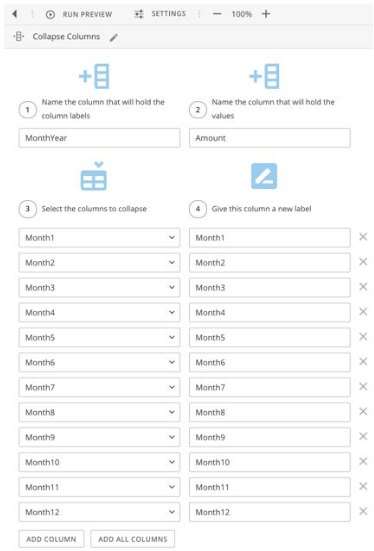
   1. Perform a **Collapse Columns** action in which you unpivot the 12 date columns.
      <Frame>
        <img alt="xero_unpivot_4.png" src="https://mintcdn.com/domoinc-openapi-sync-dataflows/gDOtiCXH_3EtosfI/images/kb/ka0Vq000000068f-00N5w00000Ri7BU-0EM5w000005vO1m.png?fit=max&auto=format&n=gDOtiCXH_3EtosfI&q=85&s=b4e1b711c866e04eb3b7a7f58b24b49f" width="374" height="551" data-path="images/kb/ka0Vq000000068f-00N5w00000Ri7BU-0EM5w000005vO1m.png" />
      </Frame>

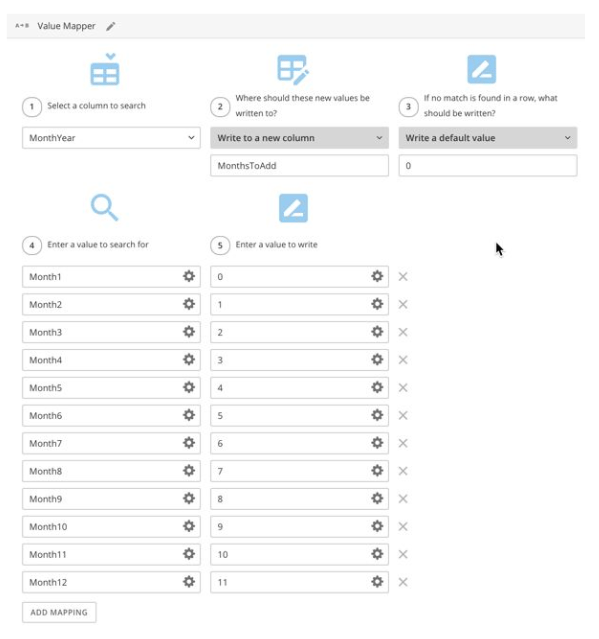
   2. Perform a **Value Mapper** action in which you create a new field that contains the number of months to add to the BATCH\_LAST\_RUN\_ date to get the correct date field for the row.
      <Frame>
        <img alt="xero_unpivot_5.png" src="https://mintcdn.com/domoinc-openapi-sync-dataflows/gDOtiCXH_3EtosfI/images/kb/ka0Vq000000068f-00N5w00000Ri7BU-0EM5w000005vO1r.png?fit=max&auto=format&n=gDOtiCXH_3EtosfI&q=85&s=4a56c4a2ce33438c25026ff9c4a6444a" width="599" height="639" data-path="images/kb/ka0Vq000000068f-00N5w00000Ri7BU-0EM5w000005vO1r.png" />
      </Frame>

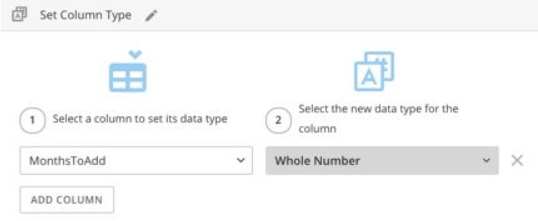
   3. Perform a **Set Column Type** action in which you change the data type of the number of months column to a numeric type.
      <Frame>
        <img alt="xero_unpivot_6.png" src="https://mintcdn.com/domoinc-openapi-sync-dataflows/gDOtiCXH_3EtosfI/images/kb/ka0Vq000000068f-00N5w00000Ri7BU-0EM5w000005vO1k.png?fit=max&auto=format&n=gDOtiCXH_3EtosfI&q=85&s=ec8d32da2ec565b34386716676b67477" width="538" height="221" data-path="images/kb/ka0Vq000000068f-00N5w00000Ri7BU-0EM5w000005vO1k.png" />
      </Frame>

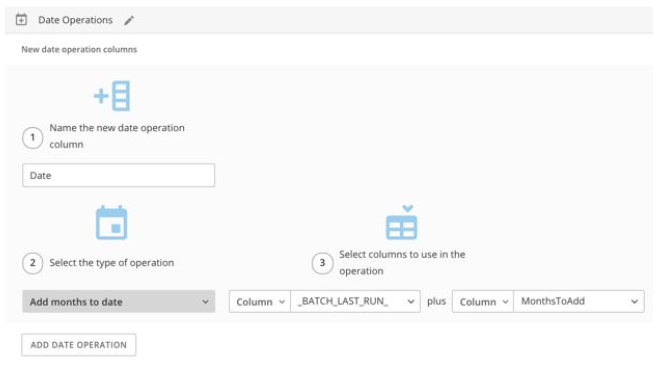
   4. Perform a **Date Operations** action in which you use the **Add Months to Date** operation to add the number of months to the \_BATCH\_LAST\_RUN\_ date to determine the date for the row.
      <Frame>
        <img alt="xero_unpivot_7.png" src="https://mintcdn.com/domoinc-openapi-sync-dataflows/gDOtiCXH_3EtosfI/images/kb/ka0Vq000000068f-00N5w00000Ri7BU-0EM5w000005vO1p.png?fit=max&auto=format&n=gDOtiCXH_3EtosfI&q=85&s=0b9d7e828ab1e75bee40ccae304c28a3" width="664" height="379" data-path="images/kb/ka0Vq000000068f-00N5w00000Ri7BU-0EM5w000005vO1p.png" />
      </Frame>

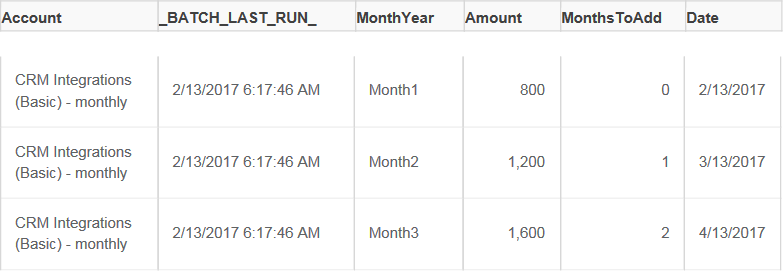
Your output format should be as follows: one row per month instead of one column per month
<Frame>
  <img alt="xero_unpivot_8.png" src="https://mintcdn.com/domoinc-openapi-sync-dataflows/gDOtiCXH_3EtosfI/images/kb/ka0Vq000000068f-00N5w00000Ri7BU-0EM5w000005vO1s.png?fit=max&auto=format&n=gDOtiCXH_3EtosfI&q=85&s=53466ab7a3a6a19e41ed91faaec57a70" width="783" height="271" data-path="images/kb/ka0Vq000000068f-00N5w00000Ri7BU-0EM5w000005vO1s.png" />
</Frame>
