> ## Documentation Index
> Fetch the complete documentation index at: https://domoinc-openapi-sync-dataflows.mintlify.site/llms.txt
> Use this file to discover all available pages before exploring further.
# Manage Subscriptions to Appstore Listings
export const InlineImage = ({src, alt = '', height = '1.6em'}) => {
return  ;
};
## Intro
On the Appstore, you can subscribe to listings with a monthly payment. After the listing is purchased, subscriptions can be used and installed as many times as desired by anyone in your company's Domo instance. You can also cancel subscriptions at any time.
***
## Subscribe to a Listing
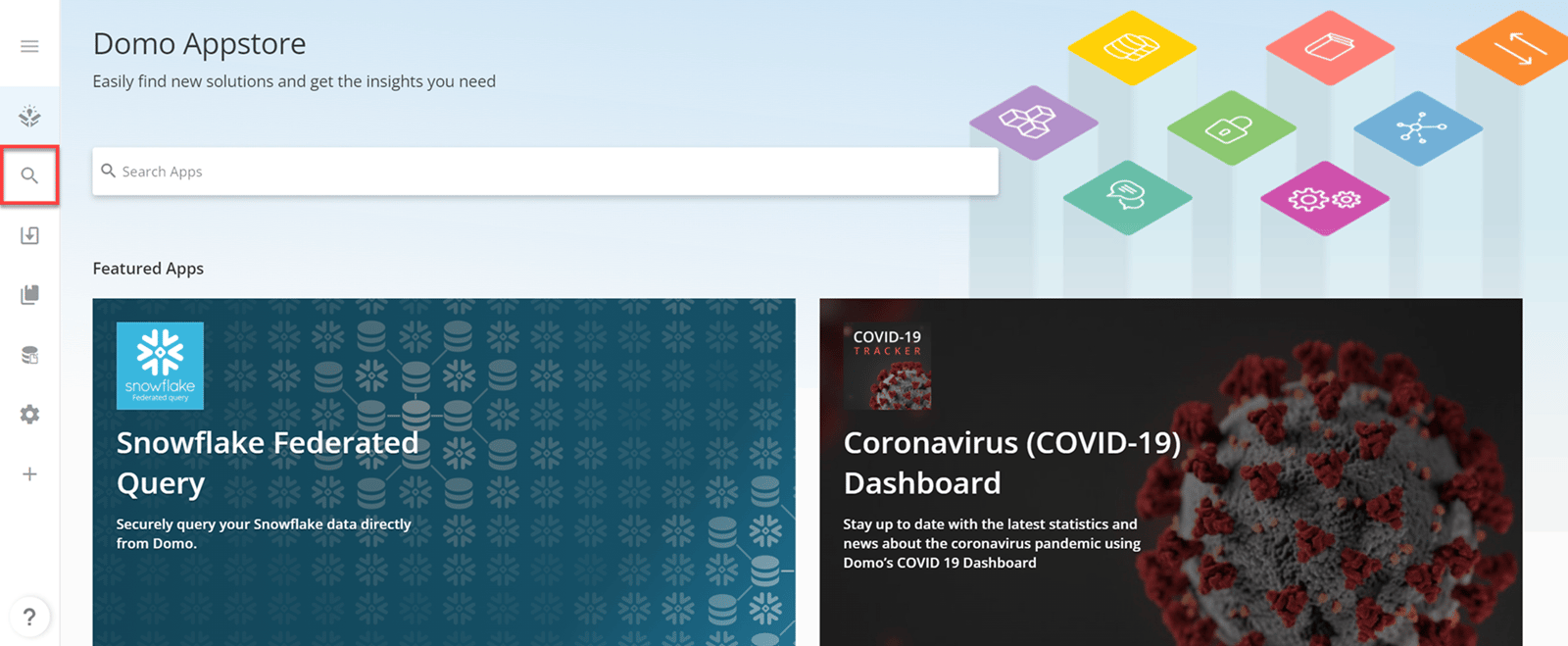
1. In the navigation header, select **Appstore**.
2. In the side panel of the Appstore, select
**Search**.
The **Search Apps** page opens.
;
};
## Intro
On the Appstore, you can subscribe to listings with a monthly payment. After the listing is purchased, subscriptions can be used and installed as many times as desired by anyone in your company's Domo instance. You can also cancel subscriptions at any time.
***
## Subscribe to a Listing
1. In the navigation header, select **Appstore**.
2. In the side panel of the Appstore, select
**Search**.
The **Search Apps** page opens.
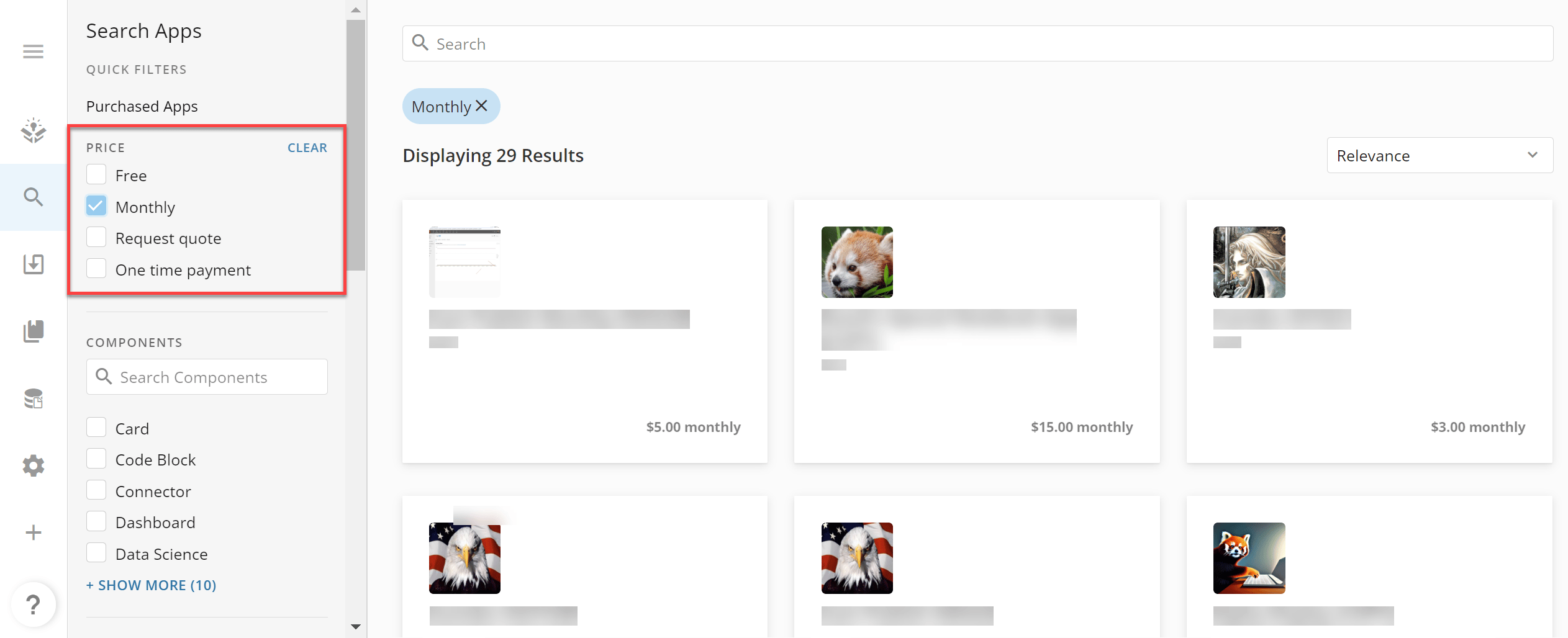
 3. Under the **Price** Quick Filter, select the **Monthly** checkbox. There are additional Quick Filters to sort the listings by component, category, publisher name, and data source.
All listings that require a monthly payment and match any other Quick Filters display.
3. Under the **Price** Quick Filter, select the **Monthly** checkbox. There are additional Quick Filters to sort the listings by component, category, publisher name, and data source.
All listings that require a monthly payment and match any other Quick Filters display.
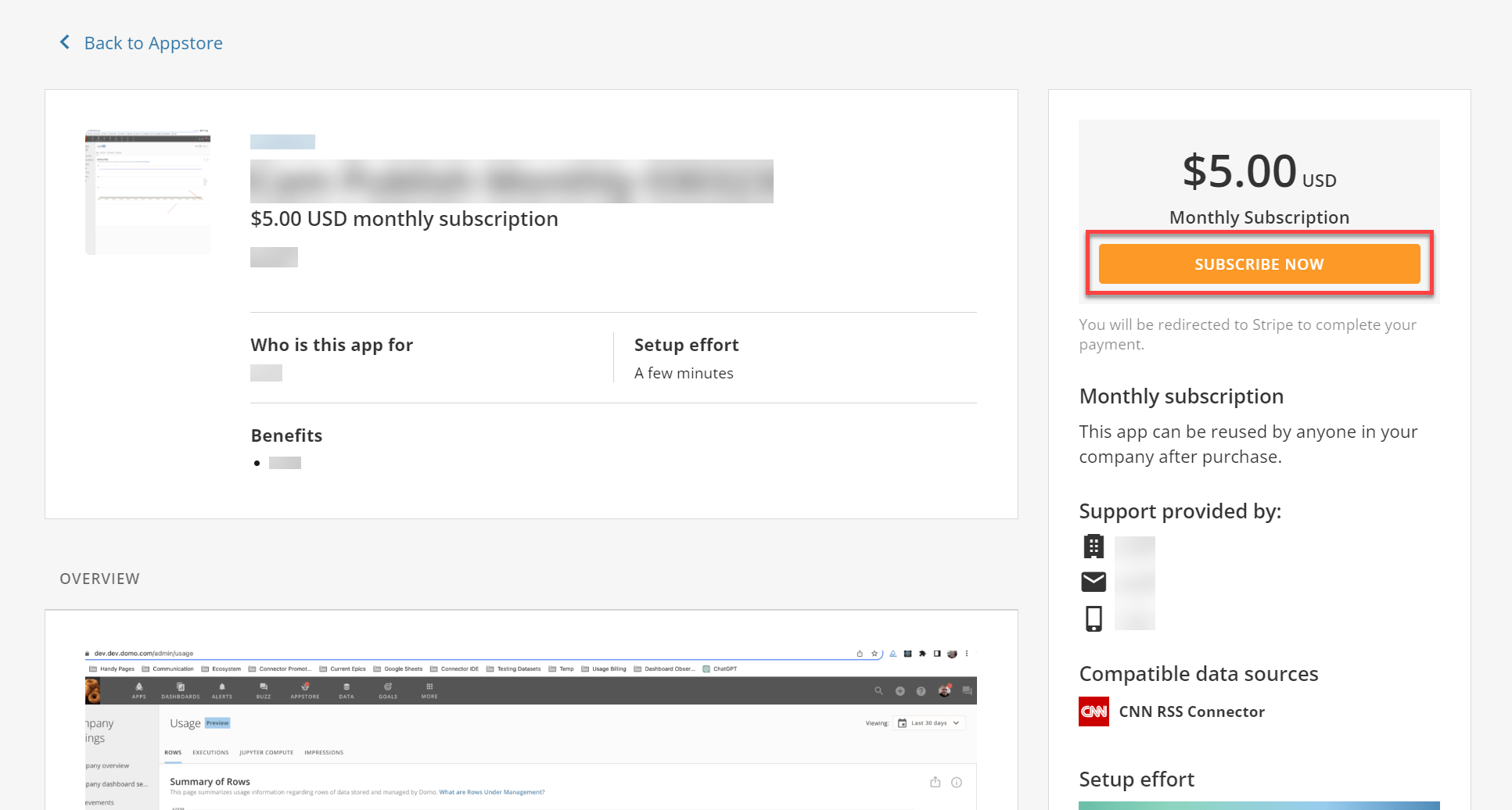
 4. Scroll through the results or use the search bar to find and select a monthly listing you want to subscribe to.
Selecting a listing opens the listing Details page.
5. Review the listing details, then select **Subscribe Now**.
You are redirected to Stripe to complete the first payment.
4. Scroll through the results or use the search bar to find and select a monthly listing you want to subscribe to.
Selecting a listing opens the listing Details page.
5. Review the listing details, then select **Subscribe Now**.
You are redirected to Stripe to complete the first payment.
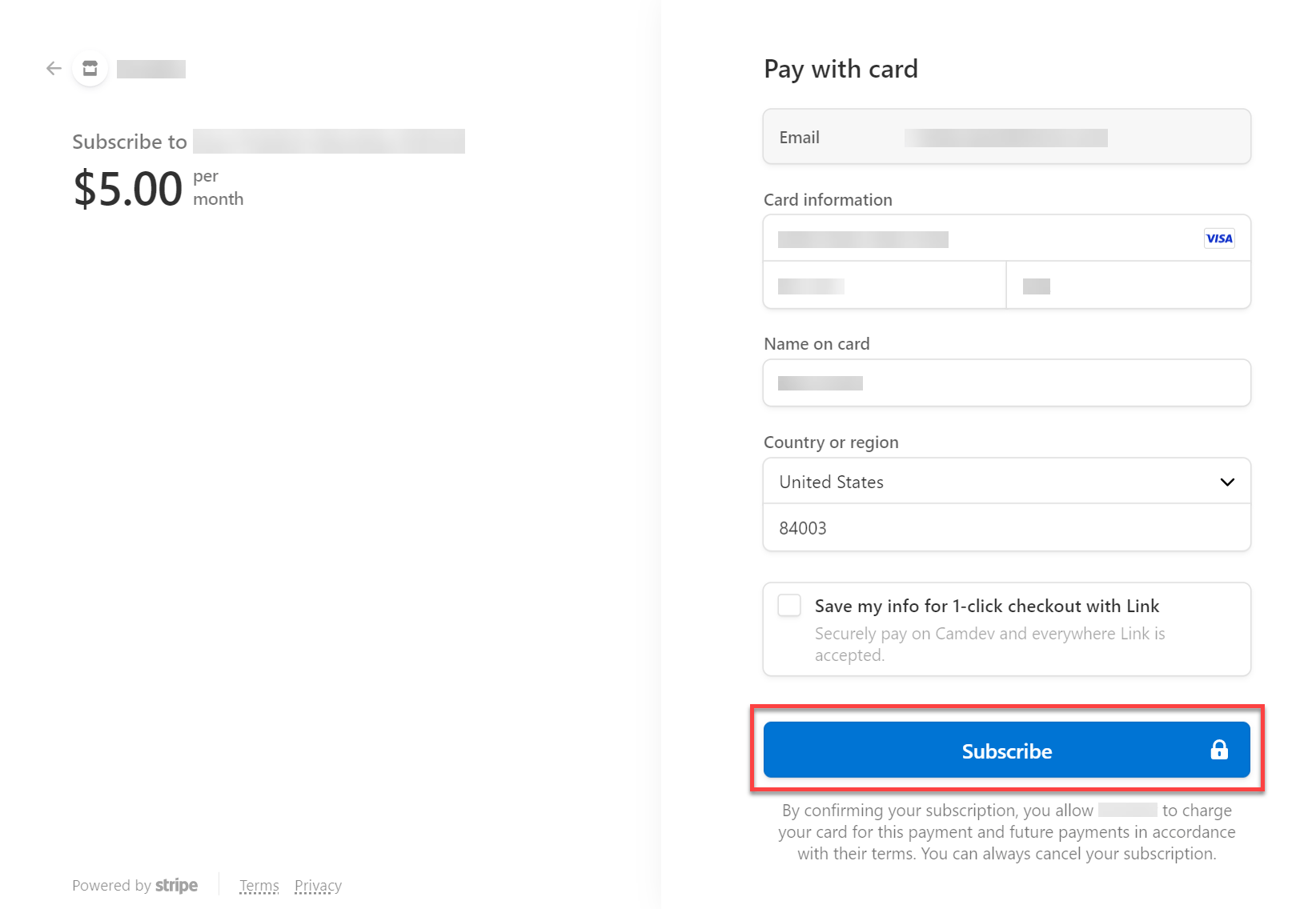
 6. On the Stripe payment page, complete the **Card information**, **Name on card**, and **Country or region** fields. These fields are required to enable the **Subscribe** button.
**Note:** The **Email** field automatically populates with the email associated with your Domo account.
7. Select **Subscribe** to charge your card for the first subscription payment.
6. On the Stripe payment page, complete the **Card information**, **Name on card**, and **Country or region** fields. These fields are required to enable the **Subscribe** button.
**Note:** The **Email** field automatically populates with the email associated with your Domo account.
7. Select **Subscribe** to charge your card for the first subscription payment.
 If the payment succeeds, you are redirected to the **Creating App** modal in Domo. Select **Notify Me** to be notified when your listing is ready for use.
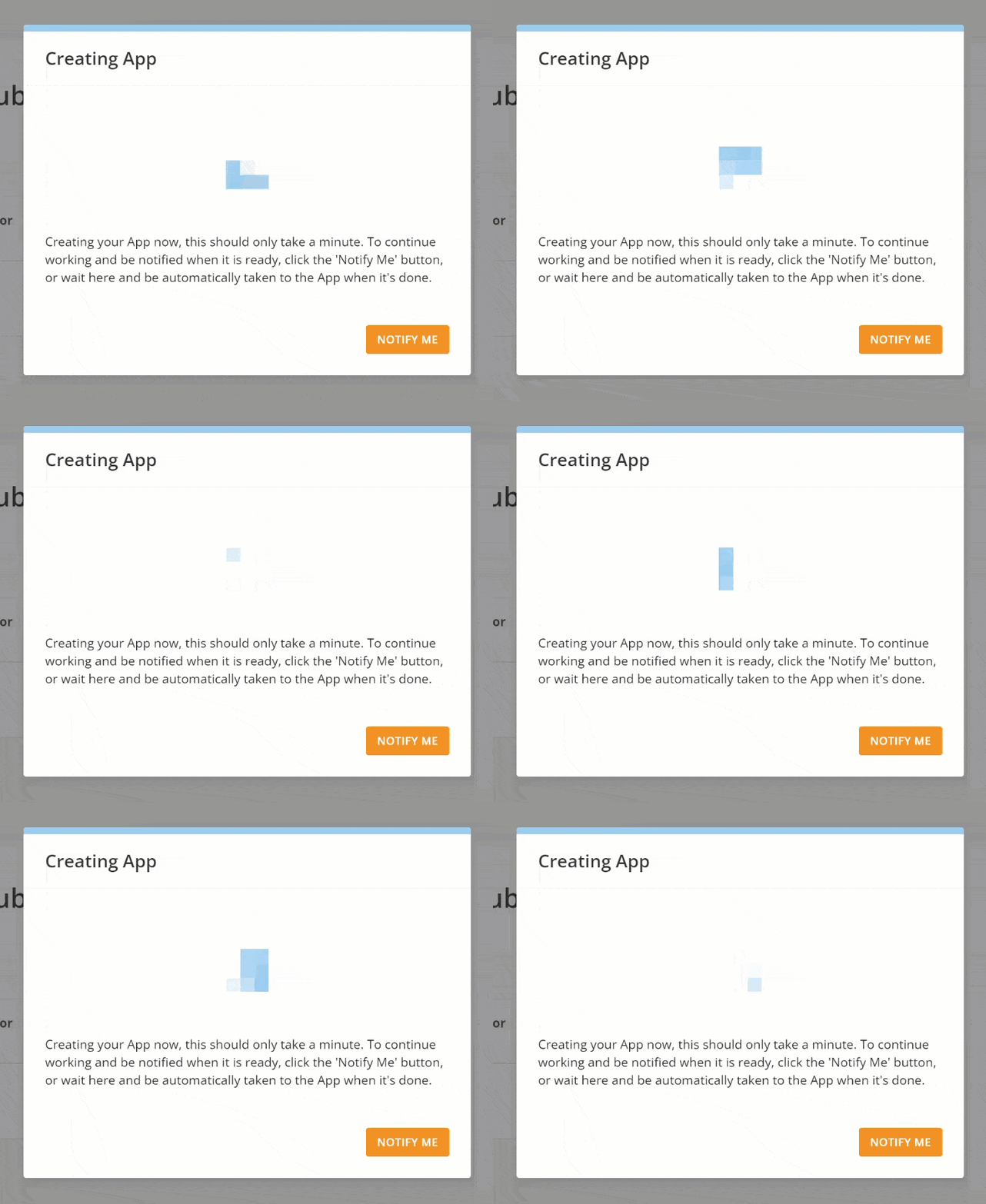 After Domo creates your listing, your newly subscribed listing opens in a new page.
## View Your Subscriptions
To view a list with details about each of your subscriptions, follow these steps:
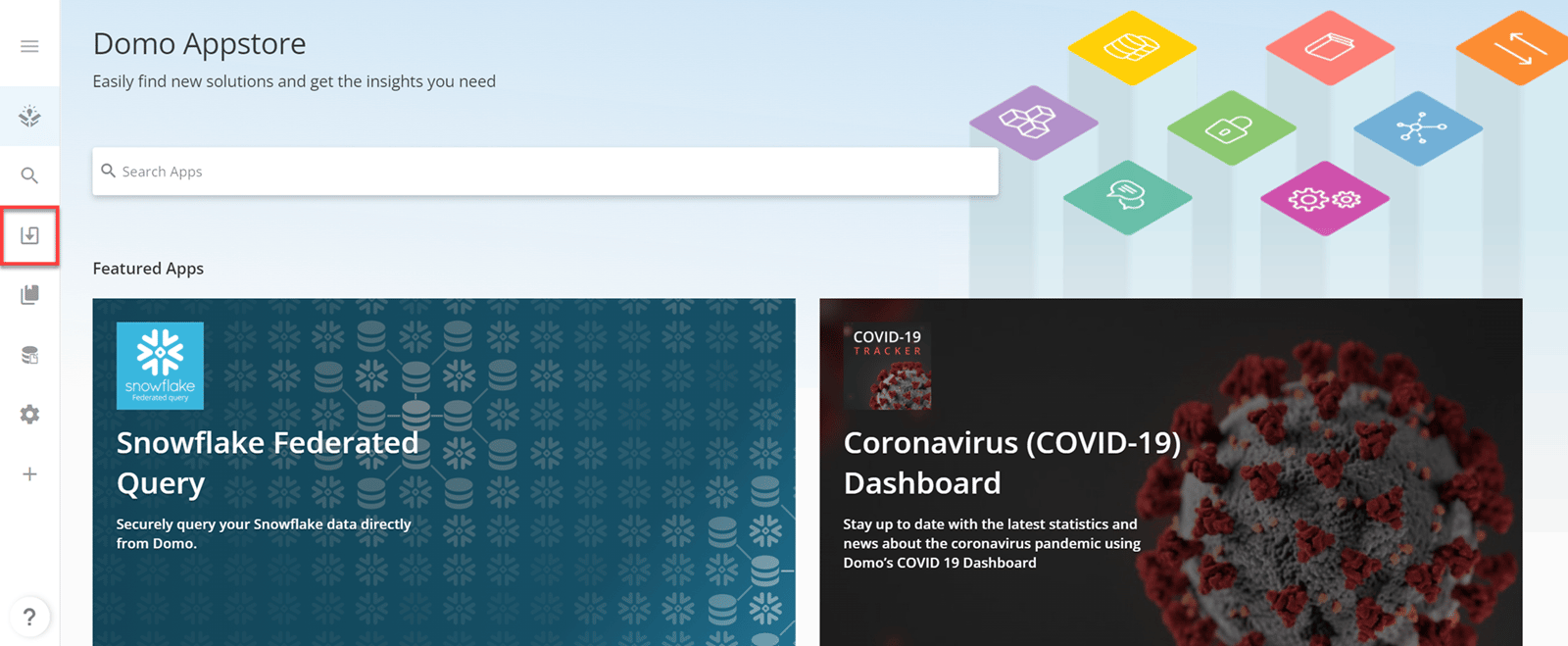
1. In the navigation header, select **Appstore**.
2. In the side panel of the Appstore, select
**Installed Apps**.
The **Installed Apps** page opens.
After Domo creates your listing, your newly subscribed listing opens in a new page.
## View Your Subscriptions
To view a list with details about each of your subscriptions, follow these steps:
1. In the navigation header, select **Appstore**.
2. In the side panel of the Appstore, select
**Installed Apps**.
The **Installed Apps** page opens.
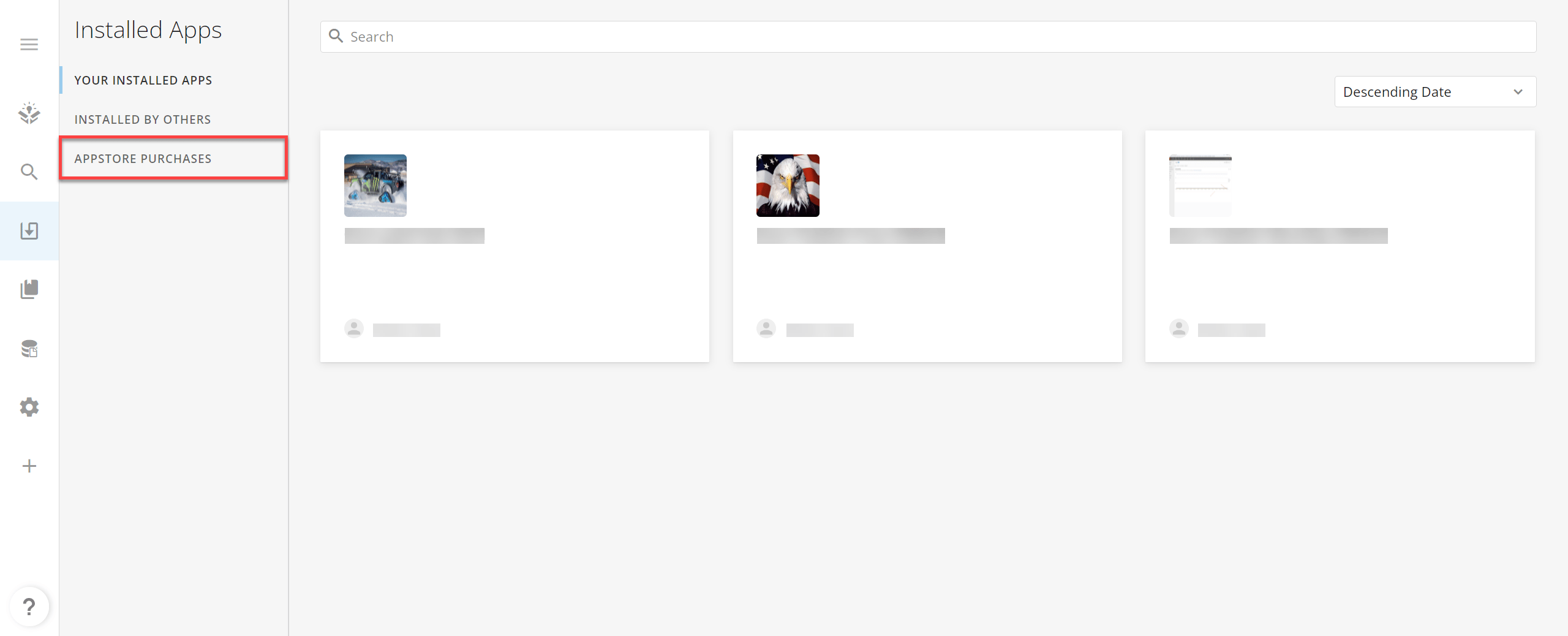
 3. Select **Appstore Purchases** to view all of the listings you and others in your company have purchased.
 4. In the search bar, select
**Add filter** > **Purchased by** > ***Your Name***, then repeat for **Purchase type** > **Subscription**.
4. In the search bar, select
**Add filter** > **Purchased by** > ***Your Name***, then repeat for **Purchase type** > **Subscription**.
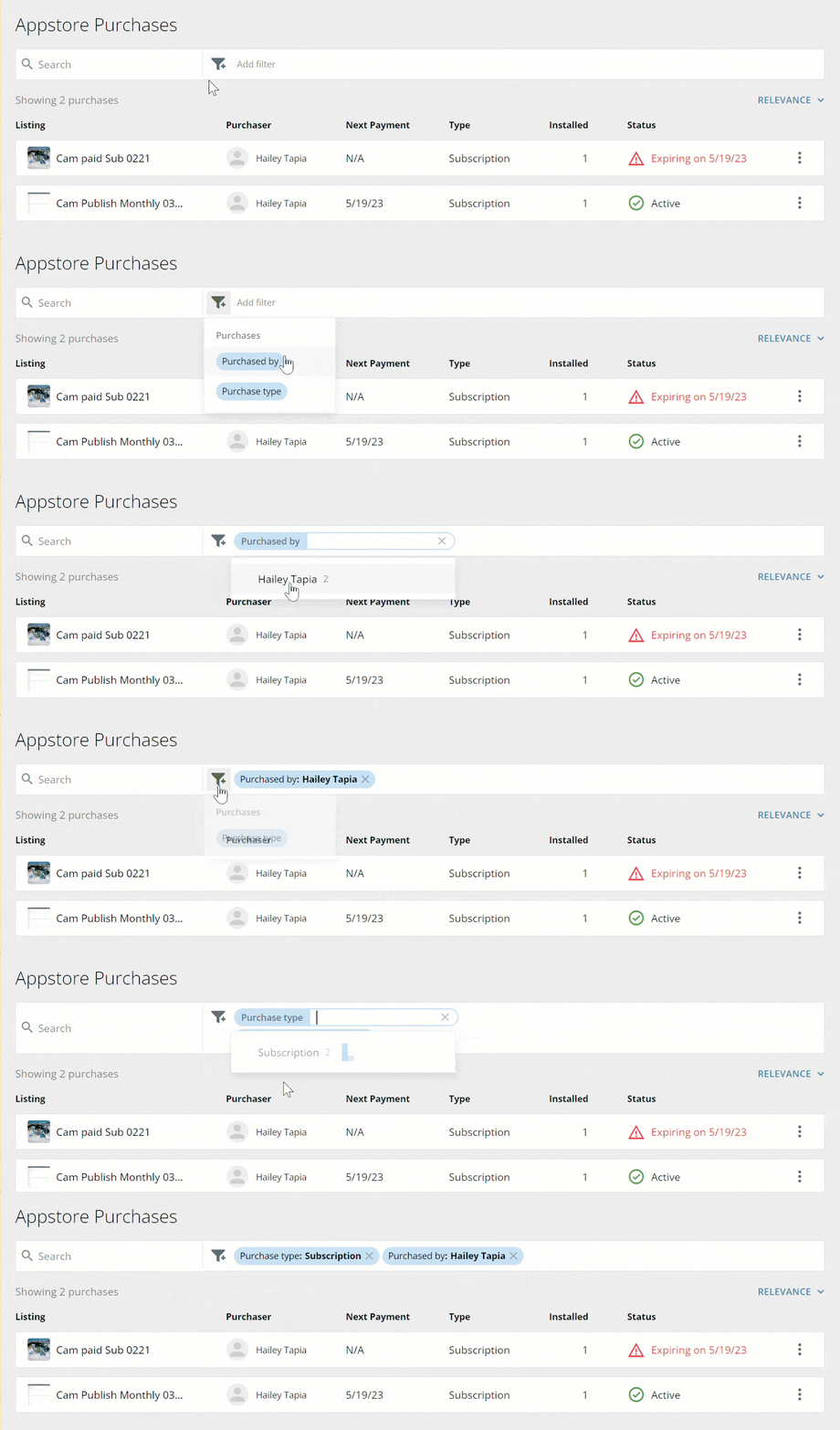 Your subscriptions display in a list with the following details:
* **Listing** — The name of the listing. Selecting it takes you to the listing Details page.
* **Purchaser** — The user who purchased the subscription, which is only you in this case. To view subscriptions purchased by others in your company, select a different user from the **Purchased by** list.
* **Next Payment** — The next due date for the monthly subscription. If the subscription has been canceled, **N/A** displays.
* **Type** — The listing type, which is only **Subscription** in this case.
* **Installed** — The number of times the listing has been installed in your company's instance.
* **Status** — The status of the subscription, which is one of the following:
* **Active** — The subscription is active.
* **Canceled** — The subscription has been manually canceled or has expired past renewal.
* **Expiring on *Date***
— The subscription has been canceled and is set to expire on the specified date.
* **Payment required** — Payment has not been completed for the current subscription period.
Your subscriptions display in a list with the following details:
* **Listing** — The name of the listing. Selecting it takes you to the listing Details page.
* **Purchaser** — The user who purchased the subscription, which is only you in this case. To view subscriptions purchased by others in your company, select a different user from the **Purchased by** list.
* **Next Payment** — The next due date for the monthly subscription. If the subscription has been canceled, **N/A** displays.
* **Type** — The listing type, which is only **Subscription** in this case.
* **Installed** — The number of times the listing has been installed in your company's instance.
* **Status** — The status of the subscription, which is one of the following:
* **Active** — The subscription is active.
* **Canceled** — The subscription has been manually canceled or has expired past renewal.
* **Expiring on *Date***
— The subscription has been canceled and is set to expire on the specified date.
* **Payment required** — Payment has not been completed for the current subscription period.
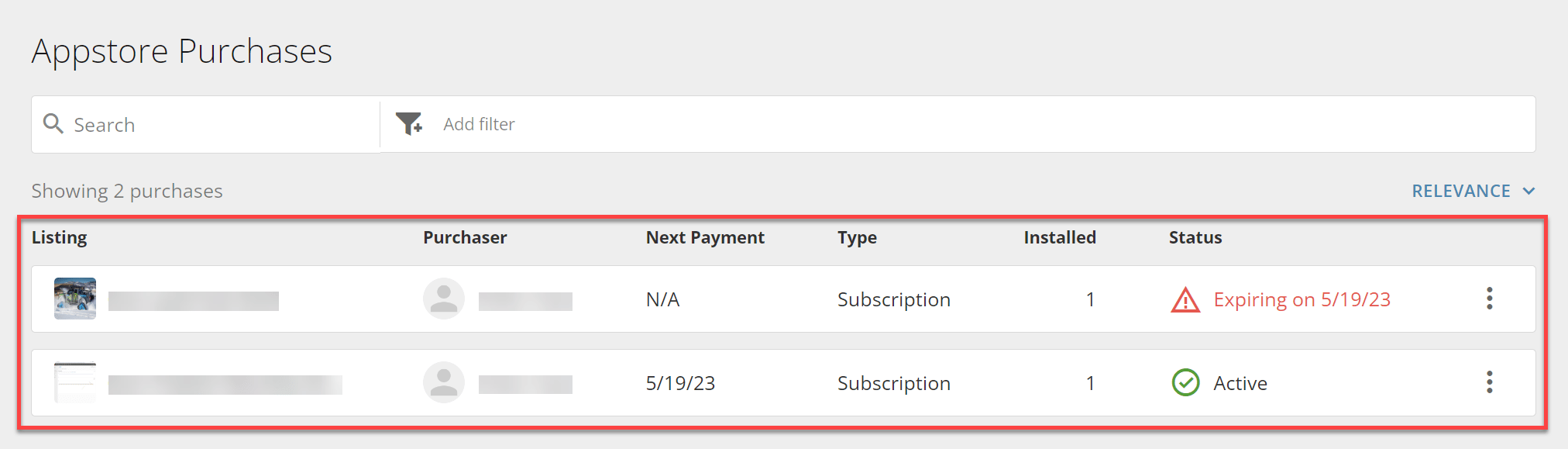 To the right of each subscription in the list is an action menu. Selecting this menu displays the following options:
* **View listing** — Opens the listing Details page.
* **Manage listing** — Allows you to manage the subscription on Stripe or cancel the subscription.
* **View transactions** — Opens a page containing the transaction history for the subscription.
* **Cancel subscription** — Opens the same modal that displays when you [cancel a subscription](#Cancel) from the listing Details page.
## Cancel a Subscription
**Important:** There is no way to restore an app whose subscription has been canceled. Do not proceed unless you want to permanently remove an app from your company's instance.
1. In the navigation header, select **Appstore**.
2. Use the
[search bar](#Search) on the **Search Apps** page to find the listing whose subscription you want to cancel.
3. Select **Manage** > **Cancel Subscription**.
To the right of each subscription in the list is an action menu. Selecting this menu displays the following options:
* **View listing** — Opens the listing Details page.
* **Manage listing** — Allows you to manage the subscription on Stripe or cancel the subscription.
* **View transactions** — Opens a page containing the transaction history for the subscription.
* **Cancel subscription** — Opens the same modal that displays when you [cancel a subscription](#Cancel) from the listing Details page.
## Cancel a Subscription
**Important:** There is no way to restore an app whose subscription has been canceled. Do not proceed unless you want to permanently remove an app from your company's instance.
1. In the navigation header, select **Appstore**.
2. Use the
[search bar](#Search) on the **Search Apps** page to find the listing whose subscription you want to cancel.
3. Select **Manage** > **Cancel Subscription**.
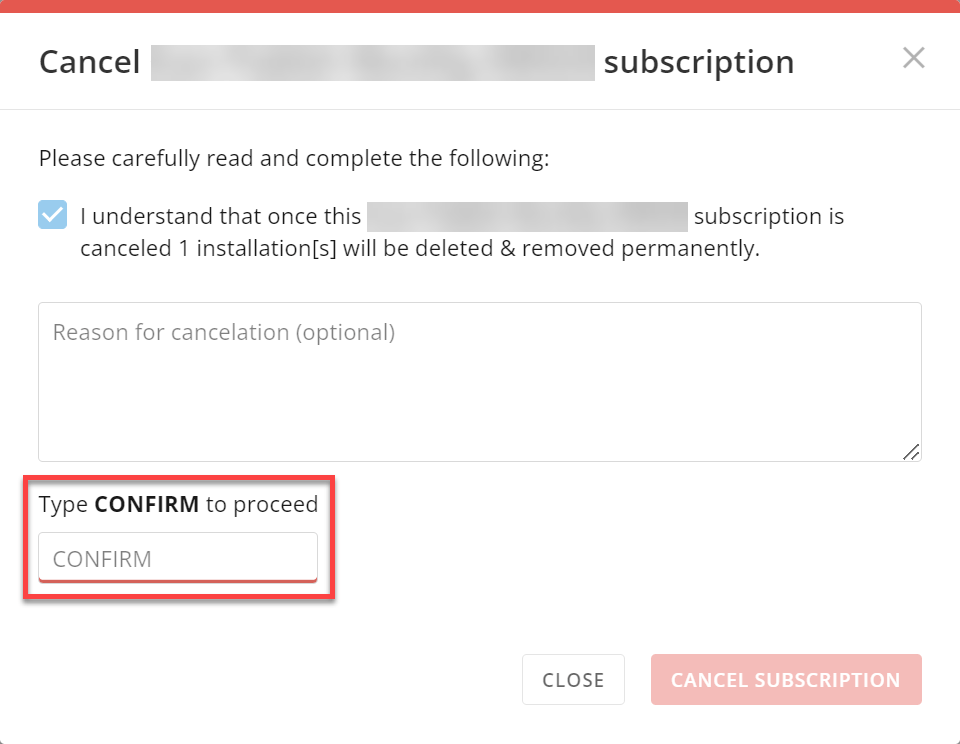
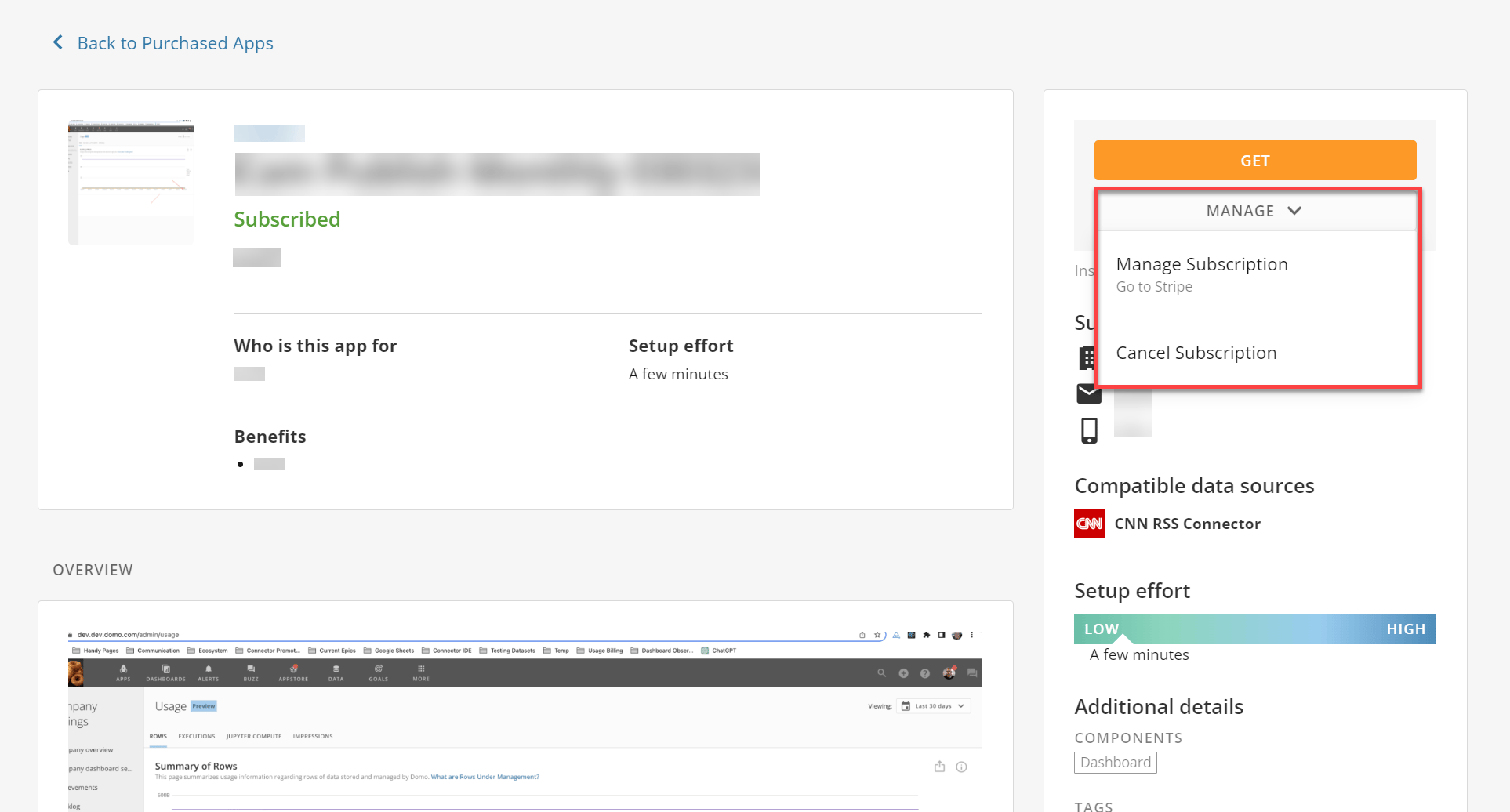 The **Cancel *Listing Name* subscription** modal displays.
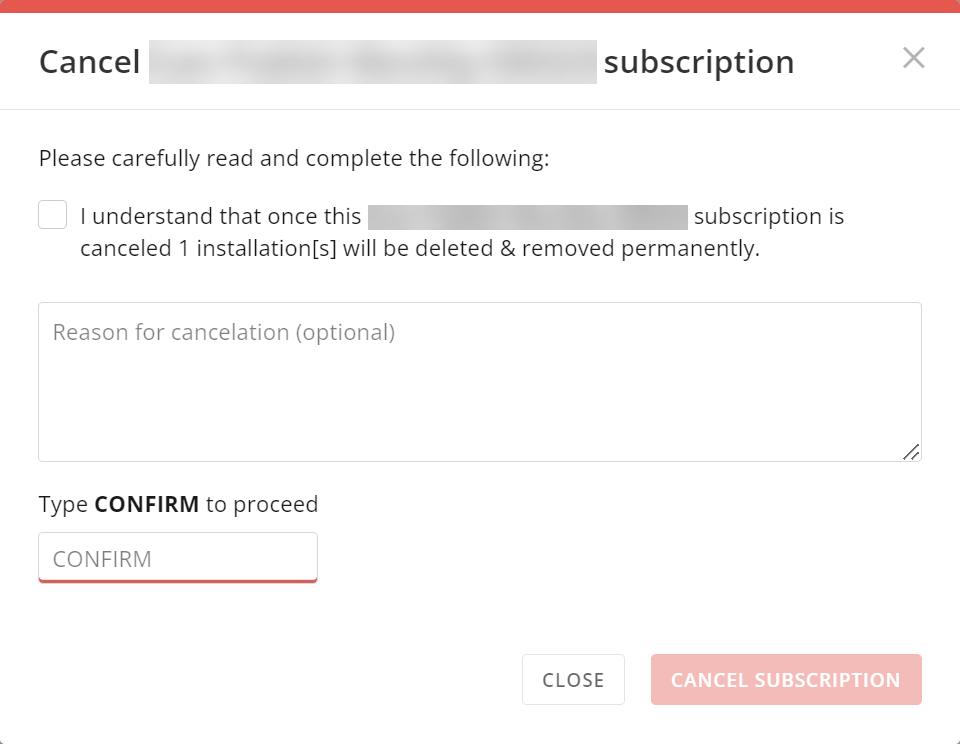 4. Select the checkbox that reads "I understand that once this *Listing Name* subscription is canceled *Number* installation\[s] will be deleted & removed permanently." This is required to enable the **Cancel Subscription** button.
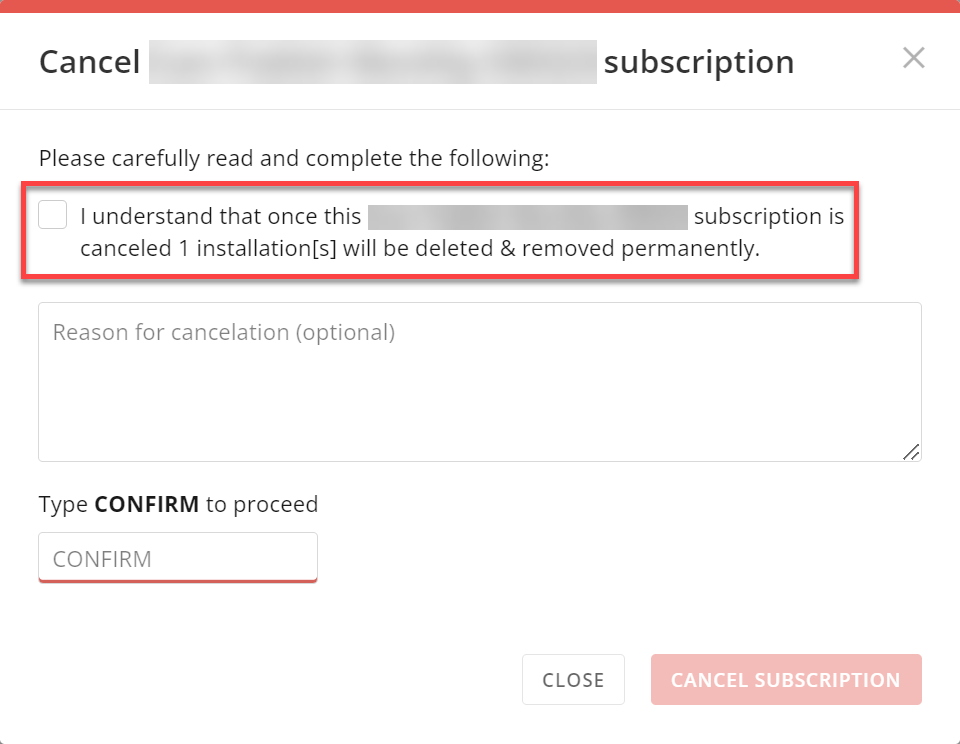 5. (Optional) Provide details about why you are canceling the subscription in the **Reason for cancelation** field.
6. In the last field, enter the word "CONFIRM" in all capital letters. This is required to enable the **Cancel Subscription** button.
5. (Optional) Provide details about why you are canceling the subscription in the **Reason for cancelation** field.
6. In the last field, enter the word "CONFIRM" in all capital letters. This is required to enable the **Cancel Subscription** button.
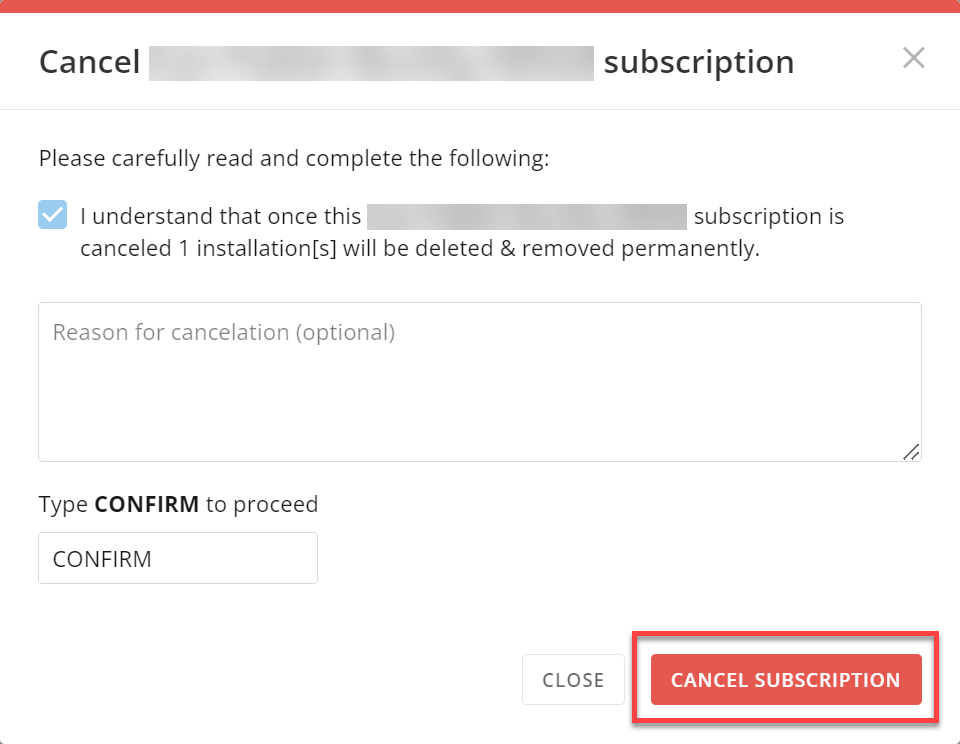
 7. Select **Cancel Subscription**.
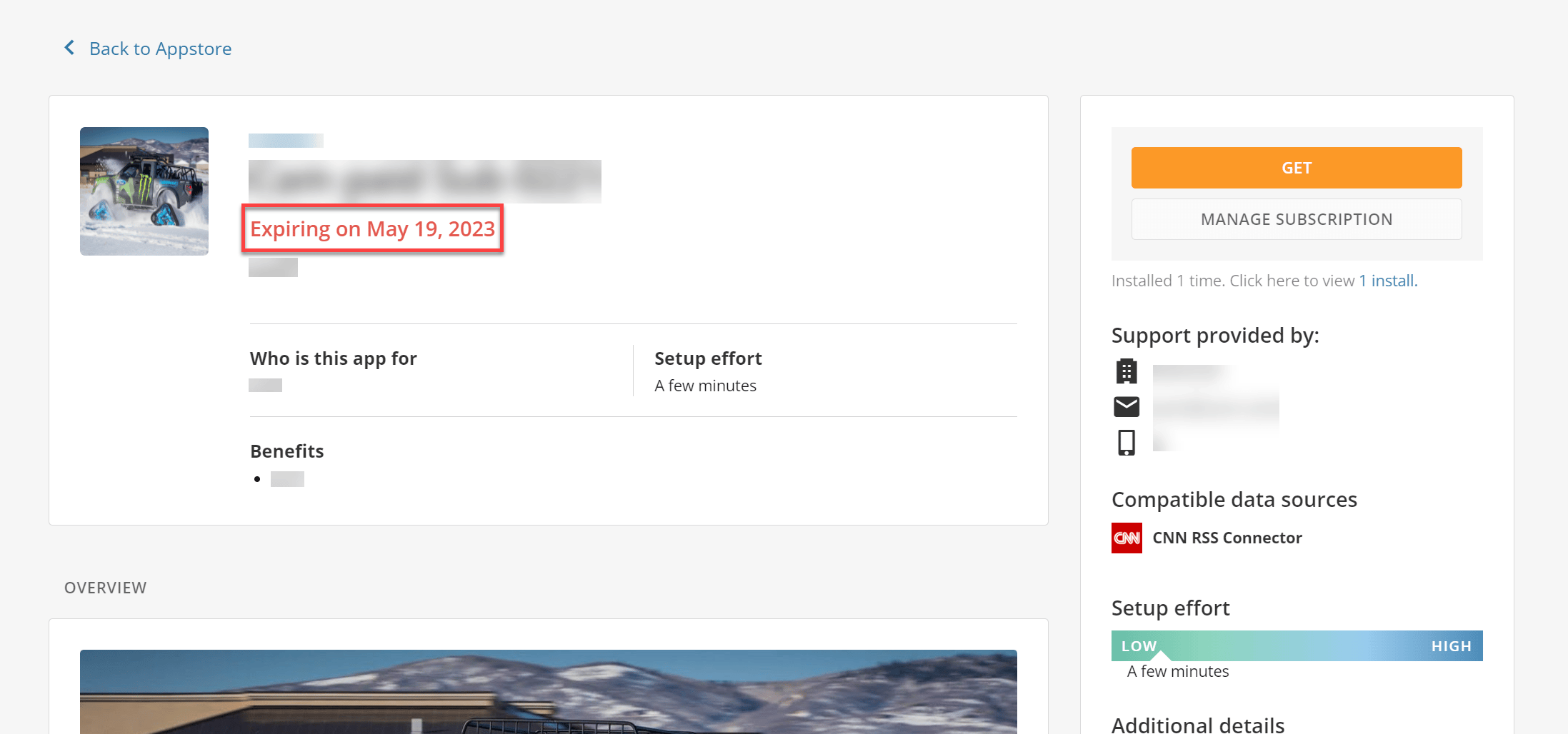
 You are no longer subscribed to the listing, but you still have access to it until the next scheduled payment date, which displays in red text on the listing Details page. You can renew the subscription before this date by following the steps to [renew a subscription](#Renew).
 ## Renew a Subscription
**Note:** You can only renew a subscription within 30 days of cancellation.
1. In the navigation header, select **Appstore**.
2. Use the
[search bar](#Search) on the **Search Apps** page to find the listing whose subscription you want to cancel.
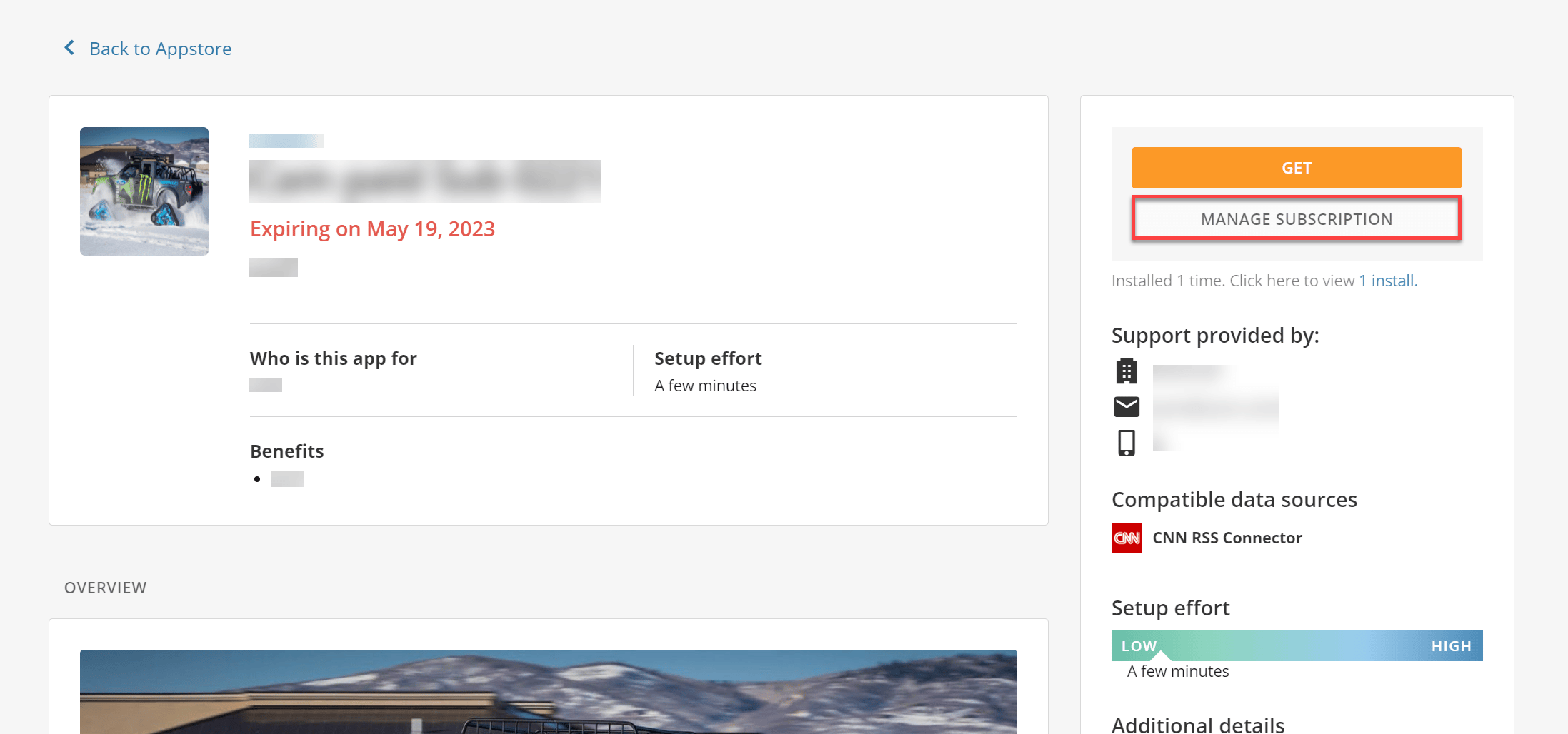
3. Select **Manage** **Subscription**.
You are redirected to Stripe, which displays your current and past subscriptions to the listing's publisher.
## Renew a Subscription
**Note:** You can only renew a subscription within 30 days of cancellation.
1. In the navigation header, select **Appstore**.
2. Use the
[search bar](#Search) on the **Search Apps** page to find the listing whose subscription you want to cancel.
3. Select **Manage** **Subscription**.
You are redirected to Stripe, which displays your current and past subscriptions to the listing's publisher.
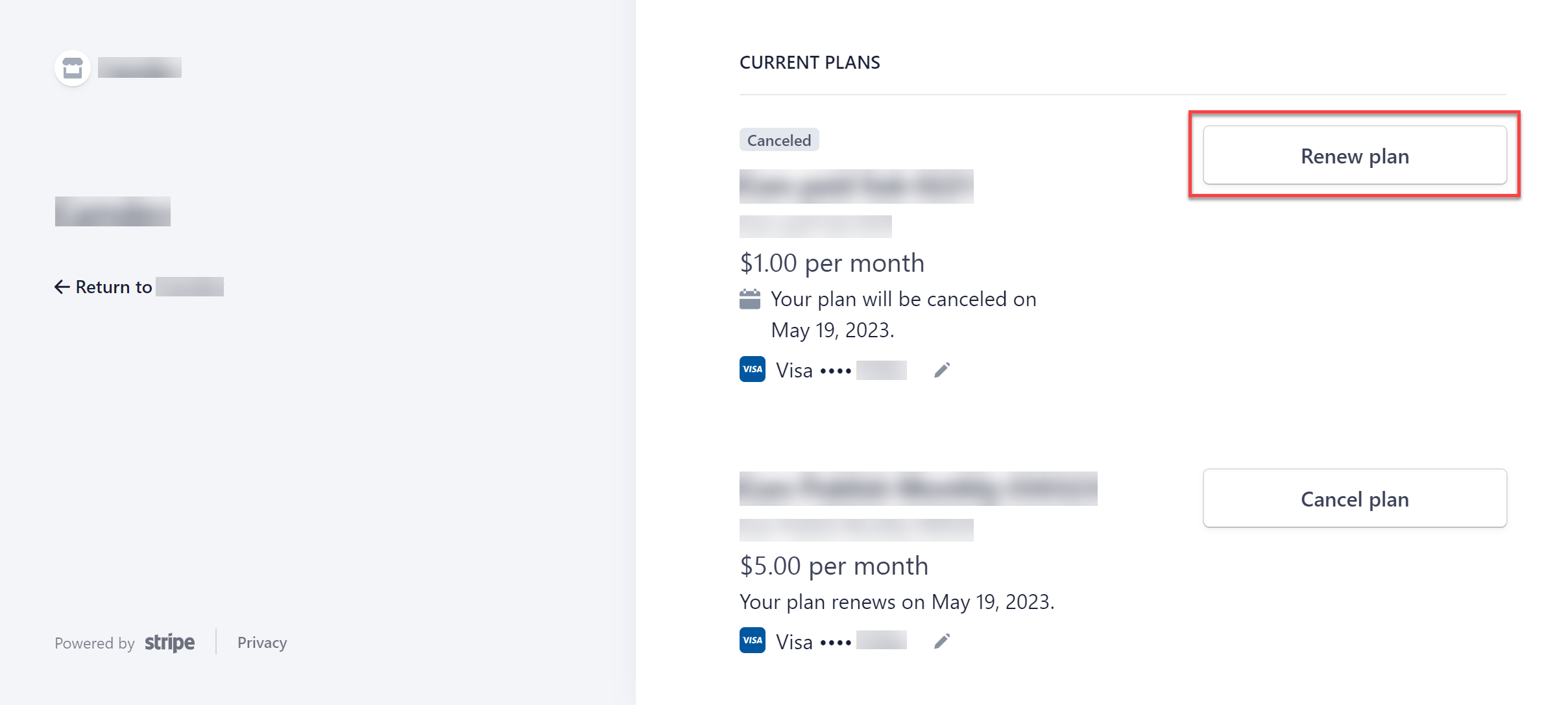
 4. Select **Renew plan** for the subscription you want to renew. Canceled subscriptions have a **Canceled** tag above their name.
The **Renew your plan** page opens.
**Note:** To update your payment method, select **Edit** before renewing the subscription.
4. Select **Renew plan** for the subscription you want to renew. Canceled subscriptions have a **Canceled** tag above their name.
The **Renew your plan** page opens.
**Note:** To update your payment method, select **Edit** before renewing the subscription.
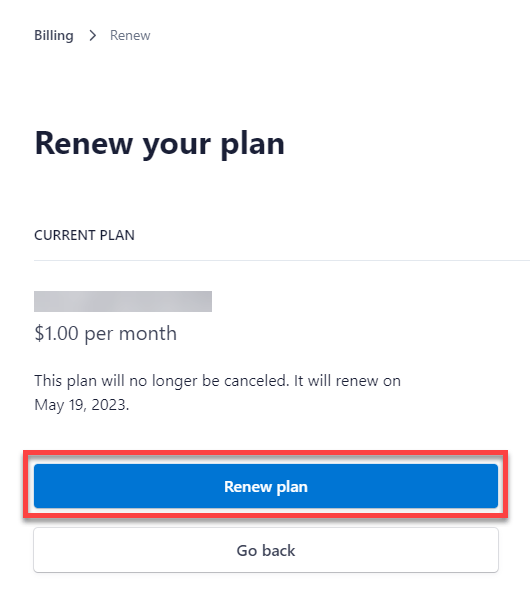
 5. Review the name, price, and renewal date of your plan, then select **Renew plan** to proceed with the renewal or **Go back** to exit.
 If the renewal is successful, you return to the previous page showing your current subscriptions; your subscription no longer has the **Canceled** tag above it.
In Domo, the subscription status changes from **Expiring on *Date*** to **Active** in the **Installed Apps** > **Appstore Purchases** section. For more details about your subscription, see the [View Your Subscriptions](#View) section of this article.
If the renewal is successful, you return to the previous page showing your current subscriptions; your subscription no longer has the **Canceled** tag above it.
In Domo, the subscription status changes from **Expiring on *Date*** to **Active** in the **Installed Apps** > **Appstore Purchases** section. For more details about your subscription, see the [View Your Subscriptions](#View) section of this article.