> ## Documentation Index
> Fetch the complete documentation index at: https://domoinc-openapi-sync-dataflows.mintlify.site/llms.txt
> Use this file to discover all available pages before exploring further.
# Monitor Queues in Task Center
export const InlineImage = ({src, alt = '', height = '1.6em'}) => {
return  ;
};
### Intro
Tasks are generated by a workflow (in Domo Workflows) and represent a manual step in that workflow. Each task includes a form that needs to be completed by a person. When the task is complete, the workflow progresses to the next step.
Task Center (formerly Queues) allows you to organize manual tasks created in Workflows into different buckets of work—queues—and control who can access them. Learn more about [Workflows](/s/article/000005108).
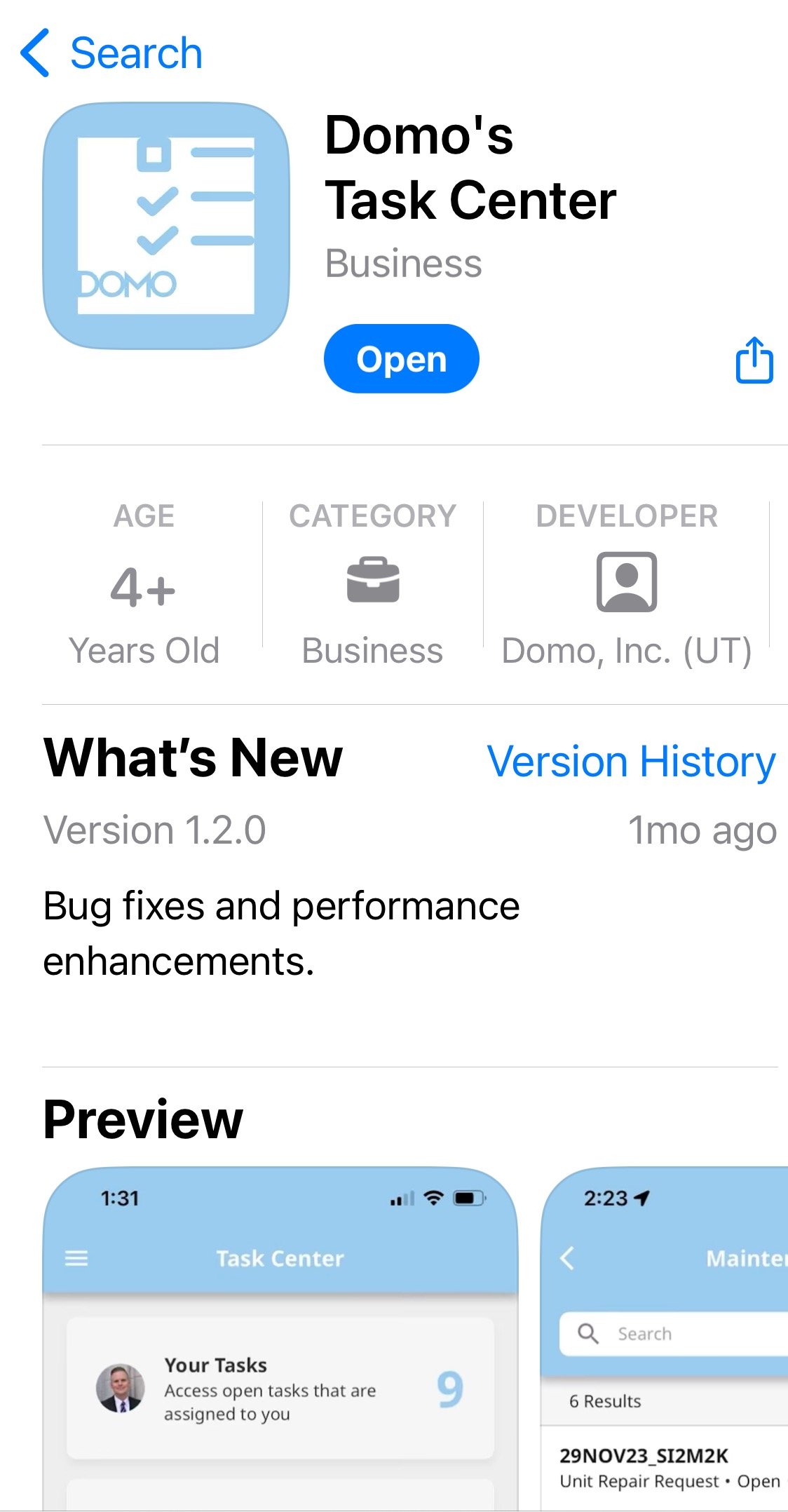
Task Center is also available for your mobile device. Find the **Domo's Task Center** app in the Apple App Store or Google Play Store. Learn about the [Task Center app](/s/article/000005396).
;
};
### Intro
Tasks are generated by a workflow (in Domo Workflows) and represent a manual step in that workflow. Each task includes a form that needs to be completed by a person. When the task is complete, the workflow progresses to the next step.
Task Center (formerly Queues) allows you to organize manual tasks created in Workflows into different buckets of work—queues—and control who can access them. Learn more about [Workflows](/s/article/000005108).
Task Center is also available for your mobile device. Find the **Domo's Task Center** app in the Apple App Store or Google Play Store. Learn about the [Task Center app](/s/article/000005396).
 **Tip:** Learn how to interact with the [Queues and Tasks API](https://developer.domo.com/portal/k2vv2vir3c8ry-queues-and-tasks-api) in the dev portal.
***
### Required Grants
The following grants give user-specific rights to Task Center in your Domo instance:
* **Create Task Queues** **—** This grant allows you to create new task queues and add them to your Domo workflows repository.
* **Manage Task Queues** **—** This grant allows you to take any action on any queue in your Domo instance, including giving yourself or others any [permission](#manage_permissions) to a queue. Give this grant to superusers, admins, or anyone who helps manage queues.
Contact your Domo account team to receive either of these grants for your instance. Learn about Task Center [permissions](#manage_permissions) for non-admin users.
### Access Task Center
Access Task Center from the Domo main navigation by selecting **More** > **Task Center** to open the Task Center home page. If **Task Center** does not appear as an option, contact your Domo account team for assistance.
**Live Updates**
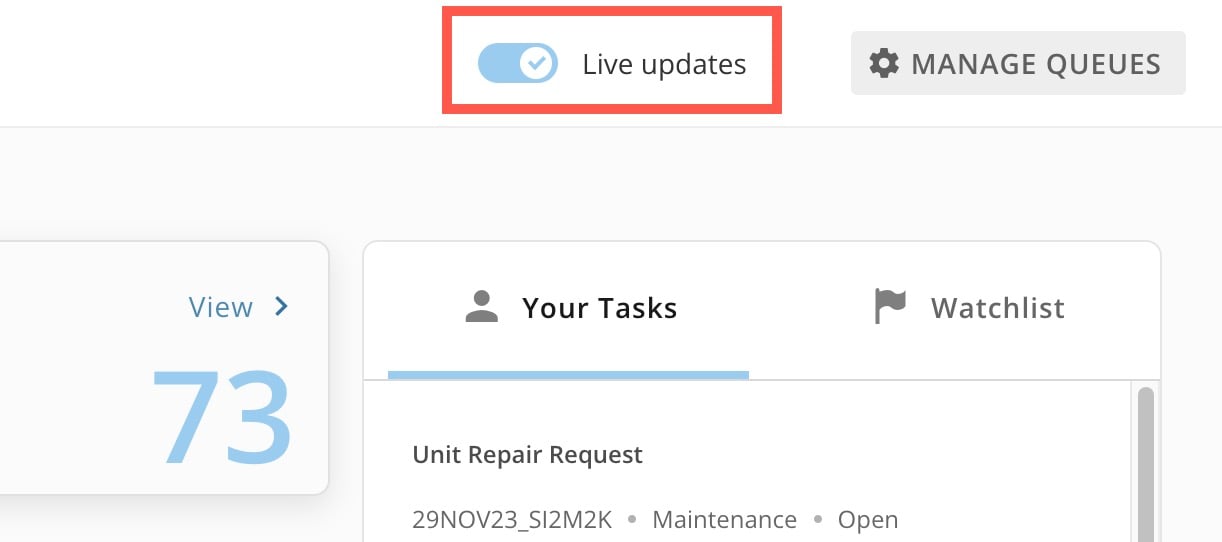
**—** By default, live updates are turned on at the top of the Task Center home page, and happen in near real-time. If you turn off live updates, you must refresh the page to see the updated task counts.
**Tip:** Learn how to interact with the [Queues and Tasks API](https://developer.domo.com/portal/k2vv2vir3c8ry-queues-and-tasks-api) in the dev portal.
***
### Required Grants
The following grants give user-specific rights to Task Center in your Domo instance:
* **Create Task Queues** **—** This grant allows you to create new task queues and add them to your Domo workflows repository.
* **Manage Task Queues** **—** This grant allows you to take any action on any queue in your Domo instance, including giving yourself or others any [permission](#manage_permissions) to a queue. Give this grant to superusers, admins, or anyone who helps manage queues.
Contact your Domo account team to receive either of these grants for your instance. Learn about Task Center [permissions](#manage_permissions) for non-admin users.
### Access Task Center
Access Task Center from the Domo main navigation by selecting **More** > **Task Center** to open the Task Center home page. If **Task Center** does not appear as an option, contact your Domo account team for assistance.
**Live Updates**
**—** By default, live updates are turned on at the top of the Task Center home page, and happen in near real-time. If you turn off live updates, you must refresh the page to see the updated task counts.
 ### View Your Tasks
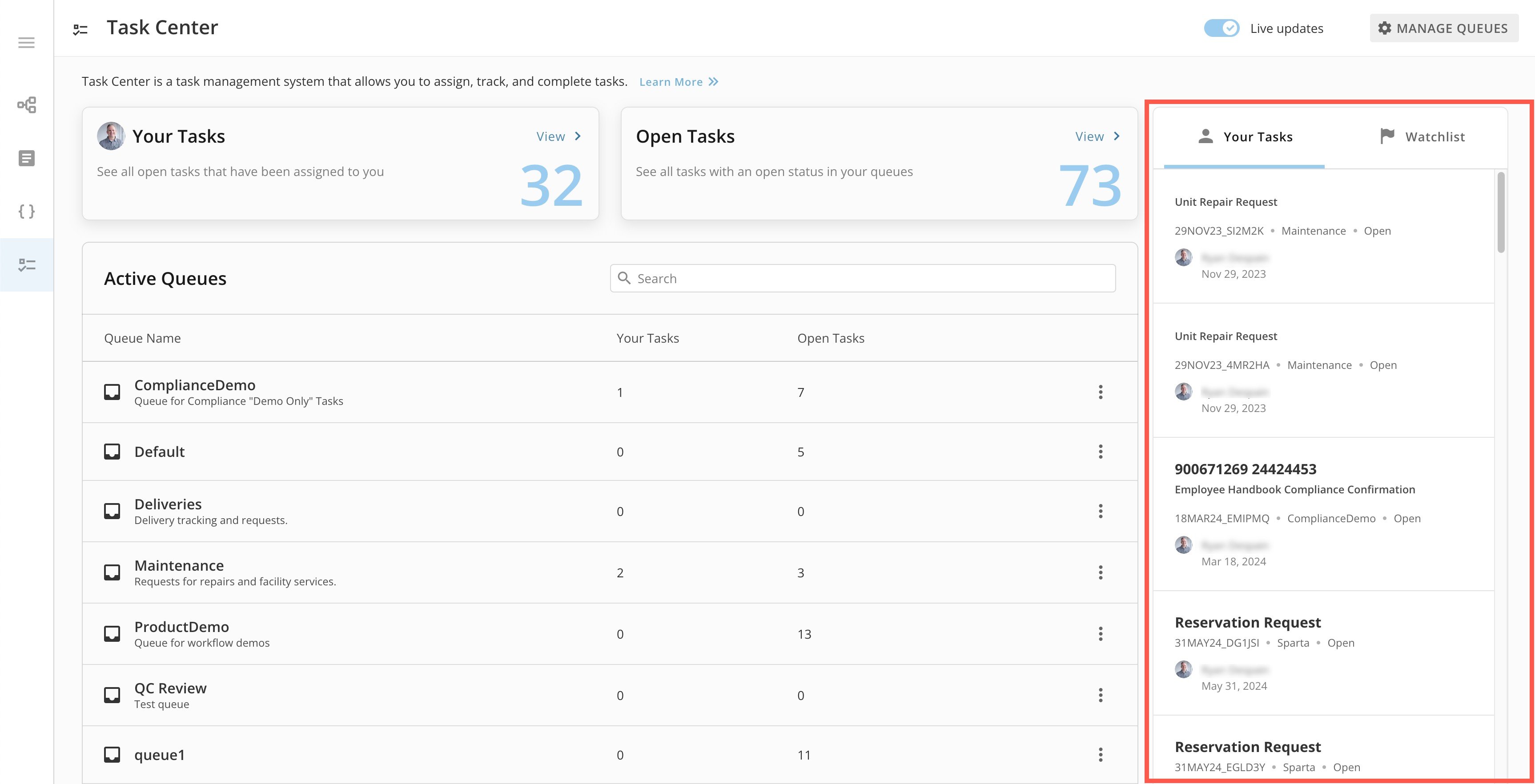
Inside Task Center, the **Your Tasks** tile shows a count of all the tasks assigned to you in any queue that have an open status. Learn more about task [status](#view_task_details).
### View Your Tasks
Inside Task Center, the **Your Tasks** tile shows a count of all the tasks assigned to you in any queue that have an open status. Learn more about task [status](#view_task_details).
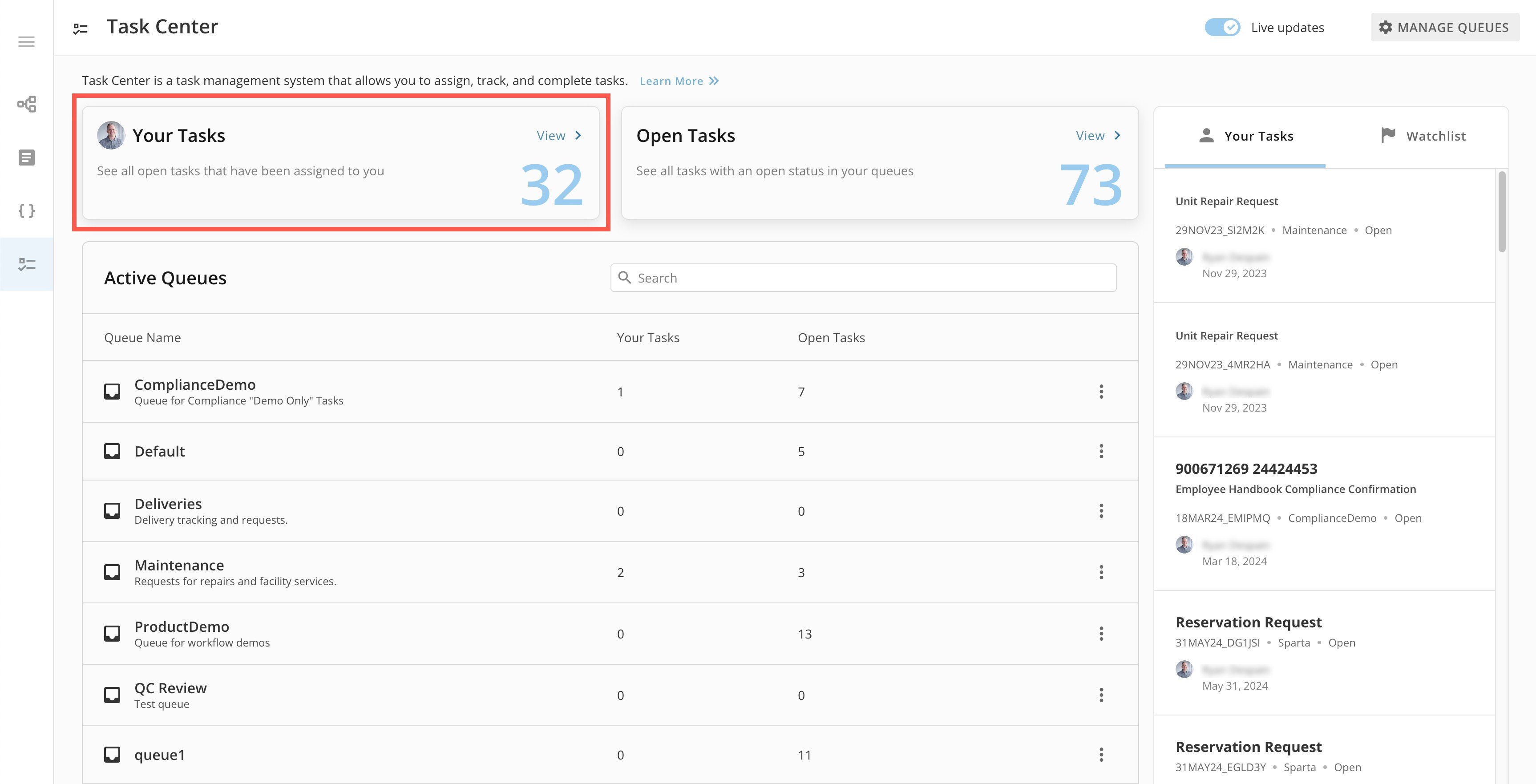 Select the tile to view the [task list](#view_tasks_in_the_task_list), filtered to open tasks assigned to you.
 The **Your Tasks** tab on the right side of the Task Center page also includes a scrollable list of your open tasks. Select a task to view its details.
 ### View Open Tasks
On the Task Center home page, the **Open Tasks** tile shows a count of all tasks in the queues you have access to that have an open status. Learn more about task [status](#view_task_details).
### View Open Tasks
On the Task Center home page, the **Open Tasks** tile shows a count of all tasks in the queues you have access to that have an open status. Learn more about task [status](#view_task_details).
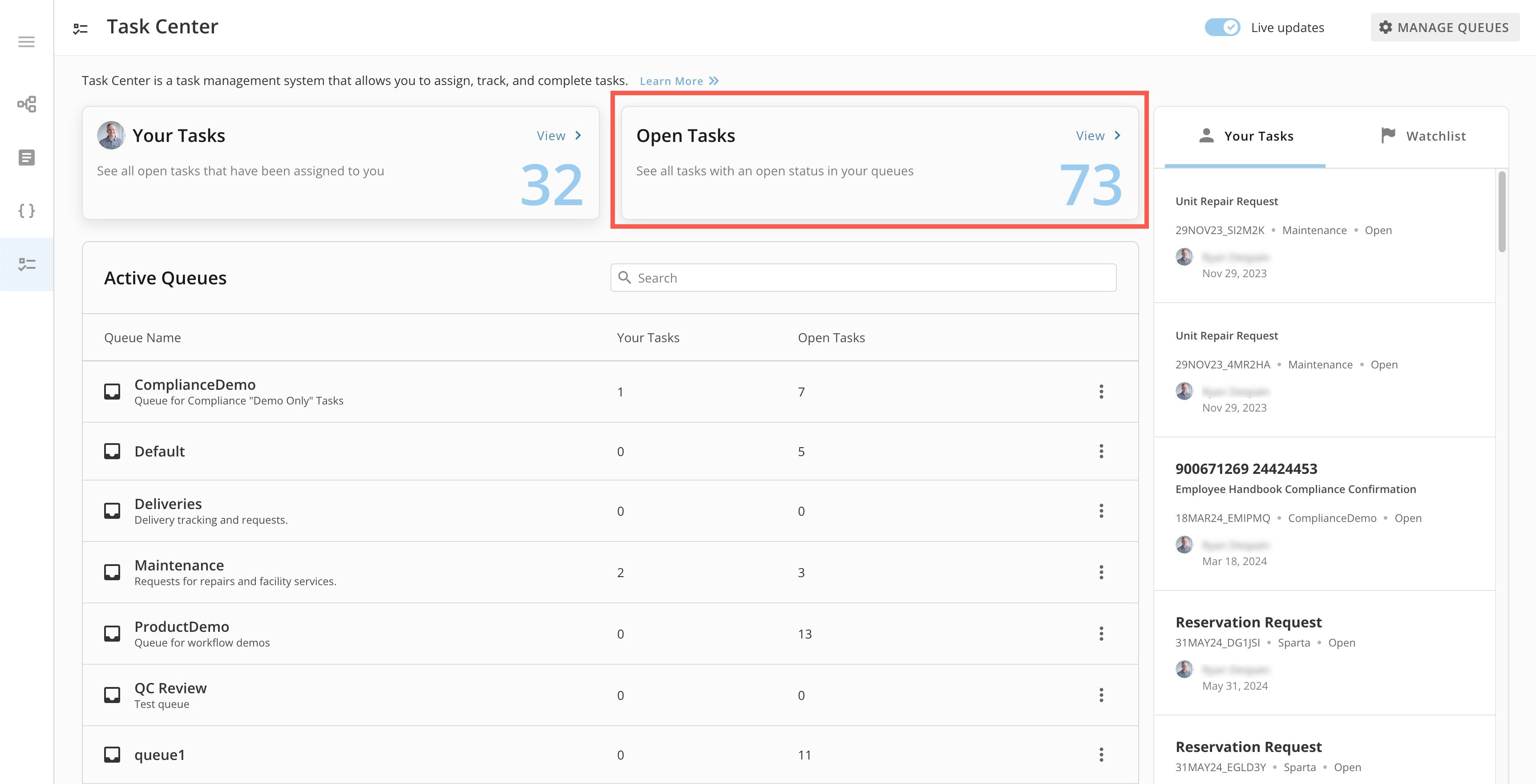 Select the tile to view the [task list](#view_task_details), filtered to all open tasks.
 ### View Active Queues
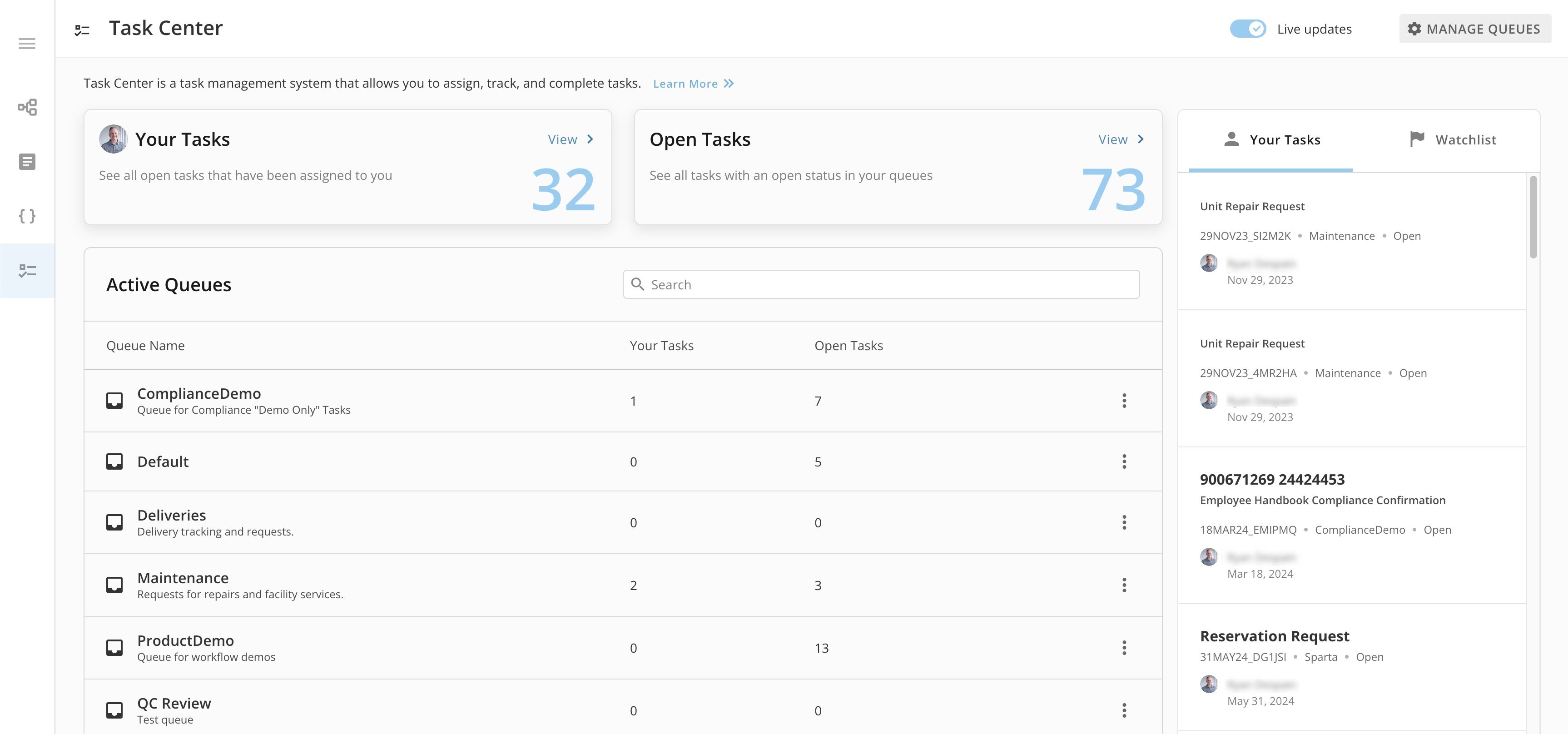
The **Active Queues** list includes all queues that you have access to, and displays counts for your tasks and all open tasks in each queue.
### View Active Queues
The **Active Queues** list includes all queues that you have access to, and displays counts for your tasks and all open tasks in each queue.
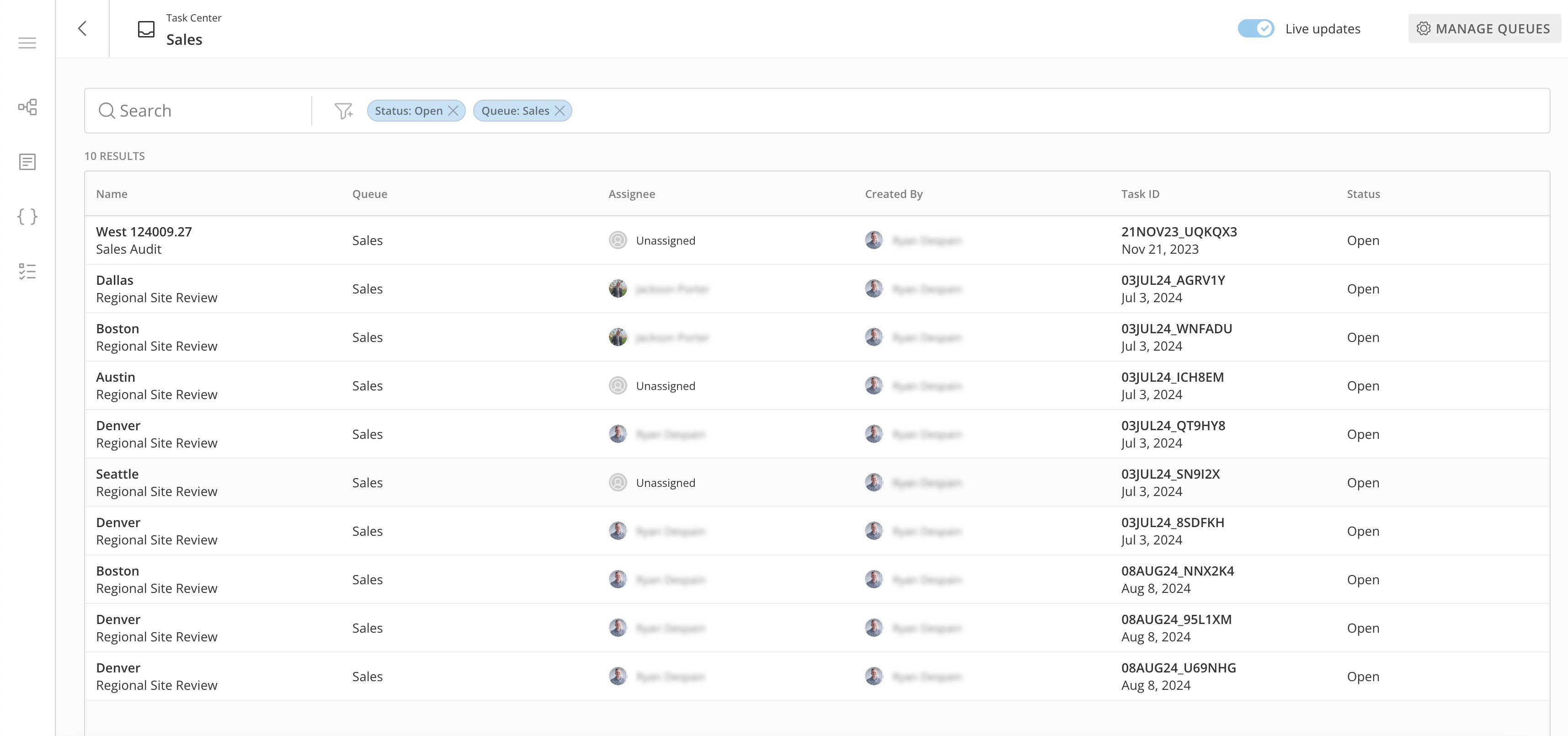
 Select a queue to view the list of tasks in that queue, filtered to all `Open` tasks. In this example, the queue is `Sales.` Learn more about the [Task List](#view_tasks_in_the_task_list).
 # Manage Notifications
You can receive near real-time notification of the events you want to know about happening in your queues.
If a queue is archived, notifications are discontinued. Learn how to [archive a queue](#archive_a_queue).
Follow these steps to access the notification settings for your queues:
1. In the **Active Queues** list of Task Center, select **action menu**
(three vertical dots icon) > **Manage notifications**.
2. On the **Manage notifications** page, toggle **Allow notifications from this Queue**. If this switch is not toggled, none of your configured notifications will be sent.
# Manage Notifications
You can receive near real-time notification of the events you want to know about happening in your queues.
If a queue is archived, notifications are discontinued. Learn how to [archive a queue](#archive_a_queue).
Follow these steps to access the notification settings for your queues:
1. In the **Active Queues** list of Task Center, select **action menu**
(three vertical dots icon) > **Manage notifications**.
2. On the **Manage notifications** page, toggle **Allow notifications from this Queue**. If this switch is not toggled, none of your configured notifications will be sent.
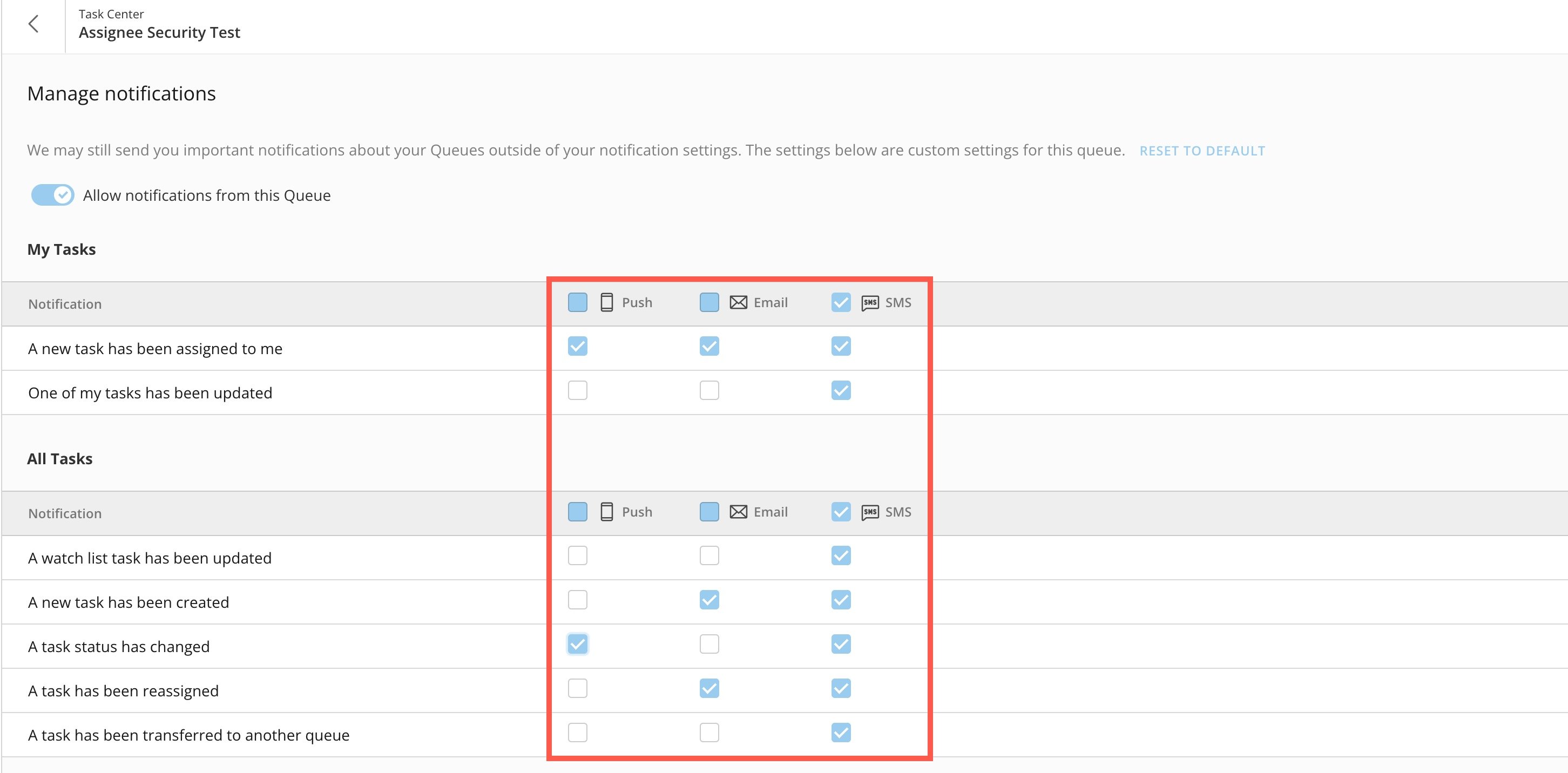
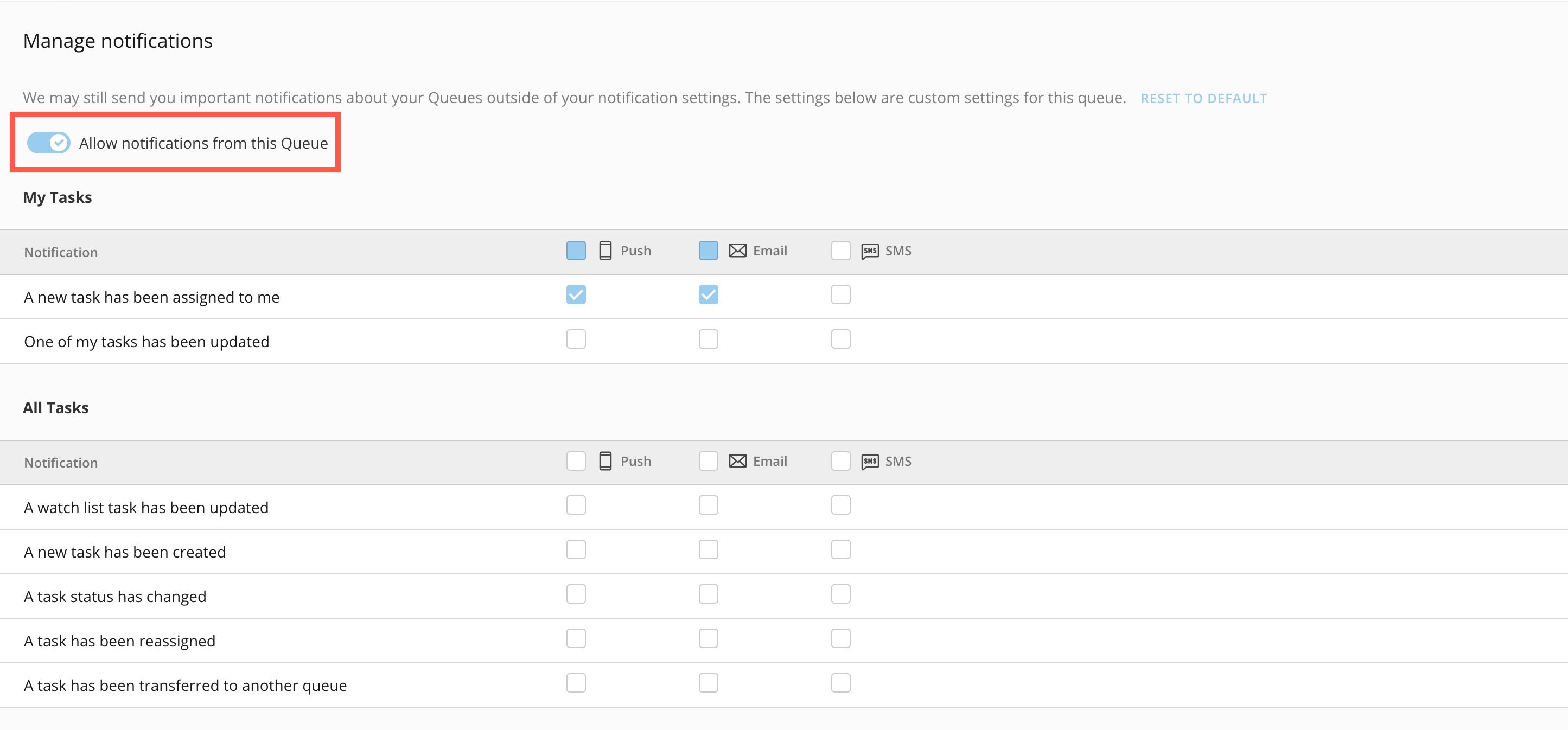 3. Select which notifications for your tasks and which notifications for all tasks you want to receive and by what method—push notification to your mobile device, email, or SMS.
 # Manage Permissions
Those with Share permission to a queue can give others permission to it up to their level of access from the **Active Queues** list.
Admins can share access to a queue from inside the Manage Queues interface by following the same steps.
Follow these steps to manage queue permissions (according to your own permissions):
1. In the **Active Queues** list or from the **Manage Queues** interface (admins), select **More**
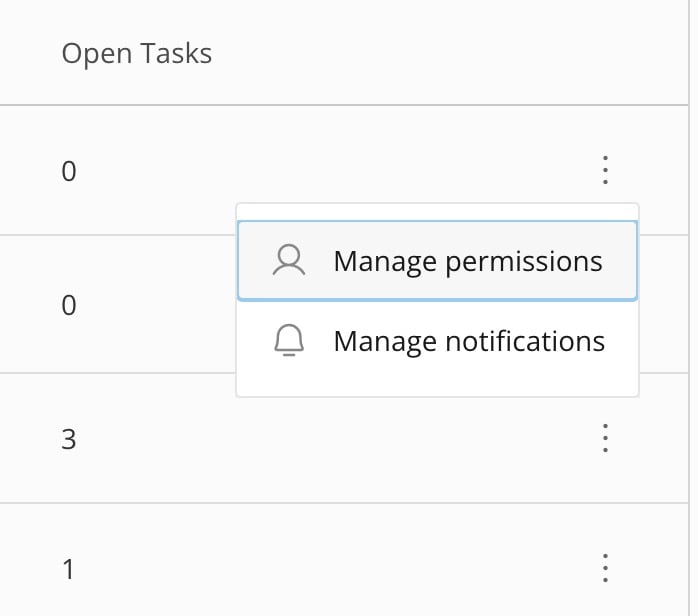
(three vertical dots icon) > **Manage permissions**.
# Manage Permissions
Those with Share permission to a queue can give others permission to it up to their level of access from the **Active Queues** list.
Admins can share access to a queue from inside the Manage Queues interface by following the same steps.
Follow these steps to manage queue permissions (according to your own permissions):
1. In the **Active Queues** list or from the **Manage Queues** interface (admins), select **More**
(three vertical dots icon) > **Manage permissions**.
 The permissions modal displays.
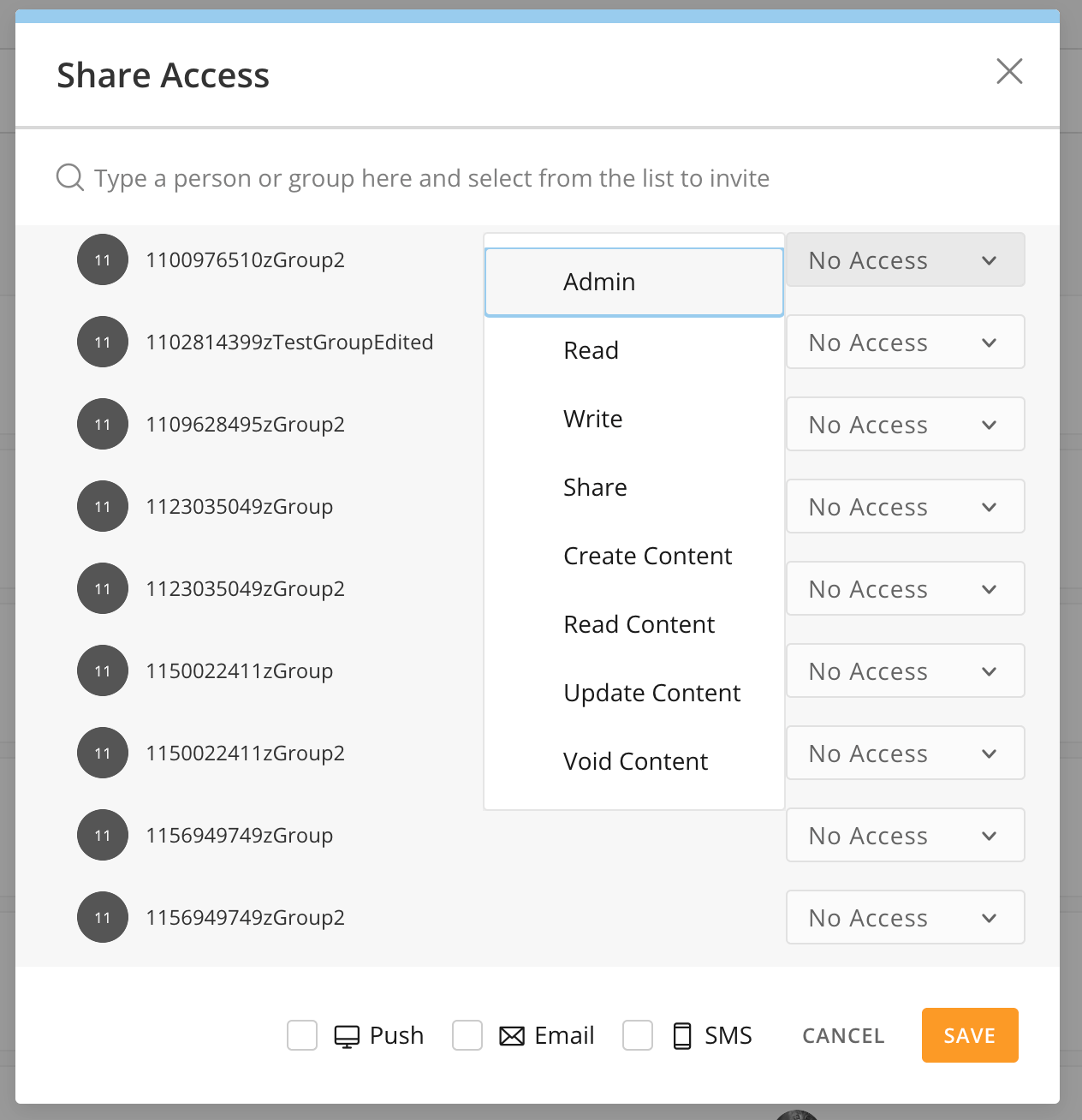 2. In the modal, search for the user(s) or groups(s) whose access you want to update and use the dropdowns to choose the level of access. Non-admins with Share permission to the queue can only share access up to their own level.
The following list describes the access levels:
* **Admin —** Allows a user to perform any action on a specific queue or task in that queue
* **Read —** Allows a user view-only access to queue settings in **Queue Manager**
* **Write —** Allows a user to edit a queue
* **Share —** Allows a user to grant another user equal or lesser access to a queue
* **Create Content —** Allows a user to create a task to display in the queue
* **Read Content** **—** Allows a user view-only access to a task and the queue count
* **Update Content** **—** Allows a user to edit and submit a task
* **Void Content** **—** Allows a user to void a task, which prevents manual updates from occurring
### View Tasks in the Task List
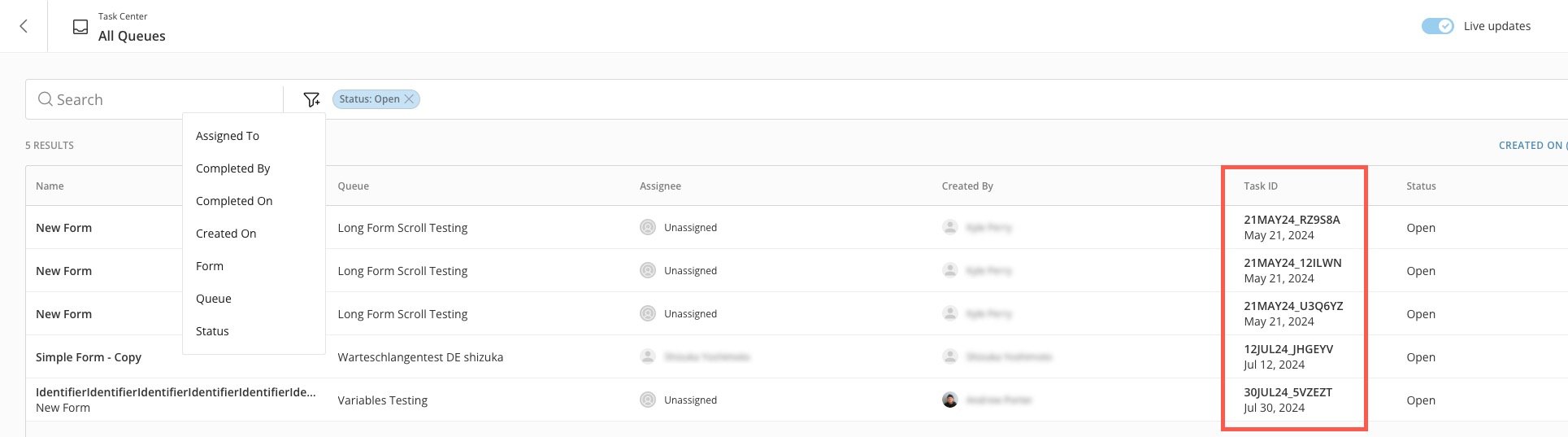
Whether you use the **Your Tasks** or **Open Tasks** tile or select a queue from the **Active Queues** list (all on the Task Center home page), you are taken to the Task List, which you can filter by status, task owner, associated form, and more.
The Task List includes a **Task ID** or task identifier for each task. The [task identifier](https://domo-support.domo.com/s/article/000005171?language=en_US#task_identifiers) is a tag or field from the originating form and includes the task creation date.
2. In the modal, search for the user(s) or groups(s) whose access you want to update and use the dropdowns to choose the level of access. Non-admins with Share permission to the queue can only share access up to their own level.
The following list describes the access levels:
* **Admin —** Allows a user to perform any action on a specific queue or task in that queue
* **Read —** Allows a user view-only access to queue settings in **Queue Manager**
* **Write —** Allows a user to edit a queue
* **Share —** Allows a user to grant another user equal or lesser access to a queue
* **Create Content —** Allows a user to create a task to display in the queue
* **Read Content** **—** Allows a user view-only access to a task and the queue count
* **Update Content** **—** Allows a user to edit and submit a task
* **Void Content** **—** Allows a user to void a task, which prevents manual updates from occurring
### View Tasks in the Task List
Whether you use the **Your Tasks** or **Open Tasks** tile or select a queue from the **Active Queues** list (all on the Task Center home page), you are taken to the Task List, which you can filter by status, task owner, associated form, and more.
The Task List includes a **Task ID** or task identifier for each task. The [task identifier](https://domo-support.domo.com/s/article/000005171?language=en_US#task_identifiers) is a tag or field from the originating form and includes the task creation date.
 # View Task Details
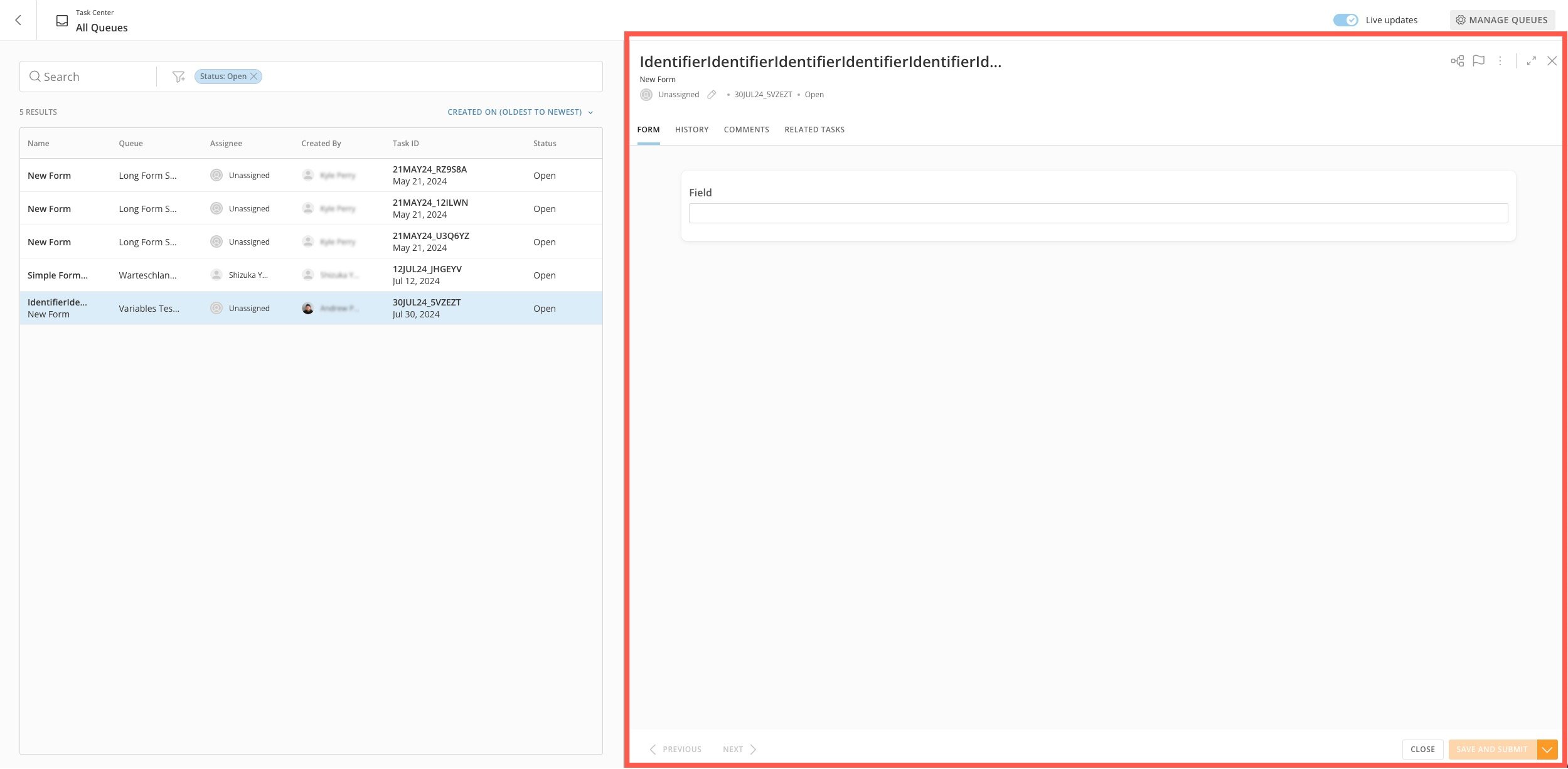
When you select a task from the Task List, the form associated with the task opens in the form viewer on the right side of the screen. The form viewer displays all the task information.
# View Task Details
When you select a task from the Task List, the form associated with the task opens in the form viewer on the right side of the screen. The form viewer displays all the task information.
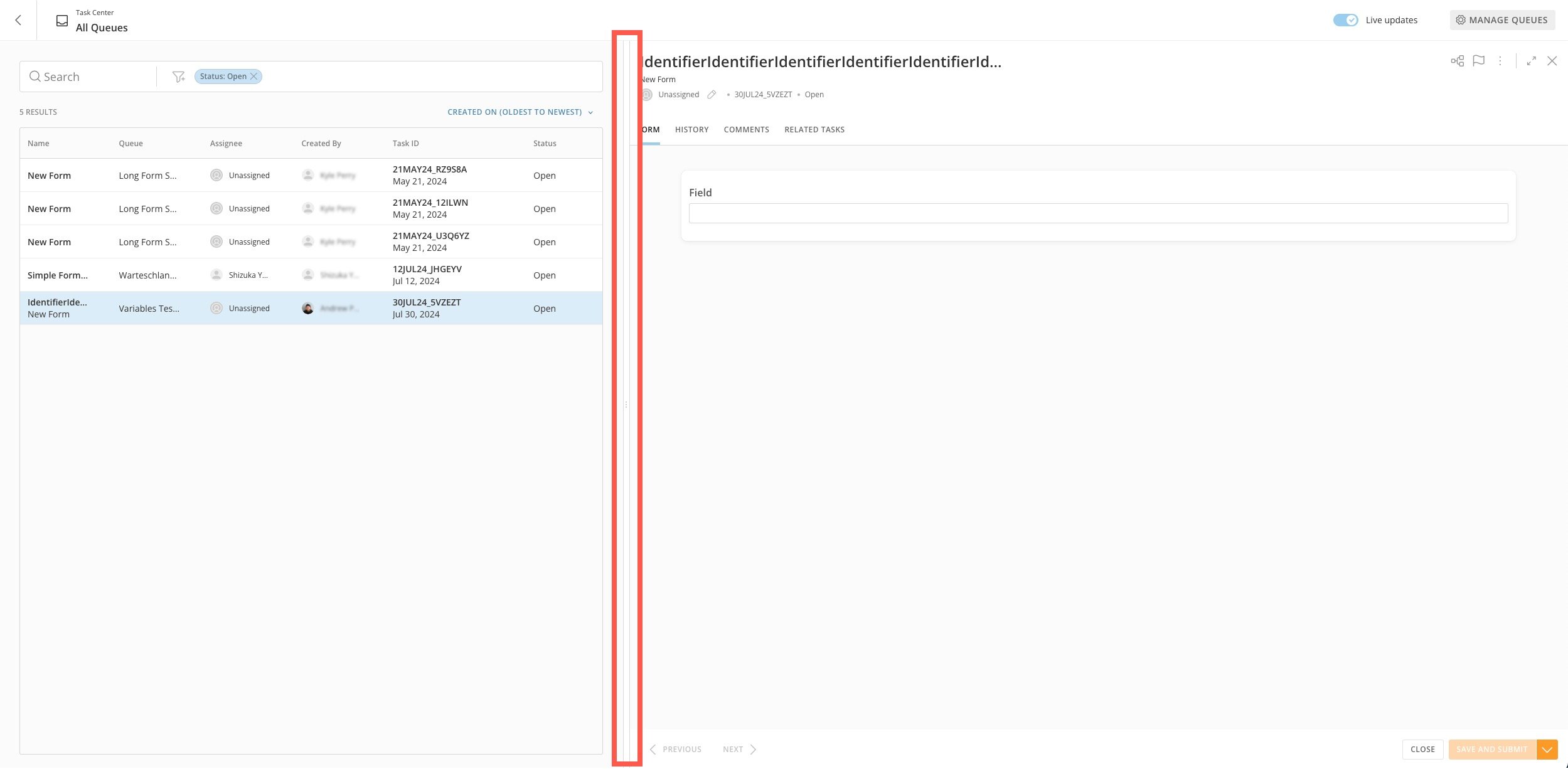
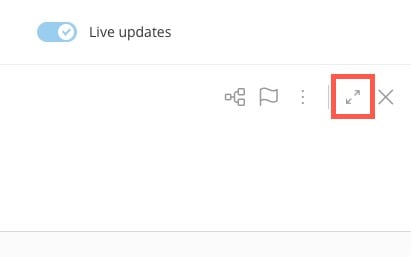
 **Note:** You can use the slider between the task list and form viewer to resize the width of either section. There is also an **Expand** option to make the form viewer full screen.
 The form viewer displays the task status. Tasks can have one of the following statuses:
* **Open —** All tasks have an Open status when they are created by a workflow. Anyone with Update Content access to a queue can update an Open task in that queue, regardless of whether they are assigned to the task.
* **Completed —** You must submit a task for it to have a Completed status. After a task has been submitted and has a Completed status, you cannot edit it or change it back to an Open status.
* **Void —** Only a user with Admin permission for the queue can apply the Void status to a task in that queue. A voided task means that you do not want to submit any data, and the associated workflow that created the task is placed in a failed state. After a task is voided, you cannot edit it or change it back to an Open status.
**Go to Workflows —** Select **Workflows** in the form viewer to open a new tab and review the workflow version where the task was created. *You must have the View Execution List or Edit Execution Details to view the workflow version*.
#### Assign/Reassign a Task
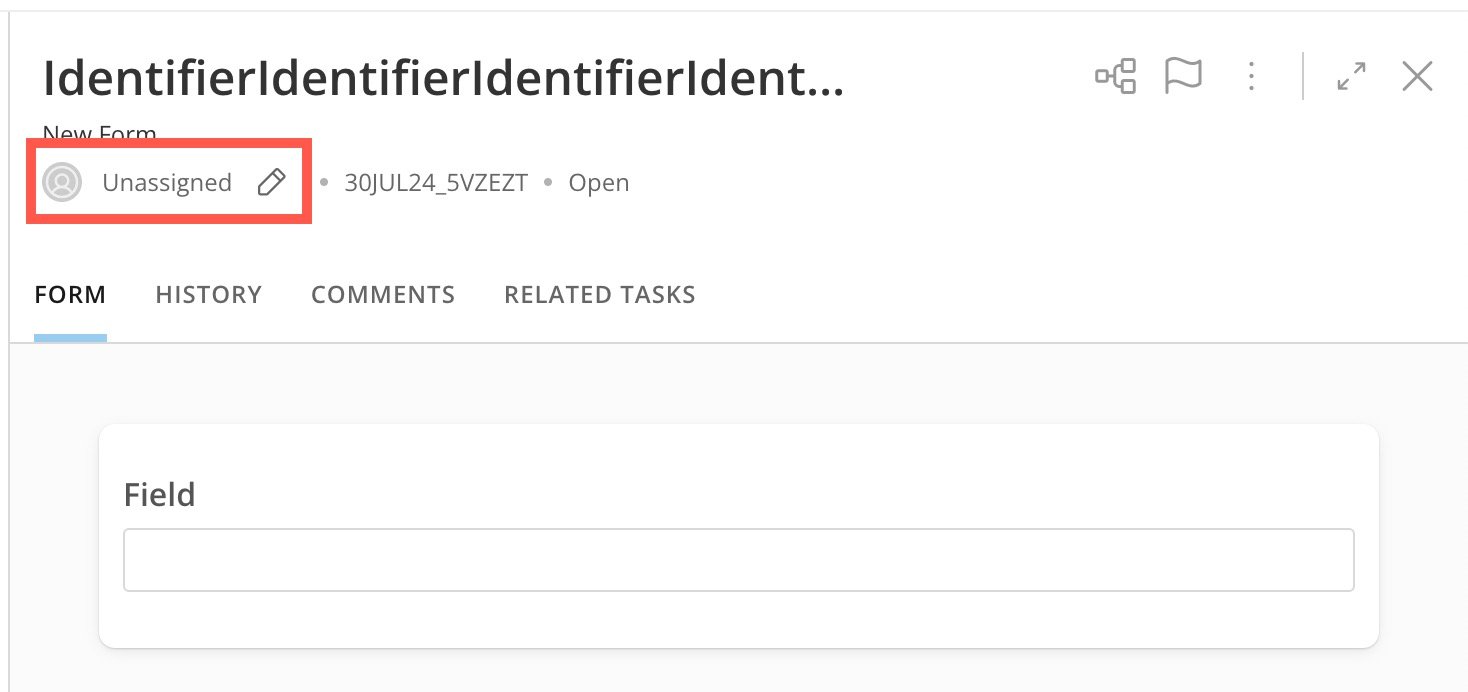
You can assign a task to a user by selecting **Edit** (pencil icon) in the Assignee field in the form viewer header.
The form viewer displays the task status. Tasks can have one of the following statuses:
* **Open —** All tasks have an Open status when they are created by a workflow. Anyone with Update Content access to a queue can update an Open task in that queue, regardless of whether they are assigned to the task.
* **Completed —** You must submit a task for it to have a Completed status. After a task has been submitted and has a Completed status, you cannot edit it or change it back to an Open status.
* **Void —** Only a user with Admin permission for the queue can apply the Void status to a task in that queue. A voided task means that you do not want to submit any data, and the associated workflow that created the task is placed in a failed state. After a task is voided, you cannot edit it or change it back to an Open status.
**Go to Workflows —** Select **Workflows** in the form viewer to open a new tab and review the workflow version where the task was created. *You must have the View Execution List or Edit Execution Details to view the workflow version*.
#### Assign/Reassign a Task
You can assign a task to a user by selecting **Edit** (pencil icon) in the Assignee field in the form viewer header.
 #### Add a Task to the Watchlist
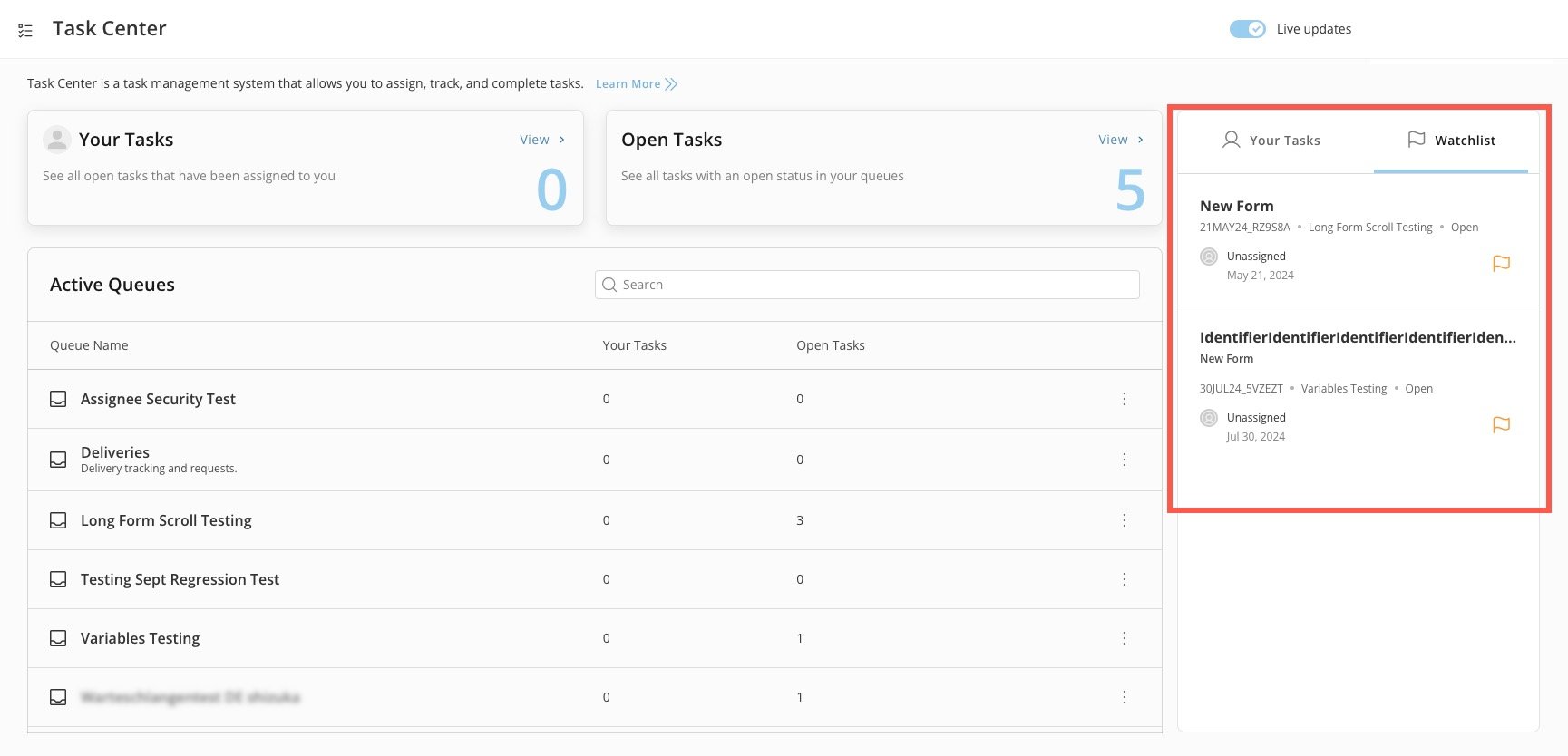
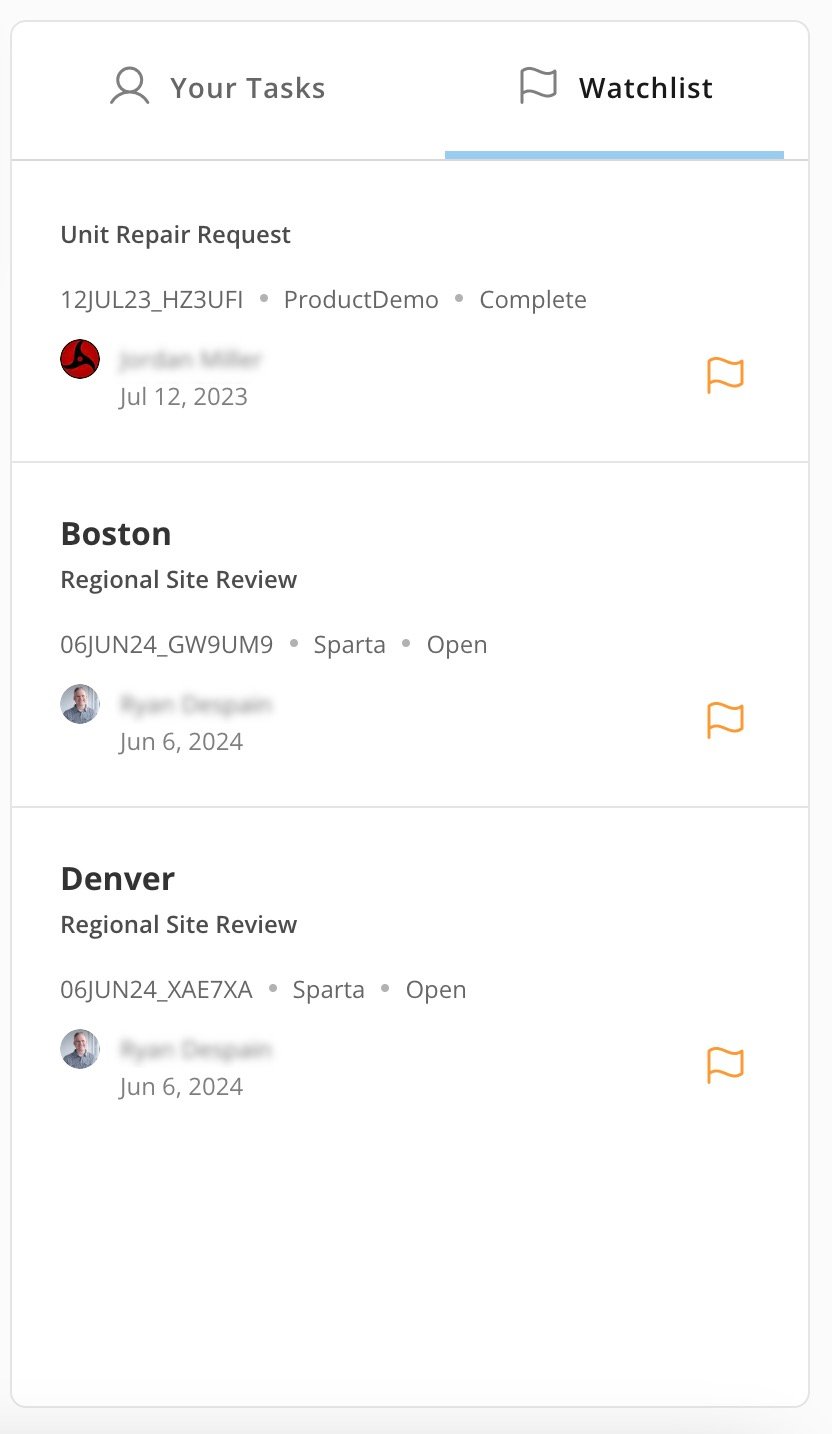
The **Watchlist** tab on the Task Center home page allows you to monitor certain open tasks quickly, regardless of their assignee.
#### Add a Task to the Watchlist
The **Watchlist** tab on the Task Center home page allows you to monitor certain open tasks quickly, regardless of their assignee.
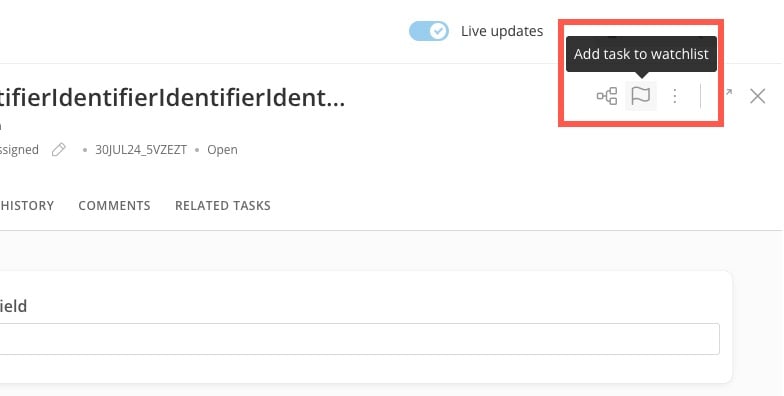
 To add a task to the watchlist, navigate to the [task list](#view_tasks_in_the_task_list) and select the task you want to add. In the form viewer header, select **Add task to** **watchlist**.
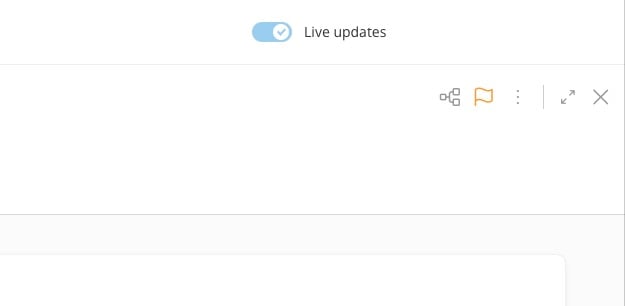
The flag icon turns orange.
To add a task to the watchlist, navigate to the [task list](#view_tasks_in_the_task_list) and select the task you want to add. In the form viewer header, select **Add task to** **watchlist**.
The flag icon turns orange.
 To remove the task from the watchlist, select the flag again. **Note:** This also applies if you select the flag from the **Watchlist** tab on the Task Center home page.
The **Watchlist** tab on the Task Center home page displays information about each task you are watching, including its assignee and status. Select a task to open the form viewer/task list.
To remove the task from the watchlist, select the flag again. **Note:** This also applies if you select the flag from the **Watchlist** tab on the Task Center home page.
The **Watchlist** tab on the Task Center home page displays information about each task you are watching, including its assignee and status. Select a task to open the form viewer/task list.
 #### Unlock a Task
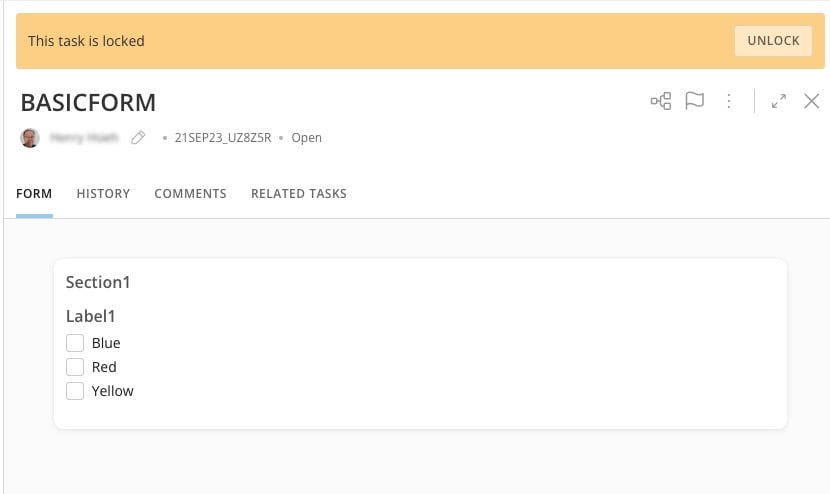
If a task is being edited by another user, it displays as locked. If you have Admin permission for the queue, you can choose to unlock the task. Note that this can allow edits to be overwritten by another user.
#### Unlock a Task
If a task is being edited by another user, it displays as locked. If you have Admin permission for the queue, you can choose to unlock the task. Note that this can allow edits to be overwritten by another user.
 #### Void a Task
Voiding a task cancels it and gives it a Void status. A voided task doesn't pass any data back to the workflow and *places the workflow in a* Failed *state*.
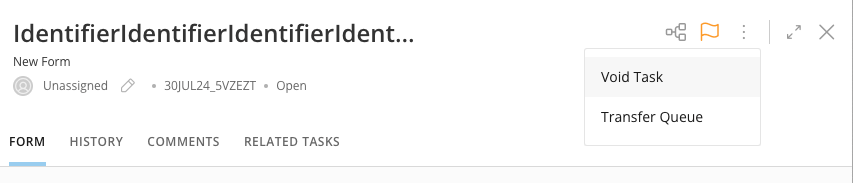
Void a task in the form viewer by selecting **More** (three vertical dots icon) > **Void Task**.
#### Void a Task
Voiding a task cancels it and gives it a Void status. A voided task doesn't pass any data back to the workflow and *places the workflow in a* Failed *state*.
Void a task in the form viewer by selecting **More** (three vertical dots icon) > **Void Task**.
 #### Transfer a Queue
If you want to
transfer a queue, you must choose another queue to send the task to, use the modal. You can only transfer to another queue that you have access to.
#### Edit the Form
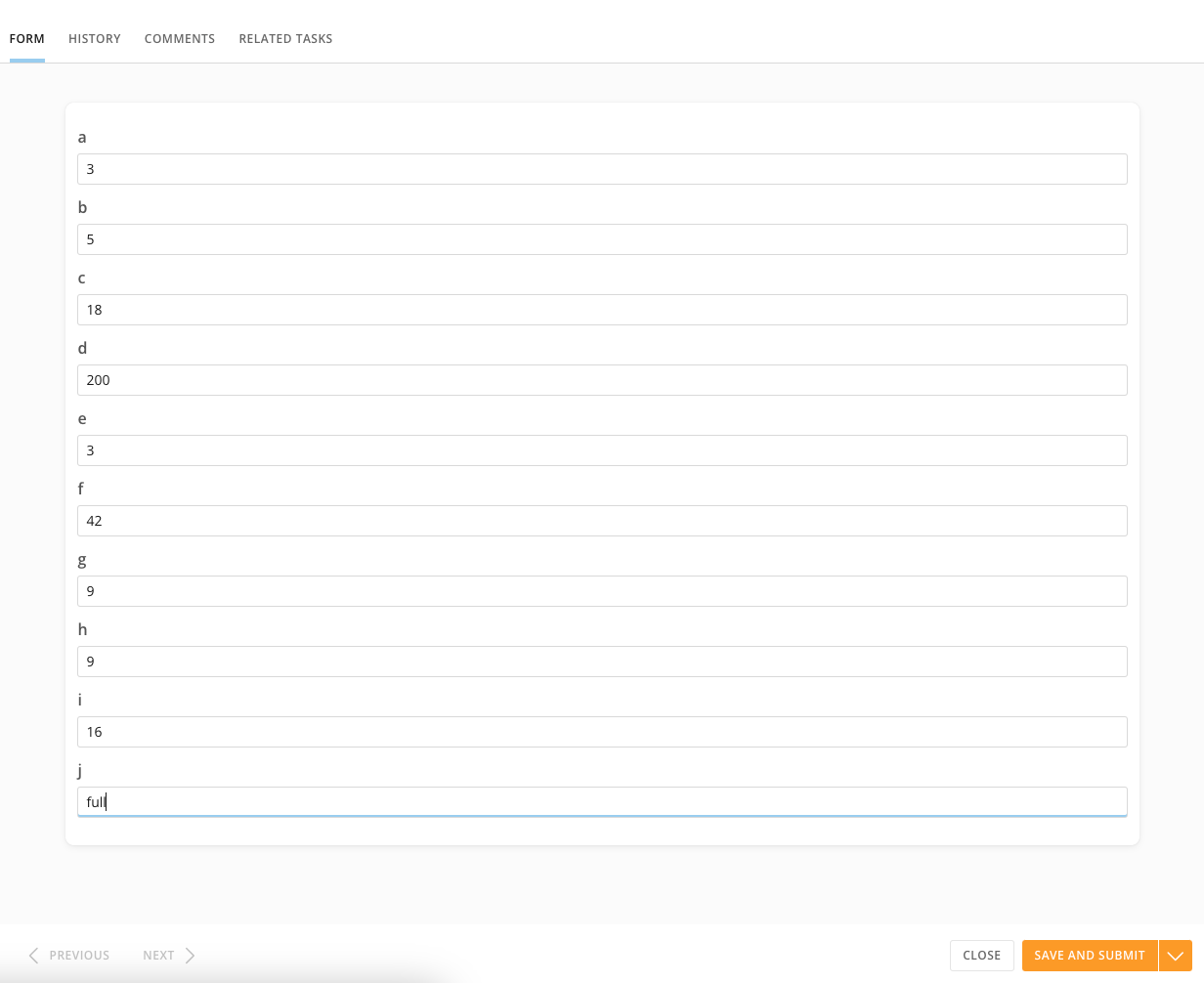
The **Form** tab allows you to add data to the form. Select **Save and Submit**
to save your changes.
* If the form has multiple pages, you can navigate through them using **Previous** and **Next**.
* After entering data in the fields, you can save the form without submitting it by selecting **Save**. This saves all the data entered in the task and keeps the form in an Open status. You can then close the task and return to the form in its most recently saved state.
* The option to **Submit** is enabled only after you fill in all the required fields. Submitting the data you entered in the fields updates the task to Completed status. The workflow that created the task consumes any data marked as output in the form configuration. After you submit a task, you cannot make updates or change the status back to Pending.
* Anyone with Update Content permission for the queue containing a task in Open status can update the task, regardless of whether they are assigned to the task.
**Important:** You must fill out all required fields in the form to save or submit your changes.
#### Transfer a Queue
If you want to
transfer a queue, you must choose another queue to send the task to, use the modal. You can only transfer to another queue that you have access to.
#### Edit the Form
The **Form** tab allows you to add data to the form. Select **Save and Submit**
to save your changes.
* If the form has multiple pages, you can navigate through them using **Previous** and **Next**.
* After entering data in the fields, you can save the form without submitting it by selecting **Save**. This saves all the data entered in the task and keeps the form in an Open status. You can then close the task and return to the form in its most recently saved state.
* The option to **Submit** is enabled only after you fill in all the required fields. Submitting the data you entered in the fields updates the task to Completed status. The workflow that created the task consumes any data marked as output in the form configuration. After you submit a task, you cannot make updates or change the status back to Pending.
* Anyone with Update Content permission for the queue containing a task in Open status can update the task, regardless of whether they are assigned to the task.
**Important:** You must fill out all required fields in the form to save or submit your changes.
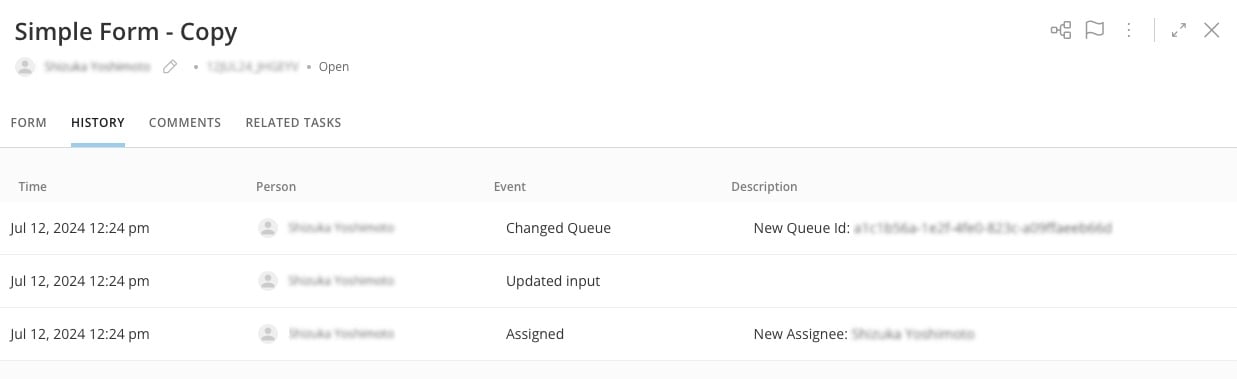
 #### View Task History
The **History** tab displays all events for the task. For every event, you can view the time, the person who made the update, the event type, and a description.
#### View Task History
The **History** tab displays all events for the task. For every event, you can view the time, the person who made the update, the event type, and a description.
 #### Add Comments
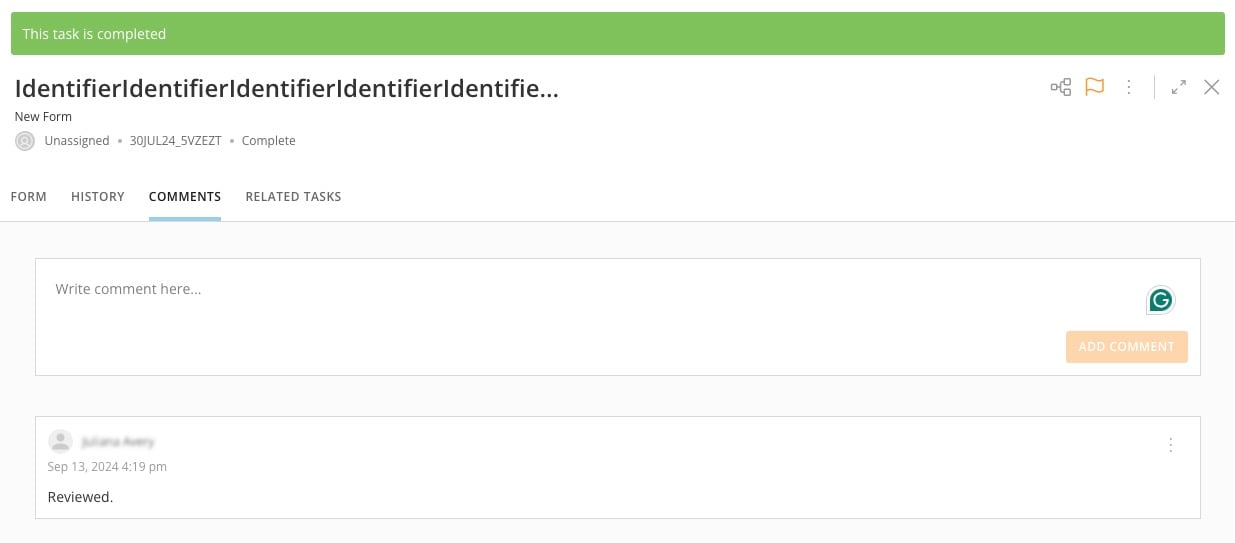
The **Comments** tab displays comments that have been added to the task. These can be personal notes, messages to other task viewers, or general information.
You can continue to comment on a task after it has been completed.
#### Add Comments
The **Comments** tab displays comments that have been added to the task. These can be personal notes, messages to other task viewers, or general information.
You can continue to comment on a task after it has been completed.
 #### View Related Tasks
The **Related Tasks** tab displays information about other tasks generated by the same workflow execution.
**Notes:**
* You can only see other tasks to which you have access.
* This feature does not allow manually linking a task to another task.
### Manage Queues
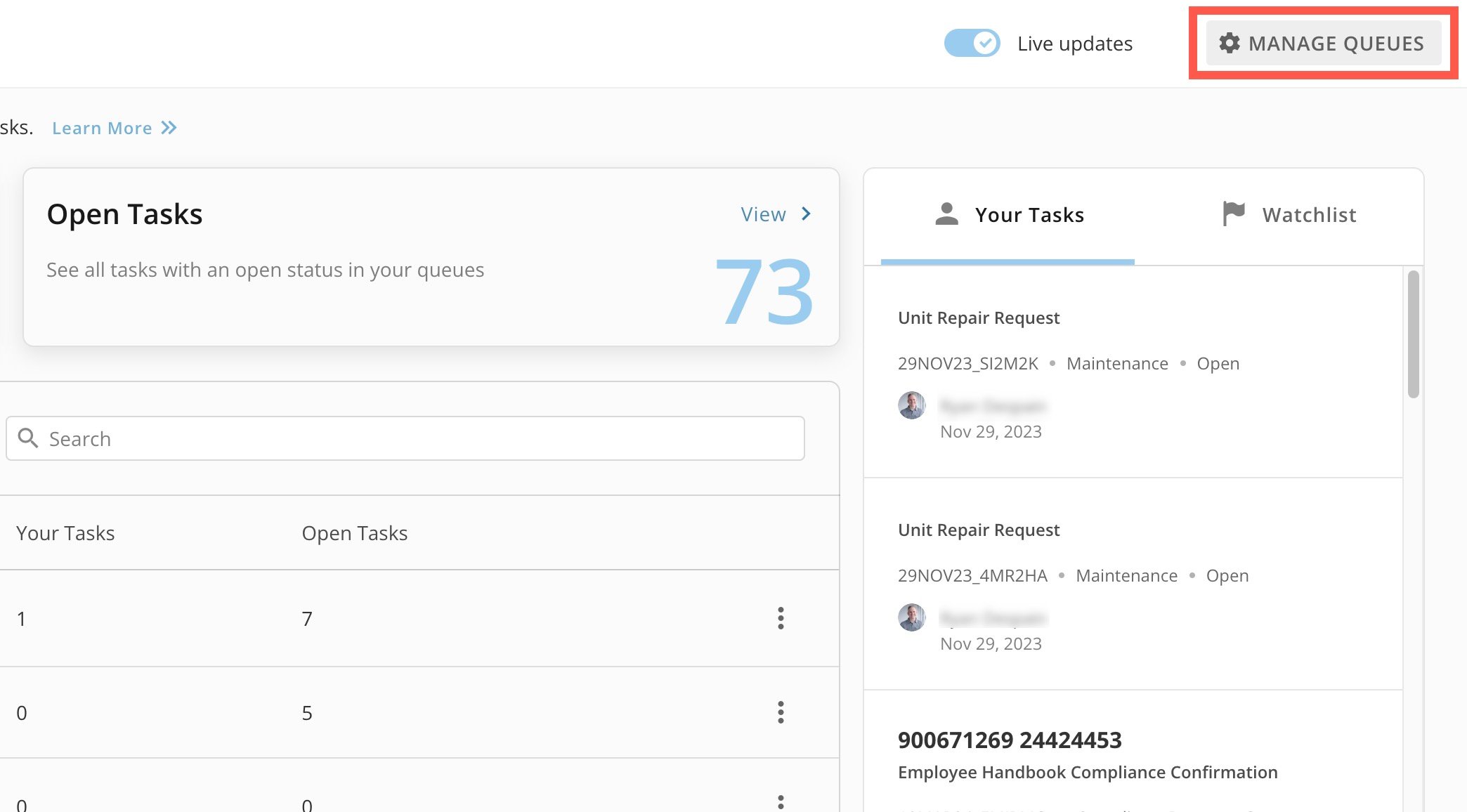
Admins can select **Manage Queues** to see the Task Lis with all the queues in the instance. From this interface, admins can [create](#create_a_queue) and [archive](#archive_a_queue) queues and [enable Assignee Security](#enable_assignee_security).
#### View Related Tasks
The **Related Tasks** tab displays information about other tasks generated by the same workflow execution.
**Notes:**
* You can only see other tasks to which you have access.
* This feature does not allow manually linking a task to another task.
### Manage Queues
Admins can select **Manage Queues** to see the Task Lis with all the queues in the instance. From this interface, admins can [create](#create_a_queue) and [archive](#archive_a_queue) queues and [enable Assignee Security](#enable_assignee_security).
 # Create a Queue
Task Center admins can follow these steps to create a queue:
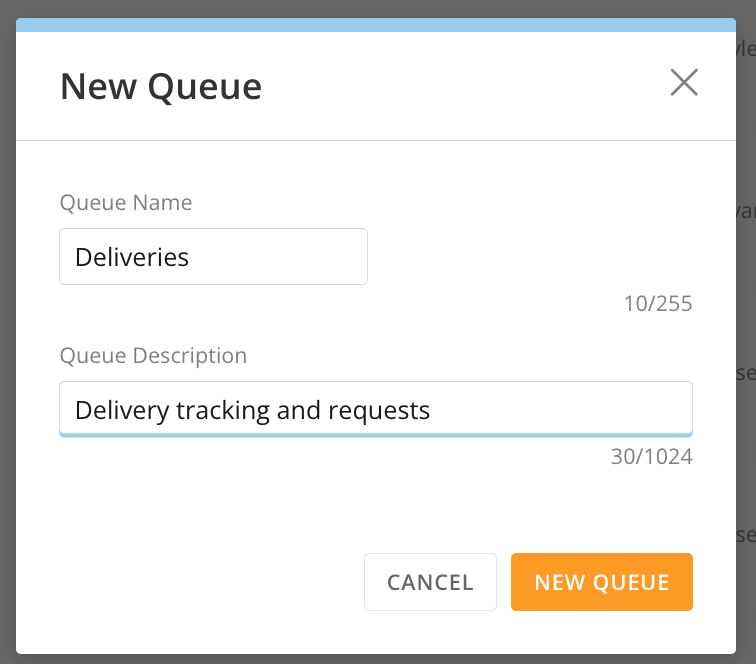
1. Inside **Manage Queues**, select **+ New Queue** to open the **New Queue** modal.
2. Enter a name and description for the queue. Select **New Queue** to save it to your list.
# Create a Queue
Task Center admins can follow these steps to create a queue:
1. Inside **Manage Queues**, select **+ New Queue** to open the **New Queue** modal.
2. Enter a name and description for the queue. Select **New Queue** to save it to your list.
 # Archive a Queue
Task Center admins that have Admin permission to a queue can archive it and make it inactive for end users. However, users can still access archived queues and retrieve completed tasks that reside within them.
When a queue is archived, no tasks can be generated in it or transferred to it. In addition, all open, unresolved tasks are either moved to another queue or updated to Void status as part of the archiving process. All previously completed tasks remain in the archived queue and can be retrieved as needed for audit purposes.
Follow these steps to archive queues:
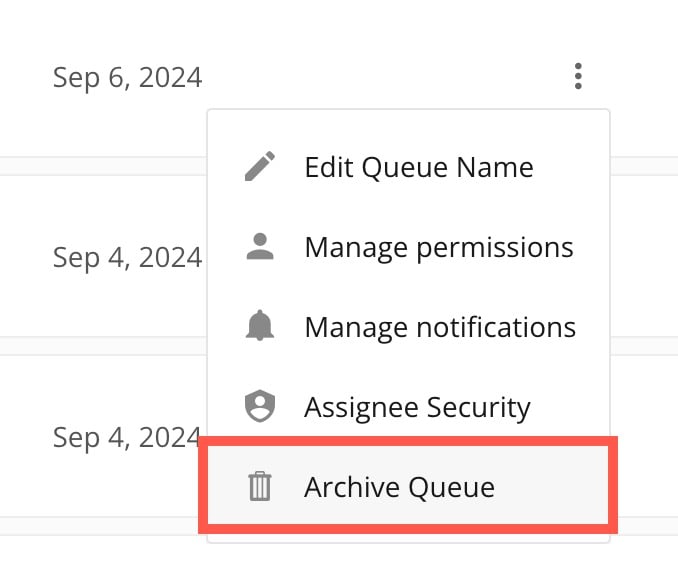
1. Inside **Manage Queues**, select the vertical three dot menu for the queue you want to archive.
2. In the menu, select **Archive Queue** to open the archive modal.
The modal displays a list of all tasks in the queue and if the queue is being used in any workflows.
# Archive a Queue
Task Center admins that have Admin permission to a queue can archive it and make it inactive for end users. However, users can still access archived queues and retrieve completed tasks that reside within them.
When a queue is archived, no tasks can be generated in it or transferred to it. In addition, all open, unresolved tasks are either moved to another queue or updated to Void status as part of the archiving process. All previously completed tasks remain in the archived queue and can be retrieved as needed for audit purposes.
Follow these steps to archive queues:
1. Inside **Manage Queues**, select the vertical three dot menu for the queue you want to archive.
2. In the menu, select **Archive Queue** to open the archive modal.
The modal displays a list of all tasks in the queue and if the queue is being used in any workflows.
 3. Use the **Action** dropdown to choose to transfer open tasks to another queue or void tasks to cancel them.
* If you select **Transfer Tasks**, you must choose another queue to accept the open tasks and then proceed to the next step.
* If you select Void Tasks, move to the next step.
4. Select **Save and Archive**.
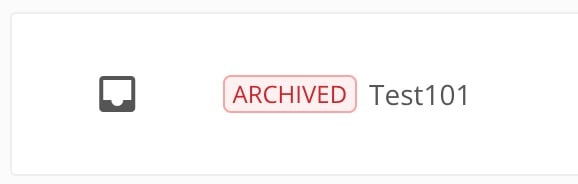
When a queue has been archived, an "Archived" label displays beside the queue name. All users can still retrieve completed tasks in archived queues.
3. Use the **Action** dropdown to choose to transfer open tasks to another queue or void tasks to cancel them.
* If you select **Transfer Tasks**, you must choose another queue to accept the open tasks and then proceed to the next step.
* If you select Void Tasks, move to the next step.
4. Select **Save and Archive**.
When a queue has been archived, an "Archived" label displays beside the queue name. All users can still retrieve completed tasks in archived queues.
 **Important:** Workflows with User Tasks configured with an archived queue will fail on every new execution. Before archiving a queue, Task Center admins must coordinate with workflow owners to make sure that a new version of the workflow is configured to reference another queue.
#### Activate Archived Queues
Follow these steps to activate an archived queue:
1. Inside **Manage Queues**, locate the archived queue you want to activate and select the vertical three-dot menu.
2. Select **Activate Queue**
.
### Enable Assignee Security
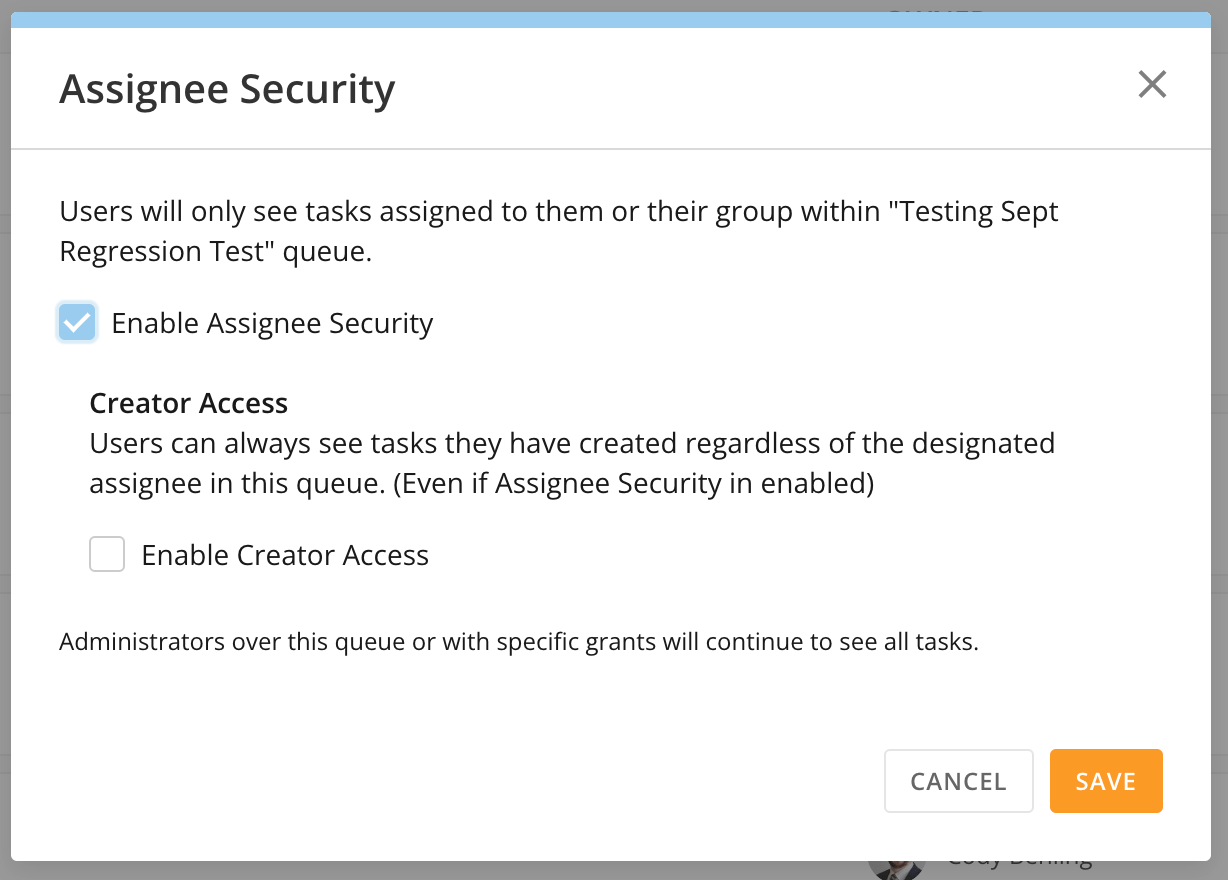
The Assignee Security setting restricts task visibility to assigned users and/or their groups. Task Center admins can enable/disable this setting for each queue.
When Assignee Security is enabled, users without Admin permission to the queue will only see tasks assigned to them or their groups. All group members can see tasks assigned to the group. Users with Admin permission to the queue will continue to see all tasks.
Task Center admins can follow these steps to enable Assignee Security for a queue:
1. In **Manage Queues**, select the vertical three-dot menu for the queue for which you want to manage notifications.
2. Select **Assignee Security**
to display the modal.
**Important:** Workflows with User Tasks configured with an archived queue will fail on every new execution. Before archiving a queue, Task Center admins must coordinate with workflow owners to make sure that a new version of the workflow is configured to reference another queue.
#### Activate Archived Queues
Follow these steps to activate an archived queue:
1. Inside **Manage Queues**, locate the archived queue you want to activate and select the vertical three-dot menu.
2. Select **Activate Queue**
.
### Enable Assignee Security
The Assignee Security setting restricts task visibility to assigned users and/or their groups. Task Center admins can enable/disable this setting for each queue.
When Assignee Security is enabled, users without Admin permission to the queue will only see tasks assigned to them or their groups. All group members can see tasks assigned to the group. Users with Admin permission to the queue will continue to see all tasks.
Task Center admins can follow these steps to enable Assignee Security for a queue:
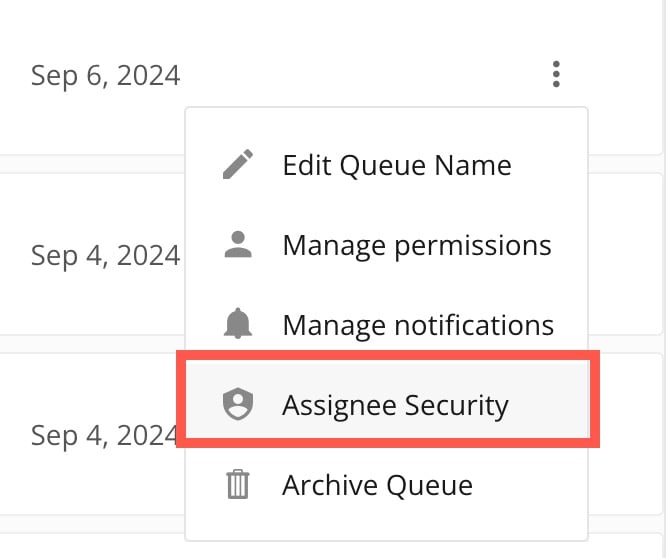
1. In **Manage Queues**, select the vertical three-dot menu for the queue for which you want to manage notifications.
2. Select **Assignee Security**
to display the modal.
 3. Check the box labeled **Enable Assignee Security** and save.