> ## Documentation Index
> Fetch the complete documentation index at: https://domoinc-openapi-sync-dataflows.mintlify.site/llms.txt
> Use this file to discover all available pages before exploring further.

# Azure Data Lake Gen2 OAuth Connector

## Intro

Azure Data Lake Gen2 OAuth connector is an enterprise-wide hyper-scale repository for big data analytic workloads. It makes Azure Storage the foundation for building enterprise data lakes on Azure. It allows you to easily manage massive amounts of data and helps to speed up your transition from proof of concept to production. You can retrieve data files in any of the following file types: CSV, XLS, XLSX and JSON. For more information about Azure's API, see [https://docs.microsoft.com/en-us/azu...ta-lake-store/](https://docs.microsoft.com/en-us/azure/data-lake-store/ "https://docs.microsoft.com/en-us/azure/data-lake-store/").

You connect to your Azure Data Lake Gen2 OAuth Connector account in the Data Center. This topic discusses the fields and menus that are specific to the Azure Data Lake Gen2 OAuth Connector Connector user interface. General information for adding DataSets, setting update schedules, and editing DataSet information is discussed in [Adding a DataSet Using a Connector](https://domo-support.domo.com/s/article/360042926274?language=en_US "Adding a DataSet Using a Connector").

## Prerequisites

To connect to your Azure Data Lake Gen2 OAuth Connector account and create a DataSet, you must have the following:

* Microsoft Azure App Client ID
* Microsoft Azure App Client Secret
* Tenant ID

To obtain credentials, please reach out to your Microsoft account representative.

## Connecting to Your Azure Data Lake Gen2 OAuth Connector Connector

This section enumerates the options in the **Credentials** and **Details** panes in the Azure Data Lake Gen2 OAuth Connector page. The components of the other panes in this page, **Scheduling** and **Name & Describe Your DataSet**, are universal across most connector types and are discussed in greater length in [Adding a DataSet Using a Connector](/s/article/360042926274 "Adding a DataSet Using a Connector").

### Credentials Pane

This pane contains fields for entering credentials to connect to your Azure Data Lake Store Gen2 OAuth account. The following table describes what is needed for each field:

<table border="1" cellpadding="1" cellspacing="1" data-aura-rendered-by="33:195;a"><thead><tr><th colspan="1" rowspan="1"><p><span class="s1"> Field </span></p></th><th colspan="1" rowspan="1"><p><span class="s1"> Description </span></p></th></tr></thead><tbody><tr><td colspan="1" rowspan="1"> Microsoft Azure App Client ID </td><td colspan="1" rowspan="1"> Enter the client ID (GUID) of the client web app obtained from Azure Active Directory configuration. </td></tr><tr><td colspan="1" rowspan="1"> Microsoft Azure App Client Secret </td><td colspan="1" rowspan="1"> Enter the secret key of the client web app. </td></tr><tr><td colspan="1" rowspan="1"> Tenant ID </td><td colspan="1" rowspan="1"> Enter your Tenant ID. <br /> To locate the tenant ID, do the following: <br /> Navigate to <b><a href="http://Portal.azure.com" rel="noopener" target="_blank"> Portal.azure.com </a> > Azure Active Directory > Properties </b>. <br /> The <b> Directory ID </b> is your <b> Tenant ID </b>. </td></tr></tbody></table>

Once you have entered valid Azure Data Lake Gen2 OAuth credentials, you can use the same account any time you go to create a new Azure Data Lake Gen2 OAuth Connector DataSet. You can manage connector accounts in the **Accounts** tab in the Data Center. For more information about this tab, see [Manage Connector Accounts](https://domo-support.domo.com/s/article/360042926054?language=en_US "Manage Connector Accounts").

### Details Pane

This pane contains a primary **Reports** menu, along with various other menus which may or may not appear depending on the report type you select.

<table border="1" cellpadding="1" cellspacing="1" data-aura-rendered-by="33:195;a"><thead><tr><th colspan="1" rowspan="1"><p> Menu </p></th><th colspan="1" rowspan="1"><p> Description </p></th></tr></thead><tbody><tr><td colspan="1" rowspan="1"> What file type would you like to import? </td><td colspan="1" rowspan="1"> Select the file type that you want to import. </td></tr><tr><td colspan="1" rowspan="1"> Enter Storage Account Name </td><td colspan="1" rowspan="1"> Enter the storage account name. </td></tr><tr><td colspan="1" rowspan="1"> Container Name </td><td colspan="1" rowspan="1"> Select the container. </td></tr><tr><td colspan="1" rowspan="1"> How would you like to choose the directory name? </td><td colspan="1" rowspan="1"> Select how you want to choose the directory name. </td></tr><tr><td colspan="1" rowspan="1"> Discover Directory Name </td><td colspan="1" rowspan="1"> Select the directory name. </td></tr><tr><td colspan="1" rowspan="1"><p> Enter Directory Name </p></td><td colspan="1" rowspan="1"><p> Enter the directory name. </p><table border="1" cellpadding="1" cellspacing="1"><tbody><tr><td colspan="1" rowspan="1"> test </td><td colspan="1" rowspan="1"> Example for main or root directory. </td></tr><tr><td colspan="1" rowspan="1"> test/test </td><td colspan="1" rowspan="1"> Example for sub- directory. </td></tr><tr><td colspan="1" rowspan="1"> test/test/test </td><td colspan="1" rowspan="1"> Example for sub-sub-directory </td></tr></tbody></table></td></tr><tr><td colspan="1" rowspan="1"> Would you like to pull data from multiple files? </td><td colspan="1" rowspan="1"> Select if you want to retrieve data from multiple files in the directory. If you want to pull data from multiple files, select the files with same schema. </td></tr><tr><td colspan="1" rowspan="1"> Discover Files </td><td colspan="1" rowspan="1"> Select the files with the same schema to pull the data. </td></tr><tr><td colspan="1" rowspan="1"> How would you like to choose the File name? </td><td colspan="1" rowspan="1"> Select how you want to choose the file name. </td></tr><tr><td colspan="1" rowspan="1"> Enter File Name </td><td colspan="1" rowspan="1"> Enter the File name. </td></tr><tr><td colspan="1" rowspan="1"> Discover File Name </td><td colspan="1" rowspan="1"> Select the File name. </td></tr></tbody></table>

### Advanced Pane

This pane contains the **Advanced** menu.

<table border="1" cellpadding="1" cellspacing="1" data-aura-rendered-by="33:195;a"><thead><tr><th colspan="1" rowspan="1"><p> Menu </p></th><th colspan="1" rowspan="1"><p> Description </p></th></tr></thead><tbody><tr><td colspan="1" rowspan="1"> Select the delimiting character </td><td colspan="1" rowspan="1"> Select the delimiting character used in your file. If your delimiter is not listed here, select <b> Other </b>. </td></tr><tr><td colspan="1" rowspan="1"> Specify your delimiter </td><td colspan="1" rowspan="1"> Enter the character used to delimit your character separated values (CSV) text. </td></tr></tbody></table>

### Troubleshooting

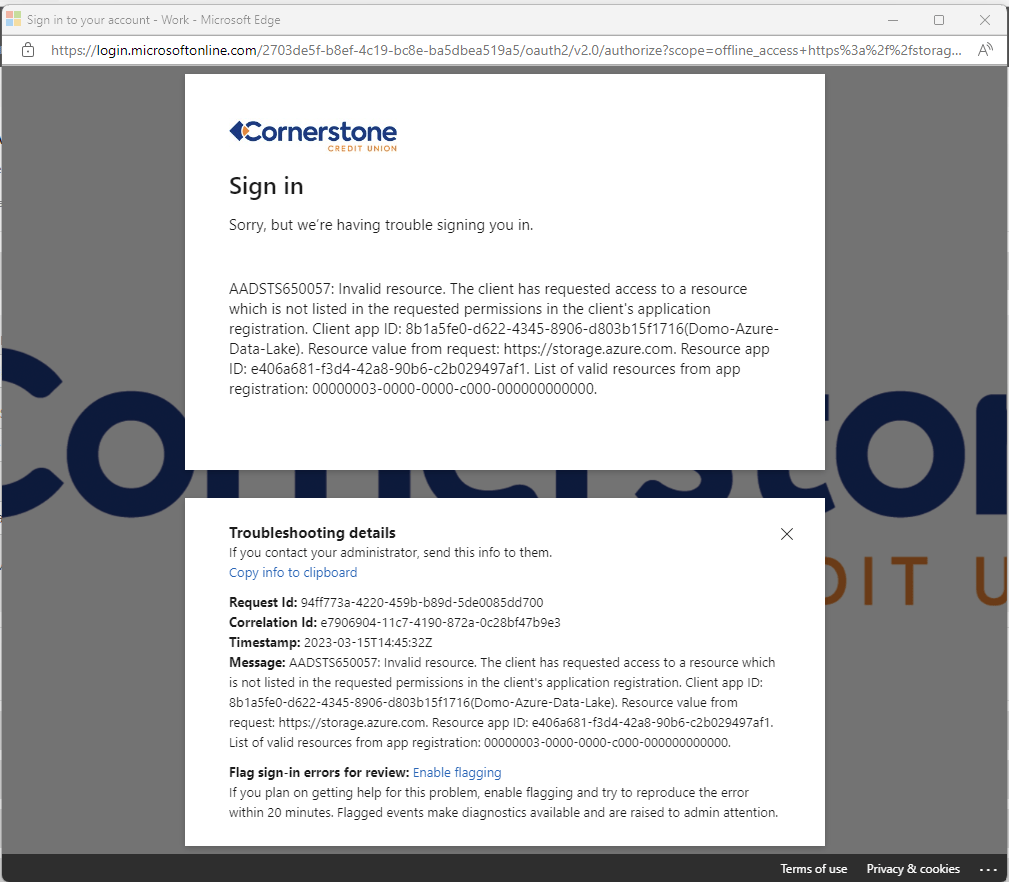
#### While trying to authenticate using the connector, the following error message is displayed.

<Frame>
  <img alt="Oauth Error" src="https://mintcdn.com/domoinc-openapi-sync-dataflows/g5Ek3SRXv8ussuBG/images/kb/ka0Vq0000003Qaf-00N5w00000Ri7BU-0EM5w000006uERU.jpg?fit=max&auto=format&n=g5Ek3SRXv8ussuBG&q=85&s=287484a52bf30c436401f1d4a849feaf" style={{width: 483, height: 423}} width="1009" height="882" data-path="images/kb/ka0Vq0000003Qaf-00N5w00000Ri7BU-0EM5w000006uERU.jpg" />
</Frame>

This issue is related to permissions. You need the appropriate permission to access Azure Storage otherwise the connection will fail.

To add the required permissions, do the following:

Select the **App -> API Permissions -> Add a permission -> Select Azure Storage -> Check user\_impersonation -> Add permissions**

### Other Panes

For information about the remaining sections of the connector interface, including how to configure scheduling, retry, and update options, see [Adding a DataSet Using a Connector](https://domo-support.domo.com/s/article/360042926274?language=en_US "Adding a DataSet Using a Connector").