> ## Documentation Index
> Fetch the complete documentation index at: https://domoinc-openapi-sync-dataflows.mintlify.site/llms.txt
> Use this file to discover all available pages before exploring further.
# Domo Add-ins for Microsoft Office 365 | Manual Installation Guide
export const InlineImage = ({src, alt = '', height = '1.6em'}) => {
return  ;
};
### Intro
We highly recommend that you download the Domo for Office Add-ins from Microsoft Appsource. These instructions are below. If you cannot access Microsoft Appsource, the rest of this guide provides instructions for how to manually install the add-ins.
**Recommended:**
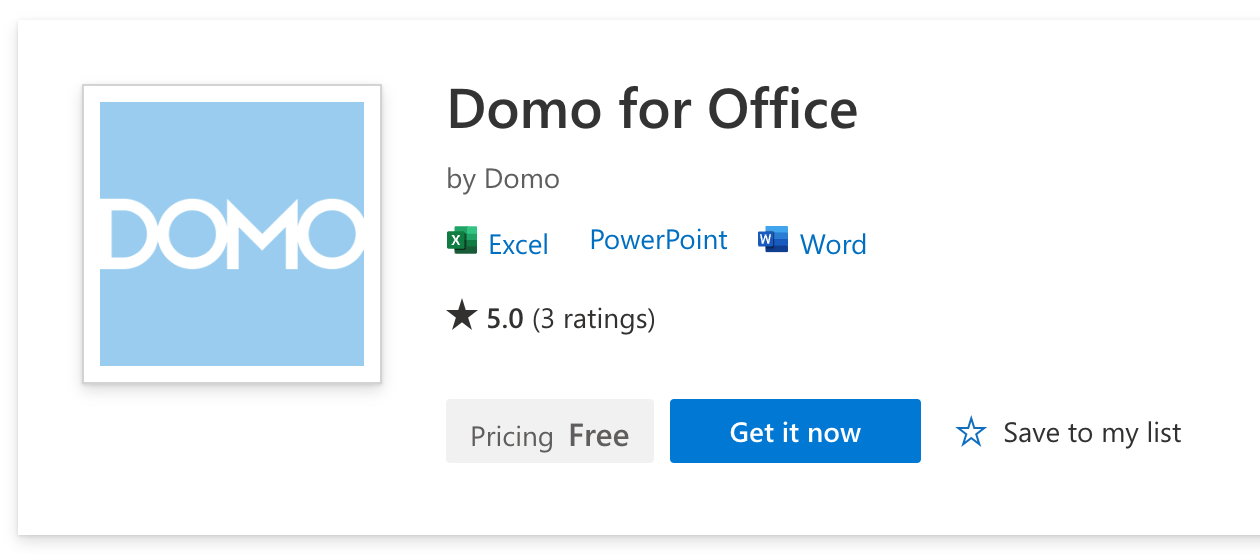
Install Domo for Office Add-ins from Microsoft Appsource.
Follow these links to download the Domo for Office Add-ins from Microsoft Appsource:
* [Domo for Office](https://appsource.microsoft.com/en-US/product/office/WA200005264?exp=ubp8)
(Excel, PowerPoint, and Word)
* [Domo for Outlook](https://appsource.microsoft.com/en-US/product/office/WA200005307?exp=ubp8\&tab=Overview)
The Outlook add-in is supported by both Android and iOS mobile devices.
;
};
### Intro
We highly recommend that you download the Domo for Office Add-ins from Microsoft Appsource. These instructions are below. If you cannot access Microsoft Appsource, the rest of this guide provides instructions for how to manually install the add-ins.
**Recommended:**
Install Domo for Office Add-ins from Microsoft Appsource.
Follow these links to download the Domo for Office Add-ins from Microsoft Appsource:
* [Domo for Office](https://appsource.microsoft.com/en-US/product/office/WA200005264?exp=ubp8)
(Excel, PowerPoint, and Word)
* [Domo for Outlook](https://appsource.microsoft.com/en-US/product/office/WA200005307?exp=ubp8\&tab=Overview)
The Outlook add-in is supported by both Android and iOS mobile devices.
 Updates to the Domo for Office add-ins should automatically apply to your installation. If you do not see these updates, you may need to clear your Microsoft 365 add-in's cache. For instructions on how to do this, see [Microsoft’s documentation](https://learn.microsoft.com/en-us/office/dev/add-ins/testing/clear-cache) .
***
Use the following links to navigate to the tasks in this guide:
Mac
* [Install Excel, PowerPoint, and Word for Mac](#install_excel_ppt_word_mac)
* [Install Outlook for Mac](#install_outlook_mac)
Web
* [Install Excel, PowerPoint, and Word for Microsoft 365 for the web](#install_excel_ppt_word_web)
* [Install Outlook for Microsoft 365 for the web](#install_outlook_web)
Windows
* [Install Excel, PowerPoint, and Word for Windows](#install_excel_ppt_word_windows)
* [Download and prepare manifest files](#prepare_manifest_files)
* [Add the manifest to the Trust Center](#add_manifest_to_trust_center)
* [Enable the add-in](#enable_add-in)
* [Install Outlook for Windows](#outlook_for_windows)
***
### Install Excel, PowerPoint, and Word for Mac
To streamline the installation for Mac, we provide three scripts that you can run in Terminal to prepare the add-ins for installation. These scripts retrieve a configuration file and place it in a folder where Microsoft 365 expects to find it it to be located. Although you can retrieve and place the files manually, these commands do it for you.
1. Open Terminal by pressing **Command + Space**, typing "terminal" into the search bar, and then pressing **Enter**.
2. Follow these links to the scripts on GitHub:
* [Excel](https://gist.github.com/bradley-turek-at-domo/05f178a28319ade825ecd066c6e557fe#file-install_excel_addin_macos-sh)
* [PowerPoint](https://gist.github.com/bradley-turek-at-domo/05f178a28319ade825ecd066c6e557fe#file-install_powerpoint_addin_macos-sh)
* [Word](https://gist.github.com/bradley-turek-at-domo/05f178a28319ade825ecd066c6e557fe#file-install_domo_word_addin_macos-sh)
3. Copy the scripts for the Microsoft products where you want to install Domo and paste them into Terminal. (Press **Enter** to execute each script before pasting the next.)
4. Open the Microsoft 365 app that you ran the script for.
5. In the **Home** tab, select **Add-ins** and search for the **Domo add-in.**
Updates to the Domo for Office add-ins should automatically apply to your installation. If you do not see these updates, you may need to clear your Microsoft 365 add-in's cache. For instructions on how to do this, see [Microsoft’s documentation](https://learn.microsoft.com/en-us/office/dev/add-ins/testing/clear-cache) .
***
Use the following links to navigate to the tasks in this guide:
Mac
* [Install Excel, PowerPoint, and Word for Mac](#install_excel_ppt_word_mac)
* [Install Outlook for Mac](#install_outlook_mac)
Web
* [Install Excel, PowerPoint, and Word for Microsoft 365 for the web](#install_excel_ppt_word_web)
* [Install Outlook for Microsoft 365 for the web](#install_outlook_web)
Windows
* [Install Excel, PowerPoint, and Word for Windows](#install_excel_ppt_word_windows)
* [Download and prepare manifest files](#prepare_manifest_files)
* [Add the manifest to the Trust Center](#add_manifest_to_trust_center)
* [Enable the add-in](#enable_add-in)
* [Install Outlook for Windows](#outlook_for_windows)
***
### Install Excel, PowerPoint, and Word for Mac
To streamline the installation for Mac, we provide three scripts that you can run in Terminal to prepare the add-ins for installation. These scripts retrieve a configuration file and place it in a folder where Microsoft 365 expects to find it it to be located. Although you can retrieve and place the files manually, these commands do it for you.
1. Open Terminal by pressing **Command + Space**, typing "terminal" into the search bar, and then pressing **Enter**.
2. Follow these links to the scripts on GitHub:
* [Excel](https://gist.github.com/bradley-turek-at-domo/05f178a28319ade825ecd066c6e557fe#file-install_excel_addin_macos-sh)
* [PowerPoint](https://gist.github.com/bradley-turek-at-domo/05f178a28319ade825ecd066c6e557fe#file-install_powerpoint_addin_macos-sh)
* [Word](https://gist.github.com/bradley-turek-at-domo/05f178a28319ade825ecd066c6e557fe#file-install_domo_word_addin_macos-sh)
3. Copy the scripts for the Microsoft products where you want to install Domo and paste them into Terminal. (Press **Enter** to execute each script before pasting the next.)
4. Open the Microsoft 365 app that you ran the script for.
5. In the **Home** tab, select **Add-ins** and search for the **Domo add-in.**
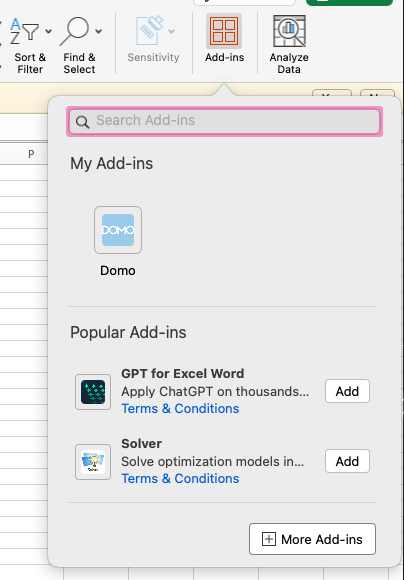 6. Select it to begin installation.
If the add-in installs successfully, the **Domo** tab displays in the ribbon.
6. Select it to begin installation.
If the add-in installs successfully, the **Domo** tab displays in the ribbon.
 ### Install Outlook for Mac
1. To download the add-in manifest file for Outlook, click this link: [https://extensions.domo.com/office365/addins/manifest/outlook-extensions-domo-manifest.xml](https://extensions.domo.com/office365/addins/manifest/outlook-extensions-domo-manifest.xml)
After you click the link, it loads in a browser.
2. Right-click the page that loads and select **Save As**. Save the file to your computer.
3. Open Outlook.
4. Select the **More** menu (three horizontal dots icon) in the ribbon at the top of the app.
5. Select **Get Add-ins**.
6. Select **My Add-ins**.
7. Select **Add a custom add-in**.
8. Select **Add from File...**
A file browser opens.
9. Navigate to and select the file you saved in the second step of this task.
10. Select **Open**.
11. Select **Install**.
### Install Excel, PowerPoint, and Word for Microsoft 365 for the Web
1. To download the add-in manifest file for the program you want to install, click the corresponding link below.
After you click a link, it loads in a browser.
* Excel: [https://extensions.domo.com/office365/addins/manifest/excel-extensions-domo-manifest.xml](https://extensions.domo.com/office365/addins/manifest/excel-extensions-domo-manifest.xml)
* PowerPoint: [https://extensions.domo.com/office365/addins/manifest/ppt-extensions-domo-manifest.xml](https://extensions.domo.com/office365/addins/manifest/ppt-extensions-domo-manifest.xml)
* Word: [https://extensions.domo.com/office365/addins/manifest/word-extensions-domo-manifest.xml](https://extensions.domo.com/office365/addins/manifest/word-extensions-domo-manifest.xml)
2. Right-click the page that opens and select **Save As**. Save the file to your computer.
3. Log in to [https://office.com](https://office.com) .
4. Select your program from the left menu bar.
5. Create a new file for the program you selected.
You are redirected to the app for the program you selected in the fourth step.
6. In the ribbon at the top of the app, select **Insert**.
7. Select **Office Add-ins**.
8. In the My Add-ins tab, select **Upload My Add-in**.
9. Select **Browse**.
10. Navigate to and select the file you saved in the second step of this task.
11. Select the file and click **Open**.
12. Click **Upload**.
13. Repeat these steps for each Office program you want to install the Domo add-in for.
### Install Outlook for Microsoft 365 for the Web
1. To download the add-in manifest file for Outlook, click this link: [https://extensions.domo.com/office365/addins/manifest/outlook-extensions-domo-manifest.xml](https://extensions.domo.com/office365/addins/manifest/outlook-extensions-domo-manifest.xml)
After you click the link, it loads in a browser.
2. Right-click the page that loads and select **Save As**. Save the file to your computer.
3. Log in to your email at [https://outlook.office.com/](https://outlook.office.com/).
4. Select **New message** to create a new email.
5. At the bottom of the new email, to the right of **Send**, select the meatball menu.
6. Select **Get Add-ins**.
7. Select **My Add-ins**.
8. Select **Add a custom add-in**.
9. Select **Add from File...**
A file browser opens.
10. Navigate to and select the file you saved in the second step of this task.
11. Select **Open**.
12. Select **Install**.
### Install Excel, PowerPoint, and Word for Windows
To use the add-ins for Excel, PowerPoint, and Word in Windows, you need to download the add-in manifest files, add the manifests to the Trust Center, and then enable the add-ins. These three tasks are described below.
# Download and Prepare Manifest Files
1. To download the add-in manifest file for the program you want to install, click the corresponding link below.
After you click a link, it loads in a browser.
* Excel: [https://extensions.domo.com/office365/addins/manifest/excel-extensionpps-domo-manifest.xml](https://extensions.domo.com/office365/addins/manifest/excel-extensions-domo-manifest.xml)
* PowerPoint: [https://extensions.domo.com/office365/addins/manifest/ppt-extensions-domo-manifest.xml](https://extensions.domo.com/office365/addins/manifest/ppt-extensions-domo-manifest.xml)
* Word: [https://extensions.domo.com/office365/addins/manifest/word-extensions-domo-manifest.xml](https://extensions.domo.com/office365/addins/manifest/word-extensions-domo-manifest.xml)
2. Open File Explorer.
3. Create a new file folder on your local machine.
**Important:** The folder name must not contain any spaces in order for the add-in to display in the folder. For example, use “sharedfolder,” not “shared folder.”
4. Place all of the manifest files you downloaded into the new folder.
5. Right-click the folder you created and select **Properties**.
A dialog displays.
6. Select the **Sharing** tab of the dialog.
7. Select **Share**.
The **Network access** dialog displays.
8. In the dialog, add yourself and any other users or groups you want to share your add-in with.
**Note:** You must have at least Read/Write permission to view the folder.
9. After you have added all the recipients, select **Share**.
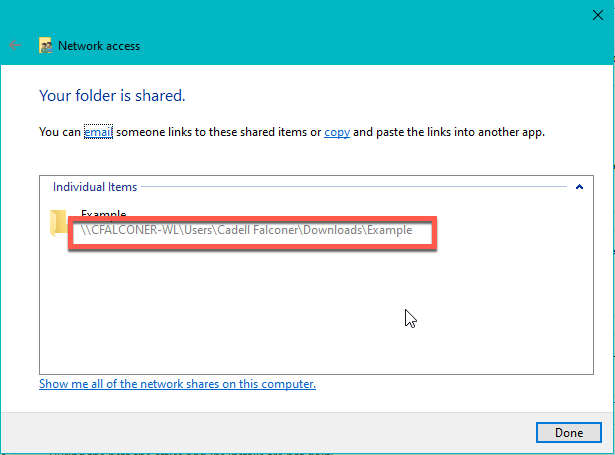
Confirmation that your folder is shared displays.
10. From the sharing confirmation, note the full network path that displays immediately after the folder name. You can right-click to copy it. You need to enter this value as the Catalog URL in the next task.
### Install Outlook for Mac
1. To download the add-in manifest file for Outlook, click this link: [https://extensions.domo.com/office365/addins/manifest/outlook-extensions-domo-manifest.xml](https://extensions.domo.com/office365/addins/manifest/outlook-extensions-domo-manifest.xml)
After you click the link, it loads in a browser.
2. Right-click the page that loads and select **Save As**. Save the file to your computer.
3. Open Outlook.
4. Select the **More** menu (three horizontal dots icon) in the ribbon at the top of the app.
5. Select **Get Add-ins**.
6. Select **My Add-ins**.
7. Select **Add a custom add-in**.
8. Select **Add from File...**
A file browser opens.
9. Navigate to and select the file you saved in the second step of this task.
10. Select **Open**.
11. Select **Install**.
### Install Excel, PowerPoint, and Word for Microsoft 365 for the Web
1. To download the add-in manifest file for the program you want to install, click the corresponding link below.
After you click a link, it loads in a browser.
* Excel: [https://extensions.domo.com/office365/addins/manifest/excel-extensions-domo-manifest.xml](https://extensions.domo.com/office365/addins/manifest/excel-extensions-domo-manifest.xml)
* PowerPoint: [https://extensions.domo.com/office365/addins/manifest/ppt-extensions-domo-manifest.xml](https://extensions.domo.com/office365/addins/manifest/ppt-extensions-domo-manifest.xml)
* Word: [https://extensions.domo.com/office365/addins/manifest/word-extensions-domo-manifest.xml](https://extensions.domo.com/office365/addins/manifest/word-extensions-domo-manifest.xml)
2. Right-click the page that opens and select **Save As**. Save the file to your computer.
3. Log in to [https://office.com](https://office.com) .
4. Select your program from the left menu bar.
5. Create a new file for the program you selected.
You are redirected to the app for the program you selected in the fourth step.
6. In the ribbon at the top of the app, select **Insert**.
7. Select **Office Add-ins**.
8. In the My Add-ins tab, select **Upload My Add-in**.
9. Select **Browse**.
10. Navigate to and select the file you saved in the second step of this task.
11. Select the file and click **Open**.
12. Click **Upload**.
13. Repeat these steps for each Office program you want to install the Domo add-in for.
### Install Outlook for Microsoft 365 for the Web
1. To download the add-in manifest file for Outlook, click this link: [https://extensions.domo.com/office365/addins/manifest/outlook-extensions-domo-manifest.xml](https://extensions.domo.com/office365/addins/manifest/outlook-extensions-domo-manifest.xml)
After you click the link, it loads in a browser.
2. Right-click the page that loads and select **Save As**. Save the file to your computer.
3. Log in to your email at [https://outlook.office.com/](https://outlook.office.com/).
4. Select **New message** to create a new email.
5. At the bottom of the new email, to the right of **Send**, select the meatball menu.
6. Select **Get Add-ins**.
7. Select **My Add-ins**.
8. Select **Add a custom add-in**.
9. Select **Add from File...**
A file browser opens.
10. Navigate to and select the file you saved in the second step of this task.
11. Select **Open**.
12. Select **Install**.
### Install Excel, PowerPoint, and Word for Windows
To use the add-ins for Excel, PowerPoint, and Word in Windows, you need to download the add-in manifest files, add the manifests to the Trust Center, and then enable the add-ins. These three tasks are described below.
# Download and Prepare Manifest Files
1. To download the add-in manifest file for the program you want to install, click the corresponding link below.
After you click a link, it loads in a browser.
* Excel: [https://extensions.domo.com/office365/addins/manifest/excel-extensionpps-domo-manifest.xml](https://extensions.domo.com/office365/addins/manifest/excel-extensions-domo-manifest.xml)
* PowerPoint: [https://extensions.domo.com/office365/addins/manifest/ppt-extensions-domo-manifest.xml](https://extensions.domo.com/office365/addins/manifest/ppt-extensions-domo-manifest.xml)
* Word: [https://extensions.domo.com/office365/addins/manifest/word-extensions-domo-manifest.xml](https://extensions.domo.com/office365/addins/manifest/word-extensions-domo-manifest.xml)
2. Open File Explorer.
3. Create a new file folder on your local machine.
**Important:** The folder name must not contain any spaces in order for the add-in to display in the folder. For example, use “sharedfolder,” not “shared folder.”
4. Place all of the manifest files you downloaded into the new folder.
5. Right-click the folder you created and select **Properties**.
A dialog displays.
6. Select the **Sharing** tab of the dialog.
7. Select **Share**.
The **Network access** dialog displays.
8. In the dialog, add yourself and any other users or groups you want to share your add-in with.
**Note:** You must have at least Read/Write permission to view the folder.
9. After you have added all the recipients, select **Share**.
Confirmation that your folder is shared displays.
10. From the sharing confirmation, note the full network path that displays immediately after the folder name. You can right-click to copy it. You need to enter this value as the Catalog URL in the next task.
 11. Select **Done** to close the **Network access** dialog.
12. Close the **Properties** dialog.
# Add the Manifest to the Trust Center
**Note:** You must perform this task for each of the Microsoft 365 apps you want to download.
1. Open the Office app you want to work in.
2. Select **File** in the ribbon at the top of the app.
3. Select **Options**.
4. Select **Trust Center**.
5. Select **Trust Center Settings**.
6. Select **Trusted Add-in Catalogs**.
7. In the **Catalog URL** field, paste the full network path to the folder that you shared in the previous task.
**Note:** If you did not get the full network path when you shared the folder, you can get it from the folder's **Properties** dialog.
8. Select **Add catalog**.
9. Select the **Show in Menu** checkbox for the item you added.
10. Select **OK**.
The **Trust Center**
dialog closes.
11. Restart the Office app.
# Enable the Add-In
1. In the Office app you are working in, go to the **Insert**
tab in the ribbon at the top of the window.
2. Select **My Add-ins**.
A dialog opens.
3. In the dialog, select **Shared Folder**.
4. Select **Domo**.
5. Click **Add**.
Repeat the [Add the Manifest to the Trust Center](#add_manifest_to_trust_center) and [Enable the Add-in](#enable_add-in) tasks for the remaining Office apps.
### Install Outlook for Windows
1. To download the add-in manifest file for Outlook, click this link: [https://extensions.domo.com/office365/addins/manifest/outlook-extensions-domo-manifest.xml](https://extensions.domo.com/office365/addins/manifest/outlook-extensions-domo-manifest.xml)
After you click the link, it loads in a browser.
2. Right-click the page that loads and select **Save As**. Save the file to your computer.
3. Open Outlook.
4. From the ribbon at the top of the app, select **Home** > **Get Add-ins**.
A dialog displays.
5. In the dialog, select **My Add-ins**.
6. Select **Add a custom add-in** > **Add from File...**
A file browser opens.
7. Navigate to and select the file you saved in the second step of this task.
8. Select **Open**.
9. Select **Install**.
11. Select **Done** to close the **Network access** dialog.
12. Close the **Properties** dialog.
# Add the Manifest to the Trust Center
**Note:** You must perform this task for each of the Microsoft 365 apps you want to download.
1. Open the Office app you want to work in.
2. Select **File** in the ribbon at the top of the app.
3. Select **Options**.
4. Select **Trust Center**.
5. Select **Trust Center Settings**.
6. Select **Trusted Add-in Catalogs**.
7. In the **Catalog URL** field, paste the full network path to the folder that you shared in the previous task.
**Note:** If you did not get the full network path when you shared the folder, you can get it from the folder's **Properties** dialog.
8. Select **Add catalog**.
9. Select the **Show in Menu** checkbox for the item you added.
10. Select **OK**.
The **Trust Center**
dialog closes.
11. Restart the Office app.
# Enable the Add-In
1. In the Office app you are working in, go to the **Insert**
tab in the ribbon at the top of the window.
2. Select **My Add-ins**.
A dialog opens.
3. In the dialog, select **Shared Folder**.
4. Select **Domo**.
5. Click **Add**.
Repeat the [Add the Manifest to the Trust Center](#add_manifest_to_trust_center) and [Enable the Add-in](#enable_add-in) tasks for the remaining Office apps.
### Install Outlook for Windows
1. To download the add-in manifest file for Outlook, click this link: [https://extensions.domo.com/office365/addins/manifest/outlook-extensions-domo-manifest.xml](https://extensions.domo.com/office365/addins/manifest/outlook-extensions-domo-manifest.xml)
After you click the link, it loads in a browser.
2. Right-click the page that loads and select **Save As**. Save the file to your computer.
3. Open Outlook.
4. From the ribbon at the top of the app, select **Home** > **Get Add-ins**.
A dialog displays.
5. In the dialog, select **My Add-ins**.
6. Select **Add a custom add-in** > **Add from File...**
A file browser opens.
7. Navigate to and select the file you saved in the second step of this task.
8. Select **Open**.
9. Select **Install**.