 # Job List
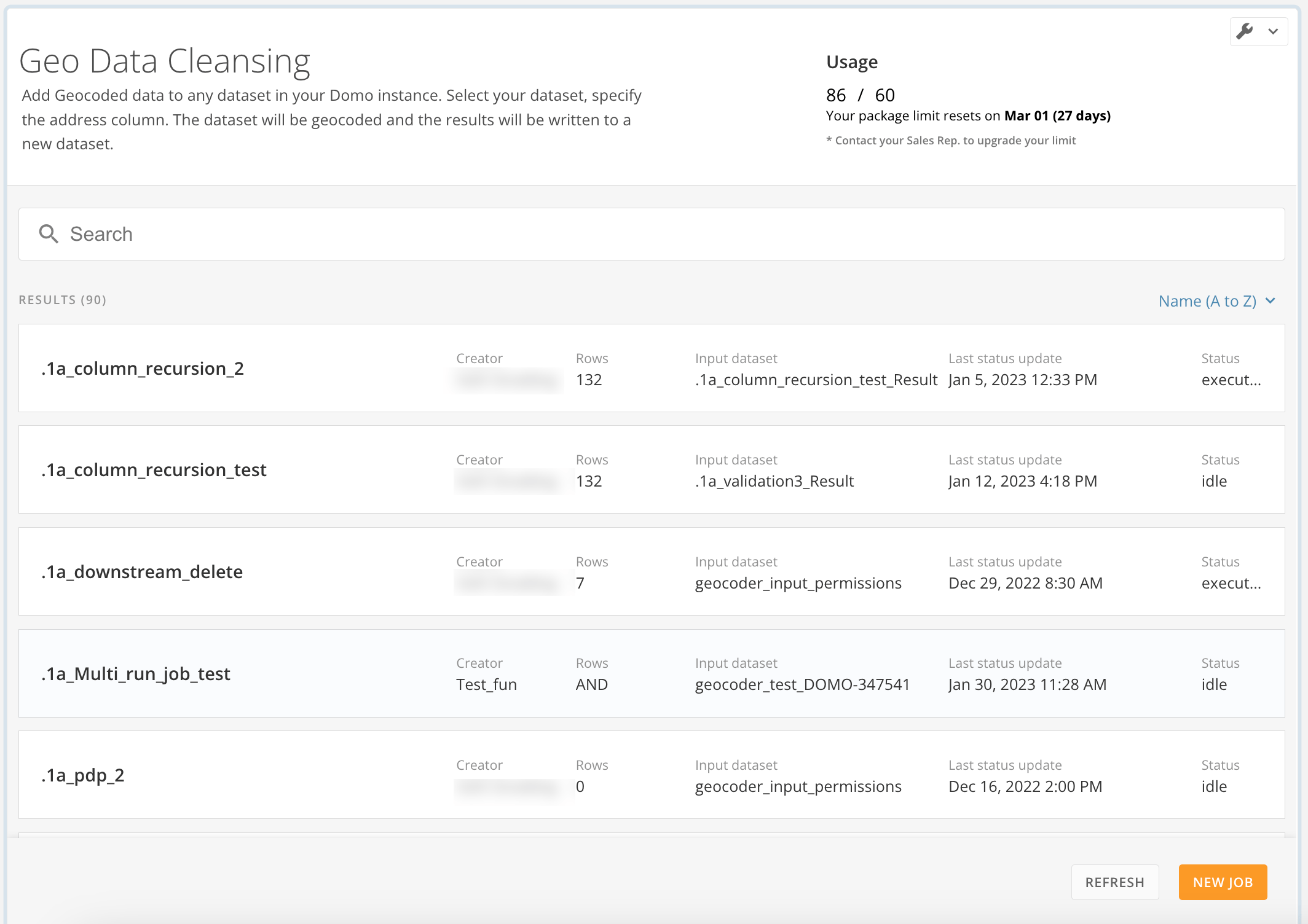
The job list displays information about each existing job. This information includes the job's name, creator, rows, input DataSet, output DataSet, last status update, and status.
The following actions can be performed in the job list:
* **Search for a job —**
Enter keywords into the search bar to filter the list by name.
* **Change order of list —**
Select the
# Job List
The job list displays information about each existing job. This information includes the job's name, creator, rows, input DataSet, output DataSet, last status update, and status.
The following actions can be performed in the job list:
* **Search for a job —**
Enter keywords into the search bar to filter the list by name.
* **Change order of list —**
Select the
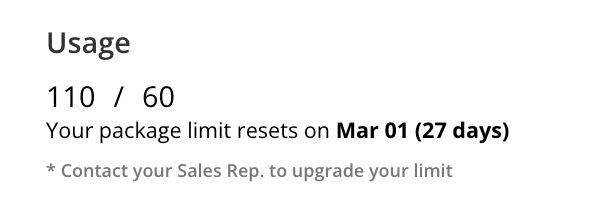 On the landing page, the usage meter displays the limit of monthly individual geocoding requests and how many requests have been made in the current month. Each job creates multiple requests. If the monthly limit is reached, jobs continue running and the excess bill is calculated at the end of the period. Below the usage meter, you can see when your package limit resets.
If you need to upgrade your limit, contact your Customer Success Manager (CSM).
### Create a New Job
On the landing page, the usage meter displays the limit of monthly individual geocoding requests and how many requests have been made in the current month. Each job creates multiple requests. If the monthly limit is reached, jobs continue running and the excess bill is calculated at the end of the period. Below the usage meter, you can see when your package limit resets.
If you need to upgrade your limit, contact your Customer Success Manager (CSM).
### Create a New Job
 1. Select
**New Job** at the bottom right corner of the landing page.
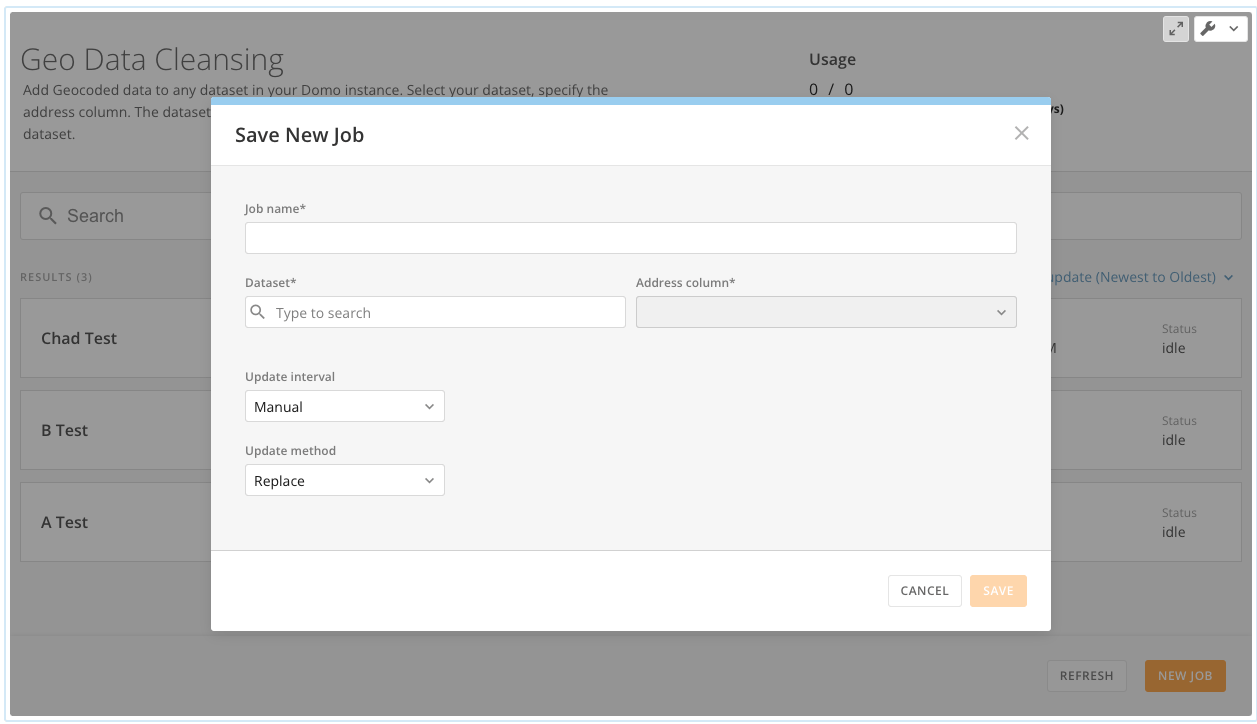
The **Save New Job** modal displays.
1. Select
**New Job** at the bottom right corner of the landing page.
The **Save New Job** modal displays.
 * **Every day —**
This option automatically runs the job once a day, seven days a week. Use the **Start between** menu to select the time at which you want the job to run.
* **Every day —**
This option automatically runs the job once a day, seven days a week. Use the **Start between** menu to select the time at which you want the job to run.
 * **Every month —**
This option automatically runs the job once a month on the same day(s) every month. The **On this day** menu allows you to select whether the job should run on the 1st, on the 1st *and* 15th, or on the last day of the month. The same **Start between** criteria applies as with the **Every day** option above.
* **Every month —**
This option automatically runs the job once a month on the same day(s) every month. The **On this day** menu allows you to select whether the job should run on the 1st, on the 1st *and* 15th, or on the last day of the month. The same **Start between** criteria applies as with the **Every day** option above.
 6. Select an option from the
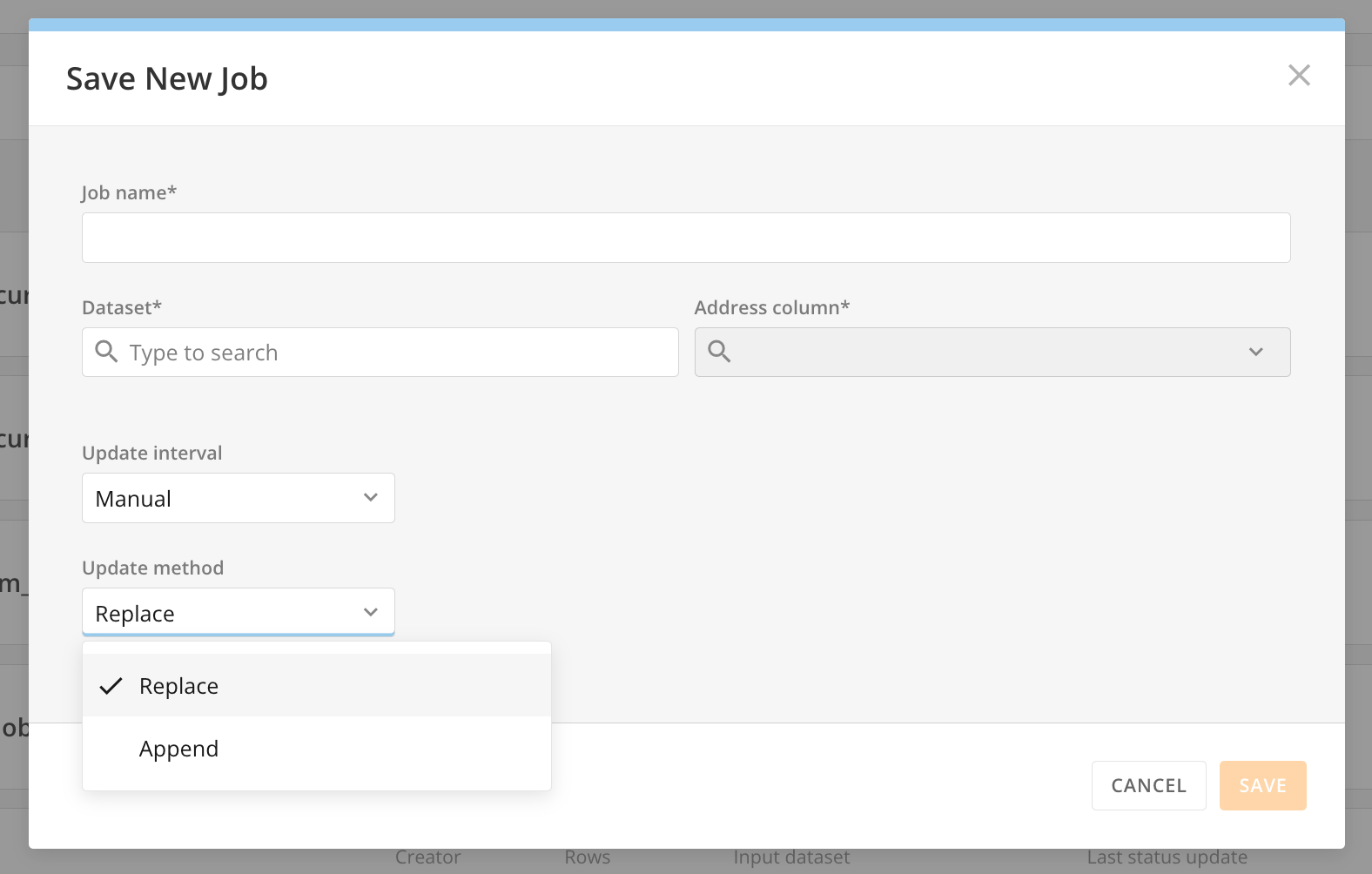
**Update method** list. The options are described below:
* **Replace —**
If you select **Replace**, every time you run a job the data that was recorded in the output DataSet is deleted and the entire DataSet is replaced with new data.
* **Append —**
If you select **Append**, the whole input DataSet runs and any new rows are added to the end of the output DataSet.
6. Select an option from the
**Update method** list. The options are described below:
* **Replace —**
If you select **Replace**, every time you run a job the data that was recorded in the output DataSet is deleted and the entire DataSet is replaced with new data.
* **Append —**
If you select **Append**, the whole input DataSet runs and any new rows are added to the end of the output DataSet.
 7. Select
**Save** to create the new job.
# Job Details View
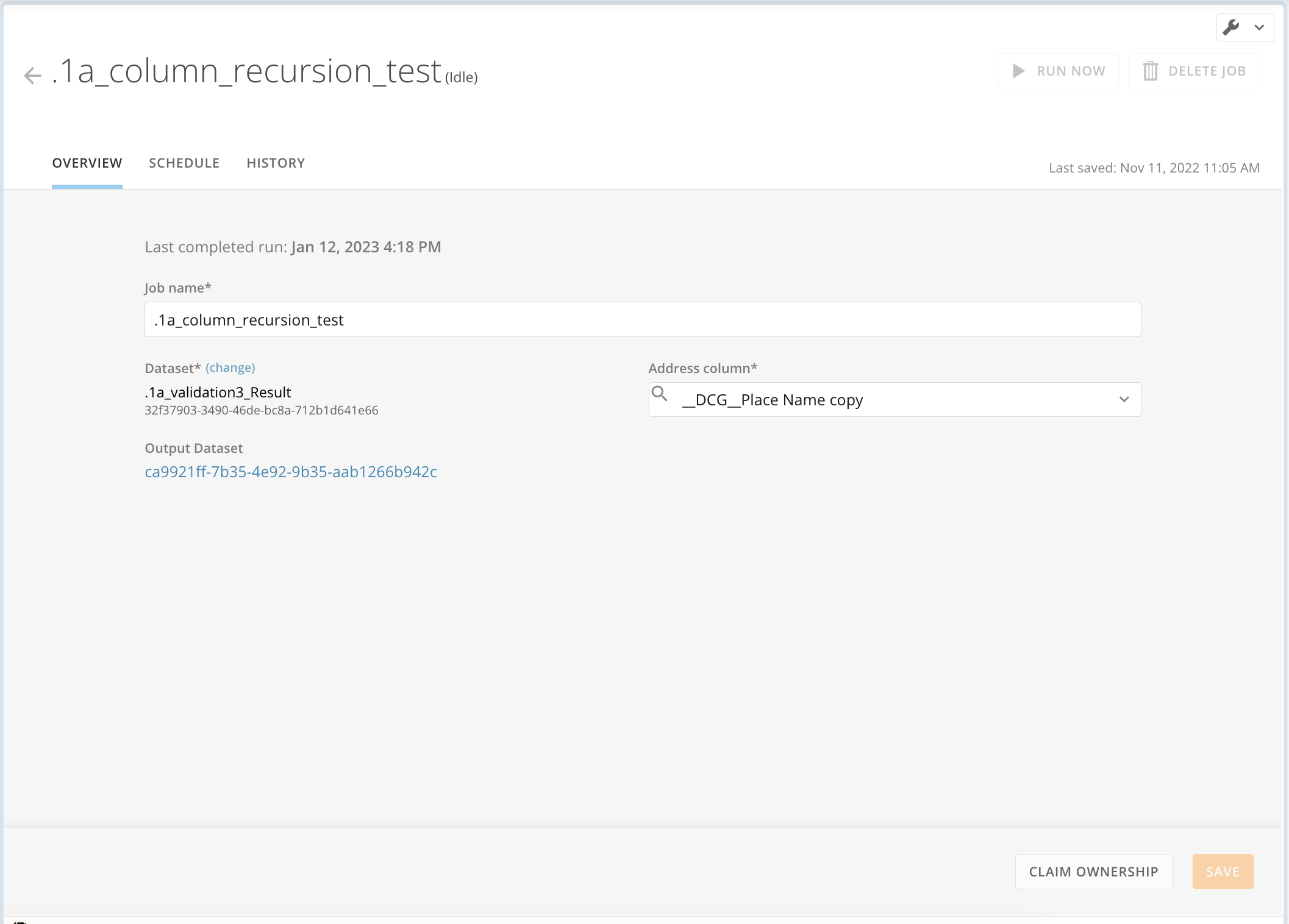
When you select a job from the list on the landing page, the job Details view displays. If the job has executed at least one time, the job Details view displays a link to the [output DataSet](#output) for the job.
7. Select
**Save** to create the new job.
# Job Details View
When you select a job from the list on the landing page, the job Details view displays. If the job has executed at least one time, the job Details view displays a link to the [output DataSet](#output) for the job.
 Select
  #### Edit a Job
In the **Overview** tab of the job Details view, the job owner can edit the job name, change the input DataSet, and update the address column. An app admin can view all jobs but needs to claim ownership of a job before being able to edit it.
#### Delete a Job
In the job Details view for a job, the job owner can delete the job by selecting **Delete Job**. An app admin can view all jobs but needs to claim ownership of a job before being able to delete it.
#### Schedule Tab
In the **Schedule** tab of the job Details view, you can edit the update interval for the job.
#### History Tab
In the **History** tab of the job Details view, you can access a historical log of the last 100 executions of the current job.
You can view the following details for each entry:
* Started on
* Completed on
* Result
* Message
### Output DataSet
The output DataSet appends the following columns of geocoded data to the original input DataSet:
#### Edit a Job
In the **Overview** tab of the job Details view, the job owner can edit the job name, change the input DataSet, and update the address column. An app admin can view all jobs but needs to claim ownership of a job before being able to edit it.
#### Delete a Job
In the job Details view for a job, the job owner can delete the job by selecting **Delete Job**. An app admin can view all jobs but needs to claim ownership of a job before being able to delete it.
#### Schedule Tab
In the **Schedule** tab of the job Details view, you can edit the update interval for the job.
#### History Tab
In the **History** tab of the job Details view, you can access a historical log of the last 100 executions of the current job.
You can view the following details for each entry:
* Started on
* Completed on
* Result
* Message
### Output DataSet
The output DataSet appends the following columns of geocoded data to the original input DataSet:
Column | Description |
|---|---|
\_DCG\_Status | The possible result of the geocoding process.
|
\_DCG\_Message | The resulting message of the geocoding process. |
\_DCG\_From Cache | This field indicates whether we use the DOMO database result instead of the provider endpoint. TRUE for local results and FALSE for provider results. |
\_DCG\_Place Id | Contains the unique ID for each result; a feature may have a commonly used identifier, either a unique string or number. |
\_DCG\_Latitude | Contains the geocoded latitude. |
\_DCG\_Longitude | Contains the geocoded longitude. |
| \_DCG\_Location Type | A list of feature types describing the feature. Most features have only one type, but if the feature has multiple types (for example, Vatican City is a country, region, and place), all applicable types are listed. |
| \_DCG\_Formatted Address | The house number for the returned address feature. |
| \_DCG\_Landmark | Specifies whether the feature is in the poi.landmark data type. This data type is deprecated, and this property is present on all poi features for backwards compatibility reasons but is always TRUE . |
| \_DCG\_Text | A string representing the feature in the requested language, if specified. |
| \_DCG\_Category | Comma-separated categories for the returned poi feature. Points of interest can include restaurants, stores, concert venues, parks, museums, and more. |
| \_DCG\_Neighborhood | Colloquial sub-city features often referred to in local parlance. Unlike locality features, these typically lack official status and may lack universally agreed-upon boundaries. |
| \_DCG\_Region | Top-level sub-national administrative features, such as states in the United States or provinces in Canada or China. |
| \_DCG\_Country | Limits results to one or more countries. Permitted values are country names separated by commas. |
| \_DCG\_Country Short Code | Limits results to one or more countries. Permitted values are ISO 3166 alpha 2 country codes separated by commas. |
| \_DCG\_Postcode | Postal codes used in country-specific national addressing systems. |
| \_DCG\_Place | Typically, these are cities, villages, municipalities, and so on. They’re usually features used in postal addressing, and are suitable for display in ambient end-user applications where current-location context is needed (for example, in weather displays). |
| \_DCG\_Place Name | Contains a detailed description of the place. Typically includes the city's name and country, depending on the feature type. |