> ## Documentation Index
> Fetch the complete documentation index at: https://domoinc-openapi-sync-dataflows.mintlify.site/llms.txt
> Use this file to discover all available pages before exploring further.

# Workflows | Overview

export const InlineImage = ({src, alt = '', height = '1.6em'}) => {
  return <img noZoom src={src} alt={alt} style={{
    display: 'inline',
    verticalAlign: 'start',
    height: height,
    margin: '0'
  }} />;
};

### Intro

Domo Workflows allows you to model business processes throughout your organization into executable workflows using shapes and flows. Workflows offers solutions for integrating internal and external systems, configuring decision logic, and automating activities. Tracking and metric features give you visibility into your workflows and how they can be optimized.

Learn about Workflows in the following articles:

* [Create a workflow](/s/article/000005331)
* [Manage Workflows](/s/article/000005179)
* [Workflows | Reference](/s/article/000005797)

Workflows integrates closely with these other features. Learn about them by following the links.

* [Code Engine](/s/article/000005173)
  — A Domo-native runtime environment that can execute JavaScript or Python code. Code Engine allows you to write, test, and distribute functions for use in Workflows and in other Domo apps.
* [Forms](/s/article/000005171)
  — The feature for creating and managing forms that are part of User Tasks in Workflows. Forms are also integrated with [App Studio](/s/article/000005295).
* [Task Center](/s/article/000005172)
  — An interface for managing tasks originating in workflows.

### Glossary

Workflows uses specific terms and concepts. This table defines these items. Missing a definition? Let us know what to add at [kb@domo.com](mailto:kb@domo.com) <InlineImage src="/images/kb/ka0Vq00000001FR-00N5w00000Ri7BU-0EMVq0000000XDh.jpg" />.

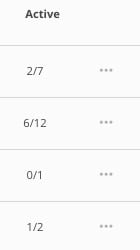
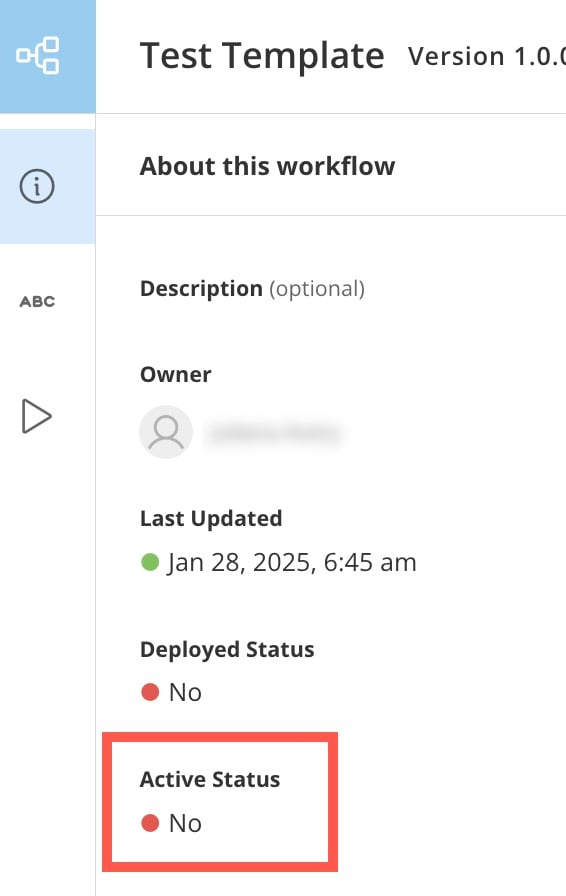
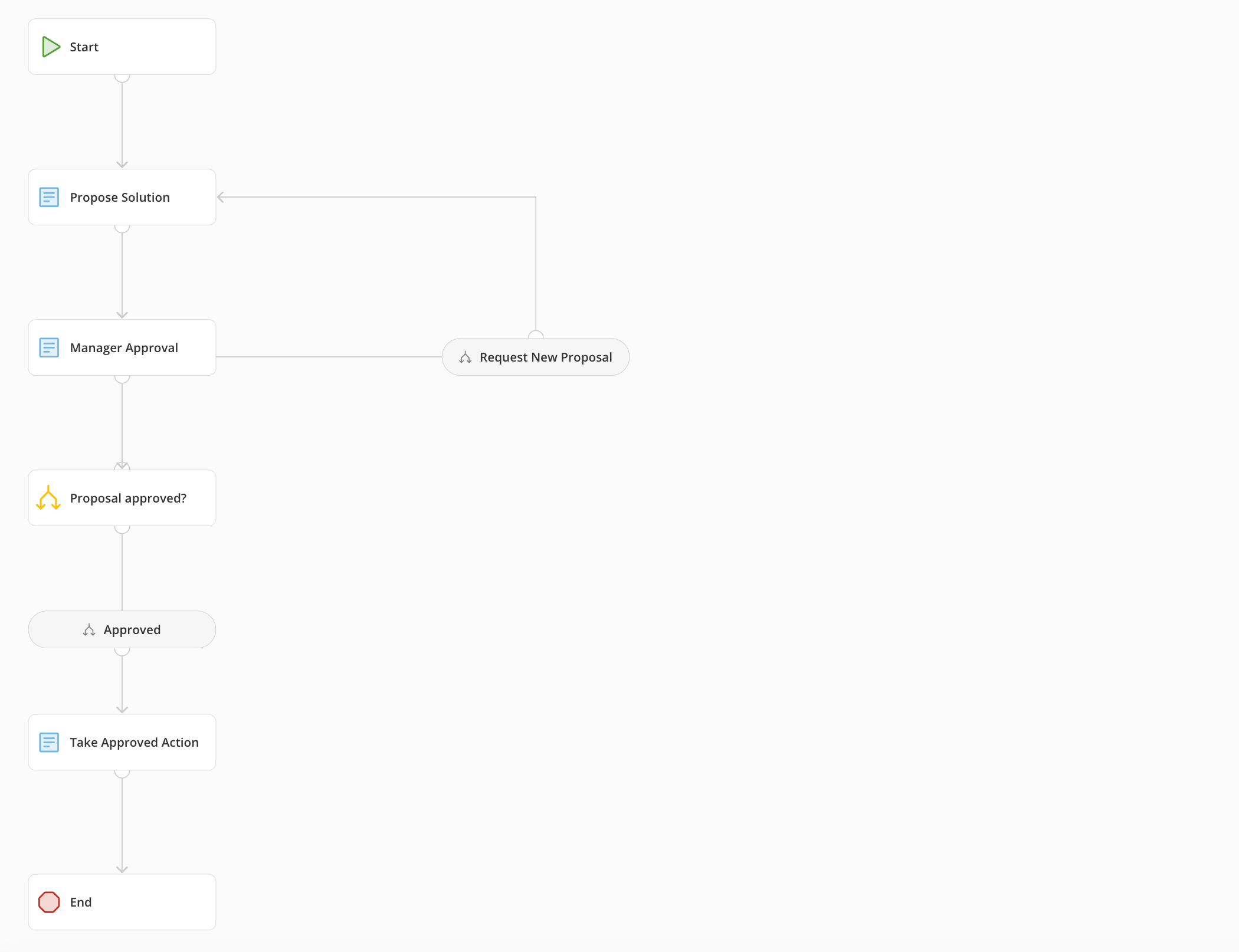
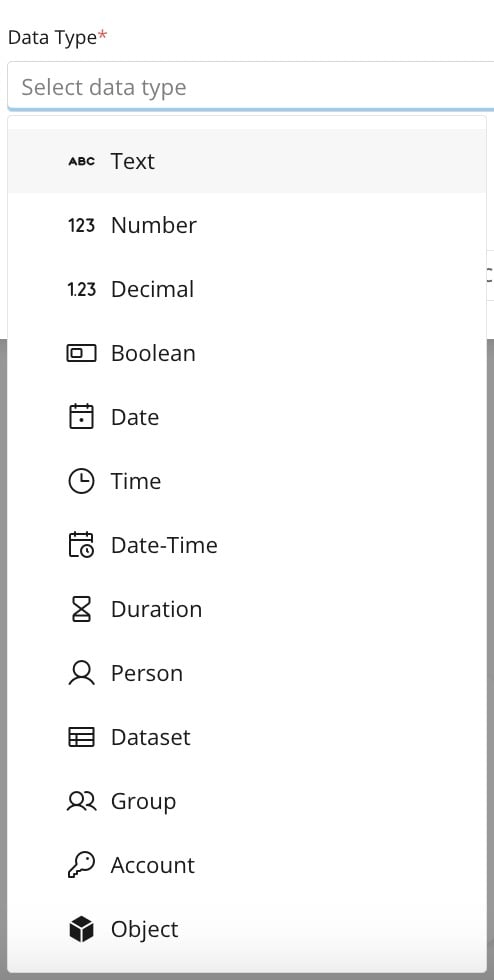
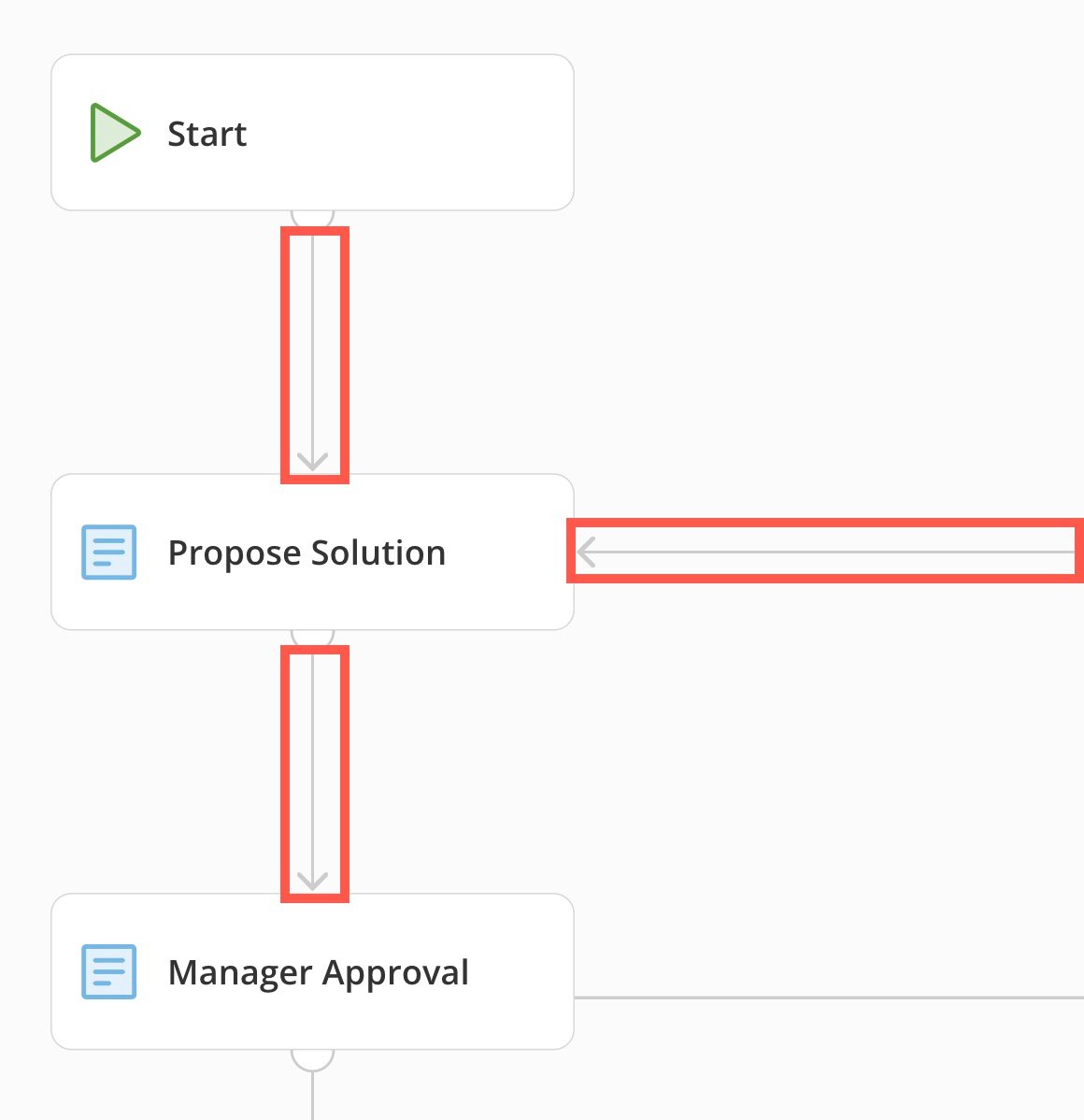
<table border="1" cellpadding="1" cellspacing="1" data-aura-rendered-by="33:200;a"><thead><tr><th colspan="1" rowspan="1"><p> Term </p></th><th colspan="1" rowspan="1"><p> Description </p></th><th colspan="1" rowspan="1"><p> Example </p></th></tr></thead><tbody><tr><td colspan="1" rowspan="1"><p> Activate/Deactivate </p></td><td colspan="1" rowspan="1"><p> Individual workflows can either be active or inactive. </p><p> The Workflows default view displays how many versions out of the total number of versions are active. Example: 6/12 </p><p /><p /><p /><p /><p /><p> When editing a workflow, its active status is indicated with a red or green dot. (🔴 or <span> 🟢) </span></p></td><td colspan="1" rowspan="1"><p><img alt="active workflow.jpg" src="https://mintcdn.com/domoinc-openapi-sync-dataflows/t-REVUfgwLiw_Ine/images/kb/ka0Vq0000009QMf-00N5w00000Ri7BU-0EMVq000001rXy9.jpg?fit=max&auto=format&n=t-REVUfgwLiw_Ine&q=85&s=83a95b893d1d5fb7acc7cd918288bdcc" style={{width: 124, height: 221}} width="140" height="250" data-path="images/kb/ka0Vq0000009QMf-00N5w00000Ri7BU-0EMVq000001rXy9.jpg" /></p><p><img alt="" src="https://mintcdn.com/domoinc-openapi-sync-dataflows/t-REVUfgwLiw_Ine/images/kb/ka0Vq0000009QMf-00N5w00000Ri7BU-0EMVq000005WxTV.jpg?fit=max&auto=format&n=t-REVUfgwLiw_Ine&q=85&s=6f9a6dc7a6f71fd84c825897b9c147e3" style={{width: 183, height: 290}} width="566" height="896" data-path="images/kb/ka0Vq0000009QMf-00N5w00000Ri7BU-0EMVq000005WxTV.jpg" /></p></td></tr><tr><td colspan="1" rowspan="1"><p> Canvas </p></td><td colspan="1" rowspan="1"><p> The Workflows canvas is where you edit a workflow's graphical model, arranging and configuring the <em> shapes </em> and <em> flows </em>. </p></td><td colspan="1" rowspan="1"><p><img alt="" src="https://mintcdn.com/domoinc-openapi-sync-dataflows/t-REVUfgwLiw_Ine/images/kb/ka0Vq0000009QMf-00N5w00000Ri7BU-0EMVq000005WxRt.jpg?fit=max&auto=format&n=t-REVUfgwLiw_Ine&q=85&s=814e18362c3955bccc51ea7fc4b73653" style={{width: 514, height: 395}} width="2100" height="1614" data-path="images/kb/ka0Vq0000009QMf-00N5w00000Ri7BU-0EMVq000005WxRt.jpg" /></p></td></tr><tr><td colspan="1" rowspan="1"><p> Data types </p></td><td colspan="1" rowspan="1"><p> Every variable must have a data type to designate what kind of value it can store. The data type also helps you know how to map <em> variables </em> to the <span /> contract on a task in the workflow. </p><p> Learn more about <a href="https://domo-support.domo.com/s/article/000005797?language=en_US#data_types" target="_self"> data types </a>. </p></td><td colspan="1" rowspan="1"><p><img alt="" src="https://mintcdn.com/domoinc-openapi-sync-dataflows/t-REVUfgwLiw_Ine/images/kb/ka0Vq0000009QMf-00N5w00000Ri7BU-0EMVq000005WxLR.jpg?fit=max&auto=format&n=t-REVUfgwLiw_Ine&q=85&s=2b1f5a197441e656a0e67d1fef90e6d2" style={{width: 200, height: 396}} width="494" height="980" data-path="images/kb/ka0Vq0000009QMf-00N5w00000Ri7BU-0EMVq000005WxLR.jpg" /></p></td></tr><tr><td colspan="1" rowspan="1"><p> Deploy </p></td><td colspan="1" rowspan="1"><p> Individual workflows can be either deployed or <em> pre-deployed </em> (see below). </p><p> You can't "un-deploy" a workflow after it has been deployed. To stop the workflow from executing on its schedule or prevent it from being started manually, you must <em> deactivate </em> it. </p></td><td colspan="1" rowspan="1"><p> — </p></td></tr><tr><td colspan="1" rowspan="1"><p> Executed/Execution </p></td><td colspan="1" rowspan="1"><p> Refers to a particular run of a workflow. A single numbered <em> version </em> of a workflow can have multiple executions. </p><p> You can to <a href="https://domo-support.domo.com/s/article/000005179?language=en_US#view_executions" target="_self"> review a specific execution </a> and get data about things like shape completion time and reasons for shape failure. </p></td><td colspan="1" rowspan="1"><p> — </p></td></tr><tr><td colspan="1" rowspan="1"><p> Flows </p></td><td colspan="1" rowspan="1"><p> Refers to the lines that connect shapes on the Workflows canvas. You can make flows as long or short as you like, add shapes to them, or delete them. </p></td><td colspan="1" rowspan="1"><p><img alt="" src="https://mintcdn.com/domoinc-openapi-sync-dataflows/t-REVUfgwLiw_Ine/images/kb/ka0Vq0000009QMf-00N5w00000Ri7BU-0EMVq000005Wvl4.jpg?fit=max&auto=format&n=t-REVUfgwLiw_Ine&q=85&s=5c78d9dfe947cb4c2c0e9427b8b158bd" style={{width: 286, height: 295}} width="1160" height="1198" data-path="images/kb/ka0Vq0000009QMf-00N5w00000Ri7BU-0EMVq000005Wvl4.jpg" /></p></td></tr><tr><td colspan="1" rowspan="1"><p> Object </p><p><b> Defined </b></p><p><b> Open </b></p></td><td colspan="1" rowspan="1"><p> A defined object is one possible <em> data type </em>. <br /><br /> You can configure a defined object with child property <em> variables </em>. Each child variable stores an individual value based on the data type selected. <br /><br /><b> Note </b><b>: </b> A child variable cannot be configured with an object data type—Workflows do not support nesting in defined objects. </p><p> An open object is configured with no defined child variables. An open object can store a JSON payload without limits to its structure or nesting. They are convenient to use when the workflow calls an API in a service task and the response is contained in a single parameter. </p></td><td colspan="1" rowspan="1"><p> — </p></td></tr><tr><td colspan="1" rowspan="1"><p> Permissions </p></td><td colspan="1" rowspan="1"><p><a href="https://domo-support.domo.com/s/article/000005179?language=en_US#manage_permissions" target="_self"> Permissions </a> are the user-specific levels of access that a person or group has to an individual workflow. </p></td><td colspan="1" rowspan="1"><p> — </p></td></tr><tr><td colspan="1" rowspan="1"><p> Pre-deployed </p></td><td colspan="1" rowspan="1"><p> This refers to a workflow version that has never been deployed and may be edited by anyone with Write or Admin <a href="https://domo-support.domo.com/s/article/000005179?language=en_US#manage_permissions" target="_self"> permission </a> to the workflow. </p><p> After a workflow version is deployed, it can no longer be edited. </p></td><td colspan="1" rowspan="1"><p /></td></tr><tr><td colspan="1" rowspan="1"><p> Shapes </p></td><td colspan="1" rowspan="1"><p> Workflows use Business Process Model and Notation (BPMN), a standardized method of constructing flow charts to visually model a business process from end to end. Learn about the possible <a href="https://domo-support.domo.com/s/article/000005331#add_shapes_to_your_canvas" target="_self"> shapes </a>. </p></td><td colspan="1" rowspan="1"><p> — </p></td></tr><tr><td colspan="1" rowspan="1"><p> Status </p></td><td colspan="1" rowspan="1"><p> Deployed workflows have one of four statuses: </p><ul><li> In-Progress </li><li> Completed </li><li> Canceled </li><li> Failed </li></ul></td><td colspan="1" rowspan="1"><p /></td></tr><tr><td colspan="1" rowspan="1"><p> Usage </p></td><td colspan="1" rowspan="1"><p> Refers to the number of <em> executions </em> the workflow has completed, not filtered by status. This metric displays in your Workflows home. </p></td><td colspan="1" rowspan="1"><p> — </p></td></tr><tr><td colspan="1" rowspan="1"><p> Validation mode </p></td><td colspan="1" rowspan="1"><p> When you try to <em> deploy </em> a workflow, it is validated for issues. If there are errors, you must resolve them before deploying the workflow. <a href="https://domo-support.domo.com/s/article/000005331?language=en_US#validate_a_workflow" target="_self"> Validation mode </a> provides information to help you resolve errors and other issues. </p></td><td colspan="1" rowspan="1"><p> — </p></td></tr><tr><td colspan="1" rowspan="1"><p> Variables </p></td><td colspan="1" rowspan="1"><p> Variables store the data values that are passed or generated by the workflow. The values in variables can change as the workflow progresses from step to step, and variables can be mapped to inputs or outputs on tasks throughout the workflow. </p><p> Depending on your <a href="https://domo-support.domo.com/s/article/000005179?language=en_US#manage_permissions" target="_self"> permissions </a> for an individual workflow, you can add variables to the list of available variables for that workflow. </p></td><td colspan="1" rowspan="1"><p> — </p></td></tr><tr><td colspan="1" rowspan="1"><p> Versions/Versioning </p></td><td colspan="1" rowspan="1"><p> Versions are numbered iterations of a workflow configuration. Learn how to <a href="https://domo-support.domo.com/s/article/000005179?language=en_US#manage_workflow_versions" target="_self"> manage your workflow versions </a>. </p></td><td colspan="1" rowspan="1"><p> — </p></td></tr></tbody></table>
<Tip>
  Learn how to [create a workflow](/s/article/000005331) —design your own or use a pre-built template.
</Tip>