> ## Documentation Index
> Fetch the complete documentation index at: https://domoinc-openapi-sync-dataflows.mintlify.site/llms.txt
> Use this file to discover all available pages before exploring further.
# Publish Connector
After you have written and tested your connector, you are ready for publishing! You can choose to make the connector only available to your private company or available to any Domo user. Follow the guide below to submit the connector for approval. Once approved, your connector is ready to go!
### Submit for Publishing
***
-
Click Submit. Domo automatically checks your connector for
some required work and notifies you of any missing fields. If everything
checks out, the Connector Submission modal will appear.
-
In the Additional Instructions field, include any
information needed to test and validate your connector. If your connector
uses OAuth 2 for validation, please include a username and password. Our
engineers will only use these for testing and validation.
- Select your connector visibility.
-
Select Shared with your company to keep the connector for
exclusive use in your company's Domo instance. The connector will not be
listed on the Data Center page; a private URL is provided for accessing
the connector. If you select this option, you will also have the option to
self-publish the connector for 14 days, allowing you to personally review
and test a beta version of the connector.
-
Select Public to all companies to make your connector
available to all Domo users.
-
Click Continue Submission.
-
If you chose to make your connector public:
Congratulations! You’ve successfully submitted your connector.
Domo will begin the 30-day review process and will contact you with any questions.
-
If you chose to keep your connector private, continue to{' '}
Self Publish Your Private Connector
.
-
The self-publish option is not available for custom connectors that use
OAuth 2.0 in the authentication process or use discovery parameter types
in Configure Reports / Advanced Mode.
-
Click the View Status or the Overview tab
to see the status of your connector review. You will also be sent email
updates about your connector's status in the review process.
Note: To withdraw your connector from submission, open the
connector. Click View Status.
In the status window, click Withdraw.
### Self Publish Your Private Connector
***
If your custom connector meets the following criteria, your connector could be available for immediate use:
-
You are{' '}
sharing your custom connector only with your company
-
Your custom connector does not use OAuth 2.0 in the
authentication process
-
Your custom connector does not use the discovery parameter
type in Configure Reports / Advanced Mode
If your connector meets these criteria, you now can choose to self publish. This
will allow you to review a beta version of your connector for 30 days while Domo
is reviewing your submission.
-
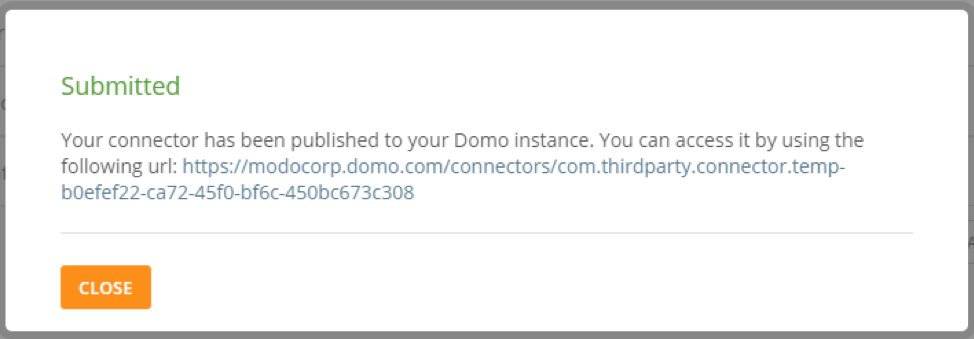
After you have submitted your connector for publication, click{' '}
Self Publish. A modal will appear with a URL to a beta
version of your connector.

-
Use the URL to access your beta connector. Well done! Your
connector has now been self-published for Beta review during the Domo review
process.
 ### Review Process
***
Your connector code passes through several phases of review.
### Review Process
***
Your connector code passes through several phases of review.
-
Automated Tests: The code is syntax checked, smoke tested, and
verified for compliance to policies. We check that:
-
XMLHttpRequest is not used. Use httprequest.get() or httprequest.post()
instead.
- Code is not minified.
- Credentials are not hard coded.
- Information is not redirected to an external API.
-
Security Test: Domo engineers ensure that all security protocols
are being followed, in addition to those listed above.
-
Performance Tests: Tests are run to make sure that the connector
speed relative to the number of records processed is acceptable: over 1000
records per 5 minutes.
-
Code review: The code is reviewed by one of our developers to
ensure that the code is readable and clean.
After your code has passed through every review process, your connector is approved
and is either published to all of Domo through the Data Center or privately to the
URL provided.
Click View Status in the Develop tab or select the Overview tab to see the status of your connector review. You will also receive email updates about your connector's status in the review process.
### View Code in Read-Only Mode
***
You can view the code (processdata script) in the read-only mode while the connector is submitted for review.
To check the script, click on the View Status tab and then View Code.
