> ## Documentation Index
> Fetch the complete documentation index at: https://domoinc-openapi-sync-dataflows.mintlify.site/llms.txt
> Use this file to discover all available pages before exploring further.

# Change which asset powers the card

Sometimes we have multiple designs for the same project. Instead of having to recreate the card from the new design, we can just swap them out.

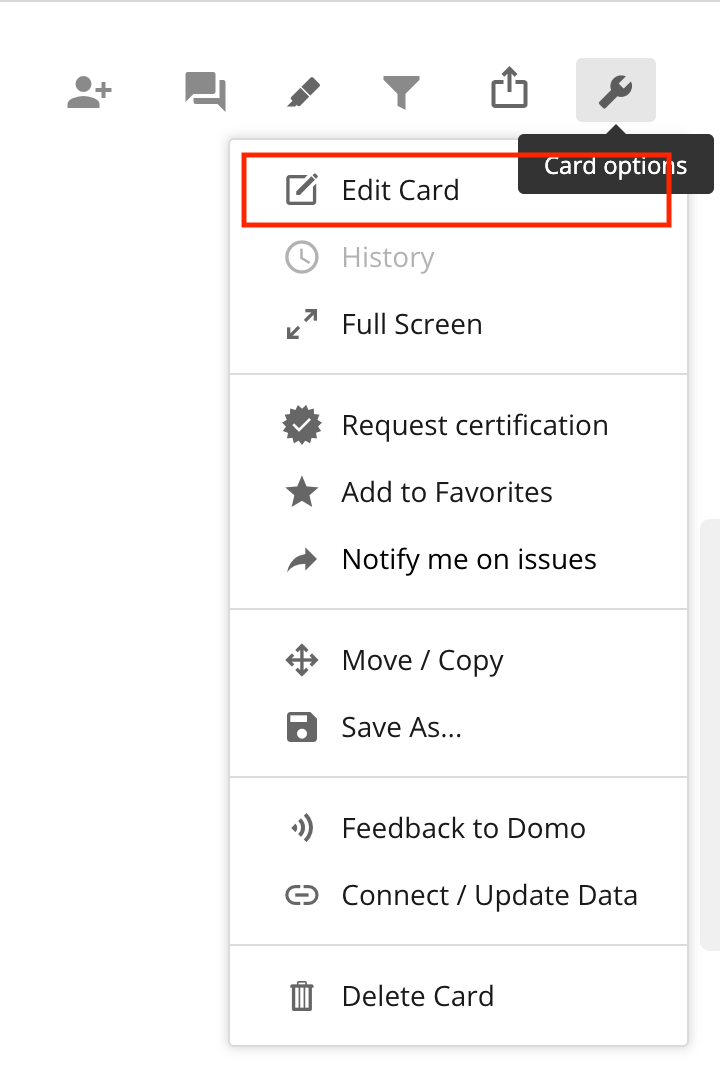
1. Edit the card you want to change
   <Frame>
     <img src="https://mintcdn.com/domoinc-openapi-sync-dataflows/G5Rc9OFVd1gC1Yb2/images/dev/stoplight.io/images/card-edit-screenshot.png?fit=max&auto=format&n=G5Rc9OFVd1gC1Yb2&q=85&s=aa28b0b6a902514e1298dd603fe079bc" alt="card-edit-screenshot.png" width="720" height="1074" data-path="images/dev/stoplight.io/images/card-edit-screenshot.png" />
   </Frame>

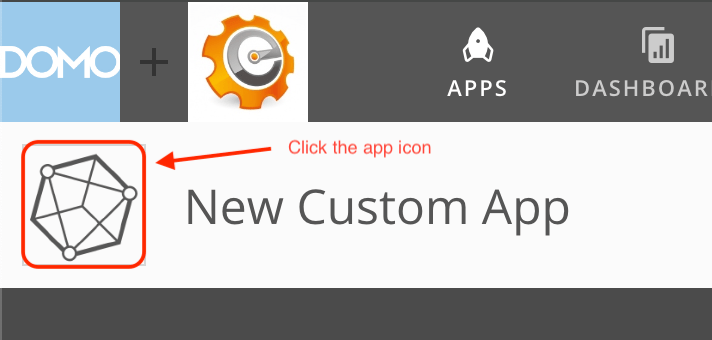
2. In the card edit view, click the icon in the top left
   <Frame>
     <img src="https://mintcdn.com/domoinc-openapi-sync-dataflows/KPD0C7qKtTl5l81-/images/dev/stoplight.io/images/edit-card-screen.png?fit=max&auto=format&n=KPD0C7qKtTl5l81-&q=85&s=a2ccd5159c3b1603845f64f634628fd1" alt="edit-card-screen.png" width="712" height="340" data-path="images/dev/stoplight.io/images/edit-card-screen.png" />
   </Frame>

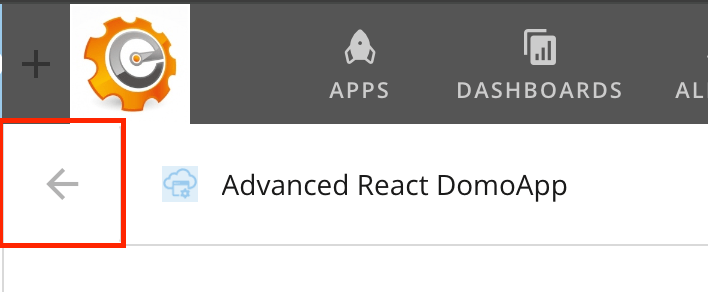
3. Click the back button to get back to leave the asset view and see all your asset library assets
   <Frame>
     <img src="https://mintcdn.com/domoinc-openapi-sync-dataflows/G5Rc9OFVd1gC1Yb2/images/dev/stoplight.io/images/back-to-assets.png?fit=max&auto=format&n=G5Rc9OFVd1gC1Yb2&q=85&s=b783ce604486de6a2f25f7e4a7f4b844" alt="back-to-assets.png" width="708" height="292" data-path="images/dev/stoplight.io/images/back-to-assets.png" />
   </Frame>

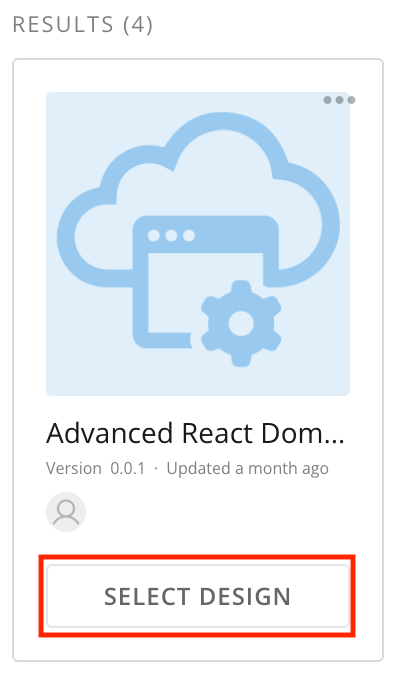
4. Find the asset you want to use and click `SELECT DESIGN`
   <Frame>
     <img src="https://mintcdn.com/domoinc-openapi-sync-dataflows/KPD0C7qKtTl5l81-/images/dev/stoplight.io/images/select-a-new-asset.png?fit=max&auto=format&n=KPD0C7qKtTl5l81-&q=85&s=092b8343fd3d7e1fed4f30698b040eaf" alt="select-a-new-asset.png" width="406" height="676" data-path="images/dev/stoplight.io/images/select-a-new-asset.png" />
   </Frame>

5. Click `SAVE AND FINISH`
