> ## Documentation Index
> Fetch the complete documentation index at: https://domoinc-openapi-sync-dataflows.mintlify.site/llms.txt
> Use this file to discover all available pages before exploring further.

# YouTube Enterprise Advancedコネクター

## はじめに

DomoのYouTube Enterpriseコネクターを使用して、YouTube動画とYouTubeチャンネルの視聴統計情報、人気度のメトリクス、ターゲット層の統計情報を取得できます。YouTube APIについての詳細は、ウェブサイト（ [https://developers.google.com/youtube/](https://developers.google.com/youtube/ "https://developers.google.com/youtube/") ）を参照してください。

<Note>
  **注記：** Domoでは現在、5つのYouTubeコネクターを利用できます。これら5つのコネクターの違いを理解するのは難しい場合があるため、以下にそれぞれの説明を示します。

  * **YouTube Reportingコネクター -**
    このコネクターは、エントリーレベルのYouTubeコネクターです。認証に必要なのは、Googleのユーザー名とパスワードのみです。ほとんどのDomoユーザーは、このコネクターを使用してYouTubeデータを取得するはずです。
  * **YouTube Reporting Enterpriseコネクター -**
    YouTube Reportingコネクターのエンタープライズバージョンです。このレポートには、いくつかの追加レポートがあります。基本的なGoogleユーザー名とパスワードに加えて、GoogleクライアントIDとクライアントシークレットを入力する必要があります。
  * **YouTube Enterprise Advancedコネクター -**
    Domoの最も高度なYouTubeコネクターです（これがYouTube Enterpriseコネクターの唯一のバージョンです。単に「YouTube Enterprise」と呼ばれるコネクターはありません）。GoogleクライアントIDとクライアントシークレット、およびGoogleユーザー名とパスワードが必要です。ほかのYouTubeコネクターよりも多くのレポートとオプションを提供しますが、設定が複雑で非常に困難です。このコネクターは、上級ユーザーにのみ推奨されます。
  * **YouTube Reporting Partitionコネクター**
    **-** 提供するレポートはYouTube Reportingコネクターと同じですが、DataSetでパーティショニングを使用できます。
  * **YouTube Reporting Enterprise Partitionコネクター**
    **-** 提供するレポートはYouTube Reporting Enterpriseコネクターと同じですが、DataSetでパーティショニングを使用できます。
</Note>

YouTube Enterpriseコネクターは「クラウドApp」コネクターであるため、クラウドに保管されたデータの取得が可能です。Data Centerのウィンドウ上部のツールバーで **［クラウドApp］** をクリックすると、これを含むほかのクラウドAppコネクターのページにアクセスできます。

YouTube Enterpriseアカウントには、Data Centerから接続します。このトピックでは、YouTube Enterpriseコネクターのユーザーインターフェースに固有のフィールドとメニューについて説明します。DataSetの追加や更新スケジュールの設定、DataSet情報の編集に関する一般的な情報については、「 [コネクターを使用してDataSetを追加する](/ja/s/article/360042926274 "コネクターを使用してDataSetを追加する") 」を参照してください。

## ベストプラクティス

コネクターを起動して履歴データをリクエストすると、すべてのデータを取り込むまでに30日ほどかかります。これはYouTube APIの仕組みが原因です。例えば、レポートを4月1日に開始した場合、4月1日以降のデータは24～48時間後に利用可能になります。4月1日より数日前の履歴は毎日利用できます。およそ30日間経過すると、6ヶ月分のバックフィルデータがレポートに追加されます（データは散発的に届きます）。この例では、ユーザーは4月30日までに7ヶ月分のデータ（4月分とその前の6ヶ月分）を取り込みます。

## 必要条件

YouTube Enterpriseアカウントに接続してDataSetを作成するには、以下が必要です。

* GoogleクライアントID
* Googleクライアントシークレット
* Googleのユーザー名とパスワード

クライアントIDとクライアントシークレットの取得に関する詳細な手順については、 [https://support.google.com/cloud/answer/6158849](https://support.google.com/cloud/answer/6158849 "https://developers.google.com/console/help/new/#generatingoauth2") を参照してください。

<Note>
  **注記：** Domoで複数の YouTube Enterprise Advancedアカウントを使用する場合は、クライアントIDとクライアントシークレットを作成するときに、Google APIの［Google+ API］チェックボックスを選択する必要があります。［Google+ API］のチェックボックスが選択されていない場合は、Domoの新しいYouTube Enterprise Advancedアカウントにより現在の認証情報が上書きされます。
</Note>

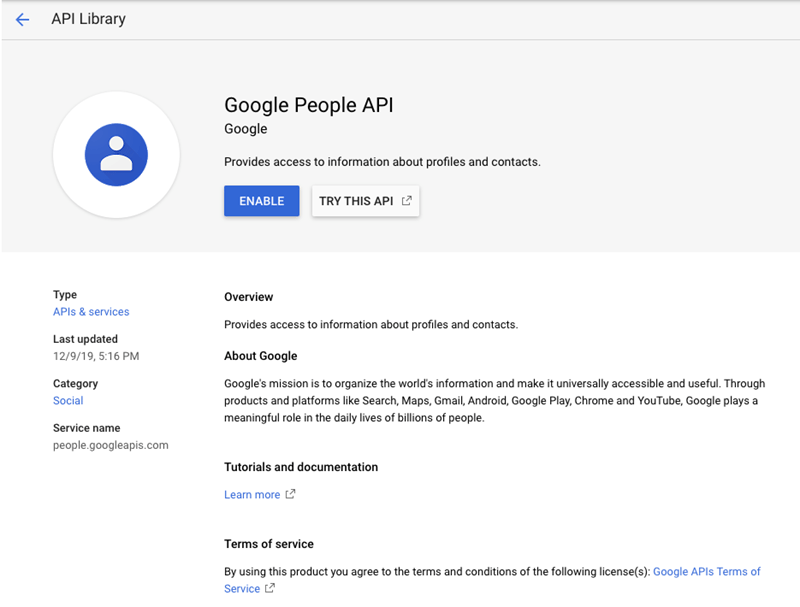
このコネクターを適切に設定するには、Google People APIも有効にする必要があります。このAPIの詳細については、 [https://developers.google.com/people/?hl=ja](https://developers.google.com/people/?hl=en_US) を参照してください。

<Frame>
  <img alt="google_people_api.png" src="https://mintcdn.com/domoinc-openapi-sync-dataflows/blcgkVgnZv6gj_XY/images/kb/ka05w000001238U-00N5w00000Ri7BU-0EM5w000005vNzE.png?fit=max&auto=format&n=blcgkVgnZv6gj_XY&q=85&s=7574fa77e601f05697ef008e9e316528" width="800" height="607" data-path="images/kb/ka05w000001238U-00N5w00000Ri7BU-0EM5w000005vNzE.png" />
</Frame>

## YouTube Enterpriseアカウントに接続する

このセクションでは、YouTube Enterpriseコネクターページの **［認証情報］** ペインと **［詳細］** ペインのオプションについて説明します。このページのほかのペインの項目である **［スケジュール設定］** や **［DataSetに名前を付け、説明を入力］** に関しては、ほとんどのタイプのコネクターで共通しています。詳細については「 [コネクターを使用してDataSetを追加する](/ja/s/article/360042926274 "コネクターを使用してDataSetを追加する") 」を参照してください。

### ［認証情報］ペイン

このペインには、YouTube Enterpriseアカウントに接続するための認証情報の入力フィールドがあります。これらの認証情報の入手方法については、前述の「必要条件」を参照してください。下表では、各フィールドに必要な内容を説明しています。

| フィールド         | 説明                        |
| :------------ | :------------------------ |
| Client ID     | GoogleクライアントIDを入力します。     |
| Client Secret | Googleクライアントシークレットを入力します。 |

<Note>
  **注記：** クライアントIDとクライアントシークレットを作成するには、次のリダイレクトURLの入力が求められます。 [https://oauth.domo.com/api/data/v1/oauth/providers/youtube-enterprise/exchange](https://oauth.domo.com/api/data/v1/oauth/providers/youtube-enterprise/exchange%22%22)
</Note>

有効な認証情報を入力すると、GoogleのOAuthページが表示され、Googleのユーザー名とパスワードの入力を求められます。正常に認証されると、新しいYouTube Reporting Enterprise DataSetを作成するときはいつでも同じアカウントを使用できます。コネクターアカウントは、Data Centerの **［アカウント］** タブで管理できます。このタブの詳細については、「 [コネクターのユーザーアカウントを管理する](/ja/s/article/360042926054 "コネクターのユーザーアカウントを管理する") 」を参照してください。

### ［詳細］ペイン

このペインには、 **［API］** メニューおよび **［Report］** メニューの2つのメインメニューのほか、選択したAPIやレポートタイプに応じて表示/非表示になるメニューがあります。

<table border="1" cellpadding="1" cellspacing="1" data-aura-rendered-by="33:207;a"><thead><tr><th colspan="1" rowspan="1"><p> メニュー </p></th><th colspan="1" rowspan="1"><p> 説明 </p></th></tr></thead><tbody><tr><td colspan="1" rowspan="1"><p> API </p></td><td colspan="1" rowspan="1"><p> YouTube Enterprise APIのタイプを選択します。選択したAPIに応じて、異なるセットのレポートが利用できます。次のAPIから選択できます。 </p><table class="mt-responsive-table"><tbody><tr><td class="mt-noheading" colspan="1" rowspan="1"><p> Analytics API </p></td><td class="mt-noheading" colspan="1" rowspan="1"><p> Analytics APIは、ユーザーおよびユーザーがチャンネルや動画をどのように操作しているのかを理解するのに役立ちます。 </p></td></tr><tr><td class="mt-noheading" colspan="1" rowspan="1"><p> Ad Performance </p></td><td class="mt-noheading" colspan="1" rowspan="1"><p> Ad Performance APIには、動画の再生中に掲載された広告のインプレッションベースのメトリクスを提供するレポートが含まれています。 </p></td></tr><tr><td class="mt-noheading" colspan="1" rowspan="1"><p> Content ID API </p></td><td class="mt-noheading" colspan="1" rowspan="1"><p> Content ID APIは、コンテンツを把握するために使用されます。 </p></td></tr><tr><td class="mt-noheading" colspan="1" rowspan="1"><p> Content Owner </p></td><td class="mt-noheading" colspan="1" rowspan="1"><p> Content Owner APIには、指定されたYouTubeコンテンツ所有者にリンクされているチャンネルのメトリクスを含むレポートが含まれています。 </p></td></tr><tr><td class="mt-noheading" colspan="1" rowspan="1"><p> Data API </p></td><td class="mt-noheading" colspan="1" rowspan="1"><p> Data APIは、ユーザのリソースを取得するために使用されます。 </p></td></tr></tbody></table><p /></td></tr><tr><td colspan="1" rowspan="1"><p> Report (Analytics API) </p></td><td colspan="1" rowspan="1"><p> 目的のAnalytics APIのレポートを選択します。 </p><table border="1"><tbody><tr><td colspan="1" rowspan="1"><b> レポート </b></td><td colspan="1" rowspan="1"><b> 説明 </b></td></tr><tr><td colspan="1" rowspan="1"> Basic User Activity </td><td colspan="1" rowspan="1"> ユーザーの動画の視聴方法に関する基本情報を返します。 </td></tr><tr><td colspan="1" rowspan="1"> Content Sharing By Platform </td><td colspan="1" rowspan="1"> 動画共有（視聴プラットフォーム別に分類）に関する情報を返します。 </td></tr><tr><td colspan="1" rowspan="1"> Device OS </td><td colspan="1" rowspan="1"> ユーザーが、どのオペレーティングシステムを使用して動画を視聴しているのかについて情報を返します。 </td></tr><tr><td colspan="1" rowspan="1"> Device Type </td><td colspan="1" rowspan="1"> 動画の視聴に使用されているデバイスに関する情報を返します。 </td></tr><tr><td colspan="1" rowspan="1"> Device Type and OS </td><td colspan="1" rowspan="1"> 動画の視聴に使用されているデバイスおよびオペレーティングシステムに関する情報を返します。 </td></tr><tr><td colspan="1" rowspan="1"> Geographic Activity By Country </td><td colspan="1" rowspan="1"> 国別の視聴者のアクティビティに関する情報を返します。 </td></tr><tr><td colspan="1" rowspan="1"> Geographic Activity By US State </td><td colspan="1" rowspan="1"> 米国州別の視聴者のアクティビティに関する情報を返します。 </td></tr><tr><td colspan="1" rowspan="1"> Time Activity By Country </td><td colspan="1" rowspan="1"> 視聴者による動画の視聴時間（国別に分類）に関する情報を返します。 </td></tr><tr><td colspan="1" rowspan="1"> Top Videos </td><td colspan="1" rowspan="1"> 最も視聴されている動画に関する情報を返します。 </td></tr><tr><td colspan="1" rowspan="1"> Top Videos By US State </td><td colspan="1" rowspan="1"> 最も視聴されている動画（米国州別に分類）に関する情報を返します。 </td></tr><tr><td colspan="1" rowspan="1"> Traffic Source </td><td colspan="1" rowspan="1"> 視聴者がどのような方法で動画にアクセスしたかにもとづいて情報を返します。 </td></tr><tr><td colspan="1" rowspan="1"> Traffic Source Detail </td><td colspan="1" rowspan="1"> チャンネルのコンテンツの視聴回数が最も多いリファラーにもとづいて情報を返します。 </td></tr><tr><td colspan="1" rowspan="1"> Video Playback Location </td><td colspan="1" rowspan="1"> 動画の再生を行ったページまたはアプリケーションのタイプに関する情報を返します。 </td></tr><tr><td colspan="1" rowspan="1"> Video Playback Location Detail </td><td colspan="1" rowspan="1"> チャンネルの動画の視聴回数または視聴時間が最も高い埋め込み動画プレーヤーに関する情報を返します。 </td></tr><tr><td colspan="1" rowspan="1"> Viewer Demographic </td><td colspan="1" rowspan="1"> 視聴者の年齢グループと性別に関する情報を返します。 </td></tr></tbody></table><p /></td></tr><tr><td colspan="1" rowspan="1"><p> Report (Ad Performance) </p></td><td colspan="1" rowspan="1"><table class="mt-responsive-table"><tbody><tr><td class="mt-noheading" colspan="1" rowspan="1"><p> Ad Performance By Ad Types </p></td><td class="mt-noheading" colspan="1" rowspan="1"><p> 広告のパフォーマンス（広告のタイプ別に分類）に関する情報を返します。 </p></td></tr><tr><td class="mt-noheading" colspan="1" rowspan="1"><p> Country Specific Ad Performance </p></td><td class="mt-noheading" colspan="1" rowspan="1"><p> 国別に分類された広告に関する情報を返します。 </p></td></tr><tr><td class="mt-noheading" colspan="1" rowspan="1"><p> Daily Earnings and Ad Performance </p></td><td class="mt-noheading" colspan="1" rowspan="1"><p> 広告パフォーマンスに関する毎日の情報を返します。 </p></td></tr><tr><td class="mt-noheading" colspan="1" rowspan="1"><p> Earnings and Ad Performance </p></td><td class="mt-noheading" colspan="1" rowspan="1"><p> 広告の合計パフォーマンスに関する情報を返します。 </p></td></tr></tbody></table><p /></td></tr><tr><td colspan="1" rowspan="1"><p> Report (Content ID API) </p></td><td colspan="1" rowspan="1"><table class="mt-responsive-table"><tbody><tr><td class="mt-noheading" colspan="1" rowspan="1"><p> Allowed Video Ads </p></td><td class="mt-noheading" colspan="1" rowspan="1"><p> 指定したパートナーまたはユーザーに許可されている広告のタイプに関する情報を返します。 </p></td></tr><tr><td class="mt-noheading" colspan="1" rowspan="1"><p> Video Ad Settings </p></td><td class="mt-noheading" colspan="1" rowspan="1"><p> 指定した動画の広告設定を返します。 </p></td></tr></tbody></table><p /></td></tr><tr><td colspan="1" rowspan="1"><p> Report (Content Owner) </p></td><td colspan="1" rowspan="1"><table class="mt-responsive-table"><tbody><tr><td class="mt-noheading" colspan="1" rowspan="1"><p> Activity for Time Periods (including subscriber counts) </p></td><td class="mt-noheading" colspan="1" rowspan="1"><p> 日割りユーザーのアクティビティに関する情報を返します。 </p></td></tr><tr><td class="mt-noheading" colspan="1" rowspan="1"><p> Basic Statistics (including subscriber counts) </p></td><td class="mt-noheading" colspan="1" rowspan="1"><p> コンテンツ所有者のチャンネルとそのチャンネルの動画に関連するユーザーのアクティビティに関する情報を返します。 </p></td></tr><tr><td class="mt-noheading" colspan="1" rowspan="1"><p> Basic Statistics for US States </p></td><td class="mt-noheading" colspan="1" rowspan="1"><p> 米国の州およびコロンビア特別区のユーザーのアクティビティ統計を返します。 </p></td></tr><tr><td class="mt-noheading" colspan="1" rowspan="1"><p> Device Type </p></td><td class="mt-noheading" colspan="1" rowspan="1"><p> デバイスタイプにもとづいて動画の視聴統計情報の集計を返します。 </p></td></tr><tr><td class="mt-noheading" colspan="1" rowspan="1"><p> Device Type and OS </p></td><td class="mt-noheading" colspan="1" rowspan="1"><p> 視聴者のオペレーティングシステムとデバイスタイプにもとづく動画の視聴統計情報を返します。 </p></td></tr><tr><td class="mt-noheading" colspan="1" rowspan="1"><p> Engagement and Content Sharing </p></td><td class="mt-noheading" colspan="1" rowspan="1"><p> コンテンツ所有者のチャンネルの動画が異なるソーシャルプラットフォームで共有された頻度を示す統計情報を返します。 </p></td></tr><tr><td class="mt-noheading" colspan="1" rowspan="1"><p> Geographic Activity including owned and claimed content </p></td><td class="mt-noheading" colspan="1" rowspan="1"><p> チャンネルの国単位でのユーザーのアクティビティに関連する統計情報を返します。 </p></td></tr><tr><td class="mt-noheading" colspan="1" rowspan="1"><p> Geographic Activity including subscriber counts </p></td><td class="mt-noheading" colspan="1" rowspan="1"><p> チャンネルの国単位でのユーザーのアクティビティに関連する統計情報を返します（サブスクライバー数を含む）。 </p></td></tr><tr><td class="mt-noheading" colspan="1" rowspan="1"><p> Operating System </p></td><td class="mt-noheading" colspan="1" rowspan="1"><p> 視聴者のオペレーティングシステムにもとづく動画の視聴統計情報を返します。 </p></td></tr><tr><td class="mt-noheading" colspan="1" rowspan="1"><p> Traffic Source </p></td><td class="mt-noheading" colspan="1" rowspan="1"><p> 視聴者がどのような方法でコンテンツ所有者のチャンネルの動画にアクセスしたかにもとづいて情報を返します。 </p></td></tr><tr><td class="mt-noheading" colspan="1" rowspan="1"><p> Traffic Source Detail </p></td><td class="mt-noheading" colspan="1" rowspan="1"><p> 視聴者がどのような方法でコンテンツ所有者のチャンネルの動画にアクセスしたかにもとづいて情報を返します。 </p></td></tr><tr><td class="mt-noheading" colspan="1" rowspan="1"><p> User Activity (including owned and claimed content) </p></td><td class="mt-noheading" colspan="1" rowspan="1"><p> チャンネルでのユーザーの操作に関する情報を返します。 </p></td></tr><tr><td class="mt-noheading" colspan="1" rowspan="1"><p> User Activity by Province </p></td><td class="mt-noheading" colspan="1" rowspan="1"><p> 都道府県別に地理的アクティビティに関連する情報を返します。 </p></td></tr><tr><td class="mt-noheading" colspan="1" rowspan="1"><p> User Activity in US </p></td><td class="mt-noheading" colspan="1" rowspan="1"><p> 米国州別に地理的アクティビティに関連する情報を返します。 </p></td></tr><tr><td class="mt-noheading" colspan="1" rowspan="1"><p> Video Playback Location </p></td><td class="mt-noheading" colspan="1" rowspan="1"><p> 動画の再生を行ったページまたはアプリケーションのタイプに関連する統計情報を返します。 </p></td></tr><tr><td class="mt-noheading" colspan="1" rowspan="1"><p> Video Playback Location Detail </p></td><td class="mt-noheading" colspan="1" rowspan="1"><p> 動画の再生を行ったページまたはアプリケーションのタイプに関連する統計情報を返します。 </p></td></tr></tbody></table><p /></td></tr><tr><td colspan="1" rowspan="1"><p> Report (Data API) </p></td><td colspan="1" rowspan="1"><table class="mt-responsive-table"><tbody><tr><td class="mt-noheading" colspan="1" rowspan="1"><p> Activities </p></td><td class="mt-noheading" colspan="1" rowspan="1"><p> 特定のチャンネル、またはユーザが行った操作に関する情報を返します。 </p></td></tr><tr><td class="mt-noheading" colspan="1" rowspan="1"><p> Channel Sections </p></td><td class="mt-noheading" colspan="1" rowspan="1"><p> チャンネルが特集する一連の動画に関する情報を返します。 </p></td></tr><tr><td class="mt-noheading" colspan="1" rowspan="1"><p> Channels </p></td><td class="mt-noheading" colspan="1" rowspan="1"><p> 認証されたチャンネルに関する情報を返します。 </p></td></tr><tr><td class="mt-noheading" colspan="1" rowspan="1"><p> Channels by User </p></td><td class="mt-noheading" colspan="1" rowspan="1"><p> 指定されたユーザーが所有するチャンネルに関する情報を返します。 </p></td></tr><tr><td class="mt-noheading" colspan="1" rowspan="1"><p> Comment Threads by Video Id </p></td><td class="mt-noheading" colspan="1" rowspan="1"><p> 選択した動画のコメントに関する情報を返します。 </p></td></tr><tr><td class="mt-noheading" colspan="1" rowspan="1"><p> Guide Category by Id </p></td><td class="mt-noheading" colspan="1" rowspan="1"><p> 選択したカテゴリーに関する情報を返します。 </p></td></tr><tr><td class="mt-noheading" colspan="1" rowspan="1"><p> Guide Category by Region </p></td><td class="mt-noheading" colspan="1" rowspan="1"><p> 選択した地域で利用できるカテゴリーに関する情報を返します。 </p></td></tr><tr><td class="mt-noheading" colspan="1" rowspan="1"><p> Languages </p></td><td class="mt-noheading" colspan="1" rowspan="1"><p> YouTubeでサポートされている言語のリストを返します。 </p></td></tr><tr><td class="mt-noheading" colspan="1" rowspan="1"><p> Other Users' Video Statistics </p></td><td class="mt-noheading" colspan="1" rowspan="1"><p> 選択したユーザーが所有する動画に関する情報を返します。 </p></td></tr><tr><td class="mt-noheading" colspan="1" rowspan="1"><p> Playlist </p></td><td class="mt-noheading" colspan="1" rowspan="1"><p> 認証されたユーザーのプレイリストのリストを返します。 </p></td></tr><tr><td class="mt-noheading" colspan="1" rowspan="1"><p> Playlist By Id </p></td><td class="mt-noheading" colspan="1" rowspan="1"><p> 選択したプレイリストに関する情報が返されます。 </p></td></tr><tr><td class="mt-noheading" colspan="1" rowspan="1"><p> Playlist By Item Id </p></td><td class="mt-noheading" colspan="1" rowspan="1"><p> 選択した動画が保存されているプレイリストに関する情報が返されます。 </p></td></tr><tr><td class="mt-noheading" colspan="1" rowspan="1"><p> Regions </p></td><td class="mt-noheading" colspan="1" rowspan="1"><p> YouTubeでサポートされている地域のリストを返します。 </p></td></tr><tr><td class="mt-noheading" colspan="1" rowspan="1"><p> Subscribers </p></td><td class="mt-noheading" colspan="1" rowspan="1"><p> 認証されたチャンネルに登録しているユーザーに関する情報を返します。 </p></td></tr><tr><td class="mt-noheading" colspan="1" rowspan="1"><p> Subscription </p></td><td class="mt-noheading" colspan="1" rowspan="1"><p> 認証されたユーザーが登録しているチャンネルに関する情報を返します。 </p></td></tr><tr><td class="mt-noheading" colspan="1" rowspan="1"><p> Video Category by Id </p></td><td class="mt-noheading" colspan="1" rowspan="1"><p> 選択したカテゴリーに関する情報を返します。 </p></td></tr><tr><td class="mt-noheading" colspan="1" rowspan="1"><p> Video Category by Region </p></td><td class="mt-noheading" colspan="1" rowspan="1"><p> 選択した地域で利用できるカテゴリーに関する情報を返します。 </p></td></tr><tr><td class="mt-noheading" colspan="1" rowspan="1"><p> Video Dislikes </p></td><td class="mt-noheading" colspan="1" rowspan="1"><p> 認証されたユーザーが「よくないね！ヤダネ！」とマークした動画のリストを返します。 </p></td></tr><tr><td class="mt-noheading" colspan="1" rowspan="1"><p> Video Likes </p></td><td class="mt-noheading" colspan="1" rowspan="1"><p> 認証されたユーザーが「いいね！」とマークした動画のリストを返します。 </p></td></tr><tr><td colspan="1" rowspan="1"><p> Videos </p></td><td colspan="1" rowspan="1"><p><span> ユーザーの動画のリストを返します。 </span></p></td></tr></tbody></table><p /></td></tr><tr><td colspan="1" rowspan="1"><p> Call on Behalf of Content Owner </p></td><td colspan="1" rowspan="1"><p> 別のユーザー（ <b> ［Content Owner ID］ </b> フィールドに入力するユーザーのID）のレポートを取得する場合は、 <b> ［Yes］ </b> を選択します。取得するレポートのコンテンツ所有者である場合は、 <b> ［No］ </b> を選択します。 </p></td></tr><tr><td colspan="1" rowspan="1"><p> Content Owner ID </p></td><td colspan="1" rowspan="1"><p> データを取得するコンテンツ所有者のIDを入力します。IDが不明な場合は、パートナーマネージャーにお問い合わせください。 </p></td></tr><tr><td colspan="1" rowspan="1"><p> User IDs </p></td><td colspan="1" rowspan="1"><p> データの取得元となるユーザーのコンマ区切りIDを入力します。ユーザーIDはYouTubeチャンネルのURLの最後にあります。例えば、 <a href="https://www.youtube.com/user/googleの" rel="noopener" target="_blank"> [https://www.youtube.com/user/googleの](https://www.youtube.com/user/googleの) </a> URLでは、「google」がユーザーIDになります。 </p></td></tr><tr><td colspan="1" rowspan="1"><p> Video ID </p></td><td colspan="1" rowspan="1"><p> コメントを取得する動画のIDを入力します。 </p></td></tr><tr><td colspan="1" rowspan="1"><p> Region </p></td><td colspan="1" rowspan="1"><p> データを取得する国または地域を選択します。 </p></td></tr><tr><td colspan="1" rowspan="1"><p> Videos Published After (Days Ago) </p></td><td colspan="1" rowspan="1"><p> 経過日数を入力して、指定日以降に公開されたすべての動画のデータを取得します。例えば、ここで「20」と入力すると、レポートには過去 <span class="mt-font-courier-new"> 20日 </span> 間に公開されたすべての動画の情報が掲載されます。このフィールドを空白のままにすると、すべての動画の詳細が取得されます。 </p></td></tr><tr><td colspan="1" rowspan="1"><p> Videos Published Before (Days Ago) </p></td><td colspan="1" rowspan="1"><p> 経過日数を入力して、指定日以前に公開されたすべての動画のデータを取得します。例えば、ここで「 <span class="mt-font-courier-new"> 20 </span> 」と入力すると、レポートには過去20日以上前に公開されたすべての動画の情報が掲載されます。このフィールドを空白のままにすると、すべての動画の詳細が取得されます。 </p></td></tr><tr><td colspan="1" rowspan="1"><p> Playlist </p></td><td colspan="1" rowspan="1"><p> データの取得元となるプレイリストを選択します。 </p></td></tr><tr><td colspan="1" rowspan="1"><p> Legacy Reporting Mode </p></td><td colspan="1" rowspan="1"><p><b> 詳しい知識があるユーザー向け： </b> これは、古いバージョンのコネクターで作成されたデータソースでのサポートを有効にするためのモードです。 <b> True </b> に設定すると、レポートには、報告されなくなった列、または意味が変更された列が含まれます。 </p><p> 動画のレポートの場合、「kind」、「id\_kind」、「id\_videoId」の列は、異なるか利用可能になっています。 </p></td></tr><tr><td colspan="1" rowspan="1"><p> Number of Days Ago </p></td><td colspan="1" rowspan="1"><p> データを取得する最新の過去の日付を入力します。例えば、一昨日のデータを取得するには「 <span class="mt-font-courier-new"> 2 </span> 」と入力します。YouTubeでは通常、2日以内のデータは報告されません。 </p></td></tr><tr><td colspan="1" rowspan="1"><p> Backfill Days </p></td><td colspan="1" rowspan="1"><p> 何日前の <b> ［Number of Days Ago］ </b> のデータを取得するか日数を入力します。例えば、 <b> ［Number of Days Ago］ </b> に「 <span class="mt-font-courier-new"> 7 </span> 」と入力し、 <b> ［Backfill Days］ </b> に「 <span class="mt-font-courier-new"> 14 </span> 」と入力した場合、レポートには前の週のすべての日のデータが含まれます。 </p></td></tr><tr><td colspan="1" rowspan="1"><p> Prior Days </p></td><td colspan="1" rowspan="1"><p> データソースの2回目以降の実行で、何日前の <b> ［Number of Days Ago］ </b> のデータを取得するか日数を入力します。 </p></td></tr><tr><td colspan="1" rowspan="1"><p> Dimension </p></td><td colspan="1" rowspan="1"><p> 日次レポートとサマリーレポートのいずれかを指定します。 </p></td></tr><tr><td colspan="1" rowspan="1"><p> US State </p></td><td colspan="1" rowspan="1"><p> データを取得する米国の州を選択します。 </p></td></tr><tr><td colspan="1" rowspan="1"><p> Traffic Filter </p></td><td colspan="1" rowspan="1"><p> フィルターするトラフィックオプションを選択します。例えば、 <b> Google検索 </b> を選択した場合、Googleに関連する情報のみがレポートに表示されます。 </p></td></tr></tbody></table>

### その他のペイン

スケジュール設定、再試行、更新オプションの設定方法など、コネクターインターフェースのその他のセクションについては、「 [コネクターを使用してDataSetを追加する](/ja/s/article/360042926274 "コネクターを使用してDataSetを追加する") 」を参照してください。