> ## Documentation Index
> Fetch the complete documentation index at: https://domoinc-openapi-sync-dataflows.mintlify.site/llms.txt
> Use this file to discover all available pages before exploring further.

# Google Ads via Google BigQuery Serviceコネクター

<Warning>
  ****重要**** ****：**** DomoコネクターでOAuth認証を使用する機能にGoogleによって変更が加えられたことにより、新しいデータ接続を作成する際に、すべてのユーザーがサービスアカウントキー認証を使用しなければならなくなりました。Google BigQuery DataSet経由の新しいGoogle AdWordsを作成するには、このコネクターを使用します。既存のAdWords via BigQuery DataSetはすべてこれまでどおり正常に実行されます。
</Warning>

## はじめに

Google Ads（旧Google AdWords）はオンライン広告サービスです。DomoのGoogle Ads via Google BigQuery Serviceコネクターを使用すると、特定のプロジェクトのデータをDomoに転送、取得することができます。このコネクターを正しく構成するには、最初にGoogle Adsアカウント内でGoogle BigQueryスクリプトを構成する必要があります。構成する手順は、この記事の後半で説明します。

Google Ads APIの詳細については、 [https://developers.google.com/adword...s/guides/start](https://developers.google.com/adwords/api/docs/guides/start "https://developers.google.com/adwords/api/docs/guides/start") を参照してください。

このトピックでは、Google Ads via Google BigQuery Serviceコネクターユーザーインターフェースに固有のフィールドとメニューについて説明します。DataSetの追加や更新スケジュールの設定、DataSet情報の編集に関する一般的な情報は、「 [データコネクターを使用してDataSetを追加する](/ja/s/article/360042926274 "データコネクターを使用してDataSetを追加する") 」を参照してください。

## 必要条件

BigQueryサービスアカウントに接続するには、Google BigQueryサービスアカウントのJSONキーが必要です。キーを生成するには、次の手順を実行します。

1. GCP Consoleで、
   **［IAMと管理］** ページを開きます。

2. 左側のナビゲーションペインで
   ****［サービスアカウント］**** をクリックします。

3. プロジェクトを選択して
   ****［開く］**** をクリックします。

4. ****［サービスアカウントを作成］****
   をクリックします。

5. サービスアカウントの名前と説明を入力します。

6. ****［作成］****
   をクリックします。

   <Note>
     **注記：** サービスアカウントの許可ダイアログで「BigQuery Admin」権限が必要になる場合があります。詳細についてはGoogle管理者にお問い合わせください。
   </Note>

7. ****［プロジェクト所有者］****
   を選択します。

8. ****［次に進む］****
   をクリックします。

9. ****［キーを作成］****
   をクリックします。

10. キーのタイプに
    ****［JSON］**** を選択します。

11. ****［作成］****
    をクリックします。

シークレットキーがコンピューターに保存されます。

## Google BigQuery経由でGoogle Adsに接続する

このセクションでは、Google Ads via Google BigQuery Serviceコネクターページの **［認証情報］** ペインと **［詳細］** ペインのオプションについて説明します。このページのほかのペインの項目にある **［スケジュール設定］** や **［DataSetの名前を付け、説明を入力］** に関しては、コネクタータイプのほとんどで共通です。 [詳細については「データコネクターを使用してDataSetを追加する」](/ja/s/article/360042926274 "データコネクターを使用してDataSetを追加する") を参照してください。

### 認証情報ペイン

このペインには、BigQuery経由でGoogle Adsにアクセスするための認証情報を入力するフィールドがあります。下表は、各フィールドに必要な内容を説明しています。

<table border="1" cellpadding="1" cellspacing="1" data-aura-rendered-by="33:195;a"><thead><tr><th colspan="1" rowspan="1"><p> フィールド </p></th><th colspan="1" rowspan="1"><p> 説明 </p></th></tr></thead><tbody><tr><td colspan="1" rowspan="1"><p> サービスアカウントキーのJSON </p></td><td colspan="1" rowspan="1"><p> BigQueryサービスアカウントキーのJSONをコピーして貼り付けます。キーを作成する方法については、上述の「必要条件」を参照してください。 </p></td></tr></tbody></table>

有効なキーを入力した後は、新しいBigQuery Service経由でGoogle Ads DataSetを作成する際に常に同じアカウントを使用できるようになります。コネクターのアカウントはData Centerの ****［アカウント］**** タブで管理できます。このタブについて詳しくは、「 [コネクターのユーザーアカウントを管理する](/ja/s/article/360042926054 "コネクターのユーザーアカウントを管理する") 」を参照してください。

### 詳細ペイン

このペインには、レポートの設定に使用できるいくつかのフィールドとメニューがあります。

<table border="1" cellpadding="1" cellspacing="1" data-aura-rendered-by="33:195;a"><thead><tr><th colspan="1" rowspan="1"><p> メニュー </p></th><th colspan="1" rowspan="1"><p> 説明 </p></th></tr></thead><tbody><tr><td colspan="1" rowspan="1"><p> プロジェクトID </p></td><td colspan="1" rowspan="1"><p> DataSetを追加する特定のプロジェクトの名前を入力します。これは、Google Cloud Consoleのプロジェクト情報にあります。 </p></td></tr><tr><td colspan="1" rowspan="1"><p> DataSet ID </p></td><td colspan="1" rowspan="1"><p> DataSetの名前を入力します。 任意の名前を使用できます。 </p></td></tr><tr><td colspan="1" rowspan="1"><p> レポート </p></td><td colspan="1" rowspan="1"><p> 実行するAdWordsレポートタイプを選択します。以下のレポートが利用できます。 </p><table class="mt-responsive-table"><tbody><tr><td class="mt-noheading" colspan="1" rowspan="1"><p> アカウントパフォーマンス </p></td><td class="mt-noheading" colspan="1" rowspan="1"><p> アカウントレベルでデフォルトによって集計したすべての統計情報を返します。 </p></td></tr><tr><td class="mt-noheading" colspan="1" rowspan="1"> 広告カスタマイザーフィードアイテム </td><td class="mt-noheading" colspan="1" rowspan="1"> 広告カスタマイザーで使用されるフィードアイテムの統計情報を提供します。統計情報はフィードアイテムレベルで集計されます。 </td></tr><tr><td class="mt-noheading" colspan="1" rowspan="1"><p> 広告パフォーマンス </p></td><td class="mt-noheading" colspan="1" rowspan="1"><p> 広告レベルで集計した すべての統計情報を返します。 </p></td></tr><tr><td class="mt-noheading" colspan="1" rowspan="1"><p> 広告グループのパフォーマンス </p></td><td class="mt-noheading" colspan="1" rowspan="1"><p> 広告グループレベルでデフォルトによって集計したすべての統計情報を返します。 </p></td></tr><tr><td class="mt-noheading" colspan="1" rowspan="1"> 年齢層パフォーマンス </td><td class="mt-noheading" colspan="1" rowspan="1"> 年齢層別に集計したすべてのディスプレイネットワークとYouTubeネットワークの統計情報を返します。 </td></tr><tr><td class="mt-noheading" colspan="1" rowspan="1"> オーディエンスパフォーマンス </td><td class="mt-noheading" colspan="1" rowspan="1"> オーディエンスレベルで集計した、ディスプレイネットワーク広告とYouTubeネットワーク広告の興味とリマーケティングのリスト、検索広告のリマーケティングのリスト（RLSA）のパフォーマンスデータを返します。 </td></tr><tr><td class="mt-noheading" colspan="1" rowspan="1"> 自動プレースメントパフォーマンス </td><td class="mt-noheading" colspan="1" rowspan="1"> プレースメントレベルで集計したすべての統計情報を返します。 </td></tr><tr><td class="mt-noheading" colspan="1" rowspan="1"> 入札目標パフォーマンス </td><td class="mt-noheading" colspan="1" rowspan="1"> ポートフォリオ入札戦略の統計情報を返します。 </td></tr><tr><td class="mt-noheading" colspan="1" rowspan="1"><p> 予算パフォーマンス </p></td><td class="mt-noheading" colspan="1" rowspan="1"><p> 予算レベルでデフォルトによって集計したすべての統計情報を返します。 </p></td></tr><tr><td class="mt-noheading" colspan="1" rowspan="1"> 通話メトリクス通話詳細 </td><td class="mt-noheading" colspan="1" rowspan="1"> 通話専用広告または通話拡張機能の通話追跡のデータを返します。 </td></tr><tr><td class="mt-noheading" colspan="1" rowspan="1"> キャンペーン広告スケジュール目標 </td><td class="mt-noheading" colspan="1" rowspan="1"> AdSchedule条件別にキャンペーンのパフォーマンスをまとめます。 </td></tr><tr><td class="mt-noheading" colspan="1" rowspan="1"> キャンペーン条件 </td><td class="mt-noheading" colspan="1" rowspan="1"> キャンペーンレベルの条件を返します。 </td></tr><tr><td class="mt-noheading" colspan="1" rowspan="1"> キャンペーングループのパフォーマンス </td><td class="mt-noheading" colspan="1" rowspan="1"> キャンペーングループに含まれるキャンペーンの全体的なパフォーマンス統計情報を返します。 </td></tr><tr><td class="mt-noheading" colspan="1" rowspan="1"> キャンペーン場所目標 </td><td class="mt-noheading" colspan="1" rowspan="1"> 場所に基づくキャンペーン条件別にキャンペーンのパフォーマンスをまとめます。 </td></tr><tr><td class="mt-noheading" colspan="1" rowspan="1"> キャンペーン除外キーワードパフォーマンス </td><td class="mt-noheading" colspan="1" rowspan="1"> キーワードベースのNegativeCampaignCriterionオブジェクトの属性を取得します。 </td></tr><tr><td class="mt-noheading" colspan="1" rowspan="1"> キャンペーン除外プレースメントパフォーマンス </td><td class="mt-noheading" colspan="1" rowspan="1"> プレースメントベースのNegativeCampaignCriterionオブジェクトの属性を取得します。 </td></tr><tr><td class="mt-noheading" colspan="1" rowspan="1"> キャンペーン除外場所 </td><td class="mt-noheading" colspan="1" rowspan="1"> 場所ベースのNegativeCampaignCriterionオブジェクトの属性を取得します。 </td></tr><tr><td class="mt-noheading" colspan="1" rowspan="1"><p> キャンペーンパフォーマンス </p></td><td class="mt-noheading" colspan="1" rowspan="1"><p> キャンペーンレベルでデフォルトによって集計したすべての統計情報を返します。 </p></td></tr><tr><td class="mt-noheading" colspan="1" rowspan="1"> キャンペーンシェアセット </td><td class="mt-noheading" colspan="1" rowspan="1"> SharedSetオブジェクトとキャンペーン間の すべての関係を返します。 </td></tr><tr><td class="mt-noheading" colspan="1" rowspan="1"> クリックパフォーマンス </td><td class="mt-noheading" colspan="1" rowspan="1"> 各クリックレベルで集計したすべての統計情報を返します。 </td></tr><tr><td class="mt-noheading" colspan="1" rowspan="1"> クリエイティブコンバージョン </td><td class="mt-noheading" colspan="1" rowspan="1"> 無料クリックに関する統計情報を返します。 </td></tr><tr><td class="mt-noheading" colspan="1" rowspan="1"> 条件パフォーマンス </td><td class="mt-noheading" colspan="1" rowspan="1"> 広告グループ条件レベルで集計したすべての統計情報を返します。 </td></tr><tr><td class="mt-noheading" colspan="1" rowspan="1"> リンク先URL </td><td class="mt-noheading" colspan="1" rowspan="1"> リンク先URLレベルで集計したすべての統計情報を返します。 </td></tr><tr><td class="mt-noheading" colspan="1" rowspan="1"> 表示キーワードパフォーマンス </td><td class="mt-noheading" colspan="1" rowspan="1"> キーワードレベルで集計したすべてのディスプレイネットワークとYouTubeネットワークの統計情報を返します。 </td></tr><tr><td class="mt-noheading" colspan="1" rowspan="1"> 表示トピックパフォーマンス </td><td class="mt-noheading" colspan="1" rowspan="1"> トピックレベルで集計したすべてのディスプレイネットワークとYouTubeネットワークの統計情報を返します。 </td></tr><tr><td class="mt-noheading" colspan="1" rowspan="1"> 最終URL </td><td class="mt-noheading" colspan="1" rowspan="1"> 最終URLレベルで集計したすべての統計情報を返します。 </td></tr><tr><td class="mt-noheading" colspan="1" rowspan="1"> 性別パフォーマンス </td><td class="mt-noheading" colspan="1" rowspan="1"> 性別別に集計したすべての統計情報を自動オーディエンスパフォーマンスとともに返します。 </td></tr><tr><td class="mt-noheading" colspan="1" rowspan="1"> 地理パフォーマンス </td><td class="mt-noheading" colspan="1" rowspan="1"> 国/領土レベルで集計したすべての統計を返します（国/領土ごとに1行）。 </td></tr><tr><td class="mt-noheading" colspan="1" rowspan="1"> キーワードレスカテゴリー </td><td class="mt-noheading" colspan="1" rowspan="1"> カテゴリー別に集計したキーワードレス広告（動的検索広告）の統計情報を返します。 </td></tr><tr><td class="mt-noheading" colspan="1" rowspan="1"> キーワードレスクエリ </td><td class="mt-noheading" colspan="1" rowspan="1"> 検索語に基づいて集計したキーワードレス広告（動的検索広告）の統計情報を返します。 </td></tr><tr><td class="mt-noheading" colspan="1" rowspan="1"><p> キーワードパフォーマンス </p></td><td class="mt-noheading" colspan="1" rowspan="1"><p> キーワードレベルで集計したすべての統計情報を返します。 </p></td></tr><tr><td class="mt-noheading" colspan="1" rowspan="1"> ラベル </td><td class="mt-noheading" colspan="1" rowspan="1"> アカウントのすべてのラベルをリストします。 </td></tr><tr><td class="mt-noheading" colspan="1" rowspan="1"> ランディングページ </td><td class="mt-noheading" colspan="1" rowspan="1"> UnexpandedFinalUrlString別にデフォルトによって集計したすべての統計情報を返します。 </td></tr><tr><td class="mt-noheading" colspan="1" rowspan="1"> マーケットプレイスパフォーマンス </td><td class="mt-noheading" colspan="1" rowspan="1"> アカウントレベルでデフォルトによって集計した、マーケットプレイスに表示された広告のすべての統計情報を返します。 </td></tr><tr><td class="mt-noheading" colspan="1" rowspan="1"> 有料オーガニッククエリ </td><td class="mt-noheading" colspan="1" rowspan="1"> クエリレベルでの広告とオーガニックリスティングに関する検索統計情報の全体像を表示します。 </td></tr><tr><td class="mt-noheading" colspan="1" rowspan="1"> 親ステータスパフォーマンス </td><td class="mt-noheading" colspan="1" rowspan="1"> 親ステータスレベルで集計した統計情報を返します。 </td></tr><tr><td class="mt-noheading" colspan="1" rowspan="1"> プレースホルダー </td><td class="mt-noheading" colspan="1" rowspan="1"> フィードベースの広告拡張機能の統計情報を返します。 </td></tr><tr><td class="mt-noheading" colspan="1" rowspan="1"> プレースホルダーフィードアイテム </td><td class="mt-noheading" colspan="1" rowspan="1"> フィードアイテムレベルですべての統計情報を返します。 </td></tr><tr><td class="mt-noheading" colspan="1" rowspan="1"><p> プレースメントパフォーマンス </p></td><td class="mt-noheading" colspan="1" rowspan="1"><p> プレースメントレベルで集計したすべての統計情報を返します。 </p></td></tr><tr><td class="mt-noheading" colspan="1" rowspan="1"> 製品パーティション </td><td class="mt-noheading" colspan="1" rowspan="1"> 製品パーティション（ID field）レベルで集計したショッピングキャンペーン統計情報を返します。 </td></tr><tr><td class="mt-noheading" colspan="1" rowspan="1"> 検索クエリパフォーマンス </td><td class="mt-noheading" colspan="1" rowspan="1"> 検索語レベルで集計したすべての統計情報を返します。 </td></tr><tr><td class="mt-noheading" colspan="1" rowspan="1"> シェアセット </td><td class="mt-noheading" colspan="1" rowspan="1"> キャンペーン間でシェア可能なすべてのSharedSetオブジェクトを返します。 </td></tr><tr><td class="mt-noheading" colspan="1" rowspan="1"> シェアセット条件 </td><td class="mt-noheading" colspan="1" rowspan="1"> 各シェアセットの条件を返します。 </td></tr><tr><td class="mt-noheading" colspan="1" rowspan="1"> ショッピングパフォーマンス </td><td class="mt-noheading" colspan="1" rowspan="1"> 製品（OfferIdフィールド）レベルで集計したショッピングキャンペーン統計情報を返します。 </td></tr><tr><td class="mt-noheading" colspan="1" rowspan="1"> 上位コンテンツパフォーマンス </td><td class="mt-noheading" colspan="1" rowspan="1"> 上位コンテンツの入札単価調整比条件の統計情報を返します。 </td></tr><tr><td class="mt-noheading" colspan="1" rowspan="1"> URLパフォーマンス </td><td class="mt-noheading" colspan="1" rowspan="1"> URLと条件レベルで集計したすべての統計情報を返します。 </td></tr><tr><td class="mt-noheading" colspan="1" rowspan="1"> ユーザー広告距離 </td><td class="mt-noheading" colspan="1" rowspan="1"> 場所拡張機能からユーザーの距離別に集計した統計を返します。 </td></tr><tr><td class="mt-noheading" colspan="1" rowspan="1"> 動画パフォーマンス </td><td class="mt-noheading" colspan="1" rowspan="1"> アカウントのアップグレードされた動画広告向けAdWordsキャンペーンの統計情報を返します。 </td></tr></tbody></table></td></tr><tr><td colspan="1" rowspan="1"><p> 日付範囲 </p></td><td colspan="1" rowspan="1"><p> レポートのデータの日付範囲を選択します。 </p></td></tr><tr><td colspan="1" rowspan="1"><p> フィールド </p></td><td colspan="1" rowspan="1"><p> レポートにインポートするすべてのフィールドのボックスにチェックを入れます。 </p></td></tr><tr><td colspan="1" rowspan="1"><p> セグメント </p></td><td colspan="1" rowspan="1"><p> レポートにインポートするすべてのセグメントのボックスにチェックを入れます。 </p></td></tr></tbody></table>

すべてのフィールドにデータを入力し、メニューのオプションを選択すると、Google Adsスクリプトが **［クエリのプレビュー］** ペインに自動的に表示されます。次のセクションの説明に従って、このスクリプトをコピーしてGoogle Adsに貼り付けます。

## Google AdsでBigQueryスクリプトを構成する

このセクションでは、Google AdsでBigQueryスクリプトを構成する方法について説明します。スクリプトを構成したら、BigQuery Serviceコネクターを使用して、他のコネクターと同様にデータを取得できるようになります。

**Google AdsでBigQueryスクリプトを構成するには、**

1. 上述の説明に従って、コネクター設定を構成します。

2. **［クエリのプレビュー］**
   ペインからスクリプトをコピーします。

3. Google Adsでアカウントにサインインします。

4. 画面の右上隅にあるスパナアイコンをクリックします。

   <Frame>
     <img alt="AWBQ_1.png" src="https://mintcdn.com/domoinc-openapi-sync-dataflows/blcgkVgnZv6gj_XY/images/kb/ka05w00000123Ij-00N5w00000Ri7BU-0EM5w000005vO2v.png?fit=max&auto=format&n=blcgkVgnZv6gj_XY&q=85&s=59451f92f05b7caacf098b19bdefaed4" width="696" height="116" data-path="images/kb/ka05w00000123Ij-00N5w00000Ri7BU-0EM5w000005vO2v.png" />
   </Frame>

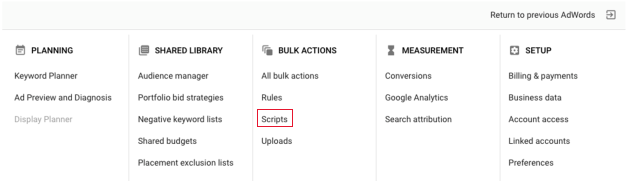
5. **［スクリプト］**
   をクリックします（［一括操作］の下）。

   <Frame>
     <img alt="AWBQ_2.png" src="https://mintcdn.com/domoinc-openapi-sync-dataflows/blcgkVgnZv6gj_XY/images/kb/ka05w00000123Ij-00N5w00000Ri7BU-0EM5w000005vO3E.png?fit=max&auto=format&n=blcgkVgnZv6gj_XY&q=85&s=fb152568f629f6aa618df1c8a084b5fc" width="626" height="181" data-path="images/kb/ka05w00000123Ij-00N5w00000Ri7BU-0EM5w000005vO3E.png" />
   </Frame>

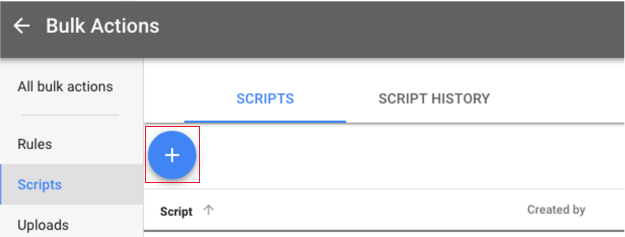
6. プラスボタンをクリックして新しいスクリプトを作成します。

   <Frame>
     <img alt="AWBQ_3.png" src="https://mintcdn.com/domoinc-openapi-sync-dataflows/blcgkVgnZv6gj_XY/images/kb/ka05w00000123Ij-00N5w00000Ri7BU-0EM5w000005vO3C.png?fit=max&auto=format&n=blcgkVgnZv6gj_XY&q=85&s=488c5fb8c212a319227bb339e3b9da37" width="625" height="237" data-path="images/kb/ka05w00000123Ij-00N5w00000Ri7BU-0EM5w000005vO3C.png" />
   </Frame>

7. スクリプトの名前を設定し、
   **［承認］** をクリックします。

   <Frame>
     <img alt="AWBQ_4.png" src="https://mintcdn.com/domoinc-openapi-sync-dataflows/blcgkVgnZv6gj_XY/images/kb/ka05w00000123Ij-00N5w00000Ri7BU-0EM5w000005vO3B.png?fit=max&auto=format&n=blcgkVgnZv6gj_XY&q=85&s=a1a9b20b34eff1a6dd955fa1dbf03536" width="800" height="101" data-path="images/kb/ka05w00000123Ij-00N5w00000Ri7BU-0EM5w000005vO3B.png" />
   </Frame>

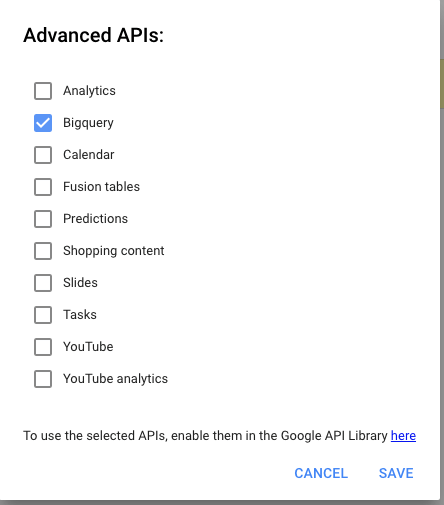
8. **［上級API］**
   を選択します。

9. **［Bigquery］**
   ボックスにチェックを入れます。

   <Frame>
     <img alt="AWBQ_5.png" src="https://mintcdn.com/domoinc-openapi-sync-dataflows/blcgkVgnZv6gj_XY/images/kb/ka05w00000123Ij-00N5w00000Ri7BU-0EM5w000005vO3D.png?fit=max&auto=format&n=blcgkVgnZv6gj_XY&q=85&s=00b6ddc1df782aed657779ab628e9a31" width="444" height="505" data-path="images/kb/ka05w00000123Ij-00N5w00000Ri7BU-0EM5w000005vO3D.png" />
   </Frame>

10. ステップ4でコピーしたスクリプトをテキストボックスに貼り付けます。

11. **［プレビュー］**
    をクリックします。

12. （条件付き）プレビュー後にエラーメッセージが表示された場合は、指示に従ってください。

    例えば、BigQueryを承認または再承認するために別のリンクをクリックするように求められる場合があります。

13. 正しく構成できたら、
    **［実行］** をクリックします。

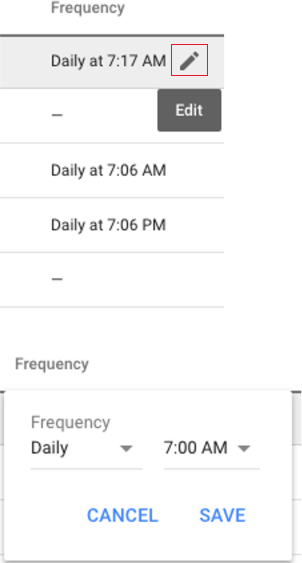
    Google Adsのメインページに戻り、スクリプトの実行頻度を設定するように求められます。

14. ［頻度］の下にある鉛筆アイコンをクリックして、スクリプトのスケジュールを設定します。

    <Frame>
      <img alt="AWBQ_6.png" src="https://mintcdn.com/domoinc-openapi-sync-dataflows/blcgkVgnZv6gj_XY/images/kb/ka05w00000123Ij-00N5w00000Ri7BU-0EM5w000005vO3A.png?fit=max&auto=format&n=blcgkVgnZv6gj_XY&q=85&s=6c0d40291fbeb0d074fa161b8412a6cd" width="302" height="563" data-path="images/kb/ka05w00000123Ij-00N5w00000Ri7BU-0EM5w000005vO3A.png" />
    </Frame>

15. DomoのGoogle Ads via Google BigQuery Serviceコネクターページに戻り、コネクターの構成を続けます。

### その他のペイン

スケジュール設定、再試行、更新に関するオプションなど、コネクターインターフェースのその他のペインに表示されるオプションについては、「 [データコネクターを使用してDataSetを追加する](/ja/s/article/360042926274) 」を参照してください。

## トラブルシューティング

データが更新されていないようであれば、コネクターを実行する前にGoogle Adsスクリプトを実行してください。実行しないと、同じデータが再度取得されます。