> ## Documentation Index
> Fetch the complete documentation index at: https://domoinc-openapi-sync-dataflows.mintlify.site/llms.txt
> Use this file to discover all available pages before exploring further.

# カスタマーポータルで新規リストを作成する

Domoカスタマーポータルでは、異なる基準に基づいてケースリストを作成できます。これは、Domoインスタンス内のケースのリスト全体ではなく、自身のインスタンスのみの表示を希望する管理者レベルのユーザーにとって特に便利です。このウォークスルーでその手順を確認しましょう。

**カスタマーポータルでリストを作成するには、**

1. [support.domo.com](http://support.domo.com) 経由でカスタマーポータルにアクセスします。
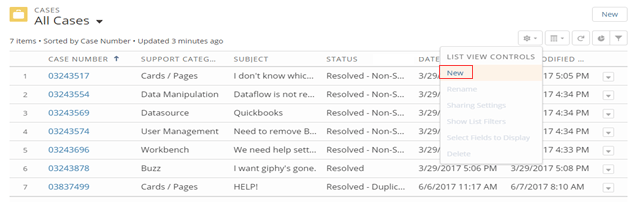
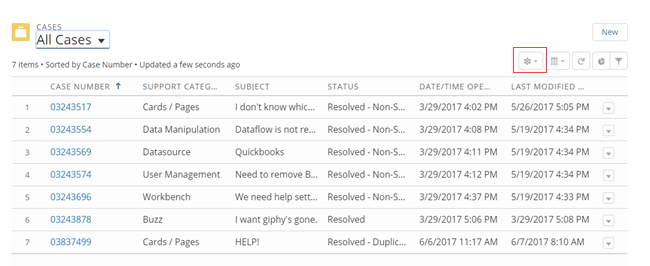
2. ポータルで、右上隅のボタンバーにある歯車アイコンをクリックします。
   <Frame>
     <img alt="customer_portal_list_1.png" src="https://mintcdn.com/domoinc-openapi-sync-dataflows/PXbqzJKMKWWuwcKY/images/kb/ka05w00000123bR-00N5w00000Ri7BU-0EM5w000005vOdl.png?fit=max&auto=format&n=PXbqzJKMKWWuwcKY&q=85&s=f0e86c0dabe4cca99db531b5da8744e6" width="650" height="266" data-path="images/kb/ka05w00000123bR-00N5w00000Ri7BU-0EM5w000005vOdl.png" />
   </Frame>
3. ギアメニューで **［新規］** を選択します。

   <Frame>
     <img alt="customer_portal_list_2.png" src="https://mintcdn.com/domoinc-openapi-sync-dataflows/PXbqzJKMKWWuwcKY/images/kb/ka05w00000123bR-00N5w00000Ri7BU-0EM5w000005vOdi.png?fit=max&auto=format&n=PXbqzJKMKWWuwcKY&q=85&s=18a6713c2e030467b5ff478fd926daaa" width="641" height="202" data-path="images/kb/ka05w00000123bR-00N5w00000Ri7BU-0EM5w000005vOdi.png" />
   </Frame>
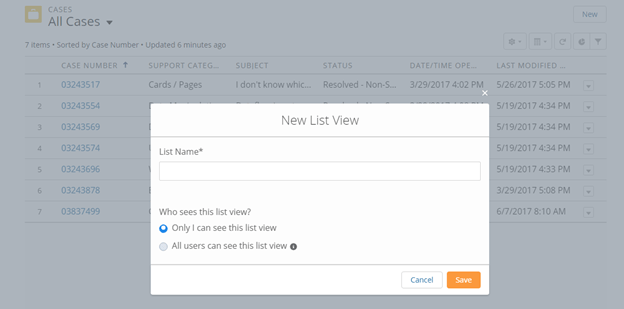
4. 新規リスト名を入力します。
5. **私だけがこのリストビューを見ることができる** というデフォルト設定のままにしておきます。
6. **［保存］** をクリックします。

   <Frame>
     <img alt="customer_portal_list_3.png" src="https://mintcdn.com/domoinc-openapi-sync-dataflows/PXbqzJKMKWWuwcKY/images/kb/ka05w00000123bR-00N5w00000Ri7BU-0EM5w000005vOdp.png?fit=max&auto=format&n=PXbqzJKMKWWuwcKY&q=85&s=2367b6bcf4ff504d4ec4514f5891008b" style={{width: 624, height: 309}} width="624" height="309" data-path="images/kb/ka05w00000123bR-00N5w00000Ri7BU-0EM5w000005vOdp.png" />
   </Frame>
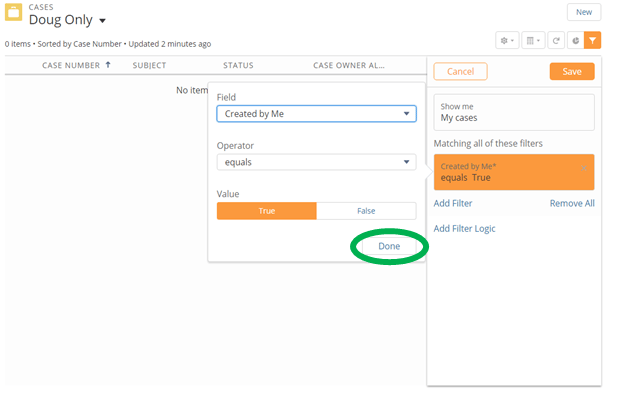
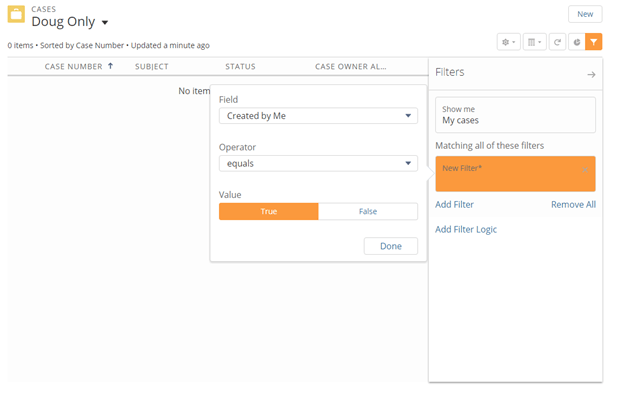
7. 目的のフィルターを追加します。

   この例では、管理者はフィルターを設定して特定のユーザーとして作成したケースのみをユーザーが見ることができるようにしています。
   <Frame>
     <img alt="customer_portal_list_4.png" src="https://mintcdn.com/domoinc-openapi-sync-dataflows/PXbqzJKMKWWuwcKY/images/kb/ka05w00000123bR-00N5w00000Ri7BU-0EM5w000005vOdn.png?fit=max&auto=format&n=PXbqzJKMKWWuwcKY&q=85&s=73fe7b6df1d03116aaf78c818512ca9b" width="624" height="398" data-path="images/kb/ka05w00000123bR-00N5w00000Ri7BU-0EM5w000005vOdn.png" />
   </Frame>
8. **［終了］** をクリックします。

   <Frame>
     <img alt="customer_portal_list_5.png" src="https://mintcdn.com/domoinc-openapi-sync-dataflows/PXbqzJKMKWWuwcKY/images/kb/ka05w00000123bR-00N5w00000Ri7BU-0EM5w000005vOdr.png?fit=max&auto=format&n=PXbqzJKMKWWuwcKY&q=85&s=7e5b0273b7aff247e099ce127accc060" width="624" height="402" data-path="images/kb/ka05w00000123bR-00N5w00000Ri7BU-0EM5w000005vOdr.png" />
   </Frame>
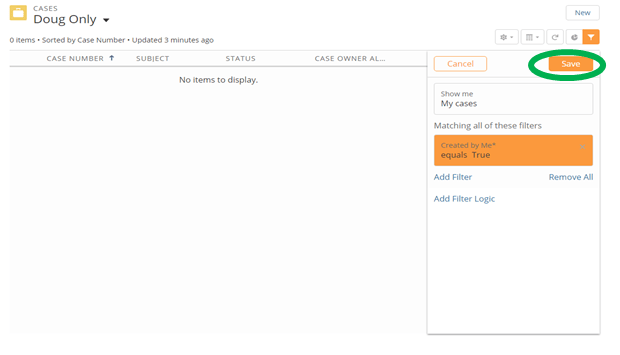
9. **［保存］** をクリックします。

   <Frame>
     <img alt="customer_portal_list_6.png" src="https://mintcdn.com/domoinc-openapi-sync-dataflows/PXbqzJKMKWWuwcKY/images/kb/ka05w00000123bR-00N5w00000Ri7BU-0EM5w000005vOdg.png?fit=max&auto=format&n=PXbqzJKMKWWuwcKY&q=85&s=60e1a654ec8d49b1e8468b5d31b00a8b" width="620" height="355" data-path="images/kb/ka05w00000123bR-00N5w00000Ri7BU-0EM5w000005vOdg.png" />
   </Frame>

新しいリストが作成されました。

サポートポータルの詳細については、 [ヘルプとサポート](/s/article/360042922874 "ヘルプとサポート") を参照してください。

日本語