> ## Documentation Index
> Fetch the complete documentation index at: https://domoinc-openapi-sync-dataflows.mintlify.site/llms.txt
> Use this file to discover all available pages before exploring further.
# AppStoreリスティングのサブスクリプションを管理する
export const InlineImage = ({src, alt = '', height = '1.6em'}) => {
return  ;
};
## はじめに
AppStoreでは、リスティングを月払いでサブスクライブすることができます。リスティングの購入後は、社内のDomoインスタンス内の誰もが、何度でもサブスクリプションの利用やインストールができます。また、サブスクリプションはいつでも解約できます。
この記事では、AppStoreリスティングのサブスクリプションを作成および管理する方法について、以下のトピックで説明します。
* [リスティングをサブスクライブする](#Subscribe)
* [サブスクリプションを確認する](#View)
* [サブスクリプションを解約する](#Cancel)
* [サブスクリプションを更新する](#Renew)
## リスティングをサブスクライブする
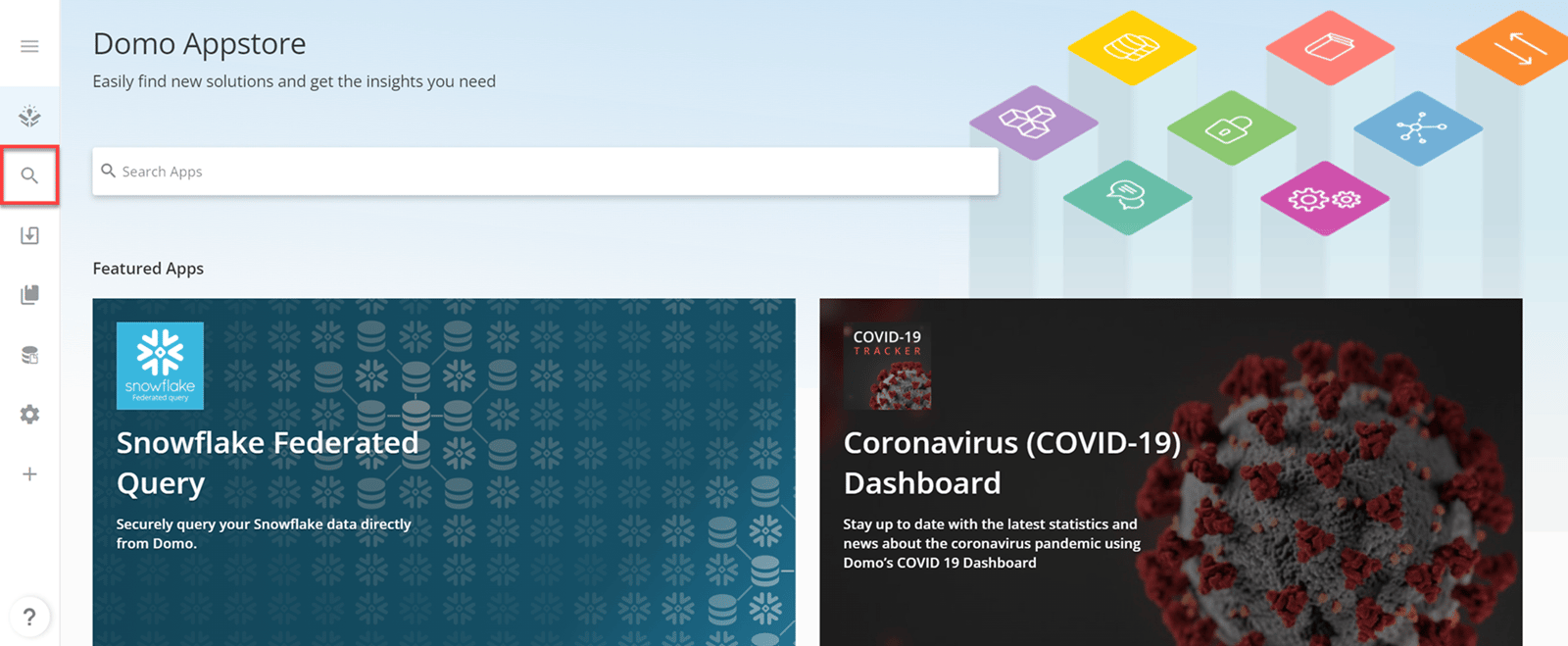
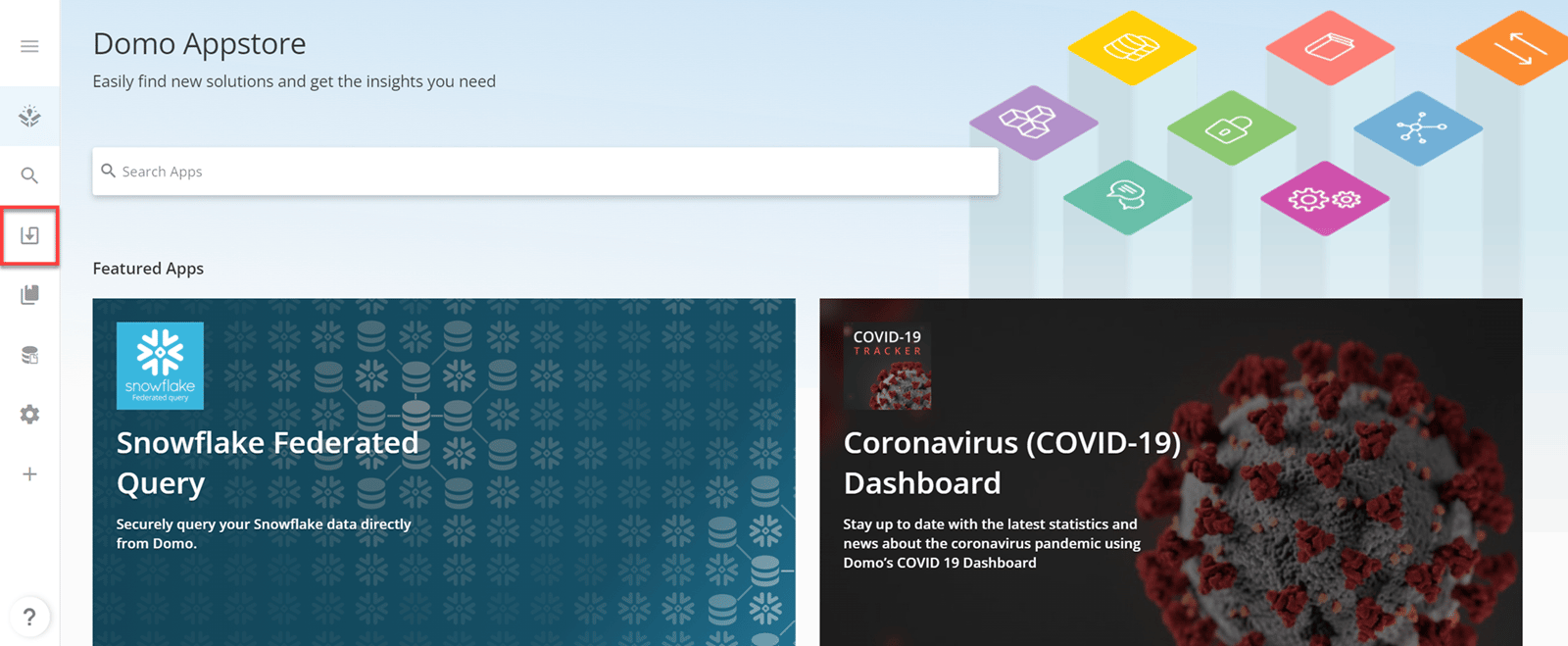
1. ナビゲーションヘッダーで **[AppStore]** を選択します。
2. AppStoreのサイドパネルで
**[Search]** を選択します。
**[Search Apps]** ページが開きます。
;
};
## はじめに
AppStoreでは、リスティングを月払いでサブスクライブすることができます。リスティングの購入後は、社内のDomoインスタンス内の誰もが、何度でもサブスクリプションの利用やインストールができます。また、サブスクリプションはいつでも解約できます。
この記事では、AppStoreリスティングのサブスクリプションを作成および管理する方法について、以下のトピックで説明します。
* [リスティングをサブスクライブする](#Subscribe)
* [サブスクリプションを確認する](#View)
* [サブスクリプションを解約する](#Cancel)
* [サブスクリプションを更新する](#Renew)
## リスティングをサブスクライブする
1. ナビゲーションヘッダーで **[AppStore]** を選択します。
2. AppStoreのサイドパネルで
**[Search]** を選択します。
**[Search Apps]** ページが開きます。
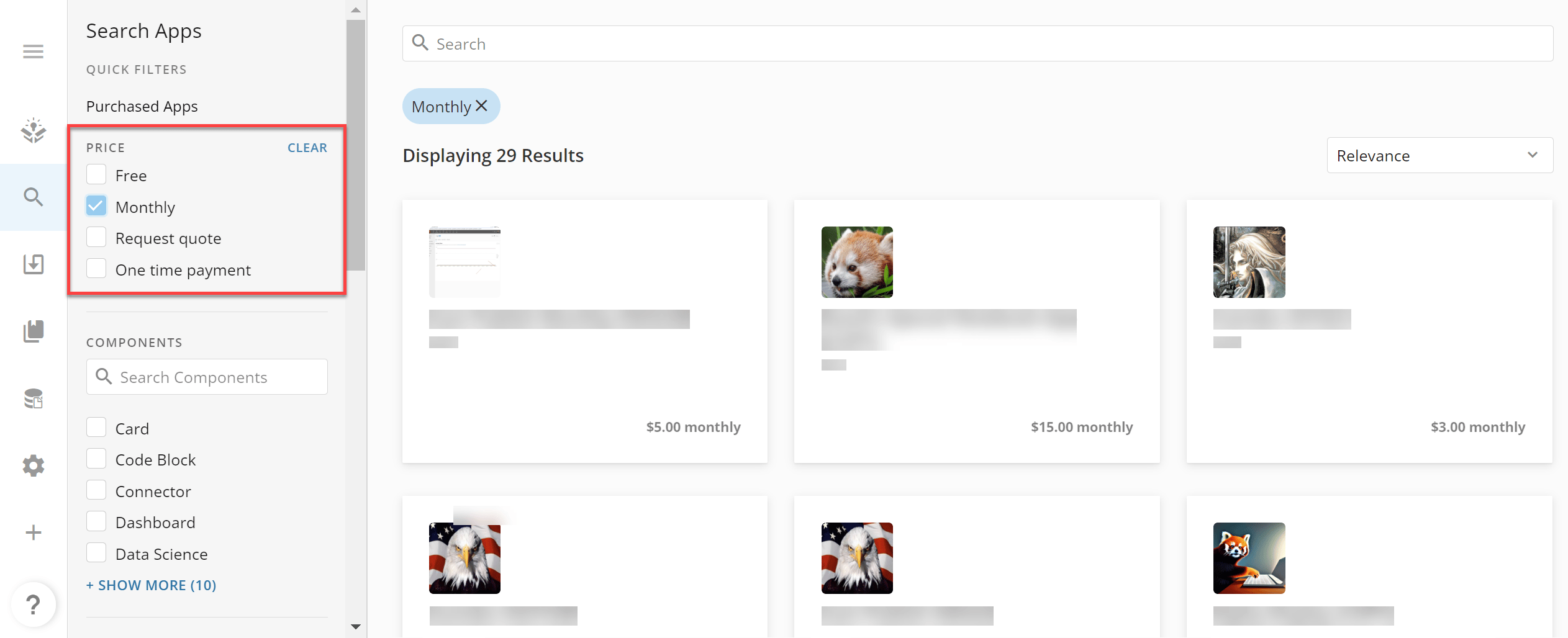
 3. **[Price]** クイックフィルターで、 **[Monthly]** チェックボックスを選択します 。 コンポーネント、カテゴリー、パブリッシャー名、データソース別にリスティングをソートできる追加のクイックフィルターがあります。
月払いを必要とし、かつそれ以外のクイックフィルターに一致するすべてのリスティングが表示されます。
3. **[Price]** クイックフィルターで、 **[Monthly]** チェックボックスを選択します 。 コンポーネント、カテゴリー、パブリッシャー名、データソース別にリスティングをソートできる追加のクイックフィルターがあります。
月払いを必要とし、かつそれ以外のクイックフィルターに一致するすべてのリスティングが表示されます。
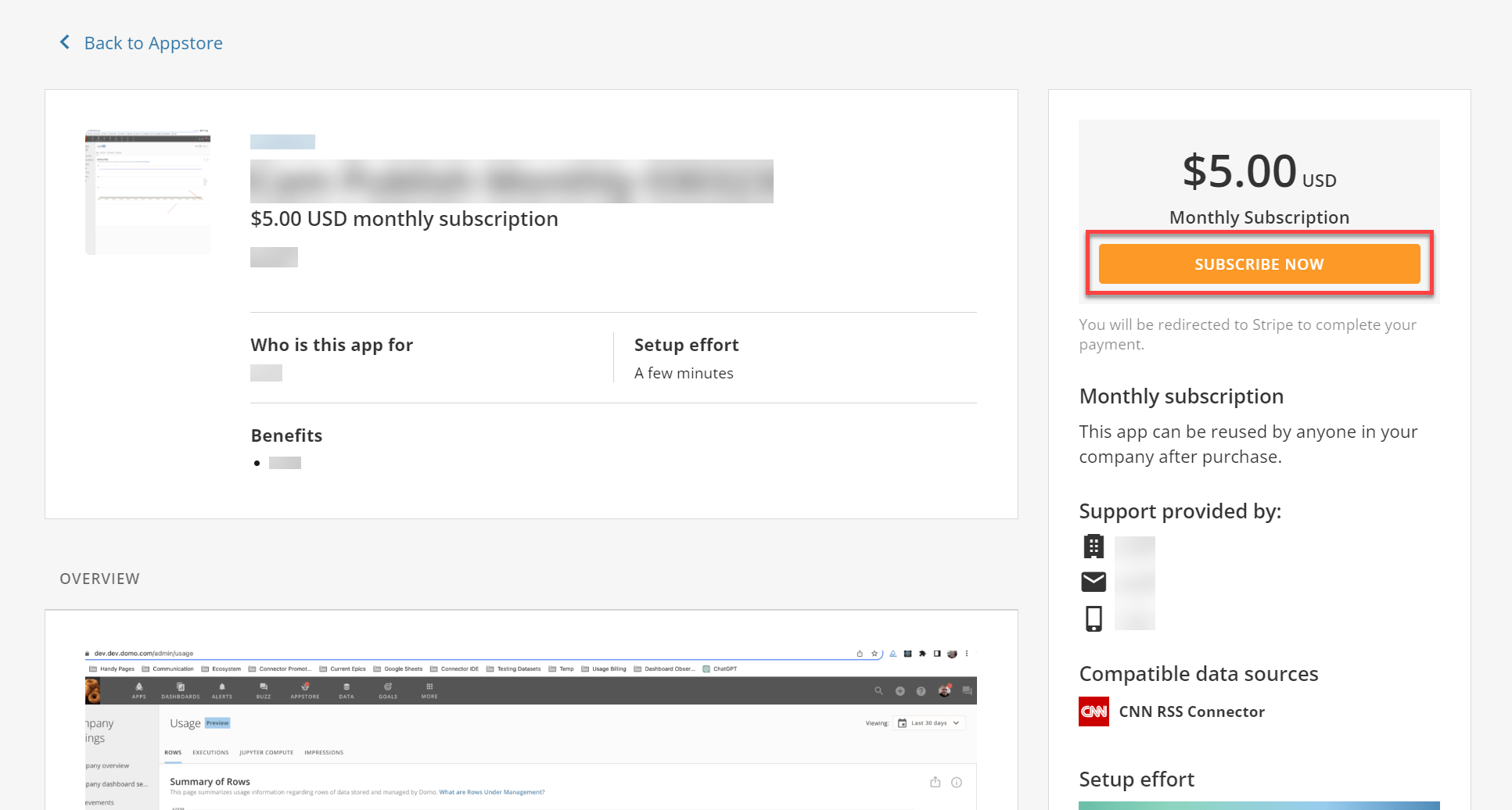
 4. 検索結果をスクロールするか、検索バーを使って購読したい月払いのリスティングを検索して選択します。
リスティングを選択すると、その詳細ページが開きます。
5. リスティングの詳細を確認し、 **[Subscribe Now]** を選択します。
Stripeにリダイレクトされ、初回の支払いを完了させます。
4. 検索結果をスクロールするか、検索バーを使って購読したい月払いのリスティングを検索して選択します。
リスティングを選択すると、その詳細ページが開きます。
5. リスティングの詳細を確認し、 **[Subscribe Now]** を選択します。
Stripeにリダイレクトされ、初回の支払いを完了させます。
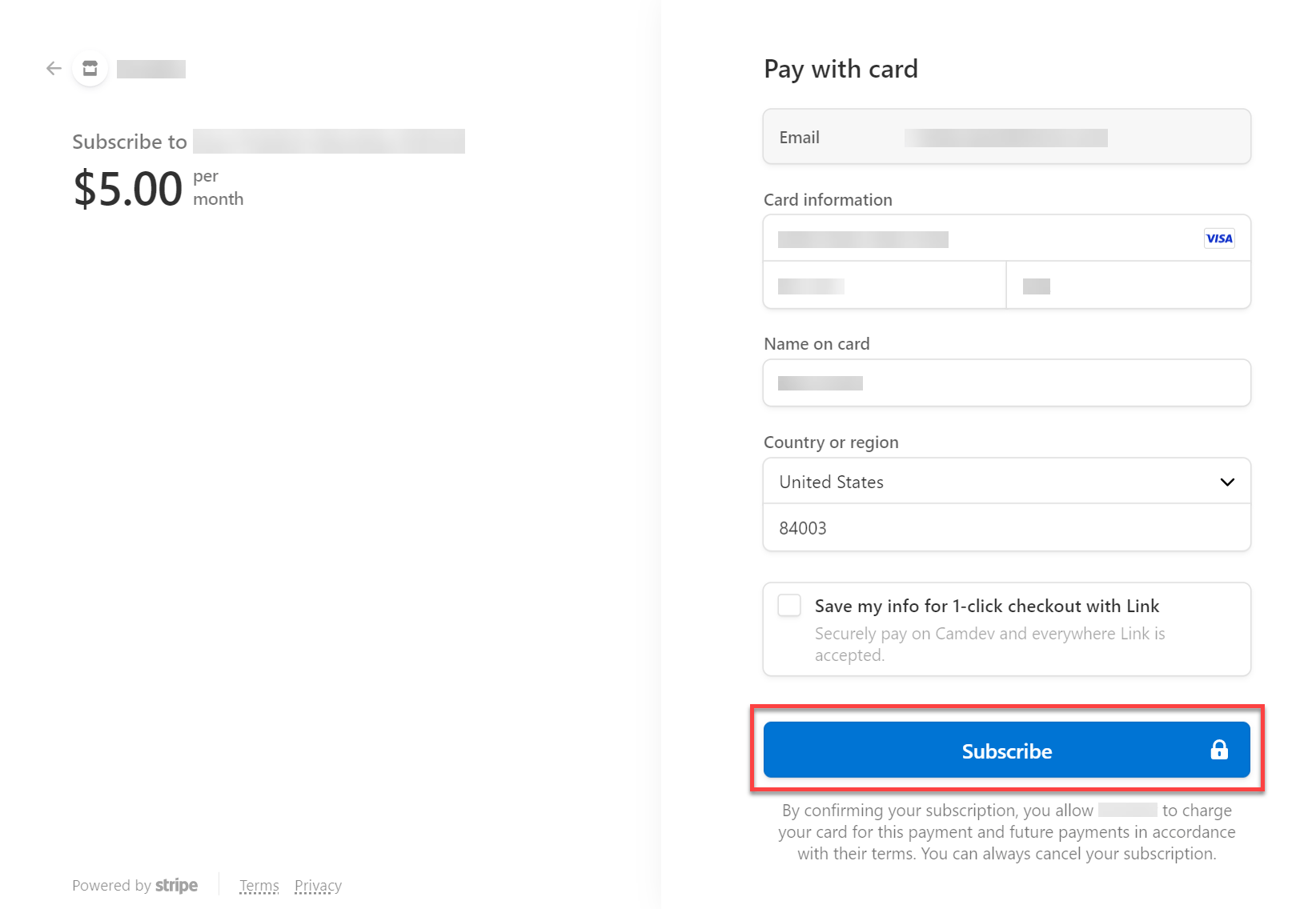
 6. Stripeの支払いページで **[Card information]** 、 **[Name on card]** 、 **[Country or region]** フィールドに入力します。これらのフィールドは、 **[Subscribe]** ボタンを有効にするのに必要です。
**注記:** **[Email]** フィールドには、Domoアカウントに関連付けられているメールアドレスが自動的に入力されます。
7. **[Subscribe]** を選択すると、初回の購読料がクレジットカードに請求されます。
6. Stripeの支払いページで **[Card information]** 、 **[Name on card]** 、 **[Country or region]** フィールドに入力します。これらのフィールドは、 **[Subscribe]** ボタンを有効にするのに必要です。
**注記:** **[Email]** フィールドには、Domoアカウントに関連付けられているメールアドレスが自動的に入力されます。
7. **[Subscribe]** を選択すると、初回の購読料がクレジットカードに請求されます。
 決済が成功すると、Domoの **[Creating App]** モーダルにリダイレクトされます。 **[Notify Me]** を選択すると、リスティングが使用可能になった際に通知されます。
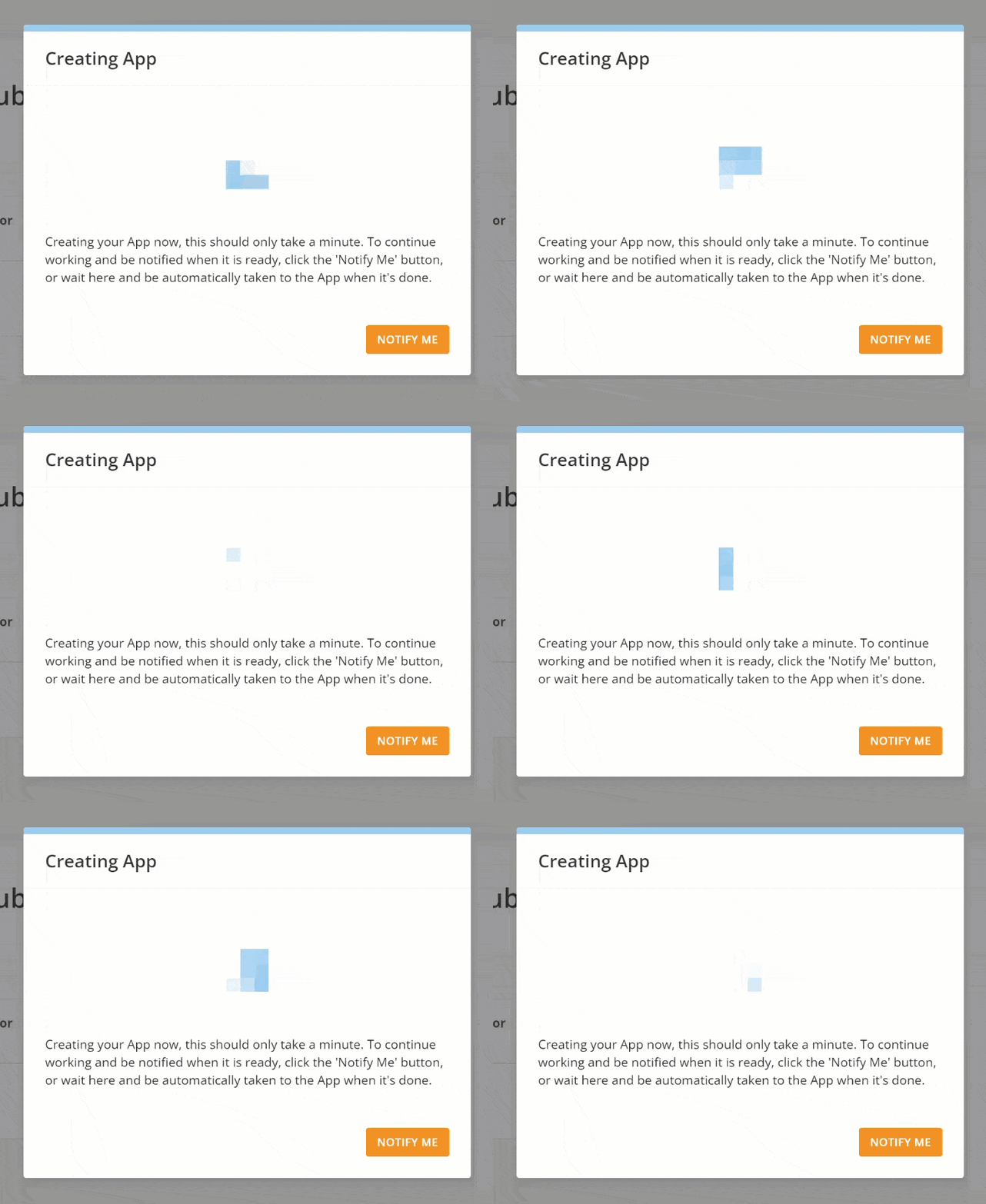 Domoにリストが作成されると、新たにサブスクライブしたリスティングが新しいページで開きます。
[このページのトップへ](#Top)
## サブスクリプションを確認する
サブスクリプションの詳細が記載されたリストを表示するには、以下の手順に従います。
1. ナビゲーションヘッダーで **[AppStore]** を選択します。
2. AppStoreのサイドパネルで
**[Installed Apps]** を選択します。
**[Installed Apps]** ページが開きます。
Domoにリストが作成されると、新たにサブスクライブしたリスティングが新しいページで開きます。
[このページのトップへ](#Top)
## サブスクリプションを確認する
サブスクリプションの詳細が記載されたリストを表示するには、以下の手順に従います。
1. ナビゲーションヘッダーで **[AppStore]** を選択します。
2. AppStoreのサイドパネルで
**[Installed Apps]** を選択します。
**[Installed Apps]** ページが開きます。
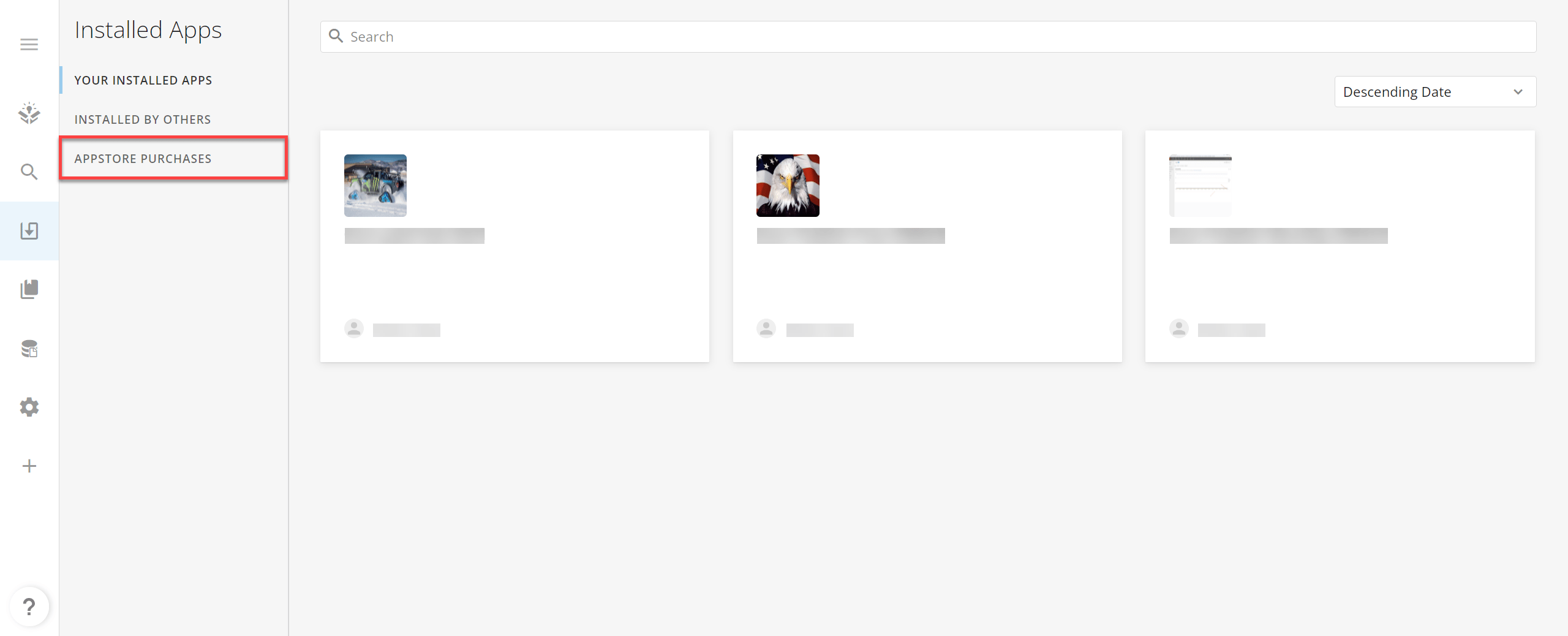
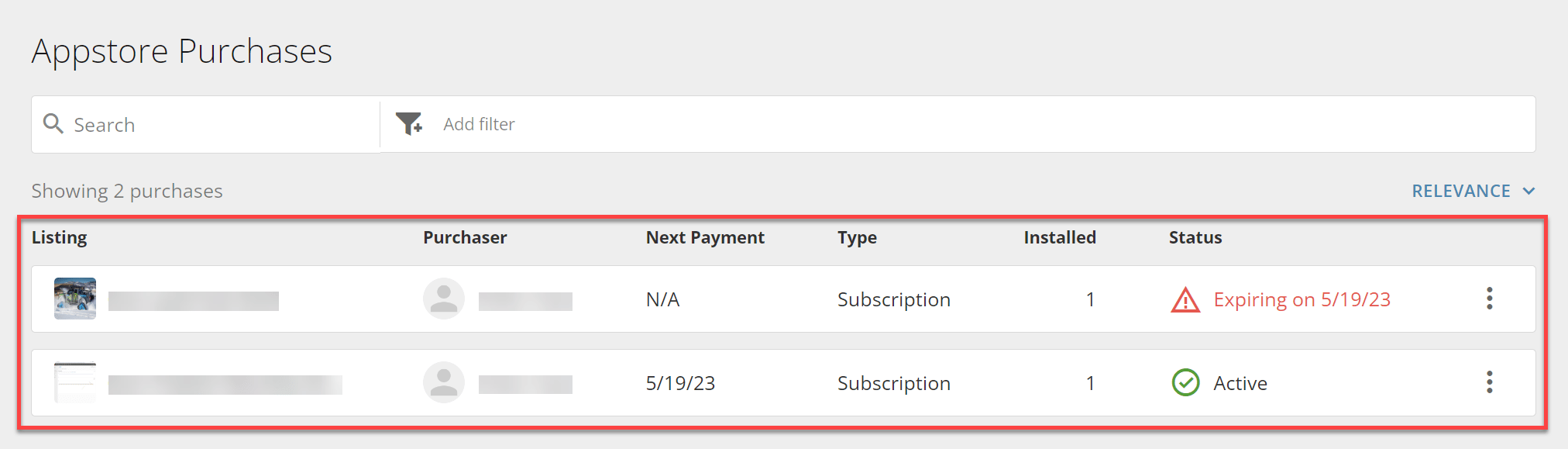
 3. **[AppStore Purchases]** を選択すると、自分や自社のユーザーが購入したすべてのリスティングが表示されます。
 4. 検索バーで、
**[Add filter]** > **[Purchased by]** > ***[Your Name]*** を選択し、 **[Purchase type]** > **[Subscription]** を繰り返します。
4. 検索バーで、
**[Add filter]** > **[Purchased by]** > ***[Your Name]*** を選択し、 **[Purchase type]** > **[Subscription]** を繰り返します。
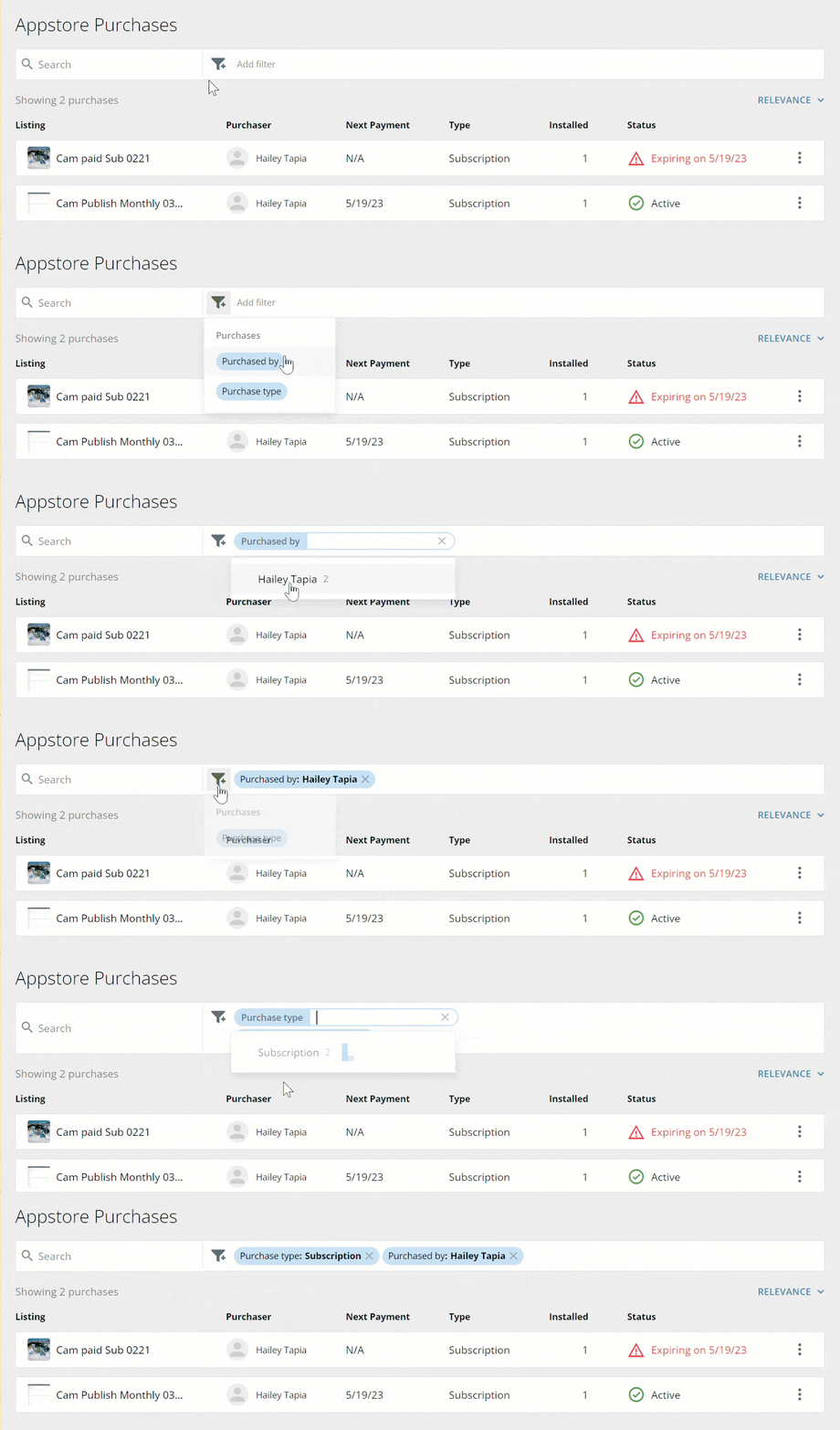 自分のサブスクリプションが以下の詳細項目とともにリストに表示されます。
* **Listing** :リスティングの名称。リスティングを選択すると、その詳細ページが表示されます。
* **Purchaser** :サブスクリプションを購入したユーザー(この場合、ご自身のみです)。社内のほかのユーザーが購入したサブスクリプションを表示するには、 **[Purchased by]** リストで別のユーザーを選択します。
* **Next Payment** :月額購読料の次回の支払い期限。サブスクリプションを解約した場合、 **[N/A]** が表示されます。
* **Type** :リスティングのタイプ。この場合は **[Subscription]** のみです。
* **Installed** :リスティングが自社のインスタンスにインストールされた回数。
* **Status** :サブスクリプションのステータス。次のいずれかです。
* **Active** :サブスクリプションが有効です。
* **Canceled** :手動で解約されたか、更新期限を過ぎているサブスクリプションです。
* **Expiring on *Date*** :指定された日にサブスクリプションが解約され、期限切れとなるように設定されています。
* **Payment required** :現在のサブスクリプション期間の支払いが完了していません。
自分のサブスクリプションが以下の詳細項目とともにリストに表示されます。
* **Listing** :リスティングの名称。リスティングを選択すると、その詳細ページが表示されます。
* **Purchaser** :サブスクリプションを購入したユーザー(この場合、ご自身のみです)。社内のほかのユーザーが購入したサブスクリプションを表示するには、 **[Purchased by]** リストで別のユーザーを選択します。
* **Next Payment** :月額購読料の次回の支払い期限。サブスクリプションを解約した場合、 **[N/A]** が表示されます。
* **Type** :リスティングのタイプ。この場合は **[Subscription]** のみです。
* **Installed** :リスティングが自社のインスタンスにインストールされた回数。
* **Status** :サブスクリプションのステータス。次のいずれかです。
* **Active** :サブスクリプションが有効です。
* **Canceled** :手動で解約されたか、更新期限を過ぎているサブスクリプションです。
* **Expiring on *Date*** :指定された日にサブスクリプションが解約され、期限切れとなるように設定されています。
* **Payment required** :現在のサブスクリプション期間の支払いが完了していません。
 リスト内の各サブスクリプションの右側には、 アクションメニューがあります。このメニューを選択すると、以下のオプションが表示されます。
* **View listing** :リスティングの詳細ページが開きます。
* **Manage listing** :Stripeのサブスクリプションの管理や、サブスクリプションの解約ができます。
* **View transactions** :サブスクリプションのトランザクション履歴を含むページが開きます。
* **Cancel subscription** :リスティングの詳細ページから、 [サブスクリプションを解約](#Cancel) する際に表示されるのと同じモーダルウィンドウが開きます。
[このページのトップへ](#Top)
## サブスクリプションを解約する
**重要:** サブスクリプションが解約されたAppを復元する方法はありません。会社のインスタンスからAppを永久に削除したい場合を除き、この操作を続行しないでください。
1. ナビゲーションヘッダーで **[AppStore]** を選択します。
2. **[Search Apps]** ページの [検索バー](#Search) で、サブスクリプションを解約したいリスティングを探します。
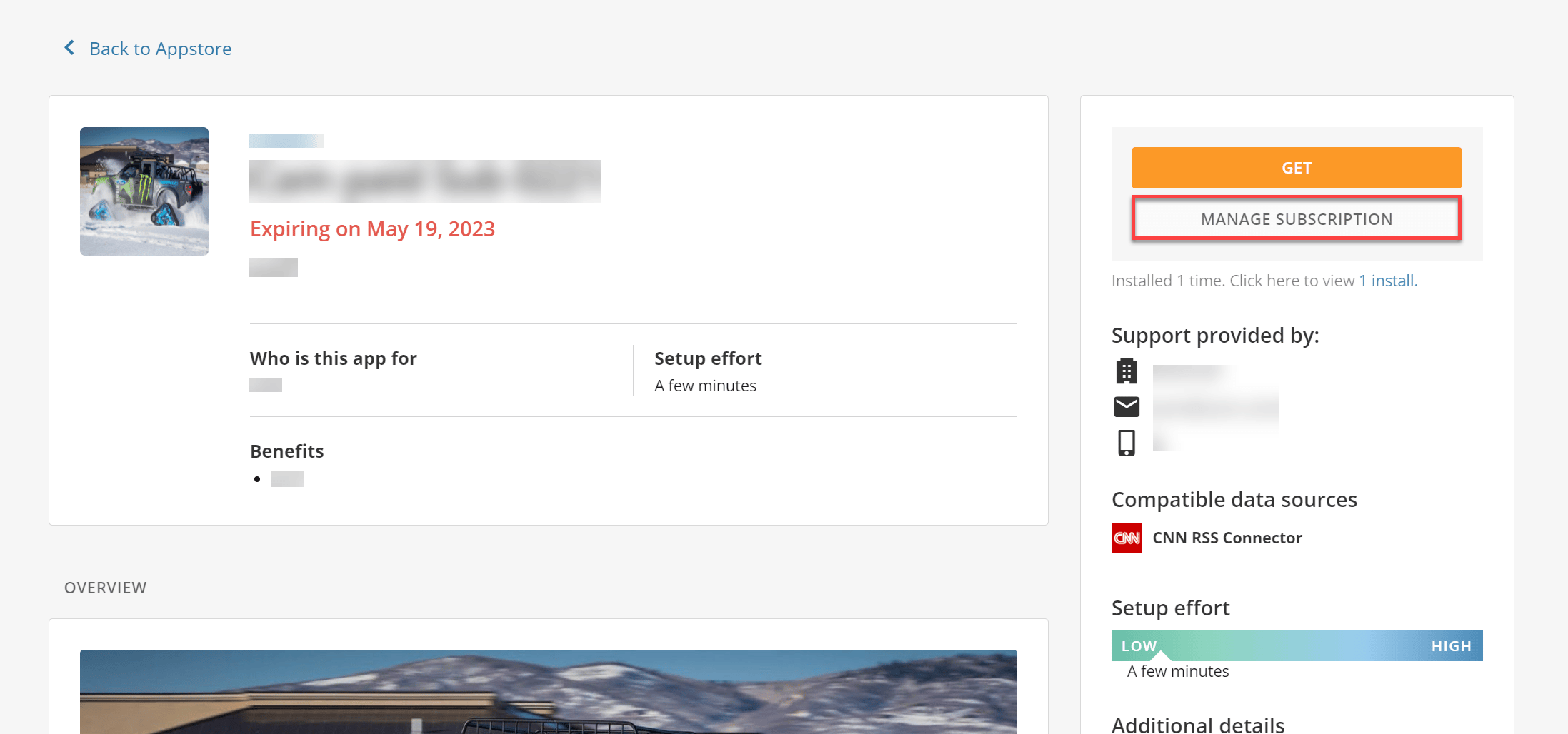
3. **[Manage]** > **[Cancel Subscription]** を選択します。
リスト内の各サブスクリプションの右側には、 アクションメニューがあります。このメニューを選択すると、以下のオプションが表示されます。
* **View listing** :リスティングの詳細ページが開きます。
* **Manage listing** :Stripeのサブスクリプションの管理や、サブスクリプションの解約ができます。
* **View transactions** :サブスクリプションのトランザクション履歴を含むページが開きます。
* **Cancel subscription** :リスティングの詳細ページから、 [サブスクリプションを解約](#Cancel) する際に表示されるのと同じモーダルウィンドウが開きます。
[このページのトップへ](#Top)
## サブスクリプションを解約する
**重要:** サブスクリプションが解約されたAppを復元する方法はありません。会社のインスタンスからAppを永久に削除したい場合を除き、この操作を続行しないでください。
1. ナビゲーションヘッダーで **[AppStore]** を選択します。
2. **[Search Apps]** ページの [検索バー](#Search) で、サブスクリプションを解約したいリスティングを探します。
3. **[Manage]** > **[Cancel Subscription]** を選択します。
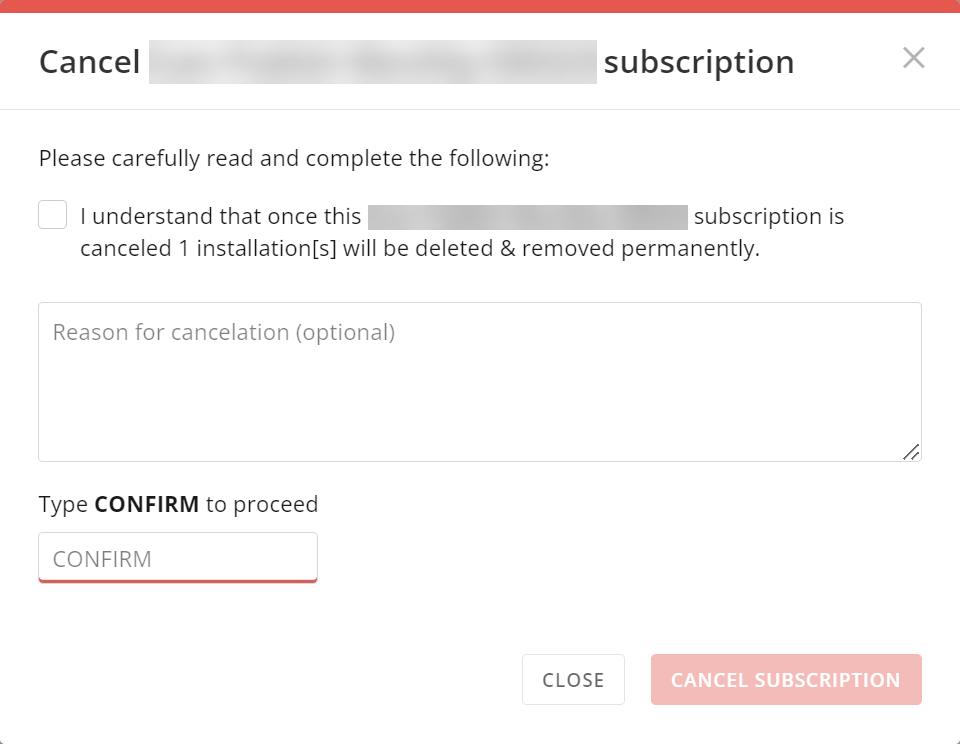
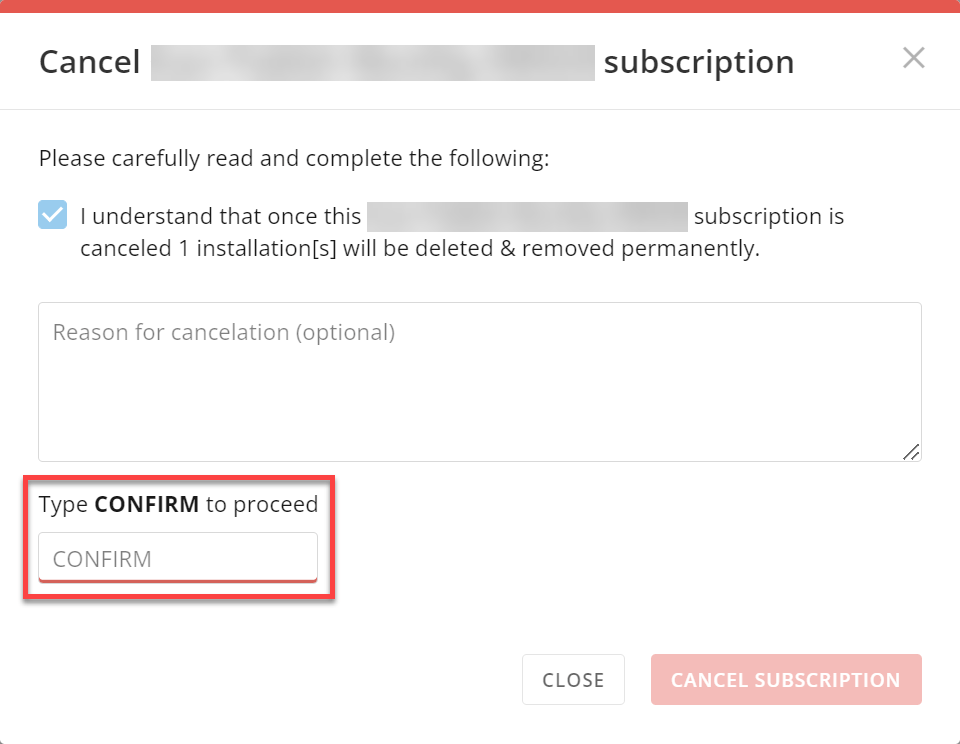
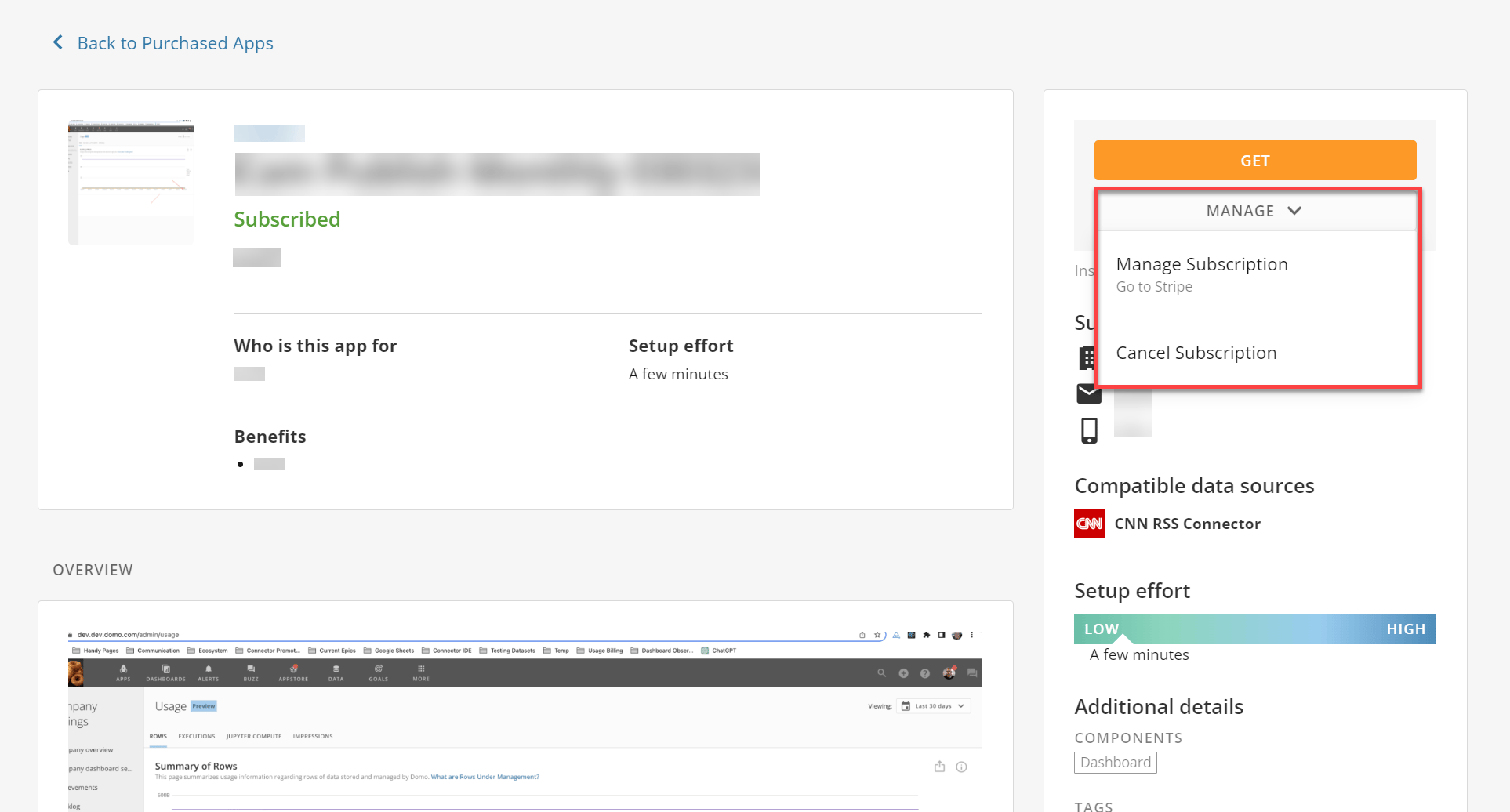 **[Cancel *(リスティング名)* subscription]** モーダルウィンドウが表示されます。
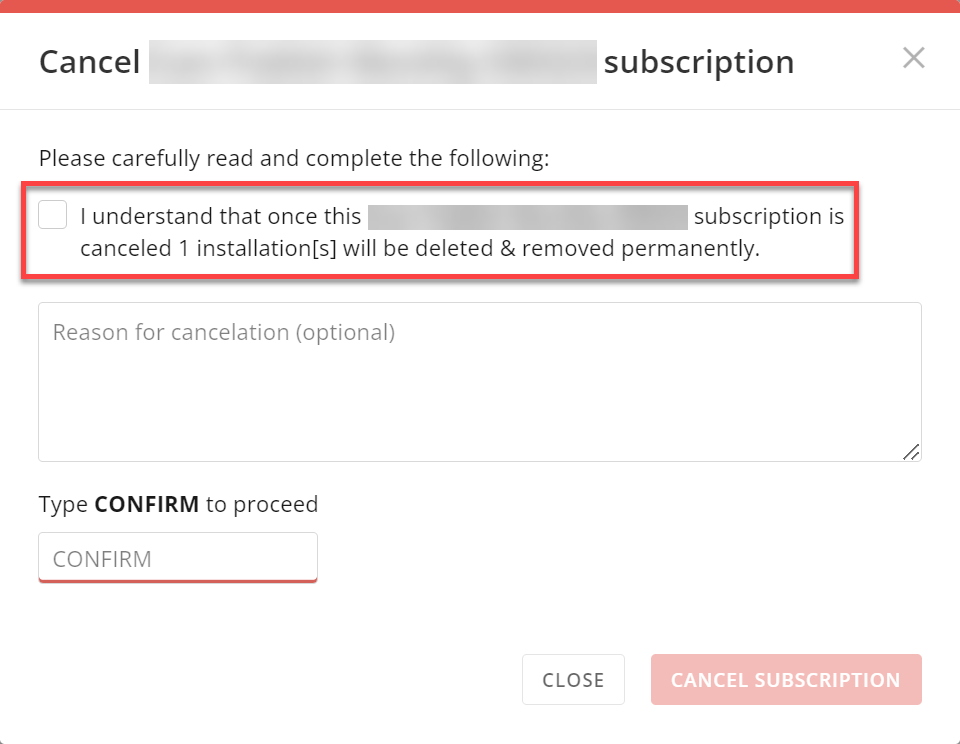
 4. 「I understand that once this *(リスティング名)* subscription is canceled *Number* installation\[s] will be deleted & removed permanently.」のチェックボックスを選択します。これは、 **[Cancel Subscription]** ボタンを有効にするために必要です。
 5. (オプション) **[Reason for cancelation]** フィールドに解約理由を詳しく記入します。
6. 最後のフィールドに、すべて大文字で「CONFIRM」と入力します。これは、 **[Cancel Subscription]** ボタンを有効にするために必要です。
5. (オプション) **[Reason for cancelation]** フィールドに解約理由を詳しく記入します。
6. 最後のフィールドに、すべて大文字で「CONFIRM」と入力します。これは、 **[Cancel Subscription]** ボタンを有効にするために必要です。
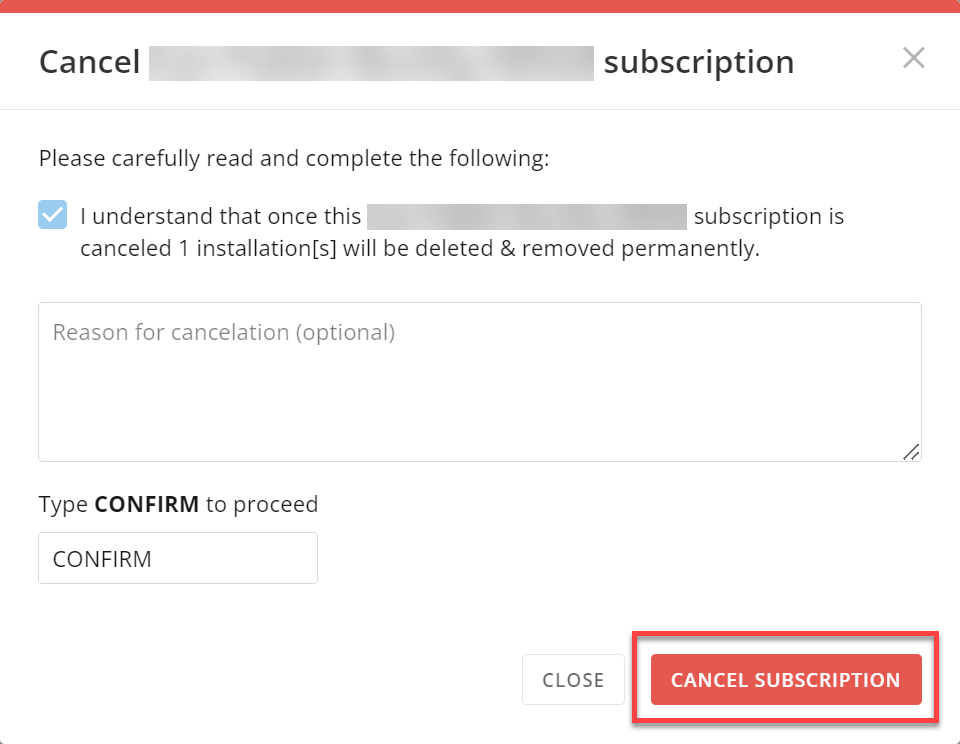
 7. **[Cancel Subscription]** を選択します。
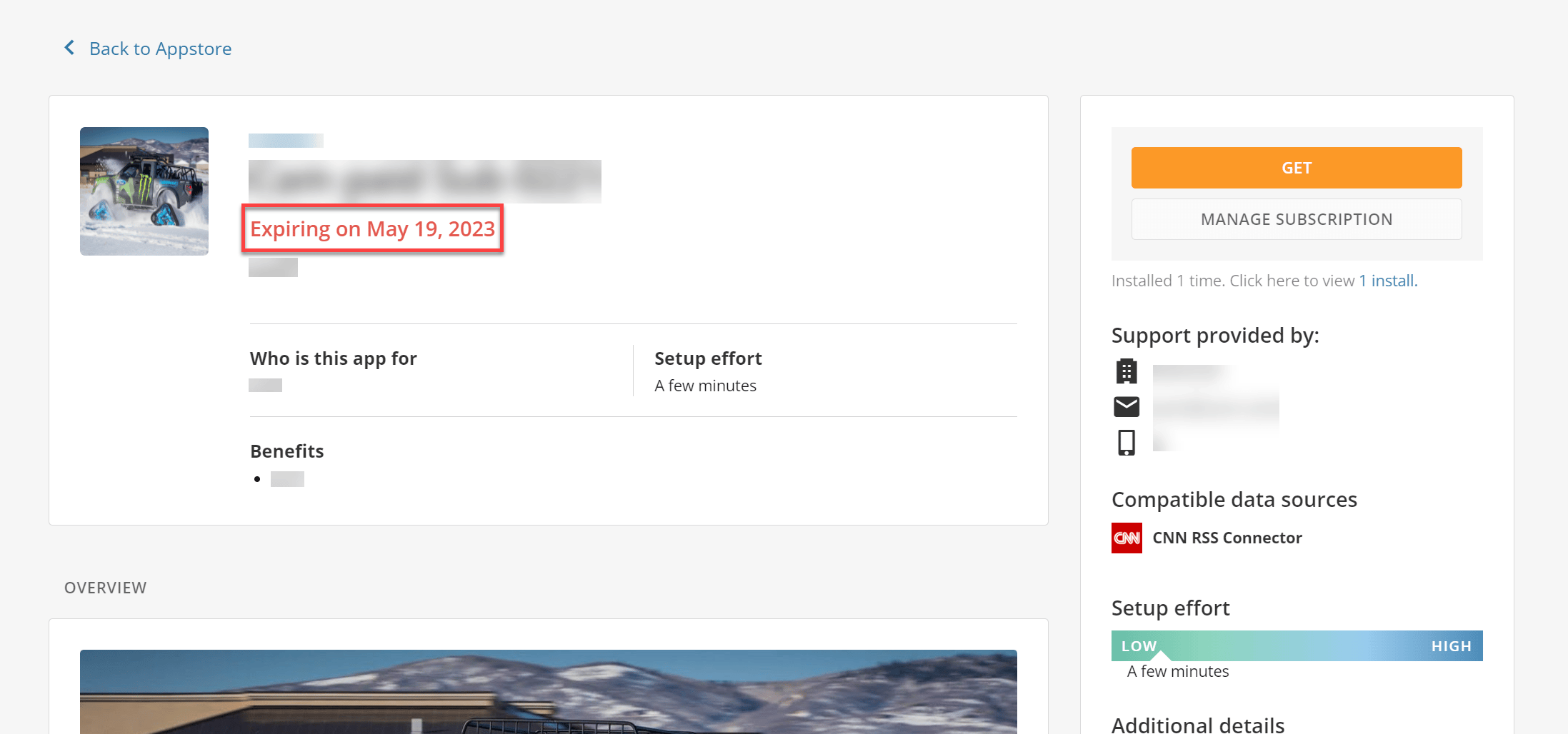
 リスティングのサブスクリプションは解除されましたが、次回の支払予定日まではアクセスできます。このことは、リスティングの詳細ページに赤色のテキストで表示されます。この期日以前であれば、サブスクリプションを更新することができます。その際は、以下の [サブスクリプションを更新](#Renew) する手順を実行します。
 [このページのトップへ](#Top)
## サブスクリプションを更新する
**注記:** サブスクリプションの更新は、解約後30日以内であれば可能です。
1. ナビゲーションヘッダーで **[AppStore]** を選択します。
2. **[Search Apps]** ページの [検索バー](#Search) で、サブスクリプションを解約したいリスティングを探します。
3. **[Manage** **Subscription]** を選択します。
Stripeにリダイレクトされ、そのリスティングの発行元での現在および過去のサブスクリプションが表示されます。
[このページのトップへ](#Top)
## サブスクリプションを更新する
**注記:** サブスクリプションの更新は、解約後30日以内であれば可能です。
1. ナビゲーションヘッダーで **[AppStore]** を選択します。
2. **[Search Apps]** ページの [検索バー](#Search) で、サブスクリプションを解約したいリスティングを探します。
3. **[Manage** **Subscription]** を選択します。
Stripeにリダイレクトされ、そのリスティングの発行元での現在および過去のサブスクリプションが表示されます。
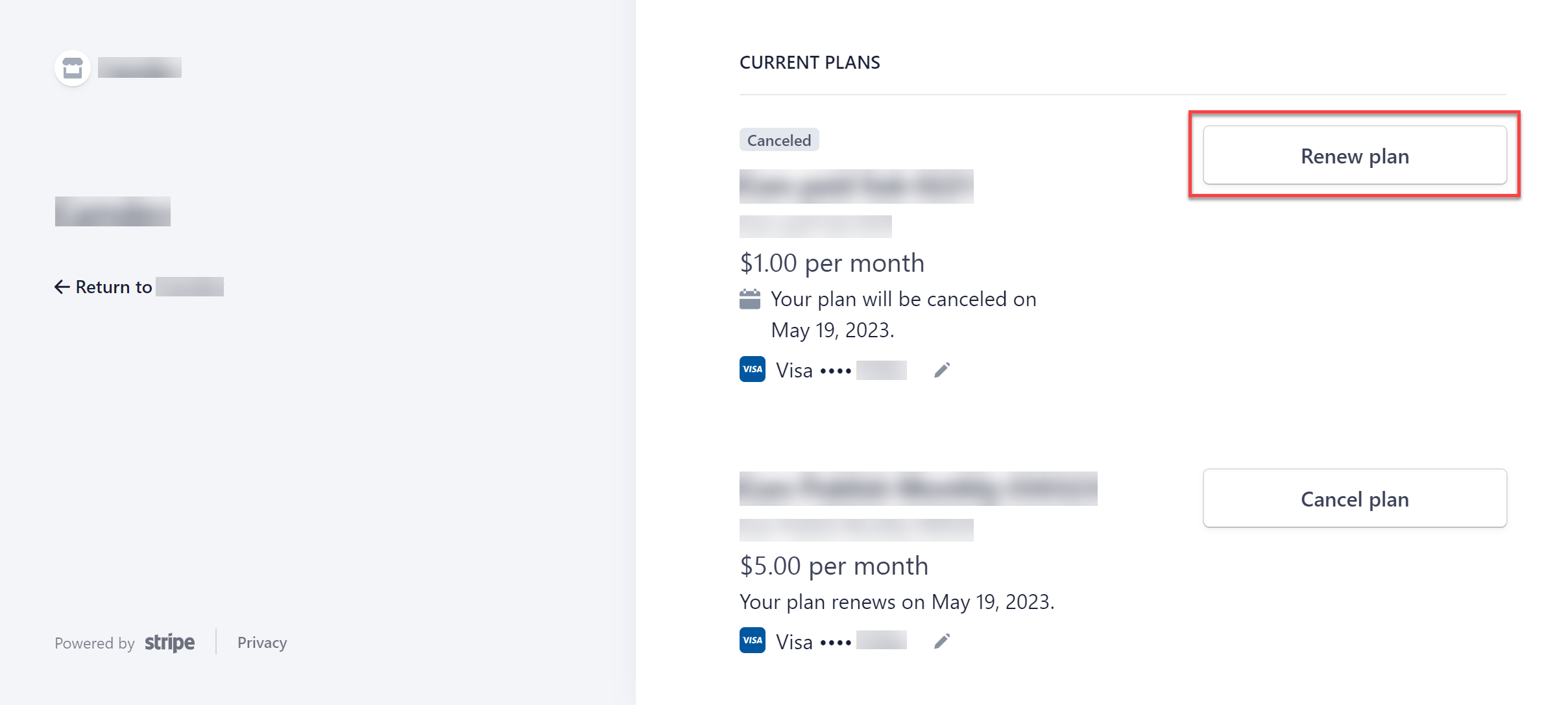
 4. 更新したい項目で、 **[Renew plan]** を選択します。サブスクリプションが解約された項目は、項目名の上に **[Canceled]** タグが表示されます。
**[Renew your plan]** ページが開きます。
**注:** 支払い方法を更新する場合は、サブスクリプションを更新する前に **[Edit ]** を選択します。
4. 更新したい項目で、 **[Renew plan]** を選択します。サブスクリプションが解約された項目は、項目名の上に **[Canceled]** タグが表示されます。
**[Renew your plan]** ページが開きます。
**注:** 支払い方法を更新する場合は、サブスクリプションを更新する前に **[Edit ]** を選択します。
 5. プランの名前、価格、更新日を確認し、更新を続ける場合は **[Renew plan]** を選択し、終了する場合は **[Go back]** を選択します。
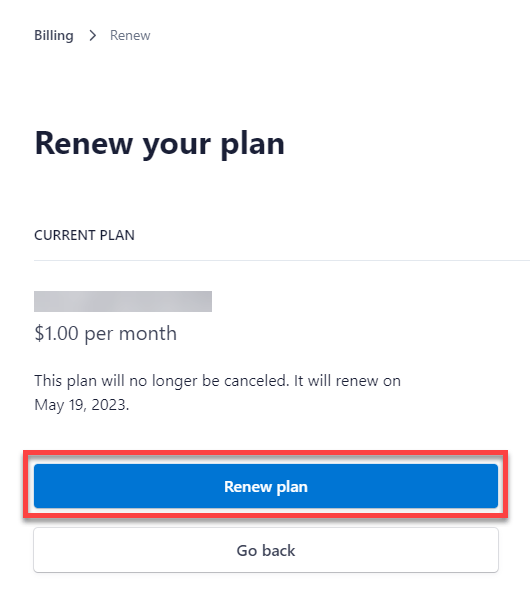 更新が正常に完了すると前のページに戻り、現在のサブスクリプションが表示されます。これ以降、 **[Canceled]** タグは表示されなくなります。
Domoでは、 **[Installed Apps]** > **[Appstore Purchases]** セクションのサブスクリプションのステータスが、 **[Expiring on *Date]*** から **[Active]** に変更されます。サブスクリプションの詳細については、この記事の「 [サブスクリプションを確認する](#View) 」セクションを参照してください。
[このページのトップへ](#Top)
日本語
更新が正常に完了すると前のページに戻り、現在のサブスクリプションが表示されます。これ以降、 **[Canceled]** タグは表示されなくなります。
Domoでは、 **[Installed Apps]** > **[Appstore Purchases]** セクションのサブスクリプションのステータスが、 **[Expiring on *Date]*** から **[Active]** に変更されます。サブスクリプションの詳細については、この記事の「 [サブスクリプションを確認する](#View) 」セクションを参照してください。
[このページのトップへ](#Top)
日本語